

The VM list
Inventory → VM List shows every VM you can see in one table. It comes in two layouts that show the same VMs:
- the standard layout, the default;
- the Large environment layout: denser and built for inventories of 1,000 or more VMs.
Which one you see is a personal setting, unless your administrator has fixed it for everyone (see Switch layouts).
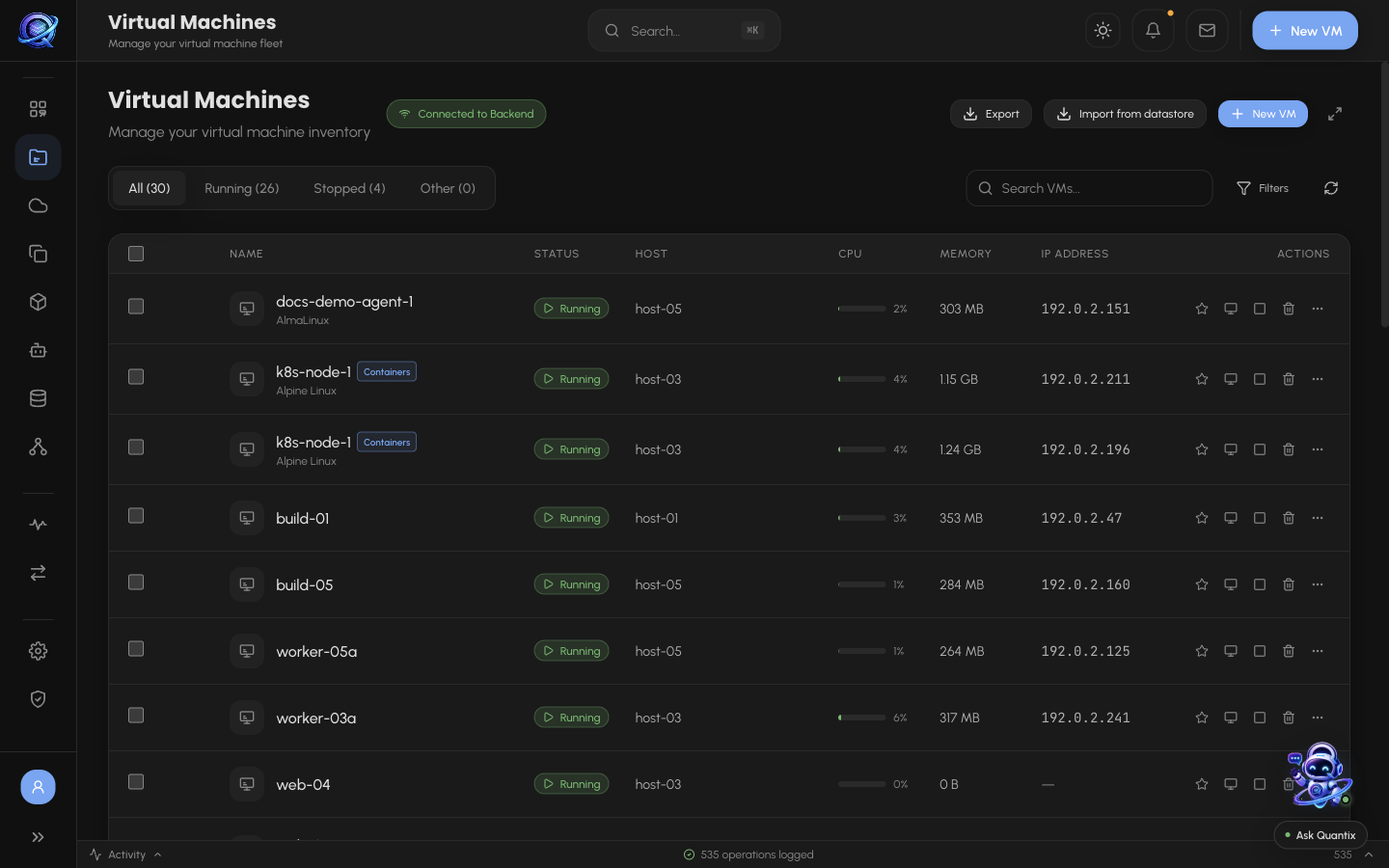
Standard layout
The header shows Virtual Machines with a connection badge (Connected to Backend, or Unreachable when the dashboard cannot reach QvDC) and these buttons:
- Export: downloads the VMs currently listed as a CSV file (name, status, host, CPU %, memory used, IP address, OS).
- Import from datastore: registers a VM whose disks are already on a storage pool, for example one you removed from the inventory earlier. When the VM's folder holds its saved configuration (a
.qcfxfile), the wizard offers to restore it. A user without the Download pool files permission can restore it too, but does not see its contents: the VM gets the CPU and memory recorded in the file, not values set in the wizard. Keeping its default network leaves any NIC that was on an overlay (OVN) network unconnected; pick a network to connect every NIC to it. - New VM: opens the Create a VM wizard.
- The fullscreen button, to give the list the whole window.
Below the header:
- The power tabs All, Running, Stopped and Other, each with a count. They count only your own VMs.
- Quantix-managed, with a count: the VMs Quantix runs itself (see Quantix-managed VMs).
- Search VMs..., which matches the VM name, IP address or guest OS as you type.
- Filters: Power state and Host.
- The refresh button.
The table columns are Name (with the guest OS underneath), Status, Host, CPU, Memory, IP Address and Actions. The row actions are: a star (Add to favourites), Open Console (running VMs), Start or Shut down, Delete, and More (the full VM menu). Right-clicking a row opens the same menu.
Click a VM's name to open its details in a panel beside the list. Escape closes it.
Act on several VMs
Tick the boxes on the left (or the box in the header to select all listed VMs). A bar appears with Start, Shut down, Power off and Delete for the selection.
- Start, Shut down and Power off act only on selected VMs the current filter still shows. Shut down asks each guest to shut down cleanly, with a 30-second grace by default, and returns a progress receipt. The bulk result follows those receipts; an accepted or unknown shutdown is never counted as stopped. A guest that ignores the request stays running. Power off cuts the power at once, after a confirmation that names the VMs. Both skip suspended VMs, and the result counts them as "1 suspended (discard their saved state per VM)" (see Power and console).
- Delete opens Delete VM for one selected VM, and Delete N VMs? for two or more, with Remove from Inventory (keep the disks) selected. In the standard layout it includes selected VMs the filter now hides. Running VMs are powered off first, and Delete from Disk refuses every Unknown VM. See Delete a VM.
Large environment layout
The Large environment layout keeps the same data but fits far more rows on the screen: only the rows you can see are drawn.
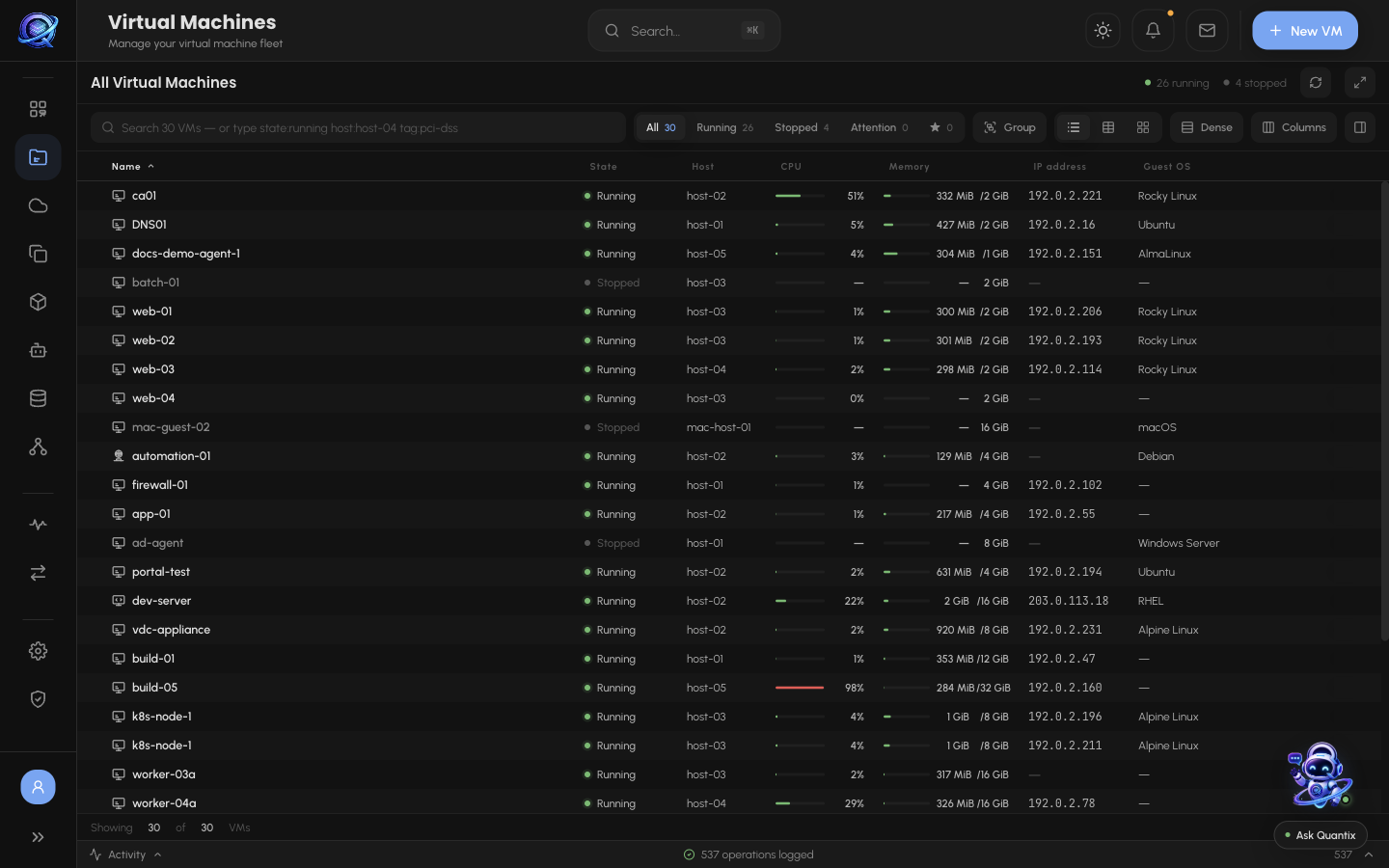
At the top, All Virtual Machines with running and stopped counts, an attention count when some VMs need a look, and the refresh and fullscreen buttons.
The toolbar offers:
- A search box that also takes filters as
key:valuetokens. Type the token and press Space or Enter to turn it into a chip; Backspace in an empty box removes the last chip. The keys arestate,power,host,cluster,os,tag,ip,folderandcpu(a minimum CPU %). For example:state:running host:host-02 tag:web. - Quick filters All, Running, Stopped, Attention, Quantix-managed and ★ (your favourites), each with a count. Quantix-managed shows the VMs Quantix runs itself; the other filters never include them.
- Group: group rows by Folder, Host, Cluster, Power state or Guest OS, or None.
- Three views: compact list, table and grid.
- Row density.
- Columns: choose from State, Host, Cluster, CPU, Memory, IP address, Guest OS, Folder, vCPU, Storage, Uptime, Tags and Alarms; Reset to defaults restores the default set.
- The details pane toggle.
Click a row to show it in the details pane on the right. Each row's menu button opens the same VM menu as the standard layout. Selecting rows shows a bar with Start, Shut down, Power off, Move to folder… and Delete.
The Large environment layout has no New VM, Export or Import from datastore buttons; use New VM in the top bar.
What differs
| Standard | Large environment | |
|---|---|---|
| Built for | Everyday inventories | 1,000 or more VMs |
| Filtering | Power tabs, search, Filters (power state, host) | Search with key:value chips, quick filters including Attention and favourites |
| Grouping | None | By folder, host, cluster, power state or guest OS |
| Columns | Fixed | Choose your own |
| Views | Table | Compact list, table, grid |
| Details | Panel beside the list | Details pane, toggled from the toolbar |
| Buttons | Export, Import from datastore, New VM | New VM in the top bar only |
The same choice applies to Inventory → Folder View (see Folders).
A VM whose host has stopped reporting, or that no longer has a host at all, keeps its last known state, marked as not current, in both layouts: it is never shown as live. The same goes for CPU and memory figures: when a running VM's last reading is more than about 90 seconds old, they are shown muted with a question mark (42%?) and the hover text says when the VM last reported.
Switch layouts
- Open Settings → Appearance.
- Turn Large environment on or off.
The change applies straight away and is remembered in this browser.
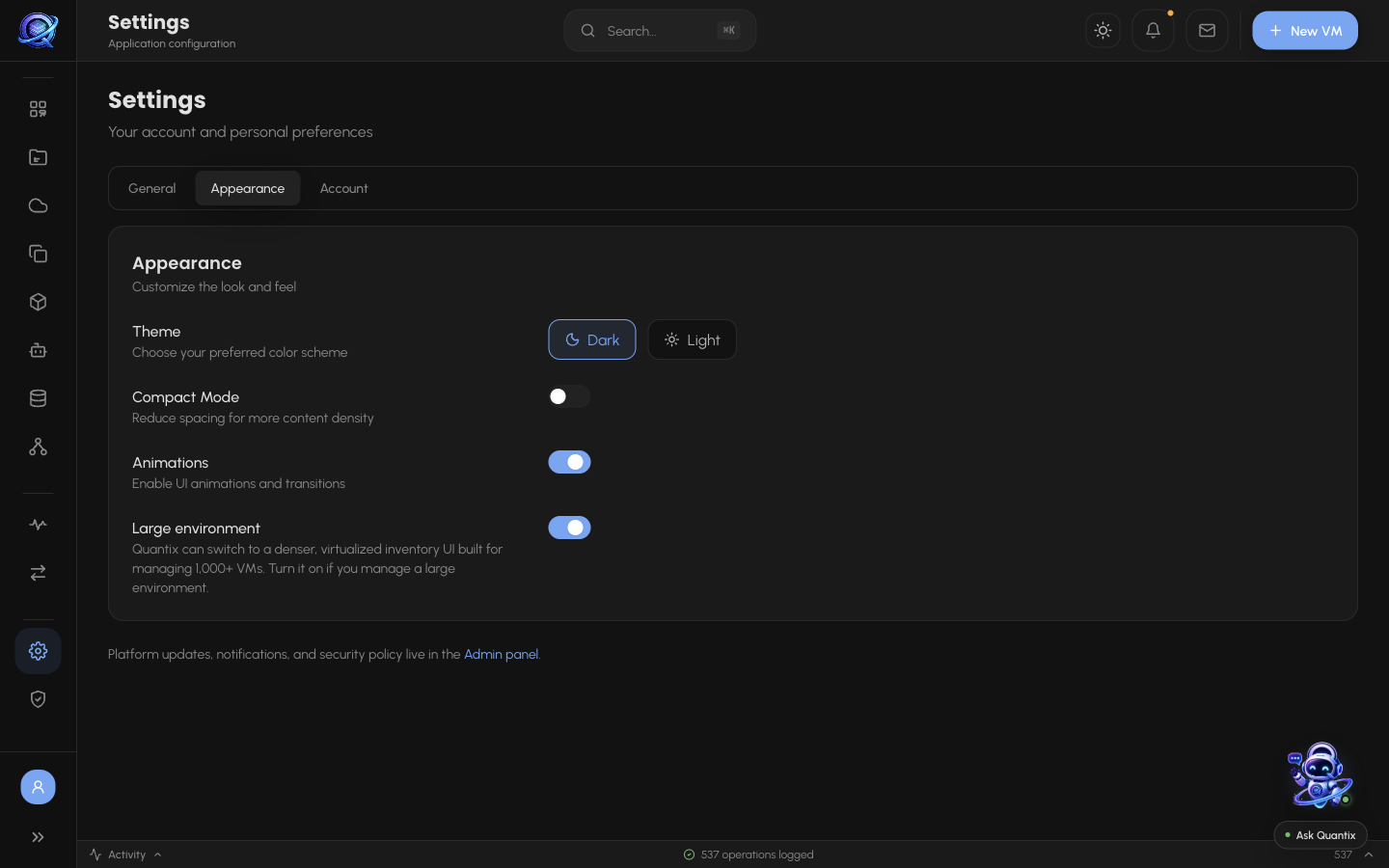
If the switch shows Enforced by your administrator, the layout is set for your whole organization and cannot be changed here. Administrators set it in Admin Panel → Organization, under Interface → Large environment UI:
- User choice (default): each person decides in their own settings;
- Always on or Always off: everyone gets that layout.
If QvDC cannot tell the dashboard which policy applies, you get your own setting.
Troubleshooting
- Showing N of M VMs: the inventory is larger than one page of results. Search, counts, select-all and Export cover only the VMs loaded. Narrow the list, for example by host.
- DETACHED next to a VM: the VM's host has left QvDC. The VM may still run on that host, but QvDC cannot manage it; only Attach or adopt... and Remove from Inventory are available. See Detached VMs.
- A status with a ?: the host has stopped reporting, or no host is assigned to the VM any more, so the state shown is the last one known.
Quantix-managed VMs
Quantix runs some VMs itself: the machines that provide container capacity, the VMs that run a connector, and the transport canary that checks live migration between hosts. You cannot start, stop or delete them from the VM list. Quantix creates, changes and removes them through their owner.
They are listed under Quantix-managed instead of All. Each row shows its owner in place of the usual actions:
- Containers capacity and the capacity name, linked to Containers → Capacity;
- Connector and the connector name, linked to the connector;
- System - transport canary and the cluster it belongs to. Hover the System tag for what the canary does.
When the owner's name is not available to you, the row shows the owner kind and the start of its ID. Open owner opens the owner's page. It is the only action on these rows: they have no selection checkbox, and their action menu offers only Open owner. The VM page of a managed VM shows Managed by Quantix - manage it from and the owner, in place of the power buttons. Its tabs still show the VM's details, but their edit controls are turned off. In the grid view of the Large environment layout, a managed VM's tile shows its owner and Open owner.