

Organization settings
Admin Panel → System → Organization holds your organisation's identity and preferences that apply to every member: the deployment timezone, how the VM inventory is laid out for everyone, and whether VMs may use a physical GPU. It also shows your licensed capacity and your deployment ID.
Prerequisites
- An account with the admin base role.
Change organisation settings
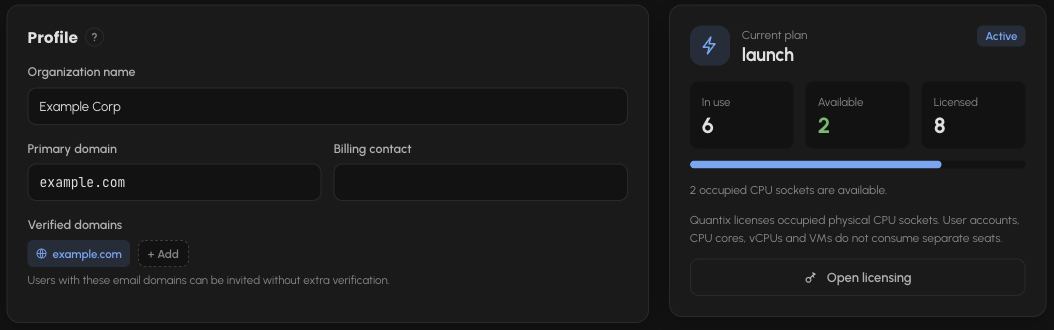
- Go to Admin Panel → System → Organization.
- Change what you need (see the sections below).
- Click Save changes at the top of the page.
Expected result: Organization settings saved. Nothing on this page takes effect until you click Save changes. The button becomes available when you edit a setting; Unsaved changes marks pending edits. If a save fails, your edits remain visible. A partial save explicitly reports whether the profile was saved while settings were not.
Profile
- Billing contact is shown read-only.
- Organization name and Primary domain — your organisation's name and its main domain, for example
example.com.
Password requirements
Under Security defaults, Require complex passwords applies when someone changes a local password, an administrator creates a local account, or an administrator uses Reset password. The minimum length always applies. When the switch is on, the password must also contain a lowercase letter, an uppercase letter, a number and a symbol. The setting does not change passwords that already exist, so those members can continue signing in until their password is reset. Accounts managed by a sign-in provider use that provider's password rules.
Require MFA is unavailable in this release: it would force every account to set up a second factor, and setting one up is optional. An account that has set up an authenticator app or a passkey is already asked for it at every password sign-in, and the authenticator also protects the Admin Panel. A previously stored setting does not force anyone to set one up. Manage security opens password and session policy settings.
Deployment timezone
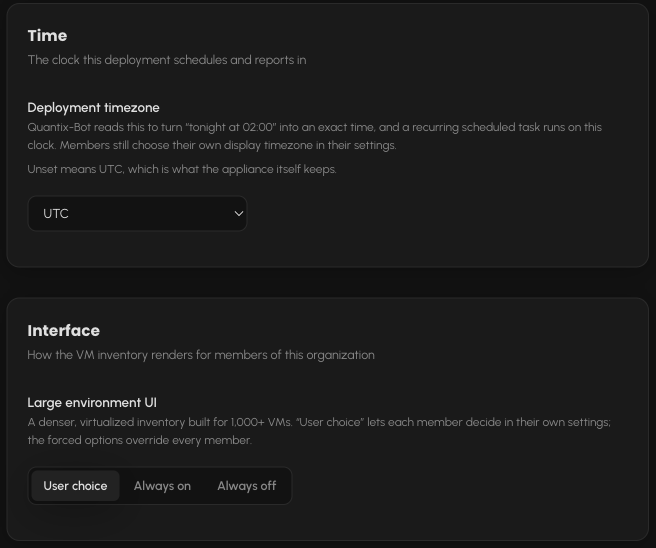
Under Deployment settings, Deployment timezone is the clock the assistant schedules in: it uses it to turn "tonight at 02:00" into an exact time, and new recurring tasks you schedule through the assistant default to it (tasks already scheduled keep their own timezone). UTC is the default. Each person still chooses the timezone dates are displayed in under their own settings; see Personal settings.
Large environment layout for everyone
Under Environment UI, Large environment UI decides how VM List and Folder View are laid out for every member:
| Option | Effect |
|---|---|
| User choice (default) | Each person turns the dense layout on or off in their own settings. |
| Always on | Everyone gets the dense, large-environment layout. |
| Always off | Everyone gets the classic layout. |
With Always on or Always off, each person's own Large environment switch shows the enforced value with the note Enforced by your administrator, and cannot be changed. People see the change when they reload the page; without a reload, it can take until they next open VM List, Folder View or their settings, at least five minutes later. See Large environment view.
GPU passthrough
Under Hardware, GPU passthrough lets VMs claim a physical accelerator. It is off by default. A passed-through GPU leaves the host entirely, and the VM holding it cannot be live-migrated, suspended, memory-snapshotted, cloned or turned into a template. As the page notes, each host must also opt in before its devices can be passed through; this switch alone does not bind anything. To enable passthrough on a host, contact Quantix support.
Licensed capacity and details
- The licence card shows your Current plan and how many occupied CPU sockets are In use, Available and Licensed. Open licensing goes to the licence page; see Activate your licence.
- Details shows the Deployment ID — the unique identifier of this Quantix installation, stable across upgrades, reboots and restores. Click it to copy it, and quote it in support requests.
Troubleshooting
People still see the old inventory layout — their browser does not recheck the setting on its own. Ask them to reload the page.