

Delete a VM
There are two ways to get rid of a VM:
| Option | What happens to the disks | Can you get the VM back? |
|---|---|---|
| Delete from Disk | Deleted permanently, with the VM definition. | No. |
| Remove from Inventory | Kept on the storage pool. Only the VM's registration is removed, from QvDC and from the host. | Yes: register it again from its storage pool: on the pool's Files tab, open the VM's folder and choose Deploy VM on its .qcfx file (see File browser). The standard VM list also has Import from datastore. |
Delete a VM and its disks
- From the VM menu choose Delete from Disk (or Actions → Delete, or the trash icon on a VM list row).
- In Delete VM, check that Delete from Disk is selected.
- Type the VM's name exactly under Type "name" to confirm.
- Click Delete Permanently.
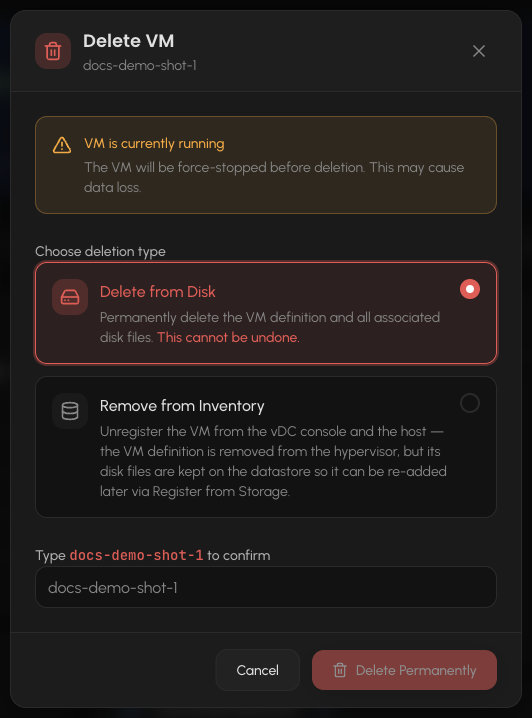
Expected result: VM deleted successfully, and the VM leaves the list.
Remove a VM from the inventory
- From the VM menu choose Remove from Inventory.
- Click Remove from Inventory. No typing is needed.
Expected result: VM removed from inventory and its host (disk files kept on the datastore). The VM is no longer defined on its host; its disk files stay on their pool until you register it again (see the table above).
A VM with snapshots cannot be removed from the inventory: snapshots are stored on the host, and only the disk files are kept. The dialog says so and the button stays off. Delete the VM's snapshots first, then remove it.
Delete a VM whose state is Unknown
A VM shows Unknown when its host is reporting but no longer has a definition for it (see Object states). Either the VM was deleted on that host, or the host lost only its definition and the disks are still on the storage pool. Quantix cannot tell which, so:
- From the VM menu choose Remove from Inventory or Delete from Disk (or Actions → Delete). Each one opens Delete VM.
- Read the notice at the top of Delete VM: it names the host and says the disks may still exist. Remove from Inventory is already selected.
- Click Remove from Inventory. No typing is needed, and the VM does not have to be stopped first.
Expected result: the VM leaves the list and any disk files stay on their pool. If the disks are there, register the VM again: on the pool's Files tab, open the VM's folder and choose Deploy VM on its .qcfx file.
Choose Delete from Disk in this dialog only when you are sure the disks are no longer needed. It erases any of the VM's disk files that remain, and needs the VM's name typed. This dialog is the only place that can erase an Unknown VM's disks: Delete on several VMs refuses it (below), and so does the API without force.
Delete several VMs
Select them in the VM list and click Delete in the selection bar. This works the same in both layouts:
- With one VM selected, Delete VM opens, as above.
- With two or more, Delete N VMs? opens with Remove from Inventory selected, which keeps every disk. Choose Delete from Disk to delete the disks too. There is no name to type, so check the selection first. In the standard layout this includes selected VMs the current filter hides.
- Running VMs are powered off first.
- Delete from Disk refuses every Unknown VM, and the dialog says how many of the selected VMs are Unknown. The others are deleted. To erase an Unknown VM's disks, delete it on its own.
- The result names each VM that could not be deleted or removed, with the reason.
Before you delete
- A running VM is powered off first (The VM will be force-stopped before deletion), which can lose unsaved data in the guest. Shut it down cleanly first.
- A VM that has linked clones cannot be deleted until the clones are deleted.
- A VM cannot be deleted while it is being cloned.
- If you may need the data later, back the VM up first (see Backup and restore).
- VMs already deployed from a template are not affected when the template is deleted.