

Activity and operations
Every action in Quantix — creating or starting a VM, migrating it, updating a host, deploying a container application — is recorded as an operation. You follow operations in two places:
- the Activity panel at the bottom of every page, for what is happening now and what just finished;
- the Recent Operations page, for searching the history.
Prerequisites
- A QvDC account whose role can read at least one of VMs, hosts, networks, storage or clusters.
Follow running work in the Activity panel
The Activity bar is pinned to the bottom of every page. While something is running it shows a spinning counter and the latest running operation, for example Create VM: web-01 with its percentage. When nothing is running it reads N operations logged.
- Click Activity (or press Ctrl+Shift+L) to open the panel. Press it again to close it. Drag the panel's top edge to make it taller or shorter.
- Choose a tab to narrow the list: All, VMs, Hosts, Storage, Network, System or Admin.
- To find an entry, click the magnifier and type into Filter logs.... The search matches the operation, the resource, the message and the error.
- Click a row to see its details: Time, Status, Operation, By, Resource, ID, Message, Error and Duration. Hover over the ID, message or error to copy it.
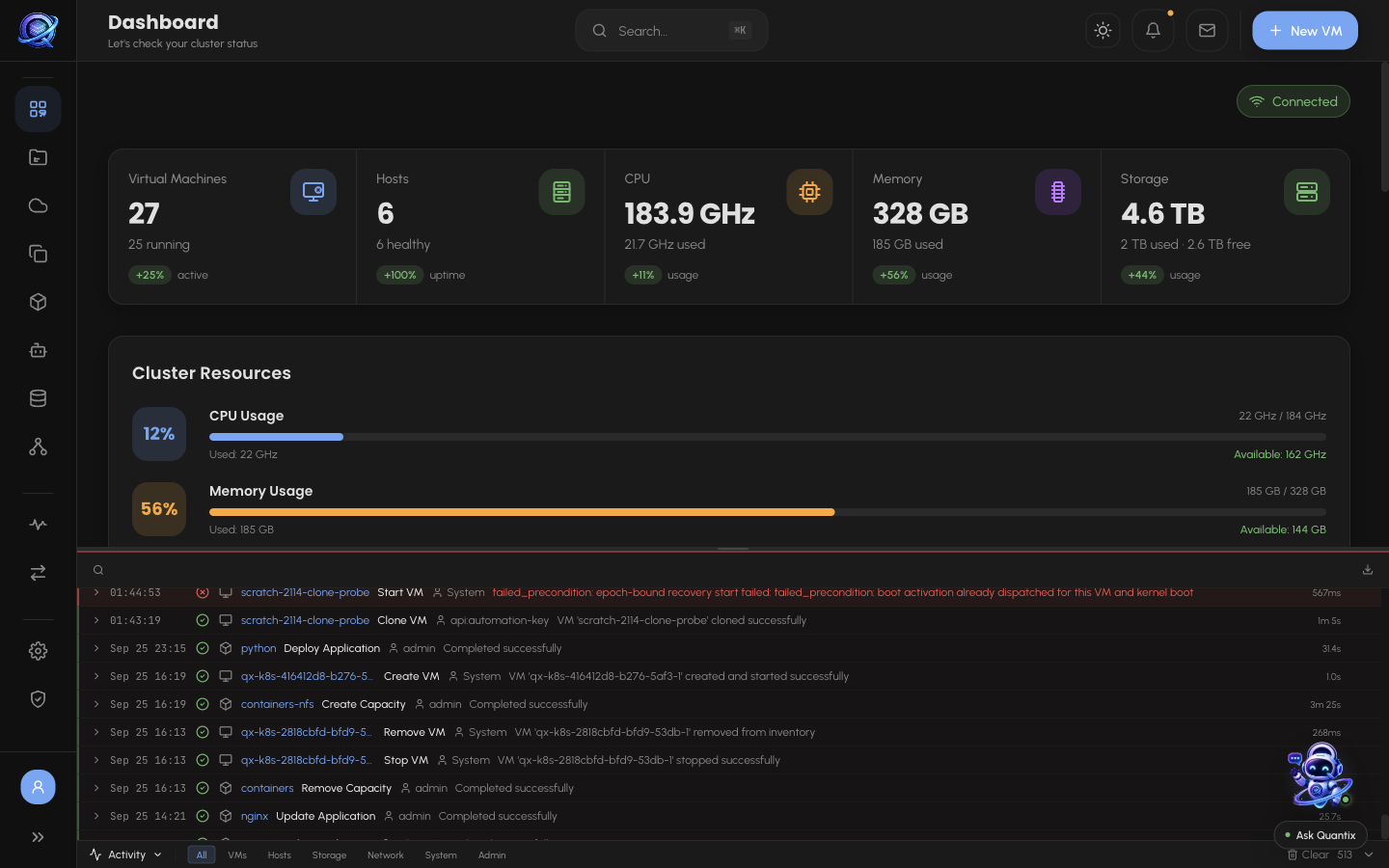
Each row shows the time, a status icon, the resource (click its name to open it), the operation, who ran it, a progress bar while it runs, the latest message and how long it took.
What each status means
| Status | Icon | Meaning |
|---|---|---|
| Pending | Grey clock | Accepted and waiting to start. |
| In Progress | Spinning circle | Running. The bar shows progress when the task reports it. |
| Completed | Green check | Finished successfully. |
| Failed | Red cross | Ended with an error, or was cancelled. The error text is shown in red; open the row to read all of it. |
| Interrupted | Amber triangle | QvDC restarted, or failed over to its standby, while the operation was running. QvDC is now asking the host what really happened; the row changes to Completed, Failed or Outcome unknown on its own. |
| Outcome unknown | Amber triangle | The host stopped responding while it carried out the operation, so its result is not known yet. The message names the host and the step. The row changes to Completed by itself as soon as the host shows the result, for example once the VM has shut down. If the host still does not show it 15 minutes after the action started, the row changes to Failed. Do not repeat the action while the row shows this status. |
| (warning) | Amber triangle | A container operation whose result Quantix could not confirm. Open the application to see its real state; do not wait for the row to finish. |
In the Activity panel, Interrupted and Outcome unknown rows show the amber triangle and the message that explains them; Recent Operations names the status.
Some operation types leave nothing on the host that QvDC can check: a guest reboot, and storage pool, network, VPN and image changes, for example. If the host stops responding during one of them, or QvDC restarts in the middle, the row stays Outcome unknown for good. It does not change by itself, QvDC raises an alert, and the message names what to verify on the host (for example the pool or the network) before you repeat the action. In the Activity panel such a row is finished, not running: it shows the amber triangle without a spinner, and its detail reads Outcome unknown.
If an operation reports no progress for 30 minutes, the panel shows No response — operation presumed failed. This does not apply to Interrupted and Outcome unknown rows, which QvDC settles from the host.
When the connection drops during an action
If your browser loses its connection to QvDC while an action is running — for example because your network changes for a moment, or QvDC restarts or fails over — the notification reads Outcome pending, the answer was lost (connection dropped or QvDC unreachable) instead of an error. The action was sent with an identifier, and the notification keeps asking QvDC about it. Once QvDC answers, the same notification changes to the real result: completed, failed, not executed (QvDC never received it, so it is safe to send again), or Outcome unknown as described above. Do not repeat the action while its outcome is pending: QvDC refuses a second copy of the same request, but a new click is a new action.
If the row already reads outcome pending when you close or reload the page, the Activity panel asks QvDC again the next time you open the dashboard in the same browser, signed in as the same user, within 7 days. The row then changes to the real result. The dashboard saves the action's identifier only once it knows the answer was lost. If you close the page while the action is still being sent, or the row belongs to another user of this browser, the row changes to Outcome unknown 30 minutes after the action started. Its message says that the page that sent it closed before the answer arrived. An identifier older than 7 days is never asked about, because QvDC may no longer hold its record; that row changes to Outcome unknown at once. Open the resource to check its state before you repeat the action.
Keep the panel tidy
- Delete entry — hover over a finished row and click the bin icon — removes that row from your panel only.
- Clear removes every entry currently in your panel. Click it, then click Clear? within three seconds to confirm.
- Export logs (the download icon) saves what the panel currently shows, as Export as JSON or Export as Text.
Deleting, clearing and exporting only affect your browser. The operation records in QvDC are kept, and the Recent Operations page still shows them.
What the panel remembers
The panel keeps its entries in your browser, so they survive a page reload. When you open the dashboard in a new browser, it loads the last seven days of operations from QvDC.
Look up past operations
In the sidebar, open Operations → Recent Operations.
Click Filters to narrow the list:
- Status: Pending, In Progress, Completed, Failed, Cancelled, Interrupted or Outcome unknown.
- Type: the kind of operation, for example Create VM, Migrate VM or Update Host.
- Resource: Virtual Machines, Templates, Hosts, Storage Pools, Volumes, Images, Networks, Security Groups or Load Balancers.
Clear Filters removes them again.
Click a row to see its details: Operation ID, Status, Operation, Resource, Actor, Started, Completed, Duration, Message and, for a failure, Error. Copy Log copies all of them as text, ready to paste into a support ticket.
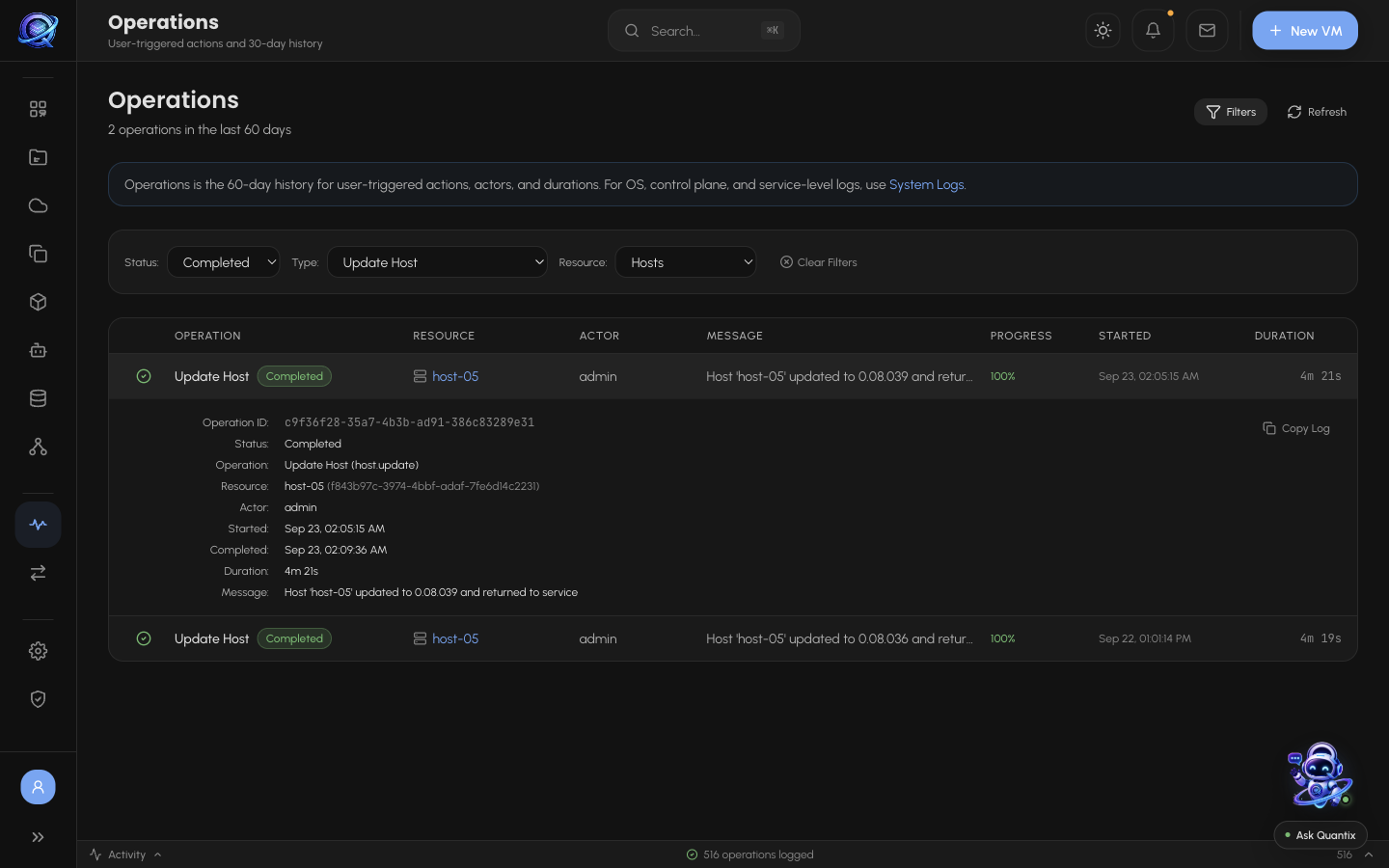
The columns are Operation, Resource, Actor, Message, Progress, Started and Duration. Actor is the user or API key that started the operation, or System when Quantix started it itself. Started follows the time zone you chose in Settings. The page refreshes by itself; Refresh reloads it now.
On this page a cancelled operation shows as Cancelled; in the Activity panel the same operation shows as Failed.
While an operation runs, click Abort, then Abort? within three seconds, to ask QvDC to stop it. A running row that only your browser recorded (an action QvDC never answered) has nothing in QvDC to stop. It offers Delete entry instead, which removes the row from your browser only.
VM shutdown receipts do not offer Abort: a shutdown may already have reached the guest and cannot be undone. Follow its receipt on the VM page. If graceful shutdown outlasts its grace and the guest is still running, Power off there shows a preview and asks for confirmation.
A running container operation (a container application or capacity change) offers Cancel instead of Abort, here and when you open its row in the Activity panel. It asks Quantix to stop the work. Anything already done is not undone; the operation ends with a reason that says what was kept. You need the same permission to cancel it as to start it.
The page lists the most recent operations that match your filters. To reach older ones, narrow the list with Filters. Quantix keeps operation records for 30 days.
Troubleshooting
| Symptom | What to do |
|---|---|
| Recent Operations is not in your sidebar | Your role cannot read VMs, hosts, networks, storage or clusters. Ask an administrator. |
| An operation failed | Open the row and read Error. The message says what went wrong and, usually, what to do. For help, use Copy Log and open a ticket in the customer portal. |
| A row stays In Progress for a long time | Some tasks are long by nature — a host update or a large import can take many minutes. Open the resource itself to see its current state. |
| A row stays Outcome unknown | The host it names is still not answering. Check the host on the Hosts page; the row settles by itself when the host is back or HA has recovered the VM. |
| The panel shows entries you already cleared on another computer | Clearing only affects the browser you cleared it in. |