

Set up networking with the wizard
The Networking Wizard is the recommended way to set up networking for the first time. In one flow it gives each host an uplink NIC, registers the hosts as OVN chassis when you need an overlay network, creates the virtual network, and creates a baseline security group for it. Nothing changes on your hosts until the last step, and you can go back to any step before then.
Before you start
- QvDC with at least one host added (see Add hosts to QvDC).
- A user with the admin or System administrator role. Applying the wizard changes host networking, which the operator role cannot do.
- For a VLAN or External network: each host has a physical NIC cabled to a switch port that carries the network (for VLAN, a trunk port that carries the VLAN tag).
- The subnet and gateway you want the network to use, and whether a router or firewall on that segment already hands out addresses (DHCP).
Run the wizard
Go to Networking and click Networking Wizard. The page Set up a network opens with five steps.
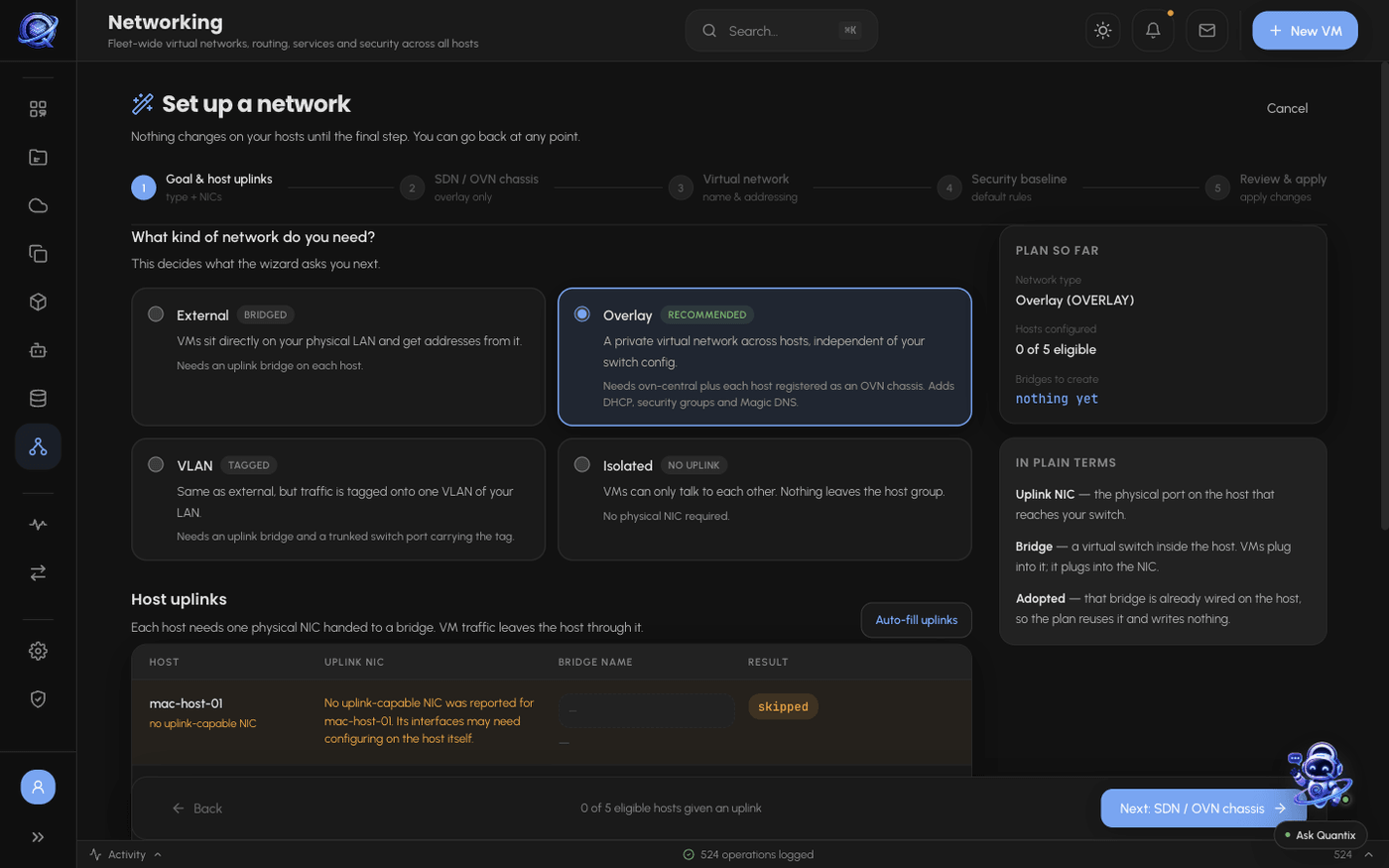
Goal & host uplinks — under What kind of network do you need? choose the network type:
- Overlay (Recommended) — a private network across hosts, independent of your switch configuration;
- External (Bridged) — VMs sit directly on your physical LAN;
- VLAN (Tagged) — like External, but tagged onto one VLAN.
Then, under Host uplinks, pick for each host the Uplink NIC (the port wired to your switch) and the Bridge name. When a host already has an uplink bridge the wizard fills its name in; otherwise type one, and use the same name on every host. Auto-fill uplinks fills only hosts that are still empty: it prefers a NIC that is already on a bridge (no link interruption), otherwise the fastest NIC. Leave a host's Uplink NIC on — choose — to leave that host out of the plan entirely.
If the NIC you pick carries the host's management IP address, the wizard warns you: the address is moved to the bridge, the move is rolled back if it fails, and the host is briefly unreachable while it happens.
SDN / OVN chassis (Overlay only) — for each host you gave an uplink NIC in the previous step, the wizard shows whether it is already registered with OVN (adopt) or will be registered (register). Registration only writes the host's OVN settings; it moves no traffic. For VLAN and External networks this step is skipped.
Virtual network — enter the Network name and an optional Description, then choose how VMs get addresses:
- Existing DHCP on my LAN (default) — a router or firewall already serves this segment; Quantix serves no DHCP. Choose this for VLAN and External networks, whose VMs are bridged straight onto your network;
- Managed by Quantix — Quantix runs DHCP on this network (for an overlay network). You can set a DHCP range (leave both ends blank to use the whole subnet) and DNS servers (comma-separated).
Enter the Subnet (CIDR) as a network address, for example
198.51.100.0/24, and the Gateway, for example198.51.100.1. The gateway must be a usable address inside the subnet, not its network or broadcast address. A VLAN network also needs its VLAN ID (1–4094). For an External network, Physical bridge is an optional override: leave it blank to use each host's configured bridge, or enter a name to pin the bridge used on the hosts where the network will be used. If Quantix serves DHCP, enter both ends of the optional DHCP range, or leave both blank; the range must ascend, stay inside the subnet, and exclude the gateway. Every DNS server must be a valid IP address. Next stays disabled until the network details and DHCP range are valid.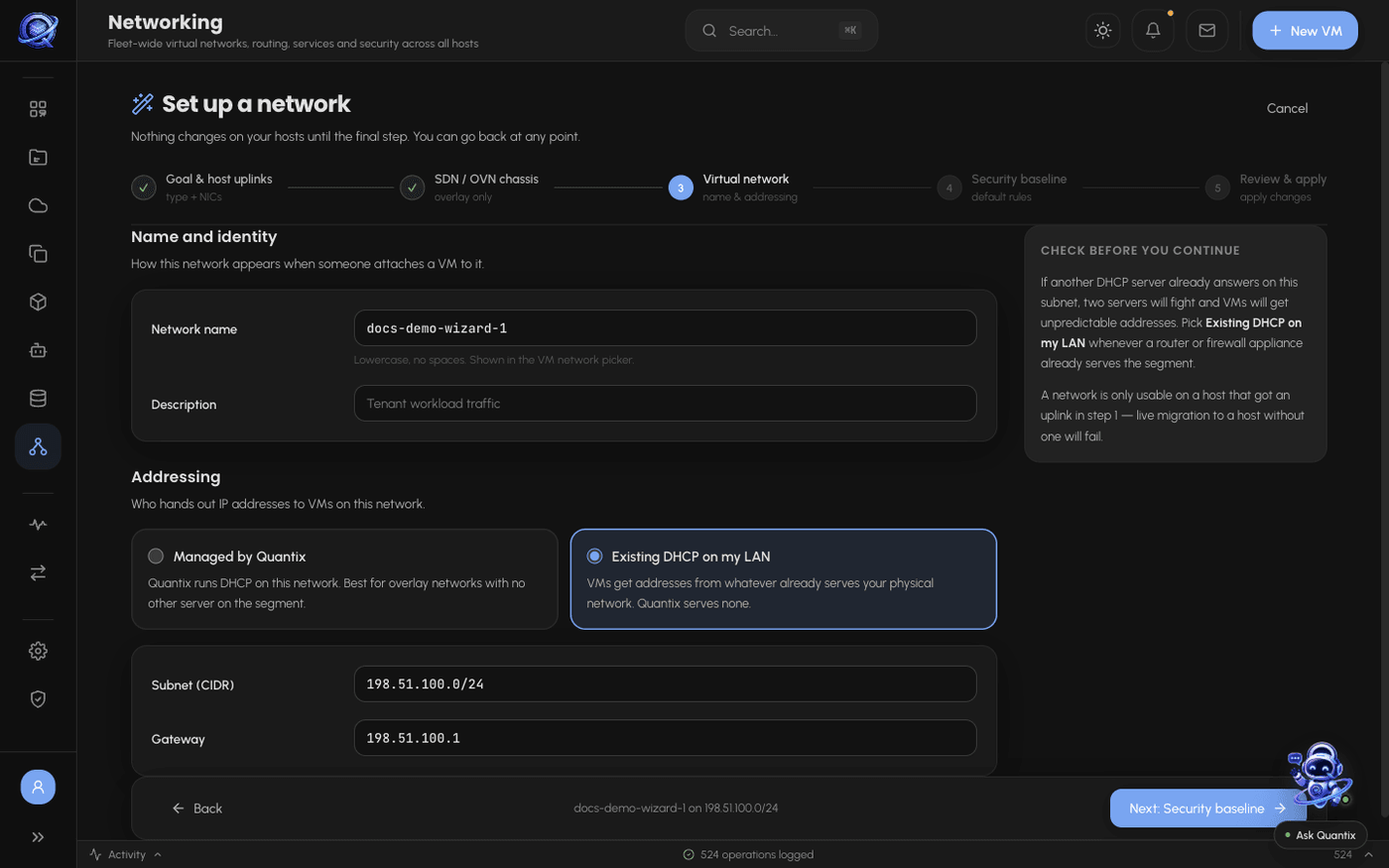
Security baseline — first answer Inbound access — what should be reachable on this network? Choose Nothing from outside (recommended default-deny) to allow no new inbound connections from outside the network, or choose Choose services. For services, select the exact services VMs should accept: HTTP (TCP 80), HTTPS (TCP 443), SSH (TCP 22), RDP (TCP 3389), ICMP ping, or add a Custom port with TCP or UDP and one port or an inclusive range.
Choose A specific address range (CIDR) and enter a valid IPv4 range to limit who can connect, or choose Anywhere on the internet (0.0.0.0/0). The wizard marks this source Open to the entire internet. Review the exact inbound rules below your choice before continuing.
Leave Create a baseline security group on (the default) to create one group that becomes this network's default. The baseline allows all outbound traffic and traffic from within the network; the access choice adds only the inbound rules you selected. Leave Group name blank to use
default-<network name>. The advanced Add rule editor remains available below for other rules. Security groups are enforced on overlay networks only; see Security groups.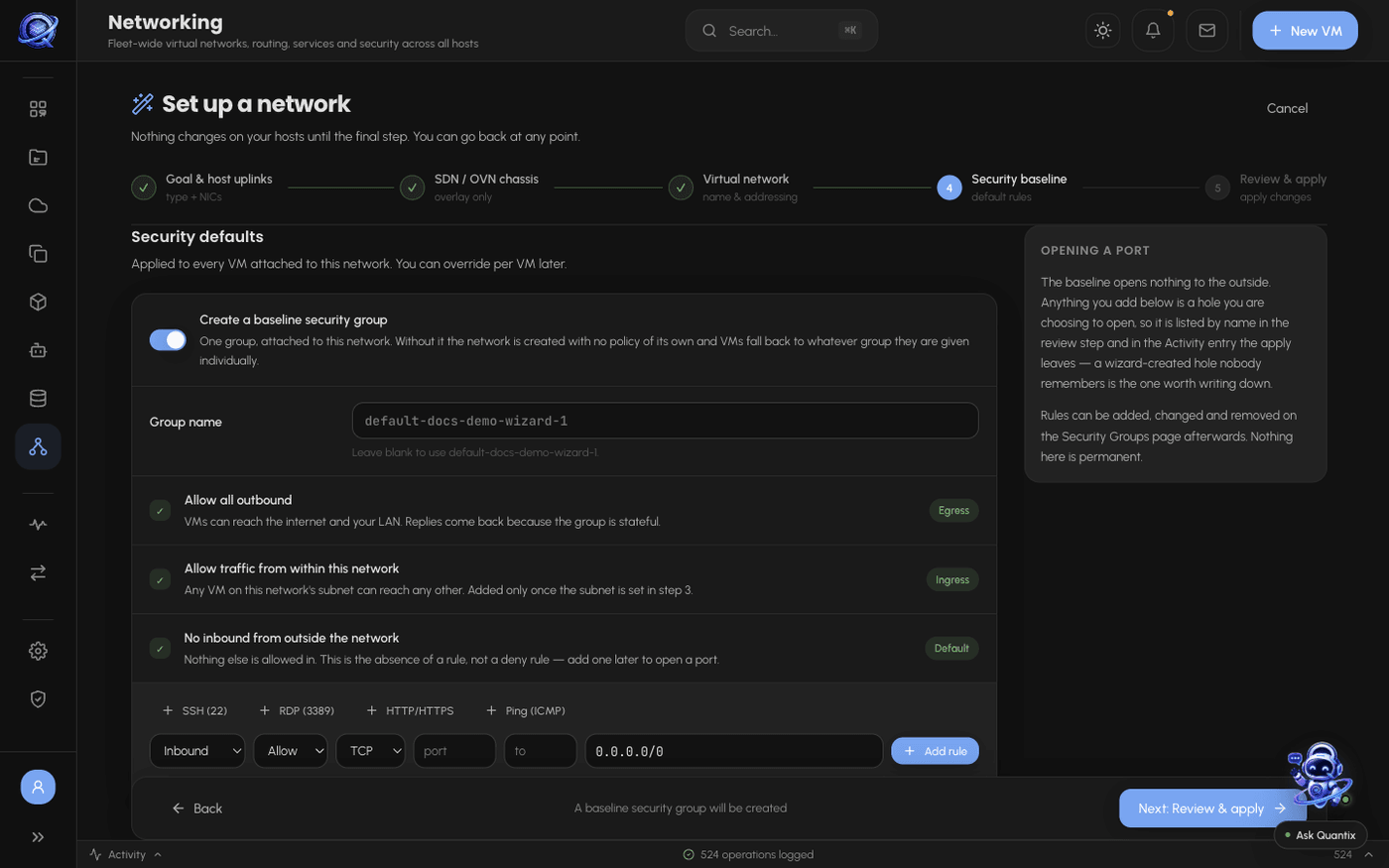
Review & apply — the wizard lists exactly what will change, host by host, including the DHCP allocation pool when one is configured. Steps marked adopt are already in place and are not rewritten. Click Apply … changes (for example Apply 2 changes) to run the plan. If the wizard shows blockers in a yellow banner, fix them first — the button stays disabled until there are none.
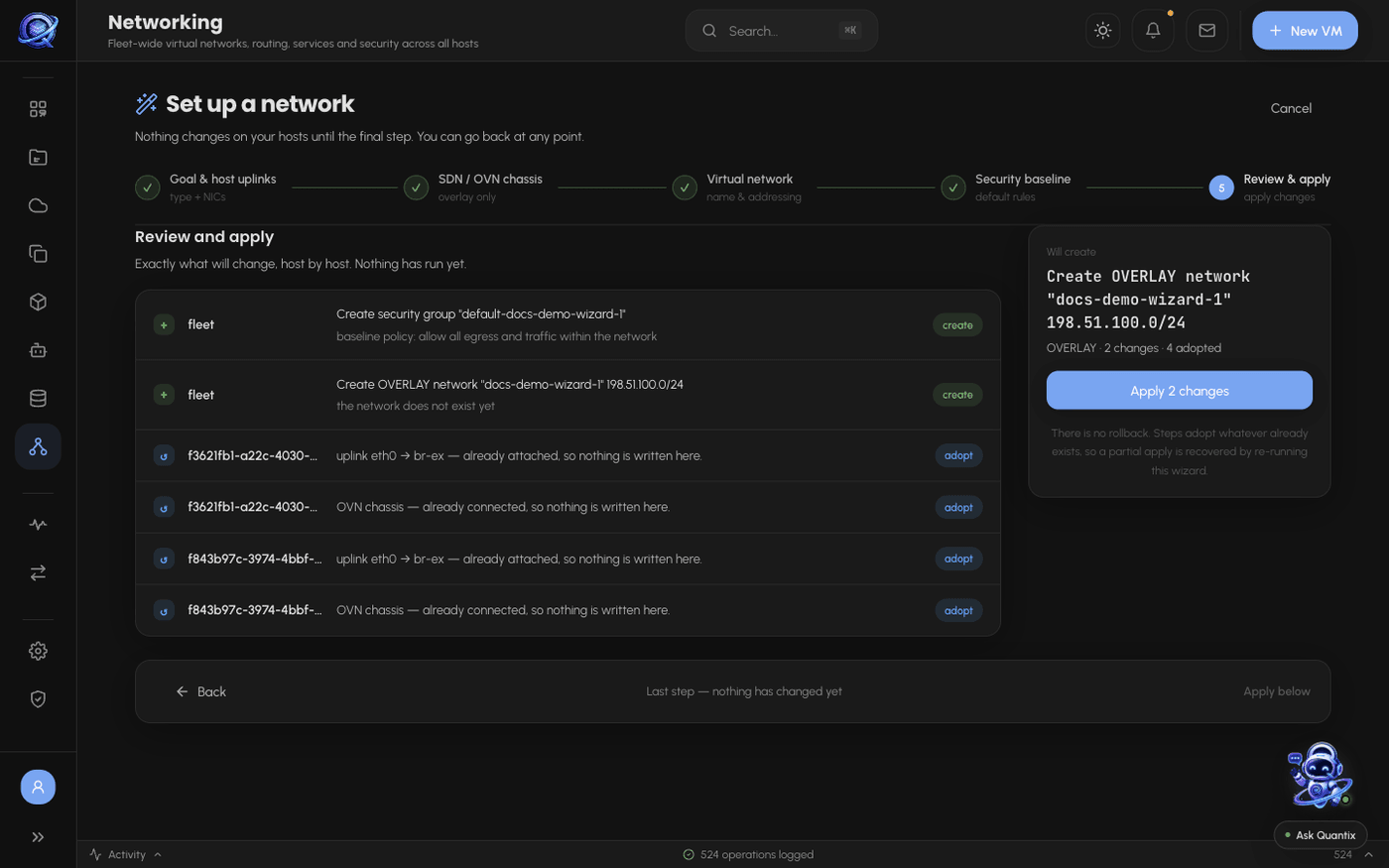
Expected result
After you apply, each step shows its result, and a Verification card reads the live state back from each host in the plan: whether its chassis and uplink are in place and how many ports it has. Click Re-check to read it again. Click Back to networking: the new network is on the Virtual Networks tab with status READY.
The wizard does not roll back a partial apply. On a second run, host steps that already succeeded are adopted, but the security group and the network are always created anew — if the first run already created one of them, finish the job on the Security or Virtual Networks tab instead of re-running.
Troubleshooting
- A host has no NIC to choose — the host reported no uplink-capable NIC. Check its interfaces in its Host UI (see Host networking); you can continue without that host, but the network will not work on it.
- This QvDC cannot program OVN, so OVERLAY networks cannot be realized — overlay networks cannot be created until the control plane can reach its OVN service. Choose a VLAN or External network, or contact support.
- … is already part of … It cannot be attached to … until it is released — the NIC you picked already belongs to another bridge. Pick a NIC that is not in a bridge, or set that host's Uplink NIC back to — choose — to leave it out.
- … already has the uplink … A second, independent uplink on the same bridge can loop the network — that host's bridge already has an uplink NIC. Type a different Bridge name for the new NIC, or bond the two NICs on the host (see Host networking).
- … has no connected daemon — QvDC cannot reach that host; leave it out (— choose —) or fix its connection first.
- The host was briefly unreachable — expected when its management NIC is moved to the bridge. If the gateway stops answering, the host puts the address back by itself.
- VMs get unexpected addresses — two DHCP servers are answering on the segment. Open the network and turn Quantix DHCP off (see Virtual networks).