

Time synchronisation
Hosts need accurate clocks: certificates, sign-in codes, logs and scheduled tasks all depend on the time. Admin Panel → System → Time synchronisation sets the time sources (NTP servers) used by every host, and shows whether each host's clock is in sync.
Until you set sources here, each host keeps the time sources it already has. Out of the box that is pool.ntp.org.
Prerequisites
- An account with the admin base role.
- One or more NTP servers your hosts can reach — for example your own time servers, or a public pool such as
pool.ntp.org.
Set the time sources
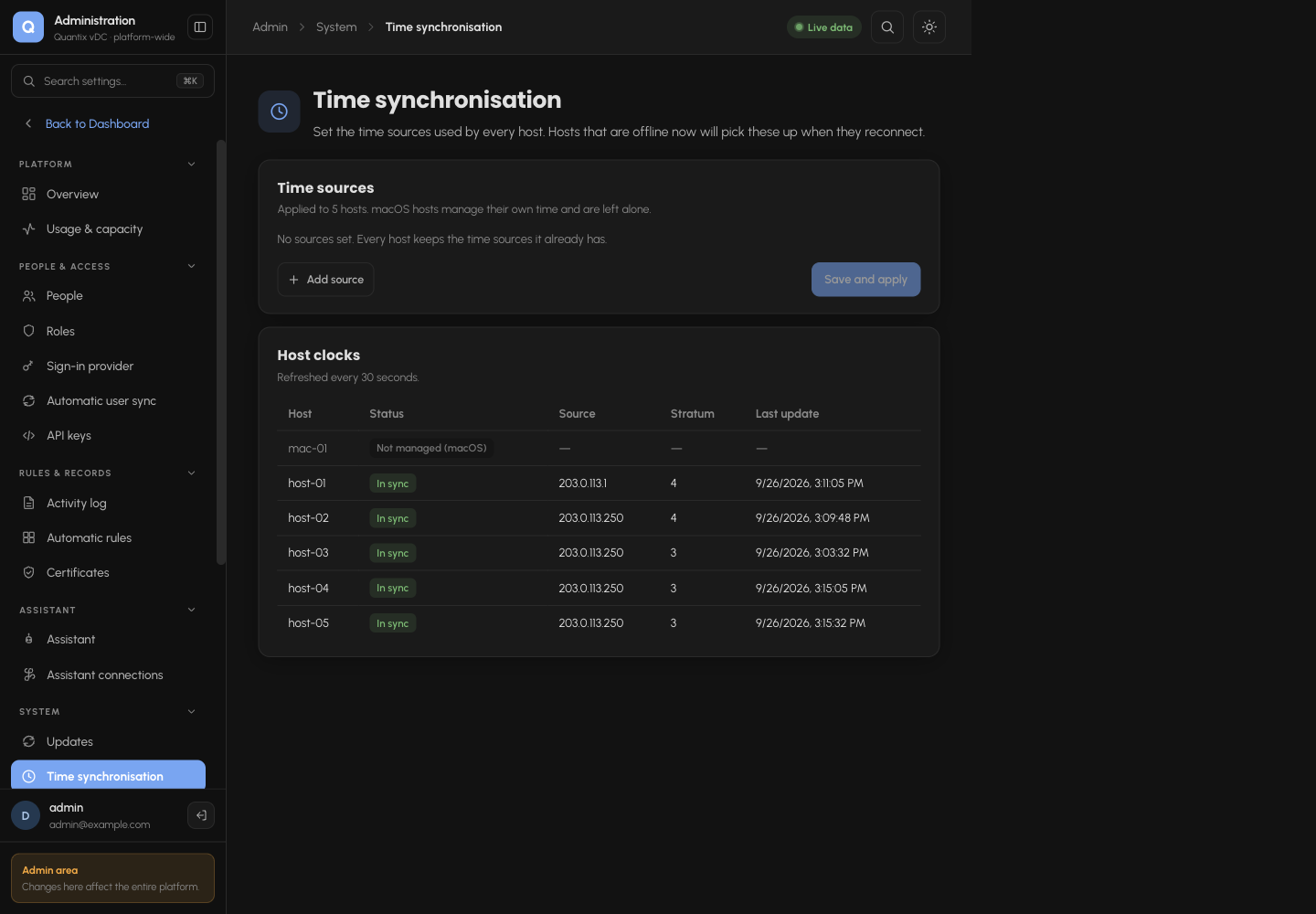
- Go to Admin Panel → System → Time synchronisation.
- Under Time sources, click Add source and enter a host name or IP address, such as
pool.ntp.orgor192.0.2.123. Add more sources the same way — up to 8. The bin icon removes a source. Example text is a placeholder, not a saved server; an empty source must be completed before saving. - Click Save and apply.
Expected result: QvDC saves the list and applies it to every host straight away. A host that is offline receives it when it reconnects. If some hosts could not be updated, Hosts not updated lists them with the reason; the list is saved anyway, and each of them applies it the next time it connects.
A host that did not answer within 20 seconds is listed under Outcome unknown instead. It may already use the new sources: check its row under Host clocks.
Go back to the default sources
Remove every source with the bin icon until the page shows No sources set, then click Save and apply. Each host QvDC reaches returns to the Quantix-OS default, pool.ntp.org. A host that is offline at that moment keeps the sources it had until you save a new list.
Hosts running macOS manage their own time and are left alone.
Check the host clocks
Use Search hosts to find a host name or time source. Previous and Next show 20 hosts at a time. Refresh reads the latest status without changing settings. A failed read shows its error and Retry.
Host clocks is refreshed every 30 seconds and shows, for each host, its Status, its Host clock, the Source it synchronises from, its Stratum and the time of the Last update.
Host clock is the host's own date and time, ticking, in your browser's time zone. Compare it with the date and time at the top right of every page, which is your computer's clock. The host's reading can trail by a second or two; the offset under Status is the exact difference from the time source.
Source shows the time source as you entered it, followed by the address of the server answering, for example pool.ntp.org (192.0.2.10). A pool name such as pool.ntp.org stands for many servers, so the address can change over time.
Stratum counts steps from a reference clock; it is not a health score. Missing clock values appear as a dash or Not reported, rather than as zero.
On the QHCI host administration page, Time synchronisation configures only that host. Save and apply saves the sources; if the host belongs to a cluster, QvDC reapplies its fleet settings when the host reconnects. To return one host to the default, remove every source until the panel shows No sources set, then click Save and apply; the host goes back to pool.ntp.org.
Saving the same list again does not interrupt synchronisation, and neither does saving pool.ntp.org on hosts that already use the default. Saving a changed list restarts time synchronisation on each host, which shows Not synchronised for up to a minute while it reaches the new sources. A host name is used as a pool: the host uses up to four of the servers it resolves to, so one busy server does not leave it unsynchronised.
Status is one of:
- In sync — the clock is synchronised, possibly with a small offset shown, such as 0.123 s fast.
- Not synchronised — the clock is not synchronised; the offset is shown.
- Not managed (macOS) — a macOS host, which keeps its own time.
- Not reported or an error such as Host is not reachable — QvDC could not read the host's clock.
Troubleshooting
"Not a valid host name or IP address" / "Spaces and line breaks are not allowed" — each source must be a single host name or IP address.
A host stays Not synchronised — check that the host can reach the NTP servers (UDP port 123) through your firewall.