

Host networking, OVN chassis and uplinks
Virtual networks are defined once in QvDC, but each host carries them with its own networking. Two things must be in place on every host:
- The OVN chassis. A host registered as an OVN chassis with the control plane can carry overlay networks: VM ports on it are programmed by the control plane, and it exchanges overlay traffic with the other hosts in Geneve tunnels from its encapsulation IP (by default its management address). Registering a host only writes its OVN settings; it moves no traffic.
- The uplink bridge. A software switch on the host (usually named
br-ex; on some installationsbr0) with a physical NIC attached. It carries VLAN and External networks out of the host. Each of those networks names a fabric (defaultprovider), and each host binds that fabric to one of its own bridges (its fabric bindings;provideris normally the uplink bridge), so hosts may name their bridges differently.
Before you start
- To look: a user with the admin, operator or System administrator role. To change a host's networking (register a chassis, attach or detach an uplink): admin or System administrator.
- The host is connected to QvDC (its row does not show unmanageable).
Check the hosts
Go to Networking → Hosts.
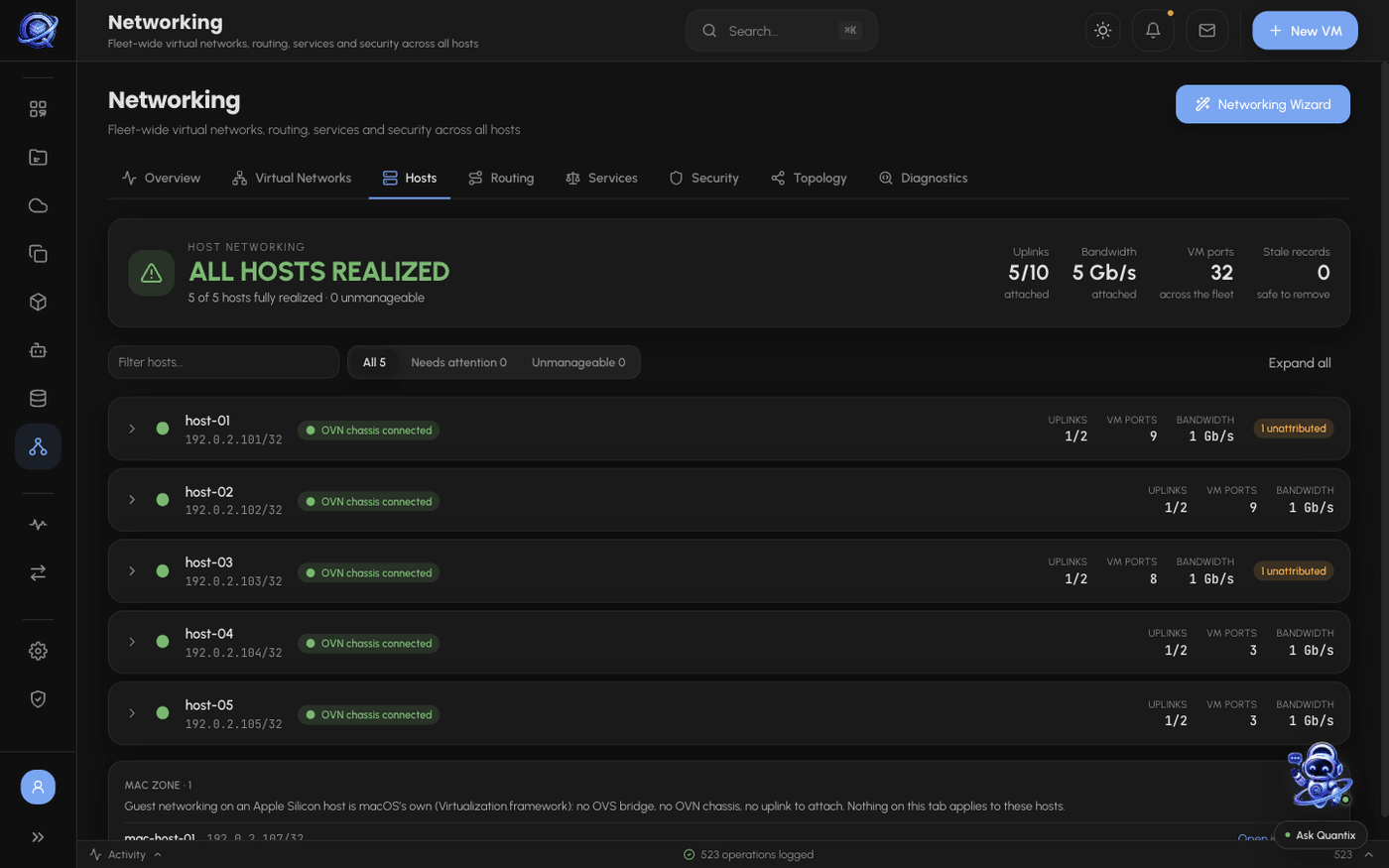
The banner shows ALL HOSTS REALIZED, or how many hosts NEED ATTENTION. A host counts as realized when QvDC can reach it and its OVN chassis reports connected.
Each host row shows its chassis state:
State Meaning OVN chassis connected Ready for overlay networks. OVN chassis not connected The host is not registered, or cannot reach the control plane's OVN service. OVS/chassis detection failed The host could not read its own switch state; treat its interfaces as unknown. Chassis state unknown QvDC could not read the state; this does not mean disconnected. unmanageable QvDC has no connection to the host, so nothing can be changed from here. Chips flag problems: no uplink (the host has NICs but none attached to a bridge), stale record(s) (switch entries for interfaces that no longer exist, safe to remove), and unattributed (VM ports QvDC cannot match to a VM).
Use Needs attention and Unmanageable to filter the list.
Click a host to expand it:
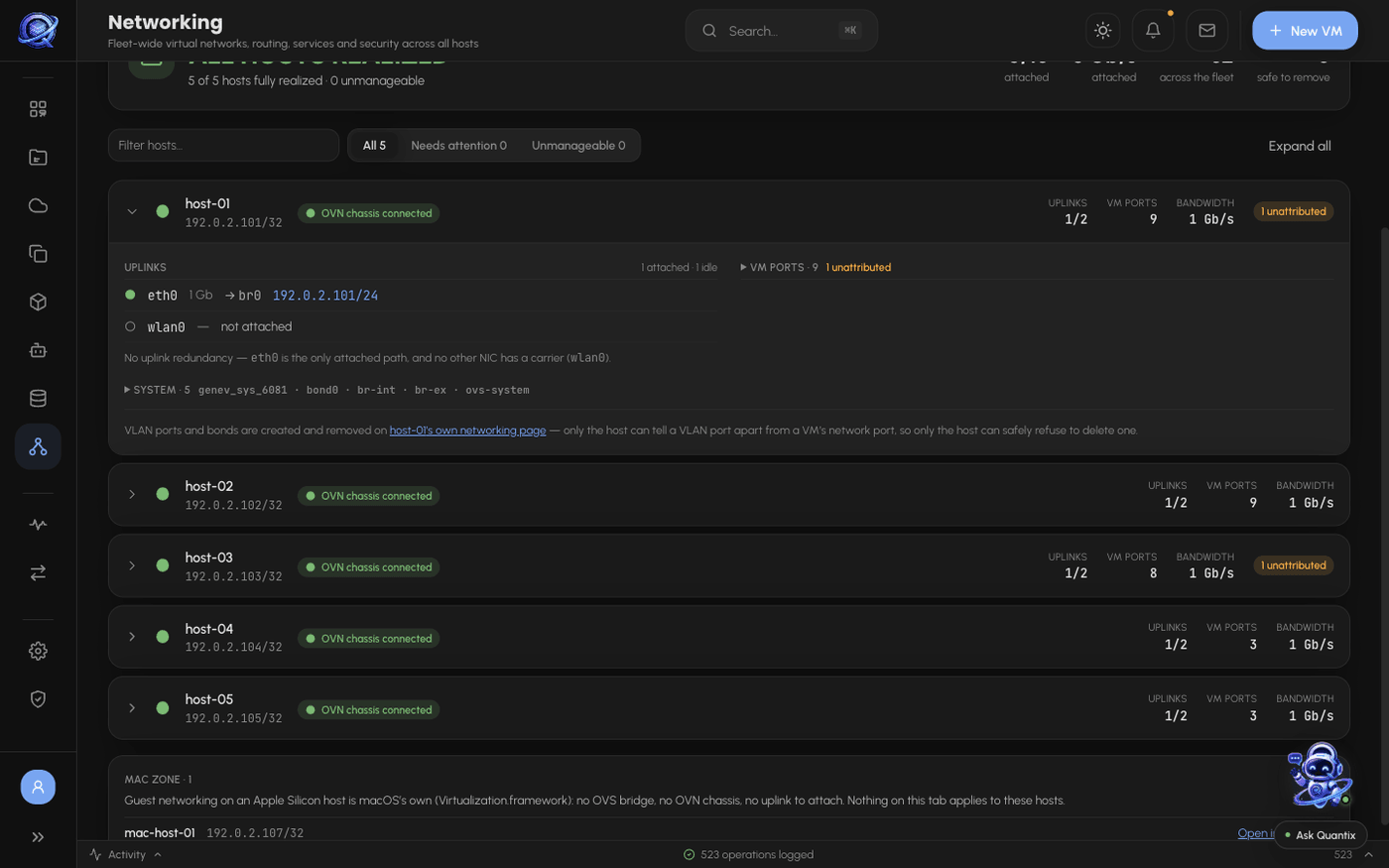
- Uplinks lists each physical NIC, its link (● up, ○ down), speed, and the bridge it is attached to (→ br-ex) or not attached. A warning such as No uplink redundancy means only one NIC carries the host's traffic; if another NIC has link, consider bonding it with that uplink (see Create Bond below).
- VM ports lists the virtual machines' ports on this host.
- System lists interfaces the host uses internally, such as the integration bridge and the tunnel endpoint.
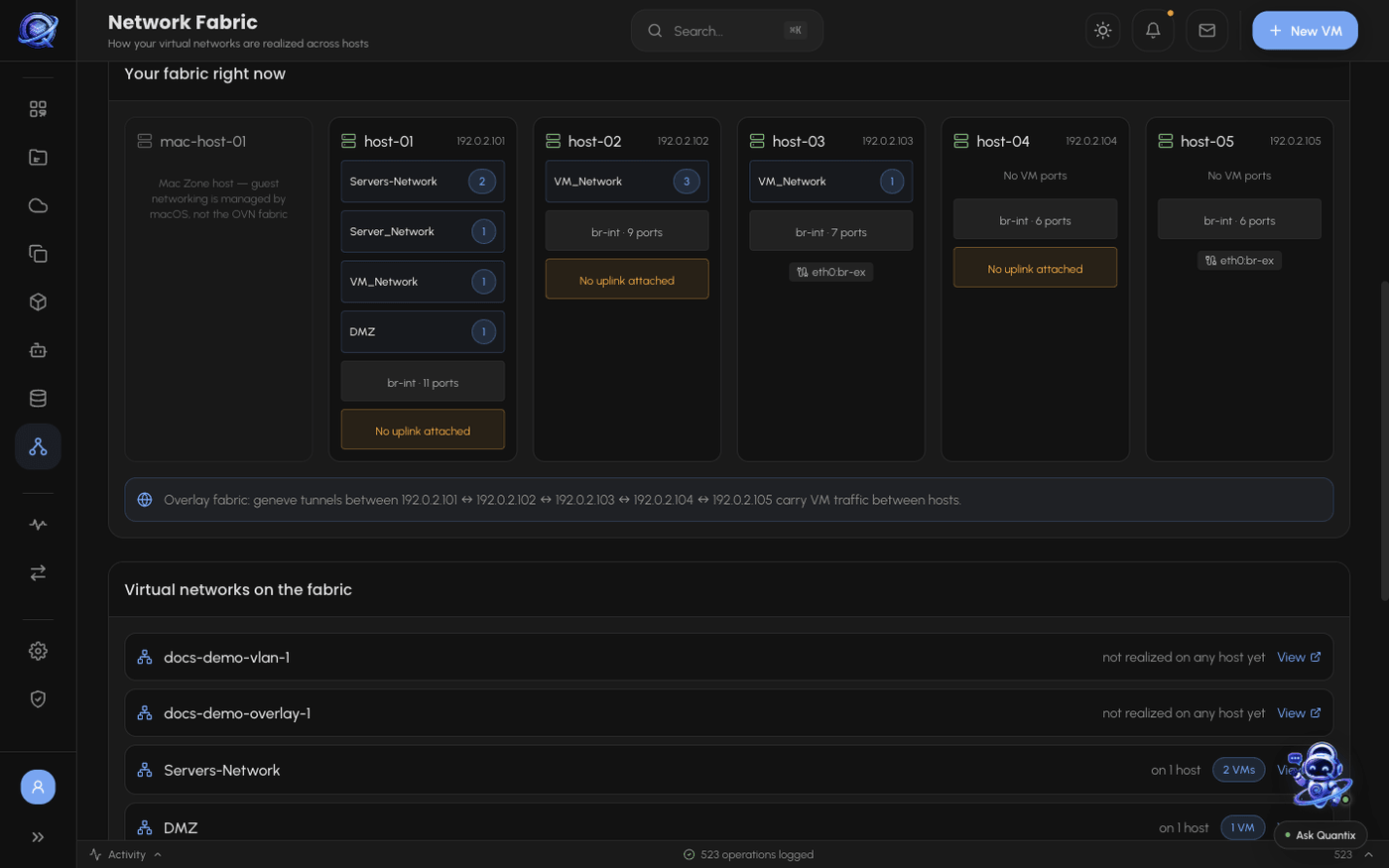
For the full picture across hosts, open Networking → Network Fabric. It is read-only and shows, per host, its encapsulation IP, the VM ports of each network, the integration bridge and the attached uplinks, and under Host fabric health whether each host's daemon and OVN chassis are connected and its overlay and physical MTU.
See one host's details
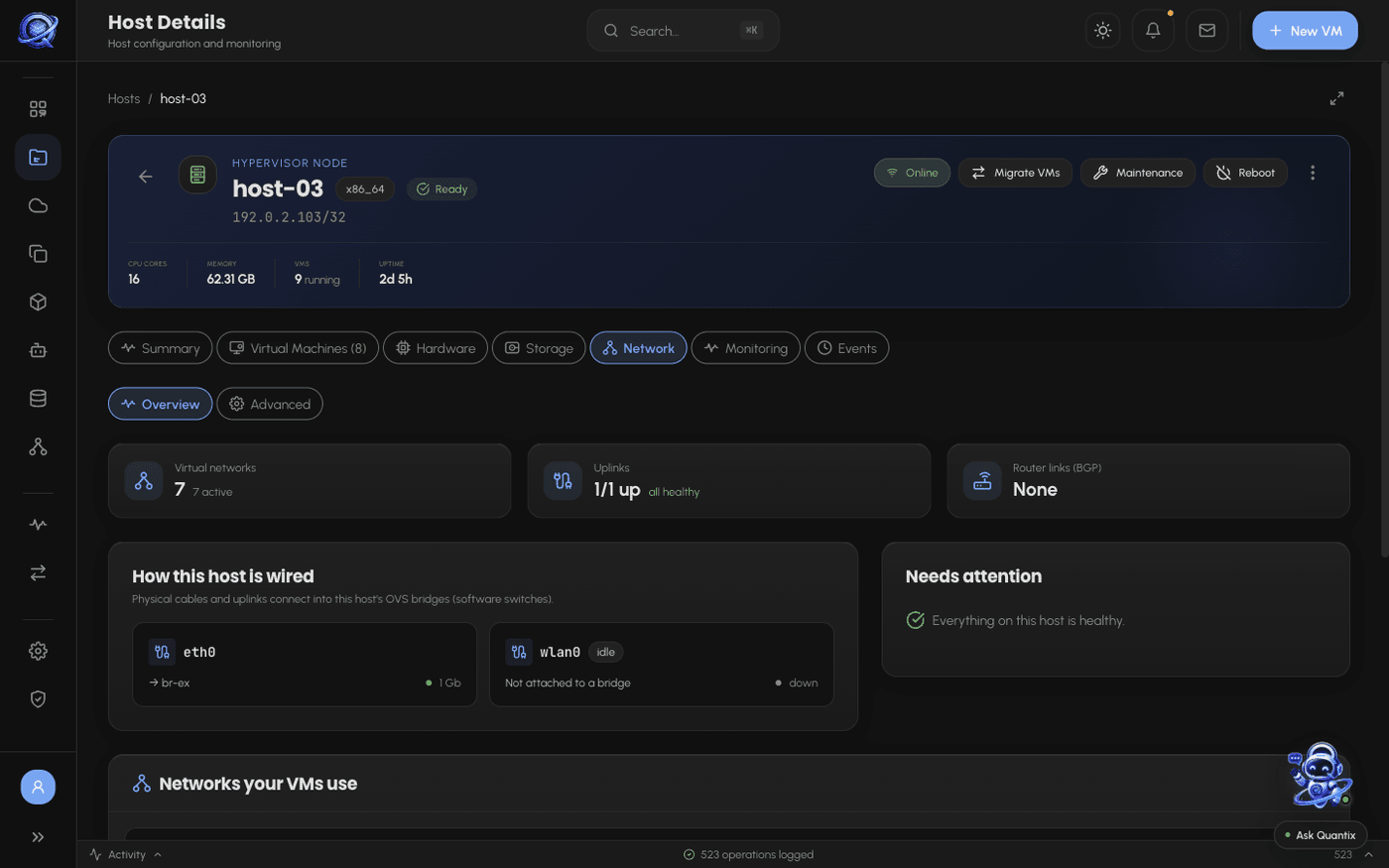
Go to Hosts, open a host, and select its Network tab.
- Overview shows How this host is wired: each NIC and the bridge it feeds, plus the networks the host's VMs use.
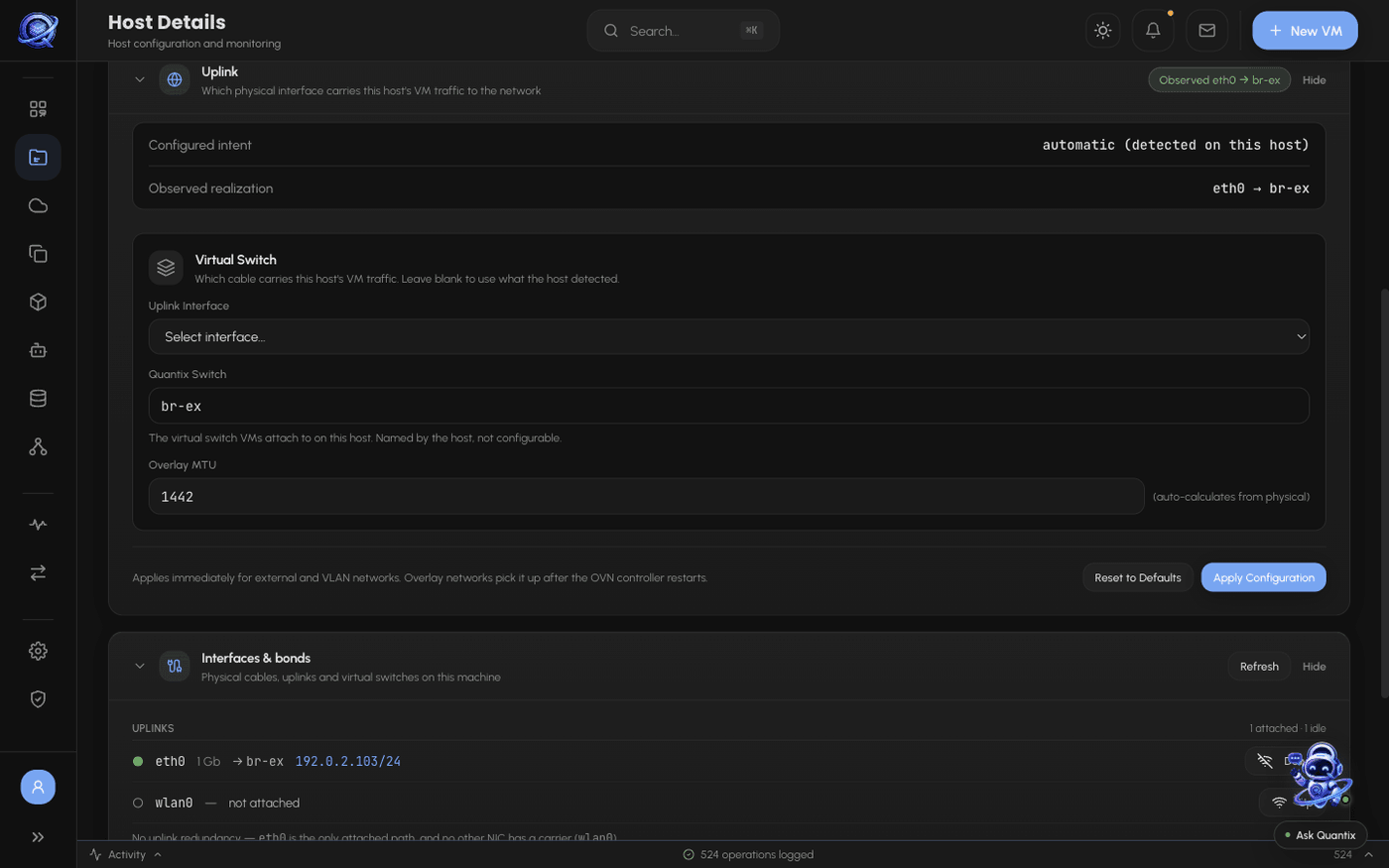
- Advanced → Uplink compares the Configured intent with the Observed realization (for example
eth0 → br-ex). - Advanced → Fabric bindings lists each fabric and the bridge on this host that carries it. See Map a fabric to a bridge.
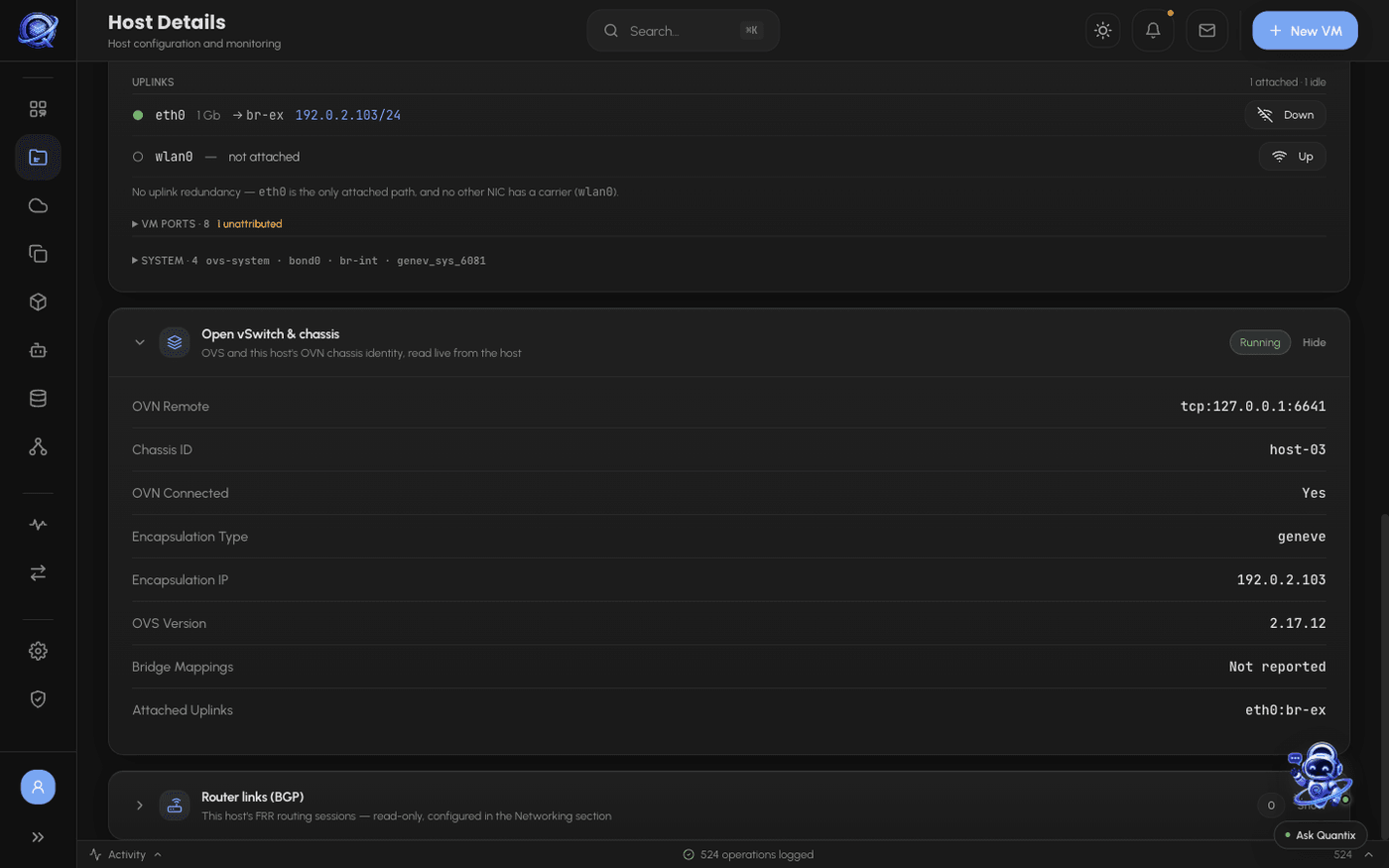
- Advanced → Open vSwitch & chassis (click to expand) shows the chassis identity read live from the host: Chassis ID, OVN Connected, Encapsulation Type, Encapsulation IP, OVS Version, Bridge Mappings and Attached Uplinks.
Register a host as an OVN chassis
The Networking Wizard registers the hosts you give an uplink NIC when you create an overlay network. To register a single host:
- Go to Networking → Hosts and expand the host.
- Click Register as OVN chassis. The button appears only when the host is connected to QvDC, its state is OVN chassis not connected, and the control plane's OVN service is available.
Expected result: the message Registering … as OVN chassis succeeded appears, and within about 30 seconds the host shows OVN chassis connected.
Bind an uplink NIC to the bridge
Choose the NIC that is cabled to the switch port carrying your VLAN or external network. If that NIC also carries the host's management address, the address is moved to the bridge; the host is briefly unreachable, and if its gateway stops answering, the host puts the previous setting back by itself within about 10 seconds.
With the Networking Wizard (recommended, all hosts at once). In step Goal & host uplinks, pick each host's Uplink NIC and Bridge name, continue to Review & apply and apply. See Set up networking with the wizard.
For one host, on the host itself: in the host's Host UI (https://<host-address>:8443), go to Networking → Physical Networking → Interfaces. On the NIC's row click Attach, then confirm Attach … to …?. Attach is offered only while no bridge on the host has an uplink, and attaches the NIC to the host's first bridge; if the host has no bridge yet, there is no Attach button — use the wizard. Once a bridge has an uplink, the row says to bond the NIC with it instead: two separate uplinks on one bridge can loop your network, so the host refuses a second one and changes nothing.
Check the result in QvDC: open the host, select Network → Advanced, and look at Uplink → Observed realization (for example eth0 → br-ex), or expand the host on Networking → Hosts.
Map a fabric to a bridge
A VLAN or External network names a fabric. A host can run VMs on that network only when it binds the fabric to one of its bridges. New hosts bind provider to their uplink bridge on their own; any other fabric (for example dmz) you map on every host that should carry it, before you create a network that names it. You need the admin or System administrator role.
- Go to Hosts, open the host, and select its Network tab.
- Select Advanced and find Fabric bindings. It opens by itself when the host has a fabric warning, and its badge then reads Needs attention.
- Each row is a fabric: the ones the host already binds, and the ones a ready VLAN or External network needs (needed by … names those networks).
- To bind or change a fabric, pick a bridge in its list. The list holds the bridges the host reports. A bound bridge the host does not report is still shown, marked (not reported by this host), so you can change or remove it.
- To add a fabric no network uses yet, type it in New fabric label, pick its bridge, and click Add binding.
- To remove a binding, click Remove on its row. The row shows Removed when you save.
- Click Preview to see what the change would do without saving it: QvDC answers with the host's fabric verdict after the change, for example Every ready external and VLAN network resolves to a bridge this host has.
- Click Save bindings.
Expected result: the message Fabric bindings saved on … appears, and the host's fabric warning clears at once if every ready network now resolves. QvDC uses a saved binding for placement and VM wiring straight away; VMs that are already running keep their current wiring. A fabric label must not start with - or contain spaces, ,, :, = or "; a bridge name is 1 to 15 letters, digits, _, ., : or -, not starting with -. Anything else is refused with a message that names the value.
An AI client makes the same change with the MCP tool node_fabric_map_set; run it with dryRun first, which is the same preview.
Detach an uplink
On Networking → Hosts, expand the host and click Detach on the uplink, then confirm Detach … on …?. If removing the NIC leaves the host unable to reach its gateway, the change is reverted automatically. Do not detach the only uplink of a host that runs VMs on VLAN or External networks.
VLAN ports, bonds, IP addresses and DNS on a host
These are managed on each host in its Host UI, under Networking → Physical Networking. Its tabs are Overview, Interfaces, Bridges & VLANs, OVS & Routing and DNS & Identity.
- Bridges & VLANs → Add VLAN Port — a Port Name, the OVS Bridge, the VLAN Mode (Access, Trunk or Native Untagged), and the VLAN Tag or Trunk VLANs. Click Create VLAN Port. The port name and bridge name must be 1 to 15 characters of letters, digits,
_,.,:or-, not starting with-(for examplevlan100); any other name is refused. - Bridges & VLANs → Create Bond — combine two or more NICs for redundancy or bandwidth: a Bond Name, the Bond Bridge, the Physical Interfaces, and the Bond Mode — LACP (802.3ad) (your switch ports must be configured for LACP), Active-Backup or Balance SLB. Click Create OVS Bond. To add a NIC to a bridge that already has an uplink, select both that uplink NIC and the new NIC: the host moves the uplink into the bond in one step and puts it back if the gateway stops answering. A bond that leaves the existing uplink beside it is refused, and so is moving an uplink that carries a VLAN tag or trunk list, or one on a host with no default gateway.
- Interfaces → Configure IP — set a static IP Address, Netmask and Gateway (Optional) on a NIC. If the change would cut the session you are using, the dialog warns you and says whether the host can roll back: when the NIC had an address and a gateway is known, the host restores the previous address after about 15 seconds if the gateway stops answering.
- OVS & Routing — the host's own view of its OVN chassis, bridge mappings and attached uplinks, and the OVN-bound ports on this host.
- DNS & Identity — the host name and the host's DNS servers (see DNS settings).
Troubleshooting
| Symptom | What to do |
|---|---|
| OVN chassis not connected | Expand the host and click Register as OVN chassis. If it stays disconnected, check that the host can reach QvDC on its management network. |
| Registering … as OVN chassis failed with a message that QvDC cannot determine the OVN Southbound address | The control plane does not know an address hosts can reach it on. Contact support. |
| no uplink chip | Bind an uplink NIC as described above. |
| A VM on a VLAN or External network does not start, with needs fabric '…' on host '…', which does not map it | Open that host's Network → Advanced → Fabric bindings and bind the fabric to a bridge the host has (see Map a fabric to a bridge). If the host has no uplink bridge at all, bind an uplink first. |
| The host shows a warning that it did not configure bridge mapping … | A stored binding names a value the host could not use. Change or remove it under Network → Advanced → Fabric bindings. |
| unmanageable | QvDC has lost its connection to the host. Check the host is running and reachable; see Troubleshooting. |
| The Hosts tab and the Network Fabric page show different uplinks | The Hosts tab reads the host's interfaces directly; the Network Fabric page shows the uplinks the host's switch reports. After a change, allow up to 30 seconds (or click Refresh on Network Fabric). |
Check Google identity connectivity from a QHCI host
Use the host's own Networking → Overview or DNS & Identity page and sign in with a viewer, operator or administrator account. This check observes the host's direct path to sts.mtls.googleapis.com:443; it does not change networking.
- Find Google identity connectivity, review the configured resolvers, and select Check reachability.
- Read the host, observation time and receipt, then the DNS, Route, TCP and TLS results. Each attempted peer shows the actual source, interface and gateway. A direct destination route can work without a default gateway. Transport verified requires verified server TLS; a TCP connection by itself is insufficient.
- If DNS fails, select Configure DNS. On a DHCP-managed host, correct DNS at the DHCP source for a lasting change. After saving, read the persistence message: the DNS servers were saved to static configuration, the change is temporary, or persistence failed. Search domains remain temporary. Older hosts may not report persistence; do not assume their changes survive reboot.
- To inspect address or gateway settings, select Configure beside the observed interface. Follow the existing interface confirmation and recovery warnings. Review uplink repair appears only when the host's guarded repair preview permits that repair. Running the check never moves an address or repairs an uplink automatically.
- Select Check reachability again after a change. Observations expire after one minute, and opening a repair control marks the observation stale.
DR identity exchange not checked always applies. A client-certificate requirement is inconclusive here. The check does not use DR credentials and cannot qualify a token exchange or other Google endpoints.
This check supports direct egress only. Proxy-only sites are not supported yet. It does not use an ambient outbound proxy. If the local path looks correct but TCP or TLS fails, give the source-site network owner the destination sts.mtls.googleapis.com, TCP port 443, the observed host source and interface, resolvers and failed stage. A timeout alone does not prove a firewall block; routing, NAT, filtering or the remote service may be responsible. Permit the required path through the site's normal network controls and recheck. Do not replace the site's DNS with public resolvers or disable certificate checks.
An unavailable or unknown result is not a successful measurement. Update an older host or restore access before checking again. The equivalent host MCP operation is network_egress_check, requiring network:read; it returns the same host receipt and does not accept an arbitrary URL.