

Security groups
A security group is a set of firewall rules applied to VM network adapters. It is an allow-list: once a group has at least one rule, traffic that no rule allows is blocked, in both directions. Rules are stateful, so replies to traffic you allow are let back in automatically. A group with no rules at all filters nothing.
You can apply a group in two ways:
- To a VM — the group is written to every one of the VM's network adapters.
- To a virtual network — the group becomes that network's default. Each adapter created on the network afterwards (a new VM, or an adapter you add) gets the group if you pick none of its own. Adapters that already exist keep their groups; attach the group to those VMs directly.
Overlay networks only
Security groups are enforced on adapters connected to overlay networks. Adapters on VLAN and External networks are bridged straight onto your physical network and are not filtered — protect those segments with your physical firewall.
Before you start
- A user with the admin, operator or System administrator role. Deleting a group needs admin or System administrator.
- Know which ports your VMs must accept connections on, and from where.
See your security groups
Go to Networking → Security. The tiles count the Security Groups, their Total Rules, and the Protected VMs. Groups are listed in two sections:
- Virtual network security groups — groups that are a network's default;
- VM security groups — groups attached to individual VMs, or not yet attached.
Each card shows the number of Inbound and Outbound rules and VMs. Click a card to see its rules.
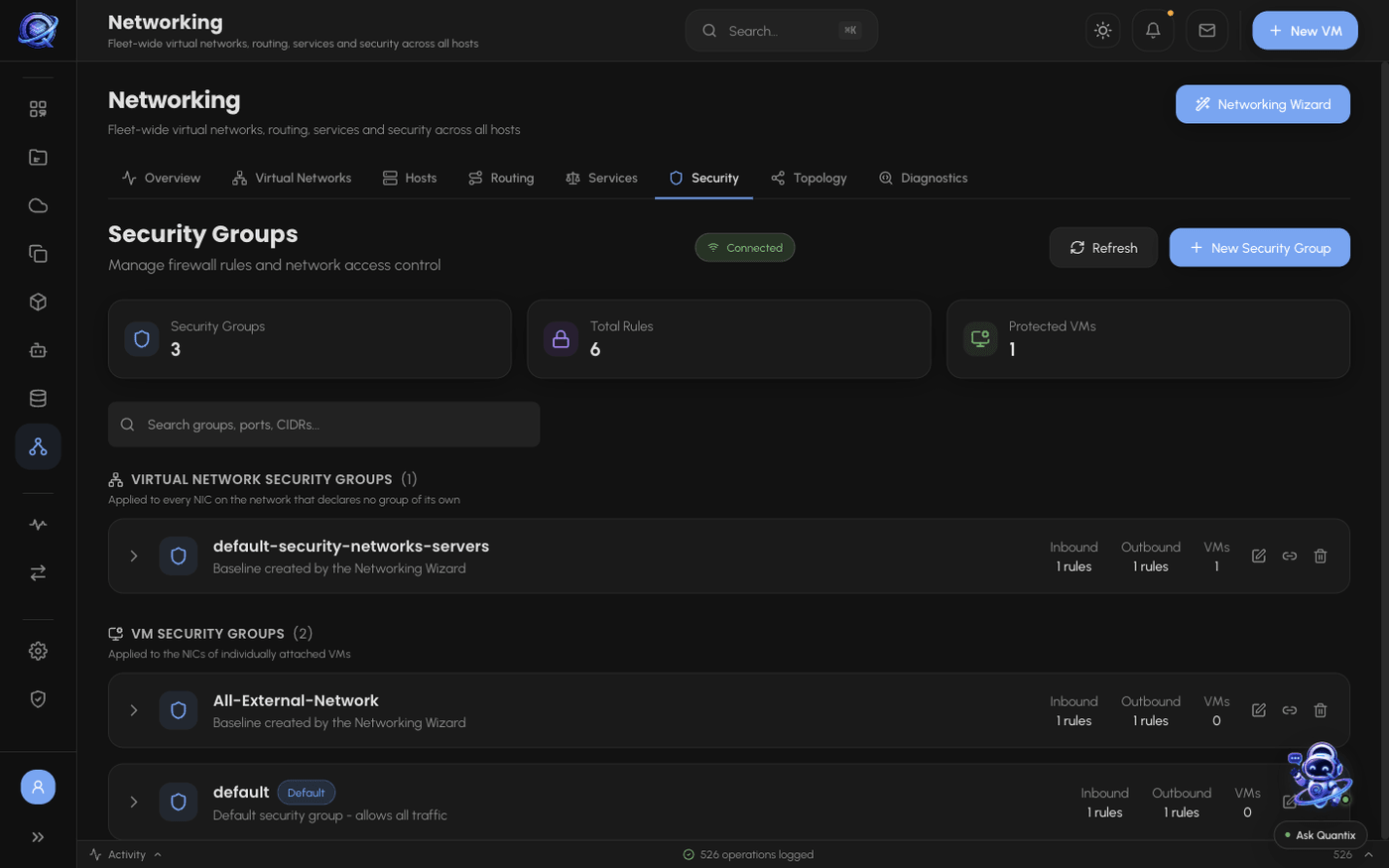
Create a security group
- Go to Networking → Security and click New Security Group.
- Enter a Name and, optionally, a Description.
- Choose the Starter rules:
- Baseline — outbound allowed, inbound denied. The usual starting point;
- Remote admin — Baseline plus inbound SSH (22) and RDP (3389);
- Web server — Baseline plus inbound HTTP (80) and HTTPS (443);
- No rules — an empty group. It filters nothing until you add a rule; from the first rule on, everything that rule set does not allow is blocked in both directions.
- Click Create.
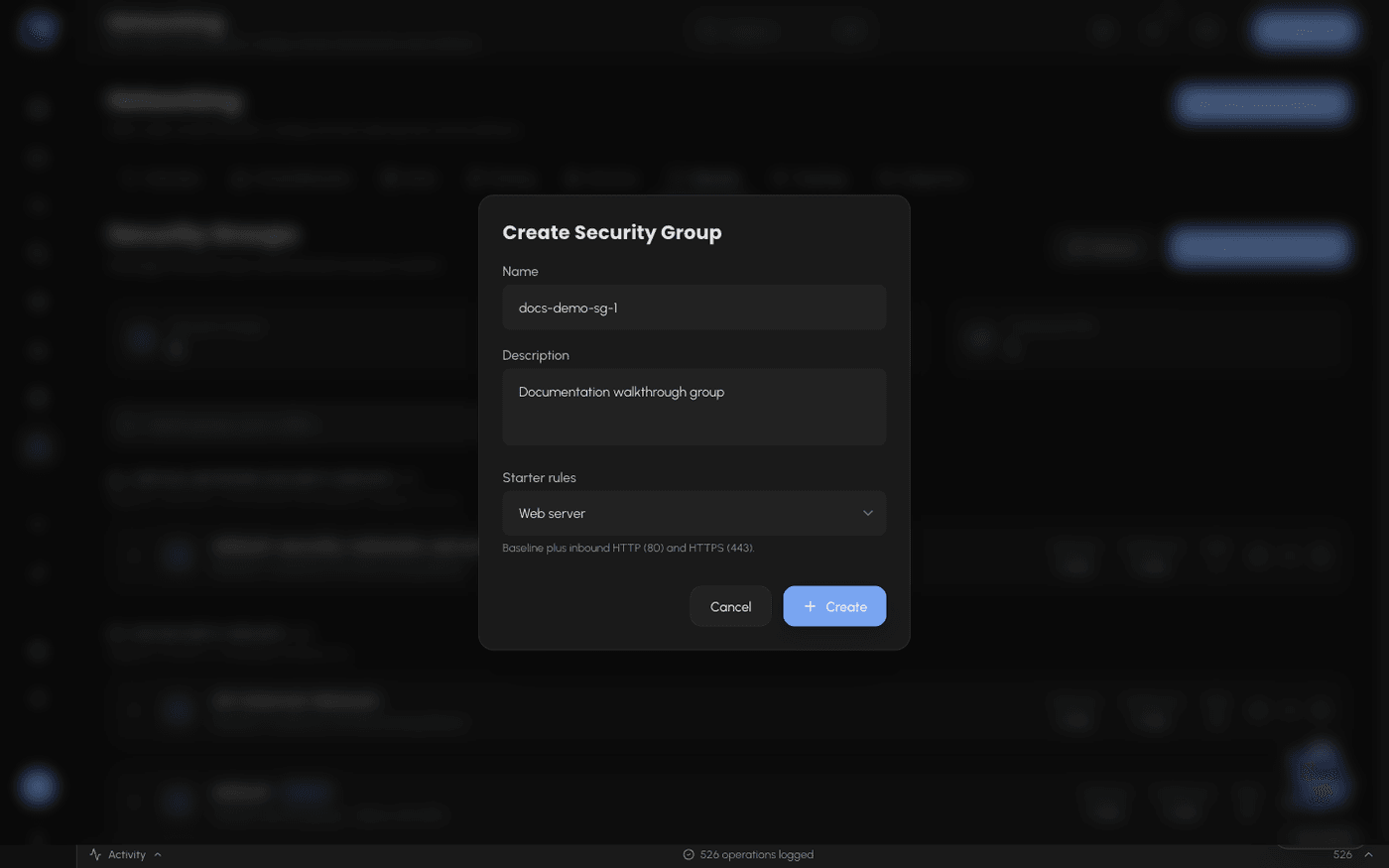
Expected result: the message Security group "…" created successfully appears and the group is listed under VM security groups.
TIP
Once a group has any rule, it also blocks outbound traffic that no rule allows. Start from Baseline (which allows all outbound traffic) unless you mean to restrict outbound traffic too.
Add a rule
- Click the group's card to expand it.
- Under Inbound Rules or Outbound Rules, click Add Rule.
- Choose the Action:
- Allow — let the traffic through;
- Drop — discard the packet silently;
- Reject — discard it and send an error back to the sender.
- Choose the Protocol: TCP, UDP, ICMP or Any.
- For TCP or UDP, enter Port (from) and, for a range, Port (to). Leave Port (to) empty for a single port.
- Enter a valid Source CIDR (inbound) or Destination CIDR (outbound), for example
203.0.113.0/24or2001:db8::/32.0.0.0.0/0and::/0mean anywhere. An invalid CIDR cannot be saved. - Click Add Rule.
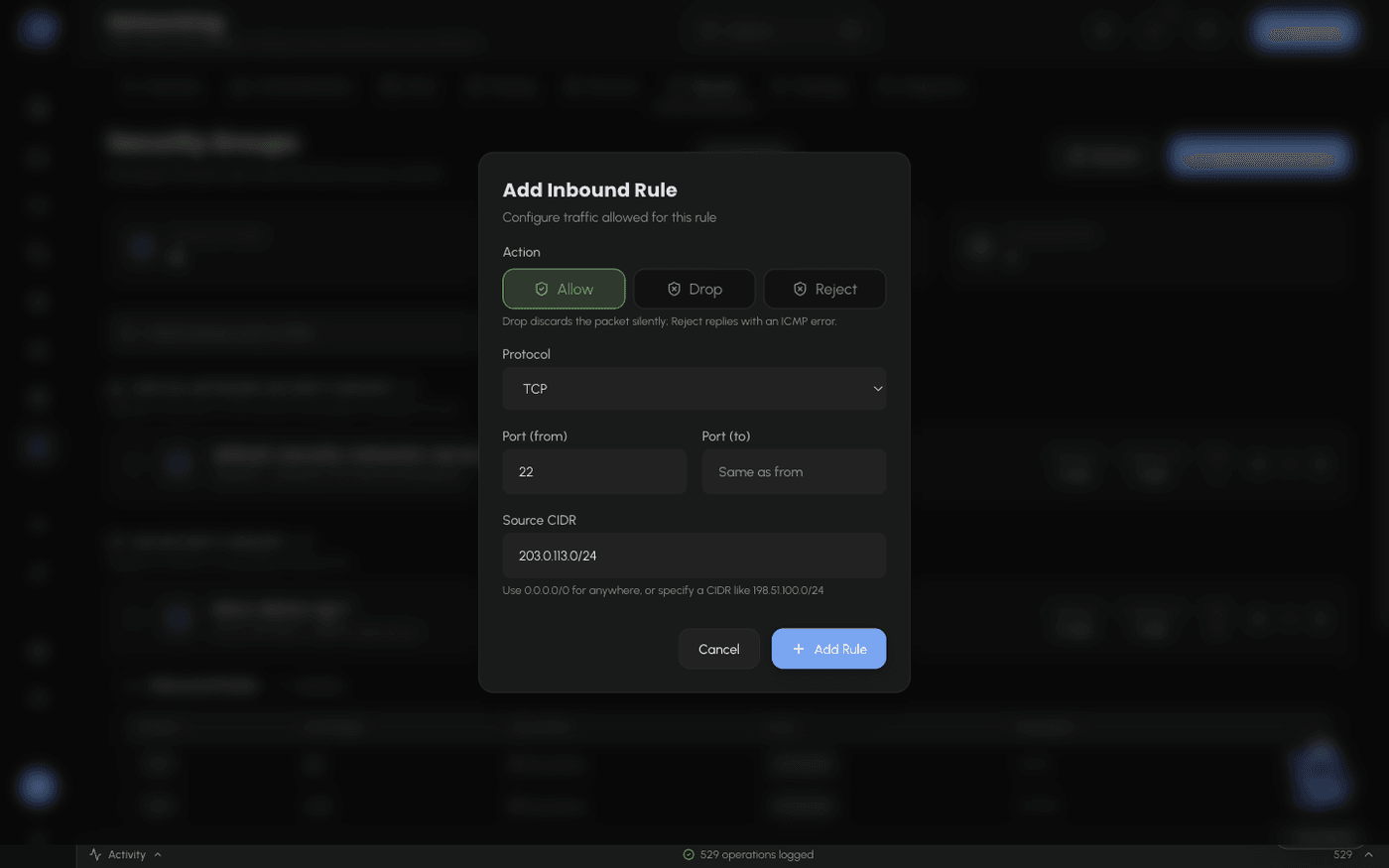
Expected result: the rule appears in the group's table with its Protocol, Port Range, Source/Dest and Action, and applies to every adapter the group covers.
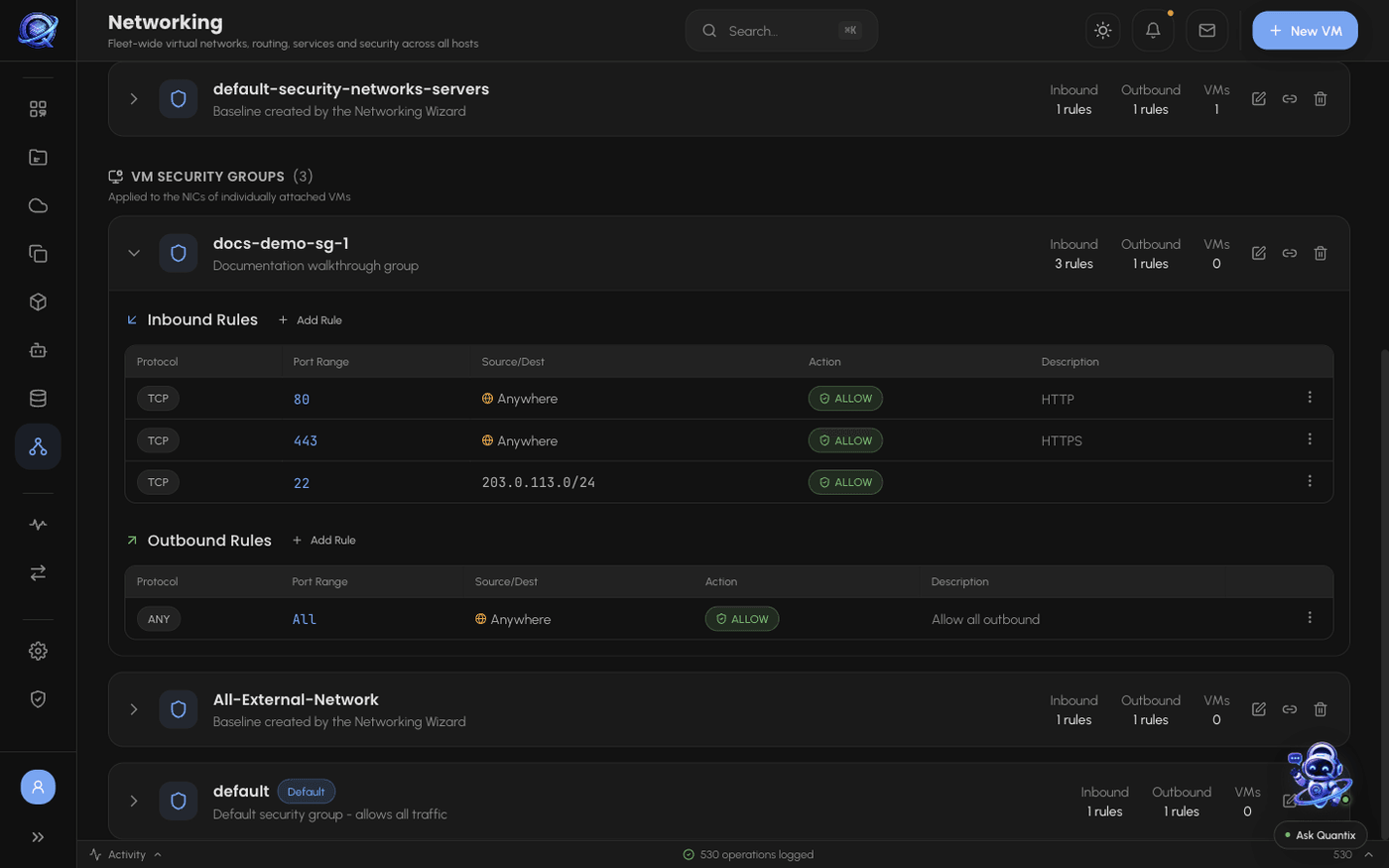
To change or remove a rule, open the menu at the end of its row and choose Edit or Delete (confirm with Delete rule).
Apply a group to VMs or networks
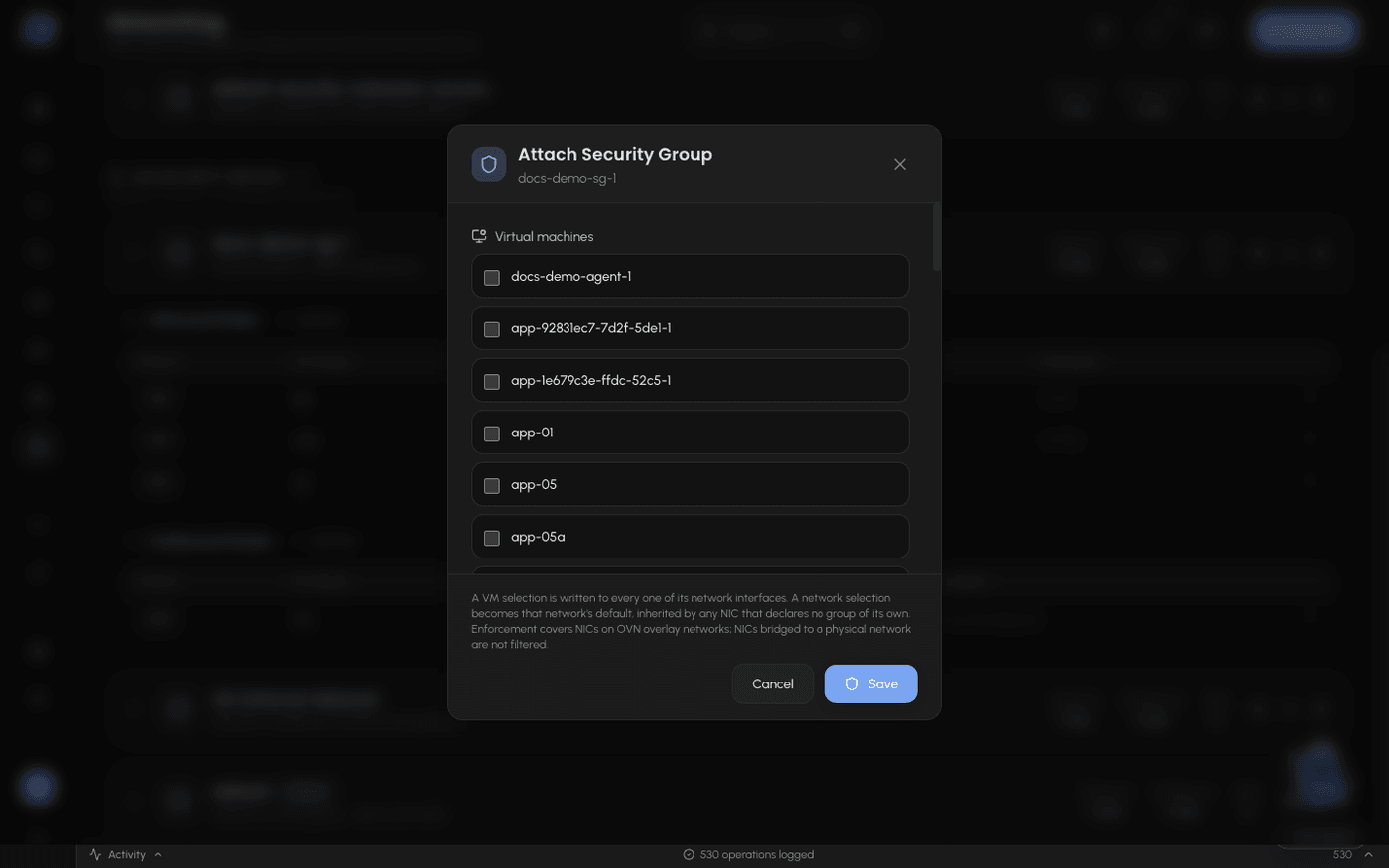
- On the group's card, click the Attach to VMs or networks button.
- In Attach Security Group, tick:
- under Virtual machines, the VMs to protect — the group is added to all of each VM's network adapters;
- under Virtual networks, the networks whose default it should become.
- Click Save.
Clearing a tick and saving detaches the group from that VM or network.
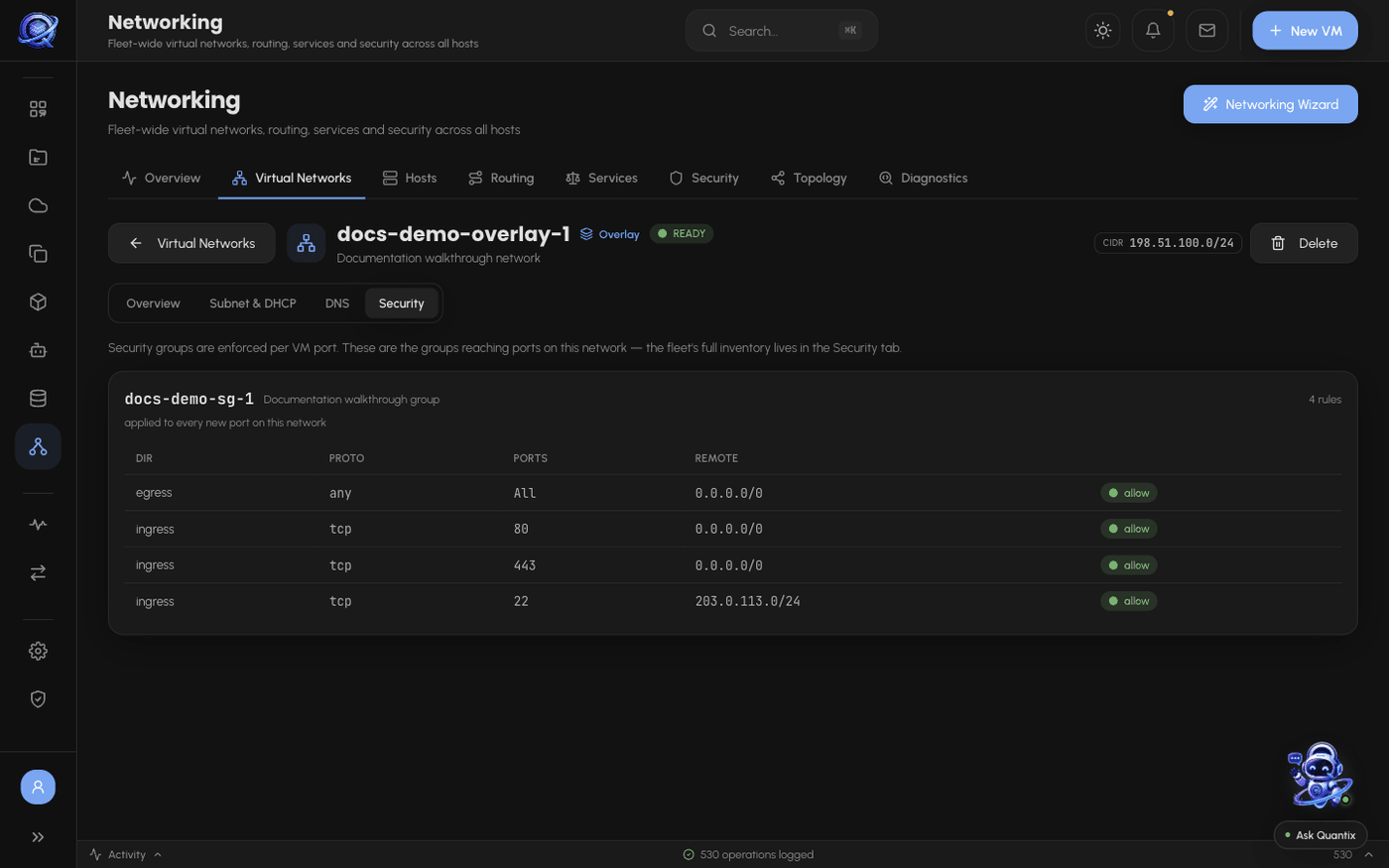
Expected result: a group attached to a network moves to Virtual network security groups, and the network's Security tab lists it as applied to every new port on this network. VMs whose adapters carry the group are counted under VMs and Protected VMs.
Removing a network default affects only adapters created afterwards; adapters that already carry the group keep it until you detach it from their VMs.
You can also choose a security group when you add a network adapter to a VM (Add Network Interface → Security Group); see Virtual machines.
Change or delete a group
- Edit security group (pencil button on the card) changes the name and description.
- Delete security group (trash button on the card) asks you to type the group's name to confirm, then removes it permanently. Deletion is blocked while a VM network adapter or template uses the group, a virtual network has it as its default, or another security group's rule refers to it; the message names each reference. Detach the group from the listed VMs or networks, or update the referring rule or template first. The built-in default group cannot be deleted.
Troubleshooting
| Symptom | What to do |
|---|---|
| A VM lost outbound access after a group was applied | The group has rules but no outbound Allow rule. Add one (Any to 0.0.0.0/0), or recreate the group from the Baseline starter. |
| A group seems to allow everything | It has no rules — an empty group filters nothing. Add at least one rule. |
| A port is still unreachable | Check that an inbound Allow rule covers the protocol, port and source address, and that the guest's own firewall allows it too. Also check which groups reach the VM's network on the network's Security tab. |
| Rules have no effect on a VM | The VM's adapter is on a VLAN or External network, where security groups are not enforced. |
| A VM on a network with a default group is not protected | Its adapter existed before the default was set, so it did not inherit the group. Attach the group to the VM directly. |