

Network adapters
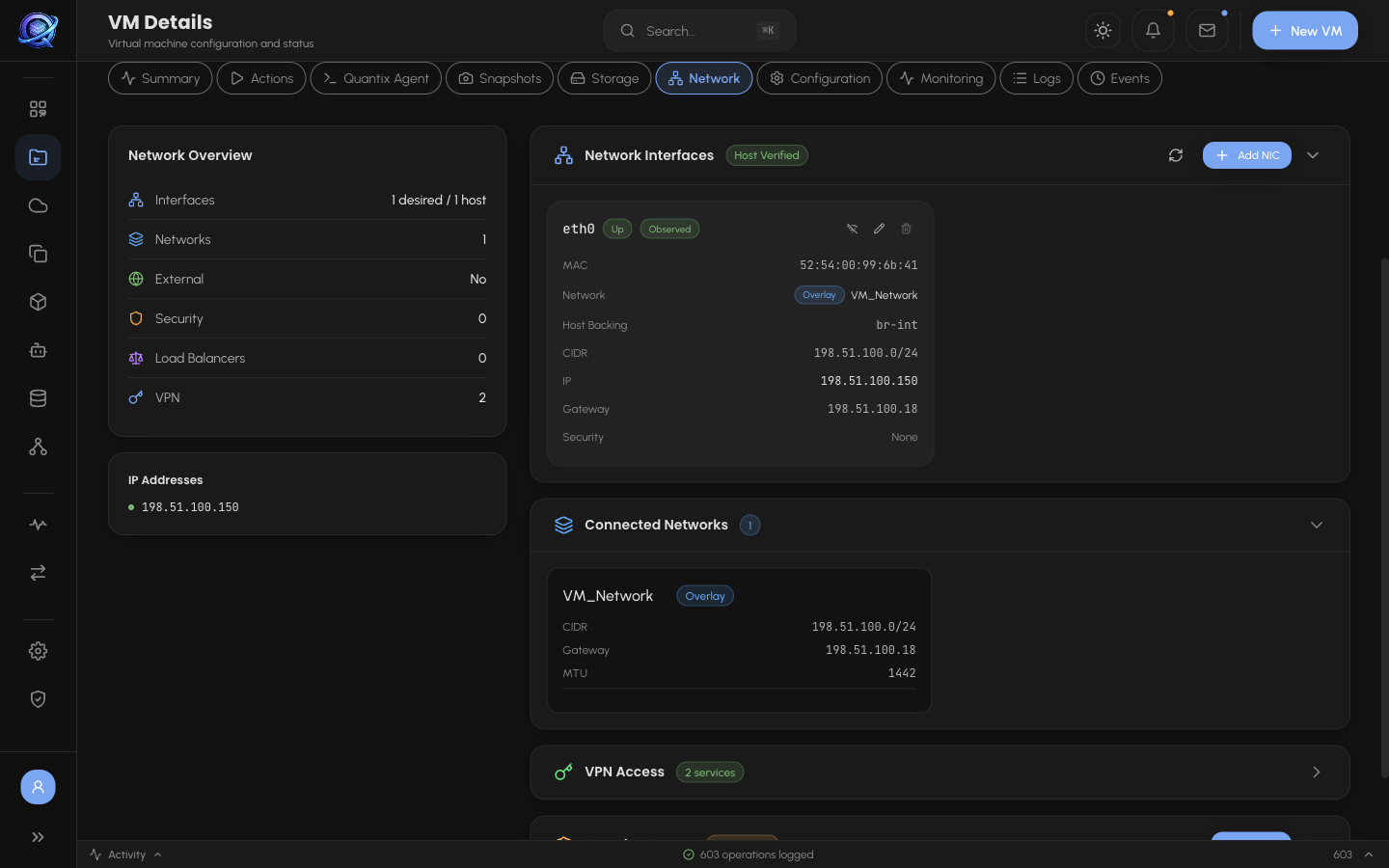
A VM's Network tab shows its adapters, the networks they are on, its IP addresses and its security groups.
Each adapter card (eth0, eth1, …) shows its MAC address, network and type (Overlay, VLAN, External …), the network's CIDR and gateway, the IP address, and the security groups applied. While the VM runs it also shows whether the link is Up or Down. With the Quantix Agent in the guest, the card also shows the guest's interface name and traffic counters.
Add an adapter
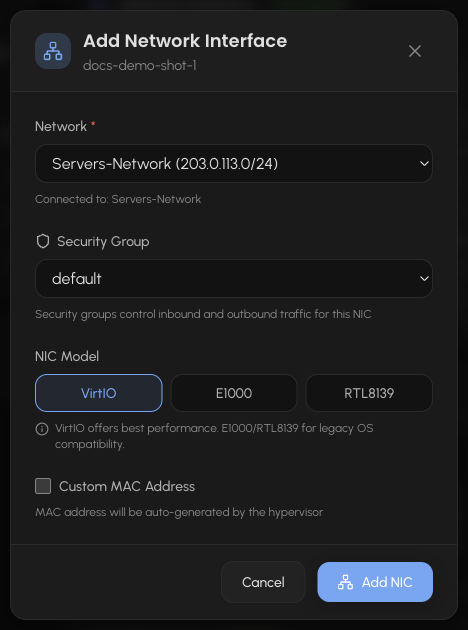
- On the Network tab, click Add NIC.
- Fill in:
- Network (required): each network is listed with its address range;
- Security Group: one group for this adapter. If security groups exist, the group named
default(or else the first group) is preselected; - NIC Model: VirtIO (default, best performance), E1000 or RTL8139 for older operating systems;
- Custom MAC Address: tick to set your own address (or click Generate). Otherwise the address is generated for you.
- Click Add NIC.
Expected result: NIC attached to "VM name". On a running VM the adapter is added live.
Move an adapter to another network
- On the adapter card, click the pencil icon (Change network).
- Choose the Target Network and click Save Network.
On a running VM the change applies at once if the host accepts it live; otherwise it is saved and applies at the next power cycle, and the card shows Pending · applies at next power cycle.
Disconnect an adapter
On a running VM, the link button on the adapter card (Disconnect / Reconnect) unplugs or replugs the virtual cable, without removing the adapter. It acts at once, without asking.
Remove an adapter
- On the adapter card, click the trash icon (Remove NIC).
- Confirm Remove this network interface? with Remove.
The VM loses the adapter and its MAC address, so any DHCP reservation or licence tied to that address stops matching. A VM's only adapter cannot be removed here.
Record an adapter the host has
Sometimes the host has an adapter that the VM's configuration does not list, for example after a revert to a snapshot whose adapters Quantix could not record (see Snapshots). The Network tab then shows it under Host-only interfaces, marked Absent from spec (or Untracked when the VM lists no adapters at all).
Adding a NIC does not fix this: Add NIC creates a second, new adapter. Record the existing one instead:
- Power off the VM. Only a stopped VM's definition proves the adapter is permanent, so the button is greyed out while the VM runs.
- On the host-only adapter's card, click Adopt into spec.
- Check what will be recorded: the adapter's ID, its network and its MAC address.
- Click Confirm adopt.
Expected result: the adapter moves from Host-only interfaces to the VM's adapter list. Nothing on the host changes: the guest keeps the same adapter and MAC address.
The network is the one the host's bridge belongs to. A tagged adapter keeps its VLAN tag and its adapter model. If the bridge belongs to another project's network, the adapter is recorded on the bridge instead. An adapter on an overlay network cannot be recorded this way: remove it from the host (below) and add a new adapter on that network.
If Adopt into spec says the VM's record and the host disagree, another adapter in the configuration does not match what the host has. Resolve that adapter first, then adopt.
Remove an adapter only the host has
If the guest should not have a host-only adapter at all, remove it from the host instead of recording it:
- On the host-only adapter's card, click Remove from host.
- Check the MAC address and bridge in Remove this interface from the host?, then click Remove from host.
Expected result: the card disappears from Host-only interfaces. The VM's configuration is unchanged, because it never listed the adapter. The guest loses the adapter and its MAC address.
The removal is refused, and the reason is shown on the card, when the VM's record and the host disagree about another adapter: one listed adapter has no MAC address, or a MAC address the host does not have. The host-only adapter might then be that listed adapter. A VM's last adapter cannot be removed.
Attach security groups
Security groups are firewall rule sets for the VM's traffic.
- On the Network tab, open Security Groups and click Attach.
- In Attach Security Groups, tick the groups the VM should have. Untick a group to remove it.
- Click Save.
The selection applies to every adapter of the VM. Rules are enforced on adapters connected to overlay networks; adapters on networks bridged to a physical network are not filtered. Create security groups under Networking first (see Networking).
Troubleshooting
| What you see | What to do |
|---|---|
| Missing on host on an adapter | The adapter is in the VM's configuration but the host does not have it. Check the Desired and host NIC inventories differ message, and fix the adapter before the next power cycle. |
| Interfaces are not tracked in the control plane | The VM was imported or attached directly to a host bridge. Its adapters work. To manage one, power off the VM and use Adopt into spec on its card (see Record an adapter the host has). Do not use Add NIC: it adds a second adapter. |
| Absent from spec on a host-only adapter | The host has an adapter the VM's configuration lacks. Use Adopt into spec on its card to keep it, or Remove from host to remove it. |
| Remove from host or Adopt into spec says the record and the host disagree | Another adapter in the VM's configuration does not match the host. Fix that adapter first. |
| No IP address shown | Install the Quantix Agent in the guest so it can report its addresses. |
| Attach is greyed out | The VM has no adapter. Add one first. |