

Container capacity
Capacity is the set of machines your container applications run on. For capacity Managed by Quantix, Quantix creates those machines as virtual machines on your hosts, installs the container runtime on them, and looks after them. Every application runs on exactly one capacity.
You can also connect a Kubernetes cluster you already run. It is shown with the Connected badge, as infrastructure owned outside Quantix.
View capacity
- Go to Containers → Capacity.
- Each card shows the capacity's name, whether it is Managed by Quantix, its health, and how many Machines and Applications it has.
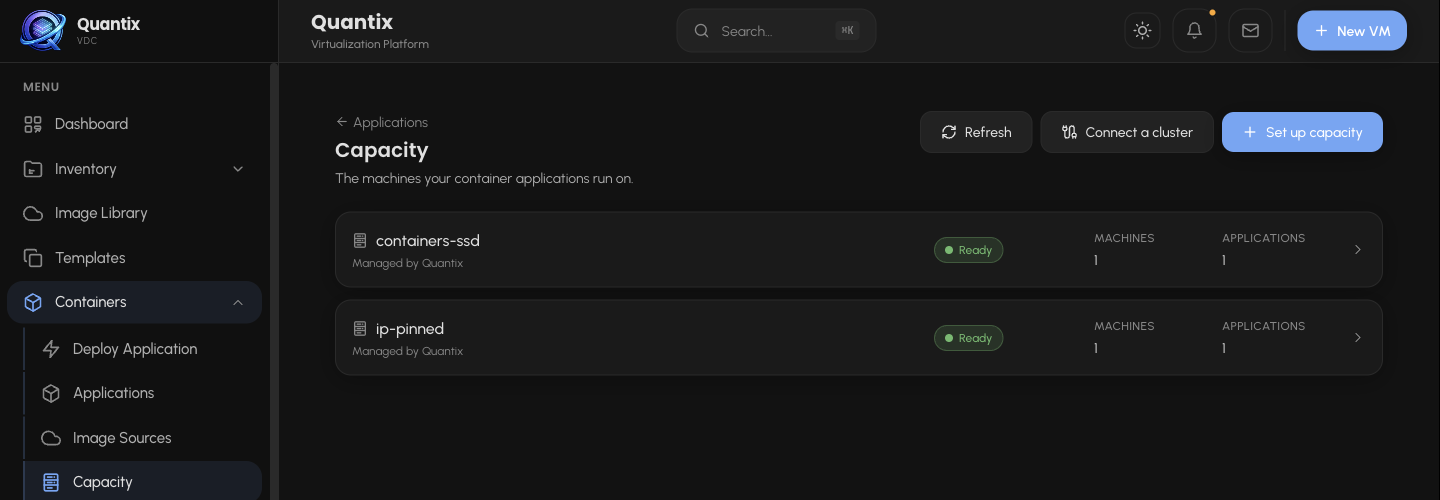
Health can be Ready, Waiting to start, Setting up, Checking, Removing, Degraded, Needs attention, Stopping, Stopped, Starting or Unknown. Unknown means Quantix cannot read the capacity right now; it does not mean the capacity is down. Stopped means someone turned the capacity off on purpose.
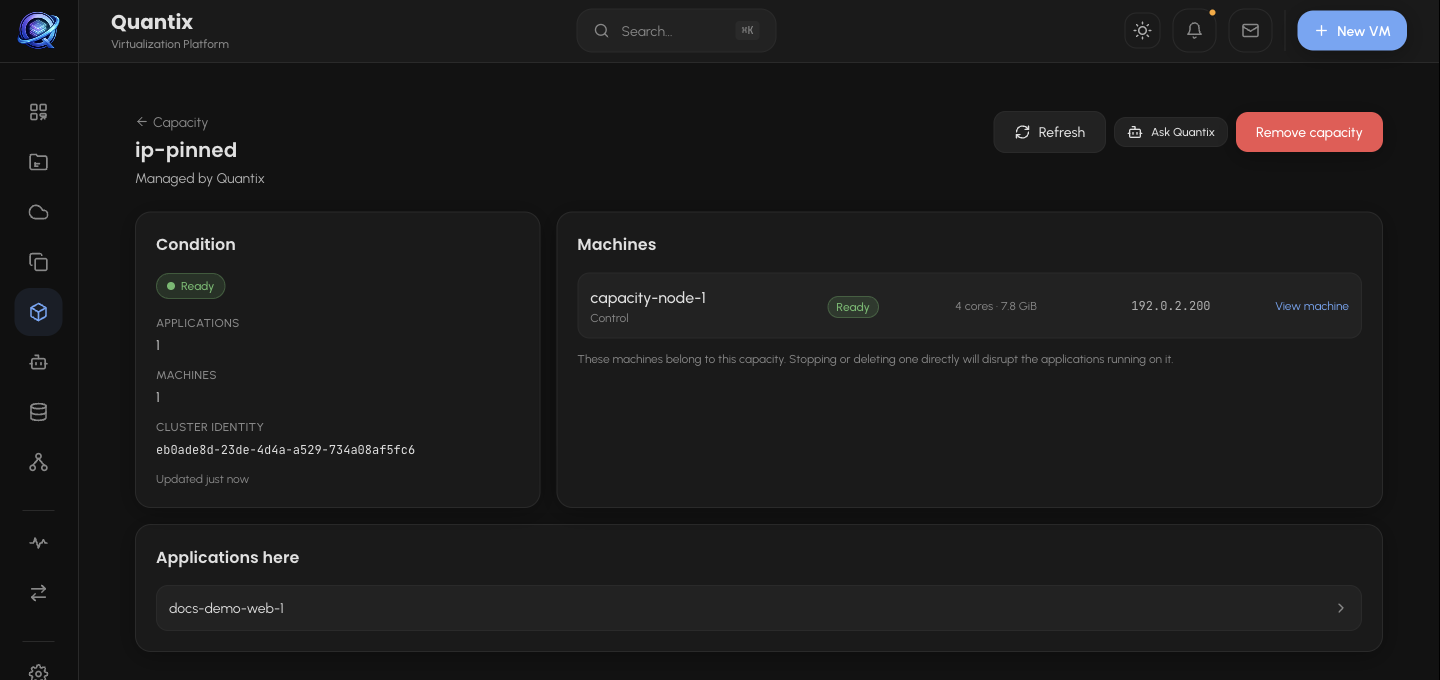
Click a capacity to open its page:
- Condition — health, number of applications and machines.
- Machines — each machine with its role, state, cores and memory, its address, and View machine, which opens the virtual machine behind it.
- Applications here — the applications that run on this capacity.
WARNING
The machines belong to the capacity. Stopping or deleting one of them directly disrupts the applications running on it. Manage them from the Capacity page, not from the virtual machine list.
DRS may move capacity machines between hosts to balance a cluster, live only and never while the capacity has an operation running. DRS never puts two control-plane machines of a resilient capacity on one host. See DRS.
A machine created before DRS could move capacity keeps its cloud-init data on its host, and DRS reports it as LIVE_MOVE_UNAVAILABLE. Choose Make live-movable on that machine. Quantix copies the data to the machine's folder on the shared storage pool, checks the copy, and switches the machine to it while it keeps running. The preview refuses while the capacity has another operation running, while the machine is moving or changing power state, or while another control-plane machine of the capacity is down or moving.
Running Make live-movable again is always safe. If a run ended without an answer from the host (for example, the host went down), run it again once the host is back: on a machine whose data is already on the shared pool it changes nothing and finishes the earlier run, so DRS and host maintenance can move the machine again.
Turn capacity off and on
A host update or Drain Host handles a capacity's machine on its own: it moves the machine live to another host when one can take it, and otherwise, for a capacity with a single machine, turns the capacity off and back on when the host returns to service. The drain and update windows say which before anything happens.
Turning capacity off shuts down its machines and keeps everything else: the machines' disks and data, your applications and their volumes, and the capacity itself. Use it to free host resources while you do not need the applications. You need the container cluster administration permission. Capacity you connected (Connected) cannot be turned off from Quantix, because Quantix does not own its machines.
- Go to Containers → Capacity and open the capacity.
- Click Turn off.
- Read the summary. It lists the machines in the order Quantix shuts them down, the applications that stop, the addresses that stop answering, and what is kept.
- Click Turn off to confirm.
Quantix shuts the worker machines down first and the control-plane machines last. Each machine gets 90 seconds to shut down cleanly; a machine that does not is powered off, and the operation says so. If Quantix cannot ask a machine to shut down at all (for example, its host does not answer), it does not power it off; it records why and asks again. The operation finishes when every machine is stopped, and the capacity then shows Stopped.
A stopped capacity stays stopped when its hosts or Quantix restart. While it is stopped, you cannot deploy to it or change its applications; turn it on first. You can still remove it.
To turn it back on, open the capacity and click Turn on. Quantix starts the control-plane machines first, then the workers. The capacity shows Starting until it is ready, and the operation finishes when it shows Ready. A machine counts as ready only once it has reported in since it was started. Your applications then come back by themselves. Quantix checks first that every machine can be started safely; if one cannot, nothing is started and the operation says which machine and why.
If a machine does not stop or start within 20 minutes, the operation ends and names it, and the capacity shows Turn off did not finish or Turn on did not finish with the reason. Click Resume turn off or Resume turn on to carry on; machines that already finished are left as they are. You can also go the other way: Turn on a capacity that did not finish turning off, or Turn off one that did not finish turning on.
Create a reusable capacity template
Templates save machine counts and sizes for later use. Saving one creates no machines and does not change existing capacity. You need the container cluster administration permission.
- Open Containers → Capacity, then Set up capacity.
- On Size, select Create template.
- Enter a Template name, optional Description, and Base runtime.
- Set the Control-plane count to 1, 3, 5 or 7 and choose CPU cores, memory in GiB, and disk in GiB per machine.
- Set the Worker count and, if greater than zero, the size of each worker.
- Check the totals, select Review template, then Save template.
The saved template appears alongside Standard and is selected for setup. Select Continue to choose hosts, networking and storage, then review the actual capacity request before creating machines. Templates are saved in the current project and remain available after reloading the page.
Multiple control-plane machines need separate physical hosts. Application data remains local to its runtime machine; extra machines do not provide application or storage failover. Machine sizes must meet the base runtime's minimums. A template whose base runtime is no longer available cannot be used.
Templates are immutable. To use different counts or sizes, save another template with a new name. Existing capacity keeps the sizes it was created with.
How the Deploy wizard picks capacity
In the wizard's Where it runs step, Quantix:
- uses the capacity you select, if it is ready or being prepared;
- otherwise suggests the first capacity that is Ready, or one that is being prepared (the launch then waits for it);
- if there is no capacity at all and you are allowed to set up capacity, creates one for you when you press Launch. Anyone else sees An administrator needs to set up capacity once.
Set up capacity
Setting up capacity needs the container cluster administration permission.
Prerequisites. Quantix needs, before it can create capacity:
- a host cluster to run the machines on;
- a virtual network the machines can join;
- a storage pool that is ready. Your applications' persistent data is kept on this pool too, so choose one you back up.
You can set up capacity in two ways:
- From the Deploy wizard. When there is no capacity, the Where it runs step shows There is no container capacity yet. Quantix will set it up. Choose a size under How much capacity?, and optionally open Placement: chosen for you and click Change to pick the Hosts, Network and Storage. The machines are created when you press Launch, which takes several minutes.
- From the Capacity page. Click Set up capacity and follow the steps Size, Where it runs, Review and Progress. Nothing is created until you click Create capacity on the review step.
On the Review step, How the machines reach Quantix shows three settings, filled in for you. You can change them before you create the capacity:
- DNS servers: the name servers the machines use, up to three addresses. They start as the network's DNS servers, or its gateway when the network declares none.
- Quantix host name: the name the machines use to reach Quantix. The machines check Quantix's certificate against this name, so it must be a name the certificate covers.
- Fallback address: the address the machines connect to when their DNS servers cannot resolve the host name. They still check the certificate against the host name. Leave it empty for no fallback.
DNS servers and the fallback address must be ordinary network addresses: loopback, link-local, multicast and broadcast addresses are not accepted.
After you change one, click Check these settings. The review warns when the DNS servers cannot resolve the host name and the machines will use the fallback address, and stops you when there is no fallback to use.
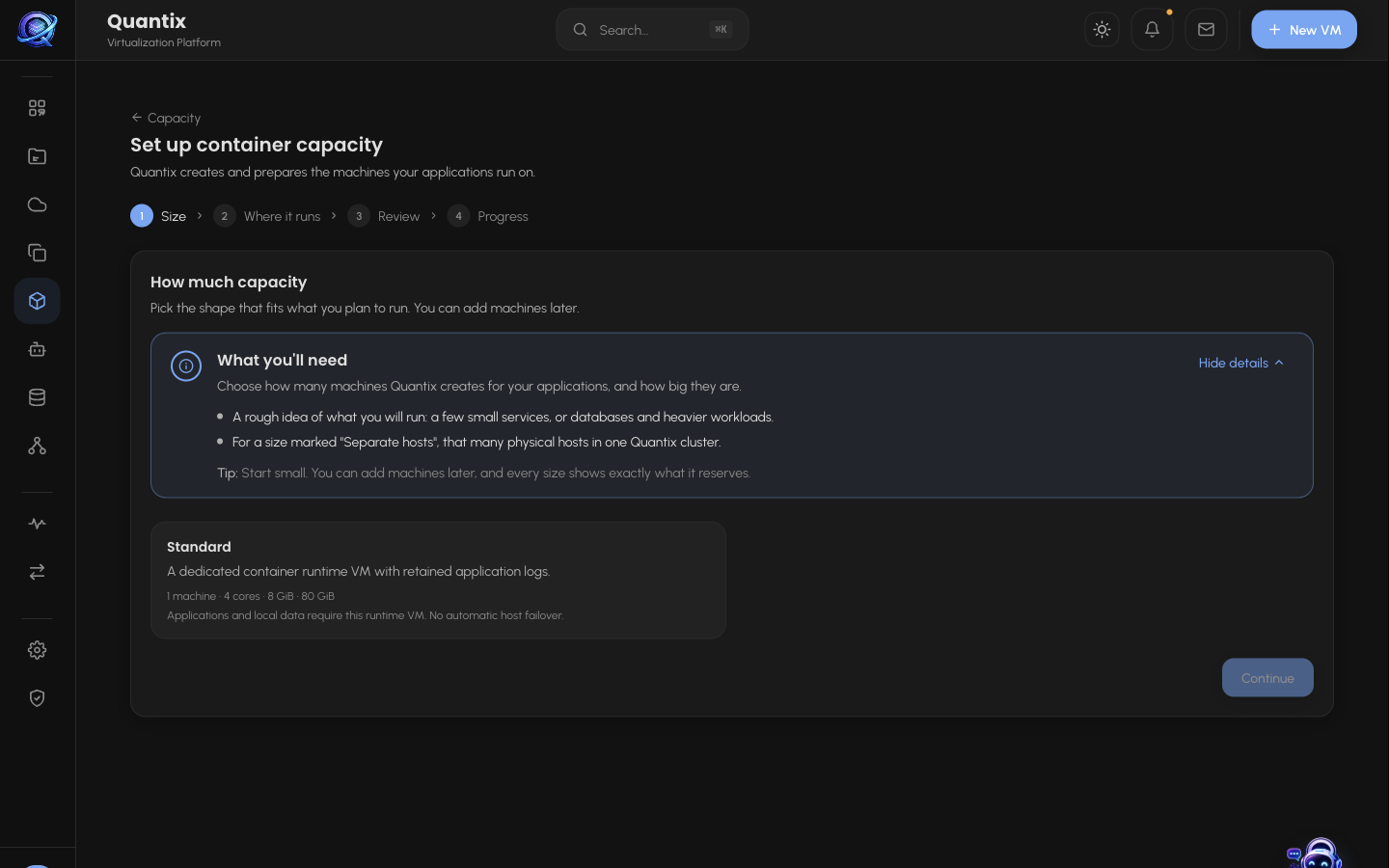
The Standard size is one machine with 4 cores, 8 GiB of memory and an 80 GiB disk. Applications and their local data depend on that one machine; there is no automatic failover to another host.
While capacity is being set up, its page shows each stage, from Plan and Create machines to Final checks. Applications can be placed on it once the final checks pass. If a machine cannot reach Quantix, the capacity's Condition says why within a few minutes, for example that the machines cannot resolve the Quantix host name, together with what to change.
An operation still in progress
While an operation is working on the capacity (setting it up, resizing it or removing it), its page shows that operation at the top with its state. If no progress has been recorded for 15 minutes, it is marked Stuck. Each setup stage a machine reaches counts as progress. Click Cancel operation to ask Quantix to stop it; you need the same permission as for the operation itself. The notice then shows how the operation ended and why, for example that setup was cancelled and the machines were kept. Open operation shows every step. The Remove this capacity dialog shows the same notice when an operation is in progress.
If setup stops
Setup stops, and the capacity shows Needs attention with the reason, when it cannot finish:
- a machine did not enroll before its one-time enrollment secret expired (30 minutes after Quantix issued it). Nothing can issue a new secret, so Quantix stops instead of waiting;
- setup has run longer than 45 minutes, counted from when you created the capacity, so restarting Quantix does not reset the count;
- someone cancelled the setup operation.
The machines Quantix already created are kept so you can look inside them. To start again, remove the capacity and set it up again.
Remove capacity while it is being set up
You can remove capacity at any time, including while setup is still running. The removal preview says which setup operation it will stop. When you confirm, the setup operation ends with a reason naming your removal, and the removal unregisters every machine the setup created, including one whose creation was interrupted before Quantix recorded it. Their disks stay on the storage pool. You do not need Force removal for this; force is only for capacity that applications or retained data still use. If Quantix refuses the removal, for example because the preview expired or applications are still on the capacity, setup carries on as before.
Connect an existing cluster
Click Connect a cluster and enter a Name, the cluster's Address (it must start with https, for example https://k8s.example.com:6443), an Access credential, and, if needed, a Certificate authority (optional). Quantix connects read-only first.
Troubleshooting
| What you see | What to do |
|---|---|
| The wizard says An administrator needs to set up capacity once | Ask a user who can set up capacity. Your answers are kept while the page stays open. |
| The wizard lists a capacity as Not usable | Open Containers → Capacity and check its health. |
| Before Quantix can set up capacity, you will need: | Create the missing host cluster, virtual network or storage pool, then return to the wizard. See Storage pools and Networking. |
| Setup stays on Install runtime and Condition says the machines cannot resolve the Quantix host name or cannot connect to Quantix | Remove the capacity and set it up again, with DNS servers that resolve the host name or a Fallback address the machines can reach (for example 192.0.2.10). |
| Removing capacity fails with another operation owns this resource | Another action (for example a credential rotation) is still running on it. Wait for it to finish on the operation page, then remove again. A running setup or resize does not block removal. |
| Turn off did not finish or Turn on did not finish | Check the host of the machine named in the reason is up, then click Resume turn off or Resume turn on. Quantix continues from where it stopped. |
| A deploy is refused with is turned off | The capacity is stopped. Turn it on, or choose another capacity. |
| The capacity shows Unknown | Quantix cannot read it at the moment. Refresh after a minute; if it stays Unknown, check the machines' virtual machines are running. |