

Automatic rules
Automatic rules are standing limits QvDC checks whenever someone asks for a VM or disk. A rule can deny the request, warn about it, or only log it. Rules never delete anything. Manage them under Admin Panel → Rules & records → Automatic rules (page title Automatic rules).
A rule limits one of three things:
| Limit | Checked when |
|---|---|
| CPU cores | A VM is created, reconfigured or cloned. |
| Memory | A VM is created, reconfigured or cloned. |
| Disk size | A VM is created, reconfigured or cloned, and when a disk is attached or resized. |
Prerequisites
- An account with the admin base role.
Create a rule
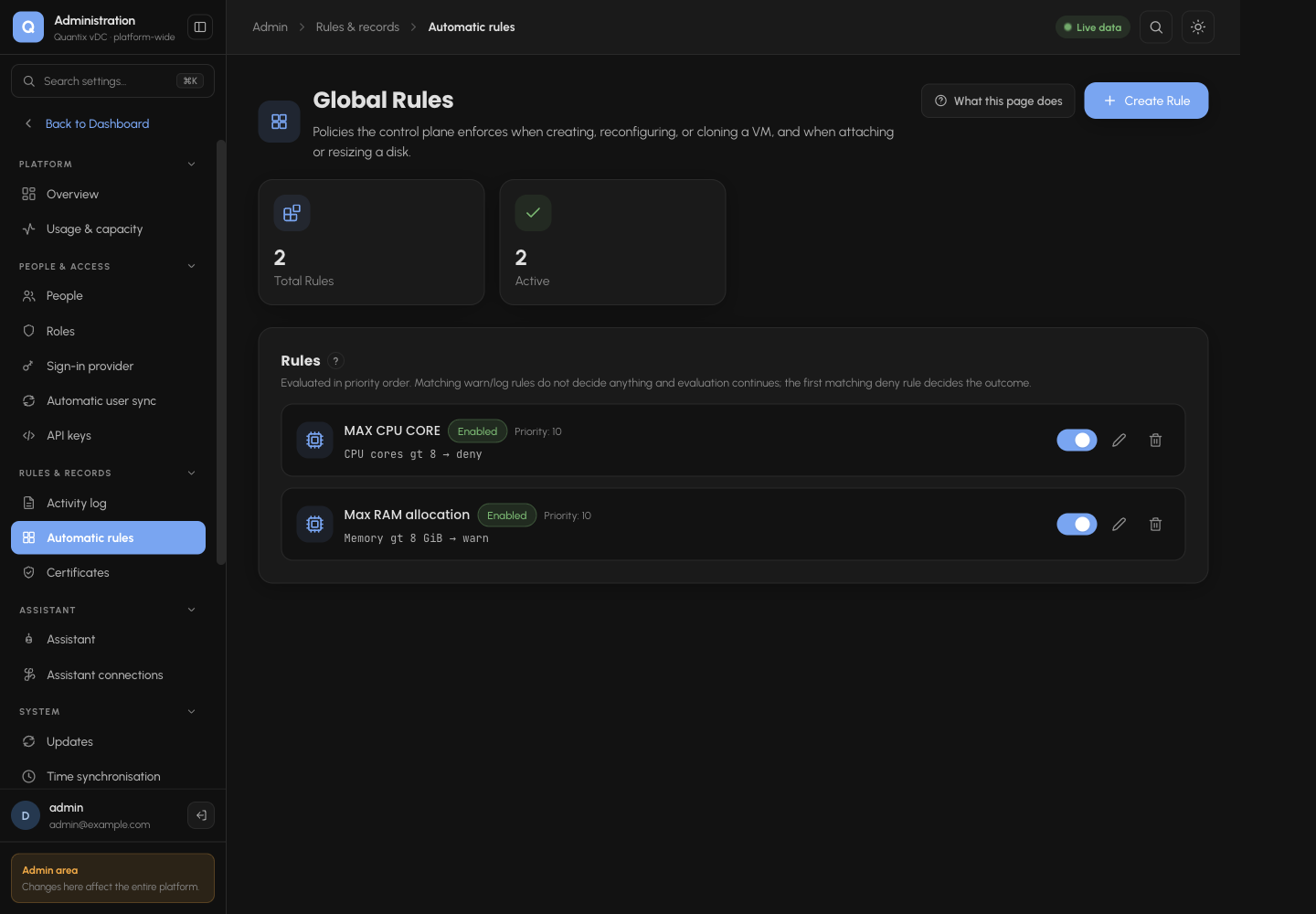
Go to Admin Panel → Rules & records → Automatic rules and click Create Rule. The wizard has five steps. Your rule so far keeps the current name, scope, condition, outcome and priority visible beside each step. Its Edit buttons return to a completed step without discarding your draft.
Field — enter a Rule Name and, optionally, a Description. Under What does this rule limit?, choose CPU cores, Memory or Disk size. Click Next.
Scope — under Where should this rule apply?, choose Everywhere in the fleet, One existing VM, or (for disk size) One storage pool, and pick the VM or pool. Click Next.
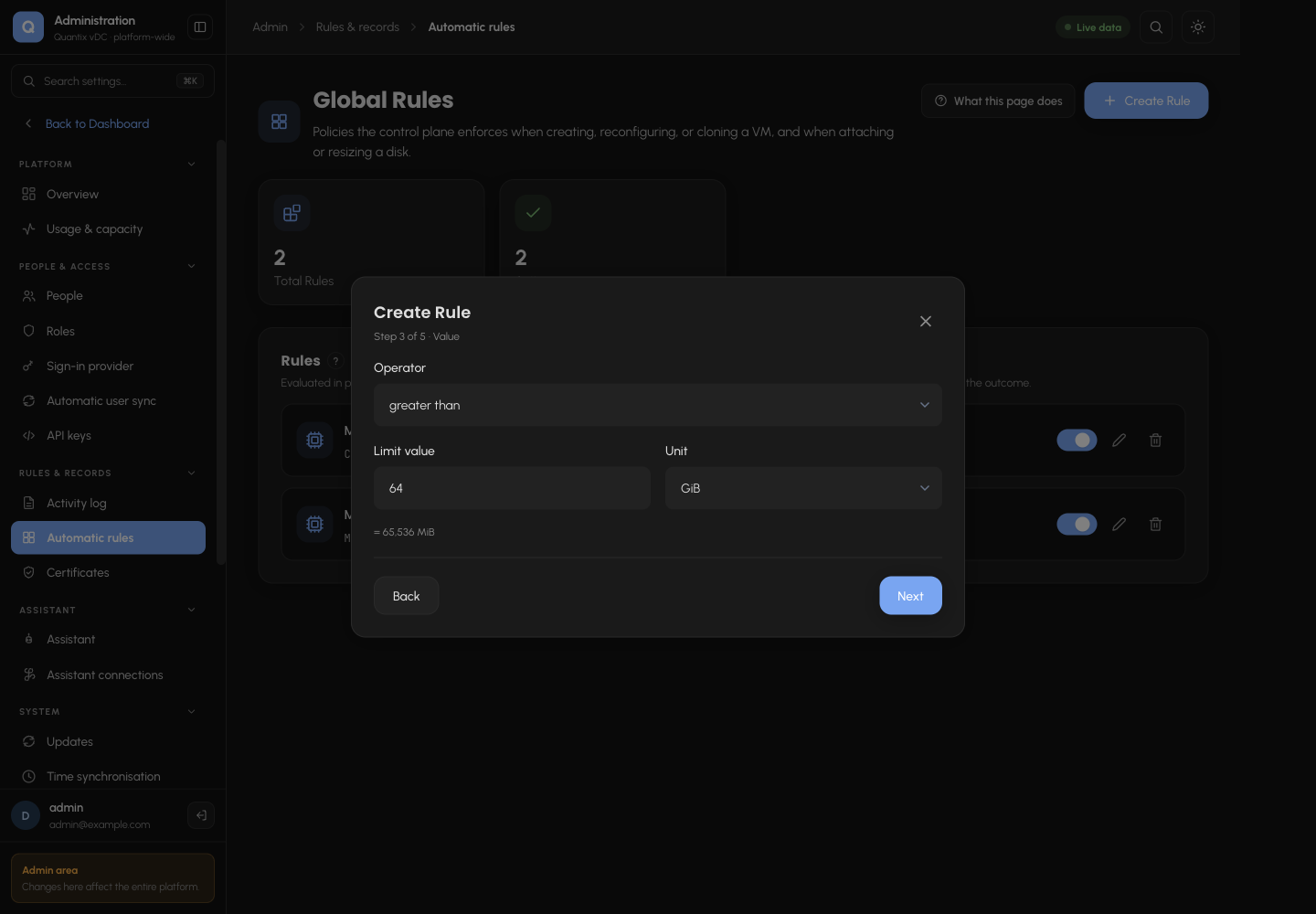
Value — choose the Operator (greater than, at least, less than, at most, equals or not equals), enter the Limit value, and for memory or disk size choose the Unit (GiB or TiB, and PiB for disks). Click Next.
Action — choose what happens when the rule matches:
- Deny — block the operation: the request is refused and the person sees your Message, which is required for this action.
- Warn — allow but flag: the request goes ahead. When a VM is created or cloned, the warning is shown in the progress of that operation.
- Log — record only: the request goes ahead; the match is written to QvDC's own service log, not to the Activity log.
Set the Priority (default 10; a lower number is checked first). Click Next.
Review — check the sentence that describes the rule and the operations it Fires on. Complete rule preview includes the stored values and any additional conditions or actions retained from an existing rule. Then click Create Rule.
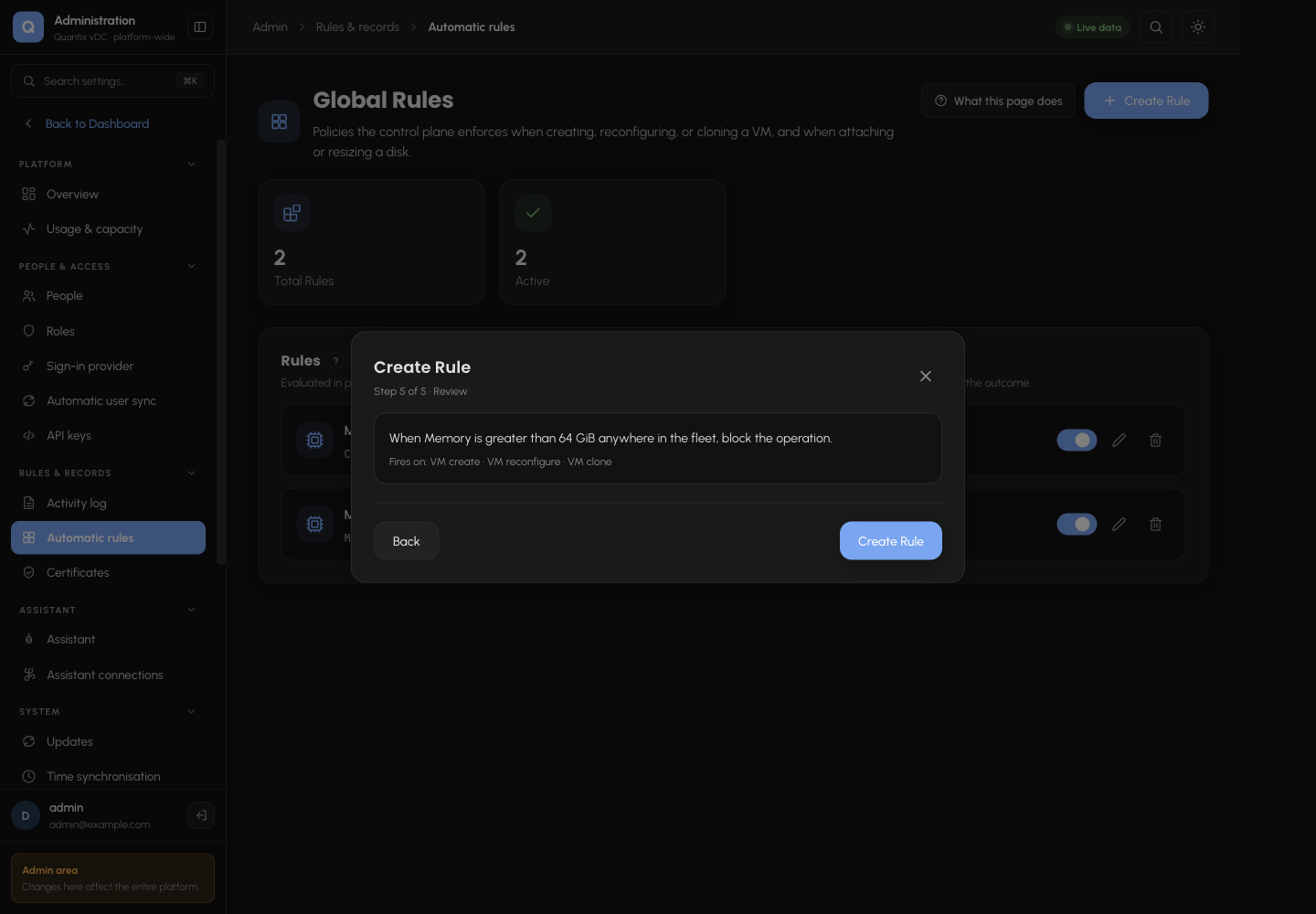
Expected result: the rule is listed with a one-line summary such as Memory gt 64 GiB → deny. It starts in the state selected by Enabled: leave it checked to activate the rule now, or clear it to stage the rule for later. You can change the state from the rule's row at any time.
How rules are applied
- Enabled rules are checked in priority order, lowest number first.
- A matching warn or log rule does not decide anything; checking continues with the next rule.
- The first matching deny rule decides: the request is refused with that rule's message.
- When a VM is created or cloned, warnings are shown in the progress of that operation.
- A rule for One existing VM applies to that VM when it is reconfigured or its disks change. It does not carry over to clones of the VM.
Change, switch off or delete a rule
The inventory shows rules in priority order, lowest number first. Use Search rules and the All, Enabled or Disabled filters to find a rule. It shows 20 rules per page; Previous page and Next page browse the remaining rules without changing their priorities.
The Outcome column shows a compact badge for each action: deny, warn, or log.
On each rule's row:
- The toggle switches the rule on or off immediately. A rule that is off is kept, but skipped.
- Edit rule opens the wizard again; click Save Changes on the last step.
- Delete opens a confirmation dialog naming the rule. Click Delete to remove it.
Troubleshooting
A request is refused with a rule's message — the request matched a Deny rule. Change the request, or edit or switch off the rule.
Next stays disabled in the wizard — every step has a required field: a Rule Name and a limit type on step 1, a VM or pool when the scope needs one, a number in Limit value, and a Message for a Deny rule.