

Create an NFS pool
An NFS pool is a shared datastore: every host you assign mounts the same NFS export, so VMs on it can be live-migrated between those hosts. For a cluster, this is the recommended pool type.
Prerequisites
- An NFS export on your NAS that every host you will assign can reach over the network.
- The export grants read and write access to those hosts with root access preserved (for example
no_root_squashon a Linux NFS server). Quantix creates and opens VM disk files as root. - NFS version 4.2 on the NAS (recommended). See Choose the NFS version.
- The hosts are added to QvDC and show Ready.
- A user with the admin or operator base role, or the System administrator role.
Use each export for one pool only. Quantix refuses a second pool on a server and export that another pool already uses.
Before you add an NFS pool: set the storage network on every host
If your NAS is on its own VLAN or subnet, give each host an address on it first. This is the host's storage network: an address, a netmask and, optionally, a VLAN, with no gateway. Traffic to a NAS in that subnet then leaves through it, and everything else keeps using the management network. If your NAS is reachable through the management network, skip this section.
Do this on every host that will share the pool, with the same storage network (the same VLAN and subnet, a different address per host), and only then assign the hosts to the pool. Quantix mounts a pool as soon as hosts are assigned, and the storage network cannot be changed while a host has storage attached. If one host lacks it, a VM migrating to that host may fail to mount the pool, or reach the NAS through the management gateway and your firewall.
Who can do this. On the host, sign in to the Host UI with the admin role; with any other role the Host UI shows the storage network but not the Set up, Edit and Remove buttons. In QvDC you need permission to update hosts, and the host must show as connected (a host with "no connected daemon" cannot be changed from QvDC). Without that permission QvDC does not show the Set up, Edit and Remove buttons.
Set it in the Host UI
- Sign in to the host's Host UI and go to Networking → Physical Networking. Stay on the Overview tab.
- On the Storage network card, click Set up. If one is already set, the card shows its address and the button reads Edit.
- Fill in IP address, Netmask and VLAN (blank = untagged). Leave the VLAN blank if your storage network is untagged.
- Click Preview and read the summary and any message under it.
- Click Apply. It becomes available only after a preview of exactly the values on screen came back with no refusal; if you edit a field afterwards, Apply is disabled again until you preview again.
Once saved, the card shows the address with its prefix length, VLAN and ID (or Untagged) and No gateway. Under it, Live: shows what the host carries right now, for example Live: stor0 up · 198.51.100.20/24 · VLAN 983, or Live: stor0 not present. If Live: shows an address while the card says Not configured, the host has a storage port with no saved settings; Remove clears it.
Set it in QvDC
- Go to Networking → Hosts and expand the host's row by clicking it.
- In the Storage network section, click Set up or Edit.
- Fill in IP address, Netmask and VLAN (blank = untagged), click Preview, then Apply, as above.
Set it on the host's own screen
On the host's console (TTY1), the main menu's second entry is Storage network.
- Select Storage network and press Enter.
- Type the IP Address, Netmask and VLAN (leave it empty for untagged). Press Tab to move to the next field.
- Press Enter to preview. Read the summary; if nothing is refused, press Enter again to apply. Changing a value clears the preview.
Remove it
Click Remove on the card (Host UI) or in the host's Storage network section (QvDC). Remove is there whenever the host has something to remove: saved settings, an invalid saved file, or a live storage port. Quantix first asks the host what removal would do:
- If it is allowed, the card shows a summary with Remove storage network? and Cancel. Click Remove storage network? to confirm.
- If it is refused, the reason is shown and there is nothing to confirm.
On the console, press X to preview the removal and X again to confirm; any other key cancels the confirmation.
Messages you may see
| What you see | What it means |
|---|---|
| Locked while storage is attached: followed by names | The host has storage attached and the storage network cannot change. A name is an NFS or Ceph pool, or iSCSI session <id>. Unassign the host from those pools and disconnect the iSCSI sessions first. |
| Locked while storage is attached: unreadable /proc/mounts or unreadable /sys/class/iscsi_session | The host could not read its list of mounted pools or iSCSI sessions, so it assumes storage is attached rather than risk cutting it off. Try again in a minute; if it persists, contact support. |
| Storage network 198.51.100.20/24 overlaps an address already on this host: eth2 198.51.100.9/24 | Another interface on the host already uses that subnet. Choose a different subnet. |
| Storage network 198.51.100.20/24 overlaps the management network 198.51.100.51/255.255.255.0 | The storage subnet must differ from the management subnet. Choose a different subnet. |
| Invalid storage IP address: expected a dotted-quad IPv4 address followed by an example | The IP address is not a valid IPv4 address. |
| Invalid storage netmask: expected a contiguous mask from /1 to /30 such as 255.255.255.0 | The netmask is not valid. |
| Invalid storage VLAN: expected a decimal 1-4094, or none for untagged | Enter a VLAN from 1 to 4094, or leave it blank. |
| br-ex does not exist on this host | The host's network bridge is not set up yet. Finish the host's network setup first. |
| This host's system image is too old to keep a storage network. Update it first. (the preview says This host's system image predates the storage network; update the host's system image first) | Update the host's system image. Remove still works on such a host. |
| Saved file is invalid: followed by a reason | The host's saved storage network settings would be refused at boot. Click Set up to save valid ones, or Remove to clear them. |
| Storage is being reconfigured on this host; try again in a moment | Another storage change is running. Wait a minute and retry. |
| An error after Apply | The change did not complete. Quantix puts the previous storage network back; if that also fails, the message says so. Check the host's storage network on its card before retrying. |
Create the pool
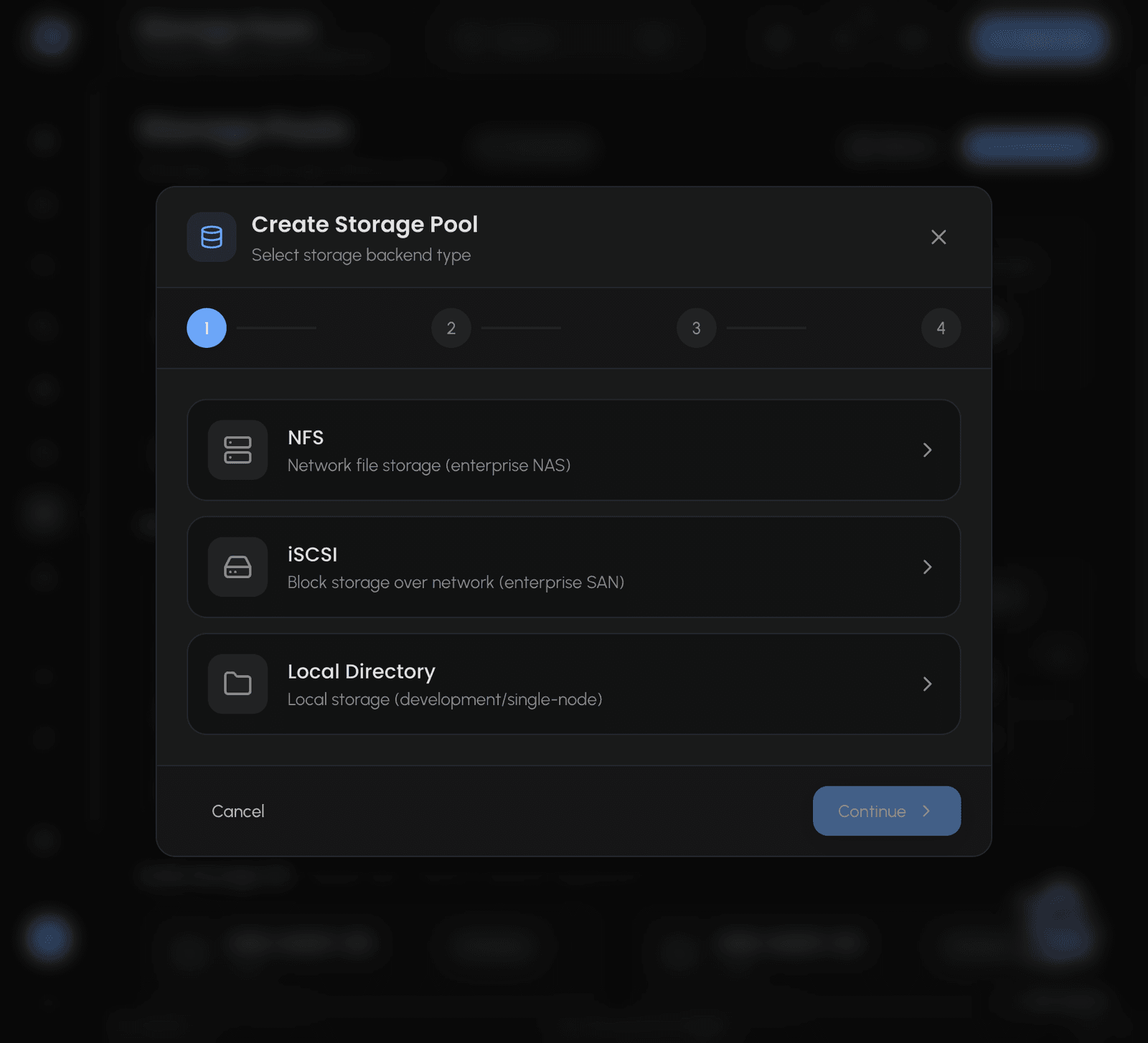
Go to Storage → Storage Pools and click Create Pool.
Choose NFS ("Network file storage (enterprise NAS)") and click Continue.
Under General Settings, enter a Pool Name and, optionally, a Description.
Under NFS Configuration, enter:
- Server Address — the NAS's host name or address, for example
nas.example.comor192.0.2.50; - NFS Version — leave NFSv4.2 unless your NAS cannot serve it;
- Export Path — the exported directory, for example
/export/vms; - Alternate addresses (optional) — up to two other addresses of the same NFS server. See Alternate addresses.
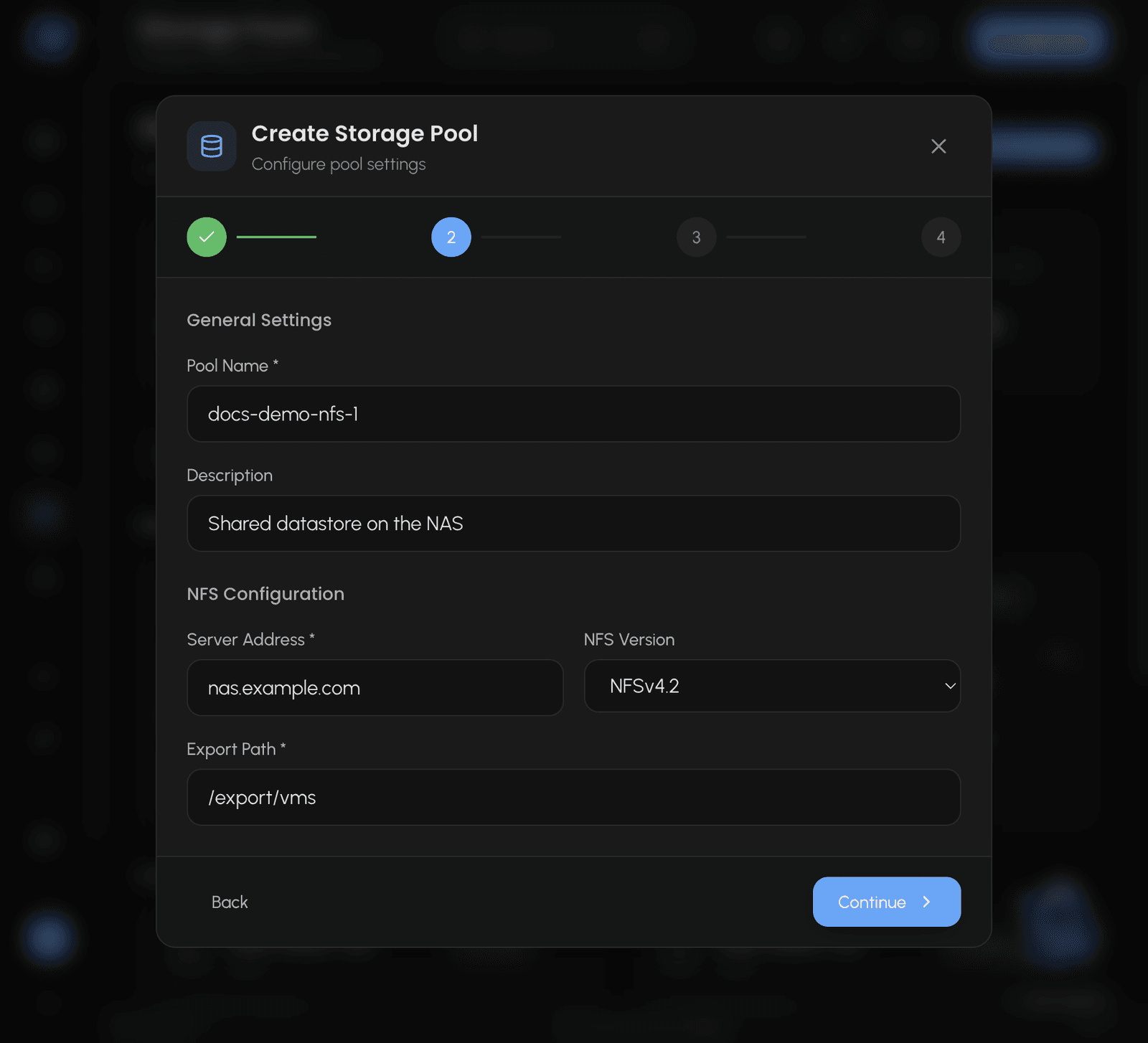
- Server Address — the NAS's host name or address, for example
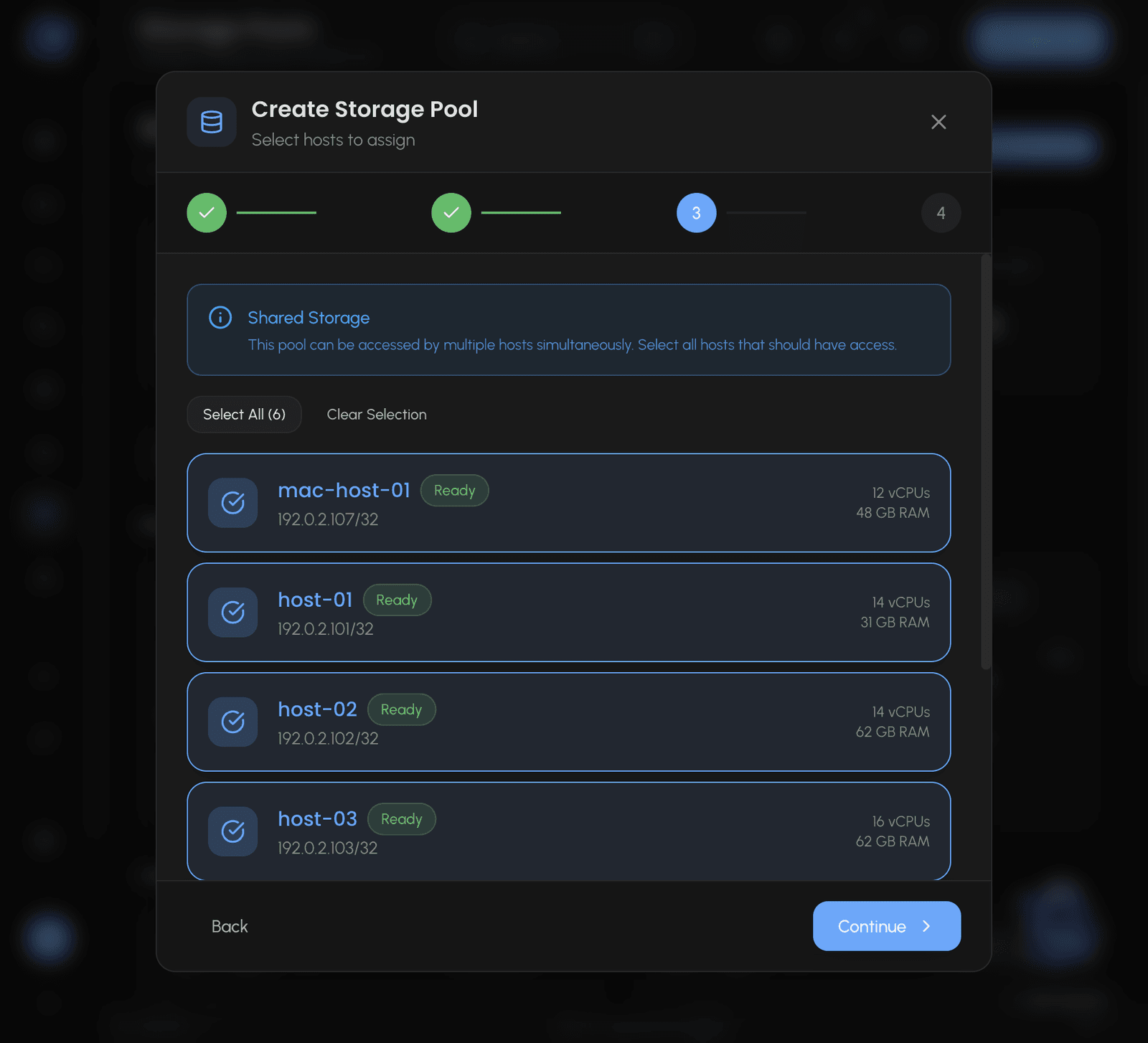
Click Continue. On the host step, the banner reads Shared Storage — "This pool can be accessed by multiple hosts simultaneously. Select all hosts that should have access." Tick each host, or click Select All. Only hosts in the Ready state are listed. Select at least one host: a shared pool with no hosts selected is refused, because it would be attached to every host, including hosts you add later.
Click Continue. The review step checks the pool with QvDC first (a preview: nothing is saved yet). When it shows Preview passed, check the summary and click Create Pool. If it shows The server would refuse this pool, go back and correct what it names.
Expected result
The pool appears on the Storage Pools page, and within a few minutes every assigned host mounts the export. While a host has not reported the pool yet, the pool card shows Deploying to followed by that host's name.
The page does not refresh by itself: click Refresh to see progress. The pool is ready when its badge shows Ready and it is listed under Shared datastores. To confirm that every host reached it, follow Check that every host can reach a pool.
TIP
The "created successfully" message confirms that the pool was saved. It does not mean that a host could mount it — always check the pool's status.
If every contacted host refuses the mount, Create Pool reports the mount error. The pool can remain saved with an Error status when its safe removal cannot be verified. Open that pool, correct its settings, and use Reconnect after resolving the reported cause; do not create a duplicate pool for the same export.
Choose the NFS version
| NFS Version | What the hosts mount |
|---|---|
| NFSv4.2 (default) | NFS 4.2. Recommended. |
| NFSv4, NFSv4.1 | Treated as NFSv4.2. |
| NFSv3 | NFS 3. The pool is not a shared datastore: it is listed under Local storage, and VMs on it cannot be live-migrated. |
If the NAS refuses the requested version, the host retries and lets the NAS choose the version. The version each host actually uses is shown on the pool's Settings tab under Node Status, as Connected to: followed by the server and the version. Live migration needs NFS 4.1 or 4.2 on every host.
With NFSv3, file locks are not shared between hosts, so Quantix cannot stop two hosts from writing to the same disk. Use it only for a NAS that has no NFS 4 support.
Alternate addresses
Some NFS servers answer on more than one address for the same filesystem, for example a NetApp SVM with a data LIF on each node. Alternate addresses lets a host mount the pool through one of them when the primary Server Address does not answer.
What it does:
- When a host mounts the pool (at boot, when it is assigned, or on Reconnect) and the primary address does not answer, the host mounts through the first alternate that answers, in the order you listed them.
- A host uses an alternate only after it has mounted the pool through the primary address at least once. It then checks that the alternate serves the same filesystem, and refuses it if not.
- Node Status shows the address each host is connected to, marked alternate address when it is one.
What it does not do:
- It is not failover. A mounted pool never switches address. If the address a host mounted through stops answering, the VMs on that host wait for it, exactly as they do without alternates.
- Running VMs are protected only by the NFS server's own address failover, for example NetApp LIF failover or a virtual IP that moves between server heads. Ask your storage team to configure that.
- While some hosts reach the pool through the primary address and others through an alternate, QvDC cannot prove they see the same disk files, so it refuses to adopt a running VM whose disks are on the pool.
| Message | What to do |
|---|---|
nfs.alternate_needs_primary_once | This host has never mounted the pool through the primary address, so it cannot check the alternate. Bring the primary address back and click Reconnect. |
nfs.alternate_identity_mismatch | The alternate serves a different filesystem. The host unmounted it. Correct the pool's alternate addresses. |
You can change Alternate Addresses on the pool's Settings tab at any time, also on a mounted pool: the change is previewed first and no host remounts. Each host uses the new list the next time it mounts the pool.
On a QHCI host that is not managed by QvDC, Create Pool in the Host UI has the same field. Its first click is Preview; Create Pool appears after the preview.
NFS server requirements
Every VM disk on the pool depends on the NFS server and on the network path to it. Quantix mounts NFS pools hard: when the server stops answering, VM disk I/O waits for it instead of failing. So when a server or a link hiccups, VMs freeze for that long.
| Requirement | Why |
|---|---|
| NFS 4.2 | Needed for live migration and for the storage lease that HA relies on. |
| No USB network adapters, on the hosts or on the NAS | USB Ethernet adapters can stop passing traffic for minutes until the USB bus resets them. Every VM disk on the pool then freezes on that host, and the host can lose its disk locks. We have seen this on hosts. |
| No USB disks behind the export | A USB disk that drops off the bus unmounts the export, and the NFS service on the server stops. |
| A dedicated storage network or VLAN, if you can | Keeps storage traffic away from management and guest traffic. |
| Test and production disks on different NFS servers | Each host keeps one NFS session per server, shared by all of that server's exports. A problem with one export, such as a host lost during an HA test, can therefore pause disks on the others. |
TIP
Write delegations. Recent Linux NFS servers grant write delegations by default. On a Linux NAS you can turn all delegations off with the setting fs.leases-enable = 0. Quantix has not tested whether this shortens the pause described in the next section, and it can cost some performance. Consider it only if you see that pause often.
When a host loses power
When a host that was using the pool loses power or hangs, the NFS server holds that host's state for a while. During that time, other hosts' VMs on the same server can stop responding for a few minutes, even though their own hosts are fine. In our tests the pause began a few minutes after the host was lost and lasted 2–6 minutes.
- Do not restart the healthy hosts or the NAS while this happens. Wait for I/O to resume.
- If high availability covers the lost host, follow its recovery on the HA & Recovery page.
- When I/O resumes, check each VM that was running on the pool. A VM that stays paused, or whose guest reports disk errors, has lost its disk lock: click Power Off, then Power On. Reset, or restarting from inside the guest, is not enough: the VM keeps the same process, and with it the lost lock.
When a VM is waiting on storage
If a VM banner says Waiting on storage, read the pool name, server and first observed failure time in the banner. The VM is waiting for its storage I/O to finish. Power Off cannot complete while the server or mount is unreachable.
- Restore the named storage server and the network path to it.
- Wait for the pool to answer the host's checks again.
- Recheck the VM's banner. If storage health is unknown, its last check is stale or unavailable; check the server and mount before recovery.
VMs whose disks use other reachable pools can keep running. Multiple pools on the same failed server can be affected together. Once storage returns, follow any remaining VM warning; an unreachable pool and a VM that remains hung after recovery require different actions.
A VM can also remain Paused: storage after the pool answers again. For a storage I/O error, choose Resume once storage is restored. If the banner reports a lost storage lease, Resume stays disabled: use Power off, then Power on through QvDC as directed by the banner. This ends the old instance's lease hold; the fresh start still requires storage ownership proof.
Troubleshooting
| What you see | What to check |
|---|---|
The pool shows Error and Unavailable — no host can reach this pool, and the message contains mount timed out after 20s (NFS server … unreachable) | The hosts cannot reach the NAS. Check the server address, the network path from the hosts to the NAS, and the NAS firewall (TCP port 2049 for NFS 4). Then click Reconnect on the pool. |
Error, and the message contains NFS mount failed: followed by access denied | The export does not allow the hosts. Add every host to the export's access list with read-write and root access, then click Reconnect. |
The pool stays Pending, then turns Error with Pool not reported by node - may need to be remounted | The hosts could not mount the export. Check the server address, the export's access list and the network path from each host, then click Reconnect. |
| Degraded — not all hosts can reach this pool | Some hosts mounted the export and some did not. On the pool's Settings tab, Node Status shows which hosts report Error or Unmounted. Fix their network path to the NAS; see Give hosts access to a pool. |
| VMs on several hosts stop responding for a few minutes, a few minutes after another host lost power | The NFS server is still holding the lost host's state. Wait, and do not restart the healthy hosts. Then check the VMs; see When a host loses power. |
a storage pool for this backend already exists | Another pool already uses this server and export. Use that pool, or export a different directory. |
Saving a connection change fails with has been mounted by … so its connection settings cannot change | A host has mounted this pool. Create a new pool for the new storage and move the disks to it; see Change the server or export path. |
| Continue stays disabled | Pool Name, Server Address and Export Path are required. |
Select at least one host for a shared datastore | On the host step, tick at least one host. |
Change the server or export path
You can change Server, Export Path, NFS Version and Mount Options on the pool's Settings tab only while no host has mounted the pool, for example after you created it while its hosts were disconnected and it is still Pending.
- Open the pool and click the Settings tab.
- Click the value under Connection Configuration, type the new one, and click Save Changes.
- Click Reconnect and check Node Status until every host shows the new export.
Once any host has mounted the pool, the connection fields cannot be edited and the tab says so. Hosts keep the storage they mounted, and the pool's disks are on that storage. To use a different server or export, create a new pool for it and move the disks to the new pool. You can still change Default storage policy on a mounted pool.
Delete a pool created by mistake
A pool that no host has ever mounted — for example one created with a wrong server address — can be deleted.
- Go to Storage → Storage Pools.
- Open the pool's menu and choose Delete Pool, or open the pool and click Delete.
- Type the pool's name, then click Delete pool.
The pool is deleted only when all of these are true:
- no host has ever mounted it;
- every host that could use it is connected and currently reports that it does not have the pool;
- no disk, image, template, VM, snapshot, container capacity, job or policy refers to it. This includes a container capacity that is still being created.
Otherwise the delete is refused. The message says that only a pool that never held anything can be deleted, names the host that mounted the pool or the volume that still refers to it, and shows the full server reason (retirement is unsupported ...) underneath. To stop using such a pool, unassign its hosts; the pool record stays. A pool that any host has mounted, even once, cannot be deleted: disks or files may still exist on it. A pool that already existed when QvDC was updated to a version that supports deleting pools cannot be deleted either, because Quantix cannot tell whether a host mounted it before the update.
If the delete is refused only because a host is disconnected or has only just been added, wait until every host reports the pool as not mounted, and try again.
Next steps
Before creating a pool, verify that its server and export are reachable from the assigned hosts. An unreachable server may leave a pool record that cannot be deleted unless Quantix can prove it was never mounted and has no references.