

Application addresses
An application gets an address for each port you make reachable. Where you can reach it from depends on the choice you made under Who can reach it? when you deployed it.
| Choice in the Deploy wizard | Address you get | Reachable from |
|---|---|---|
| Only inside my network | an internal name and port | inside the capacity only, not from your network |
| Anyone (public), no host name | an IP address and port, for example 192.0.2.200:8080 | your network, like any other server |
| Anyone (public) with an Address (optional) | http://<host-name>, for example http://app.example.com | anyone whose DNS resolves the host name to the application |
To reach an application from other machines on your network, choose Anyone (public).
Find the address
Open the application: Containers → Applications, then click its name.
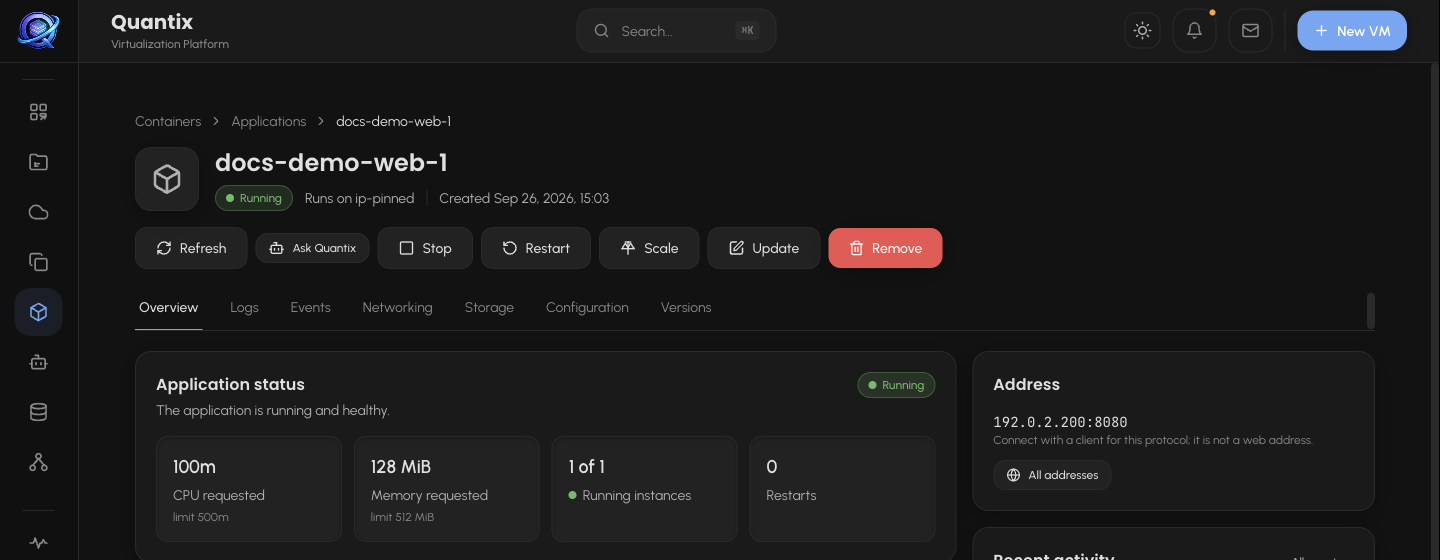
On the Overview tab, the Address panel shows the public address. A web address (one that starts with http or https) is shown as a link; for an IP address and port, the panel says Connect with a client for this protocol; it is not a web address.
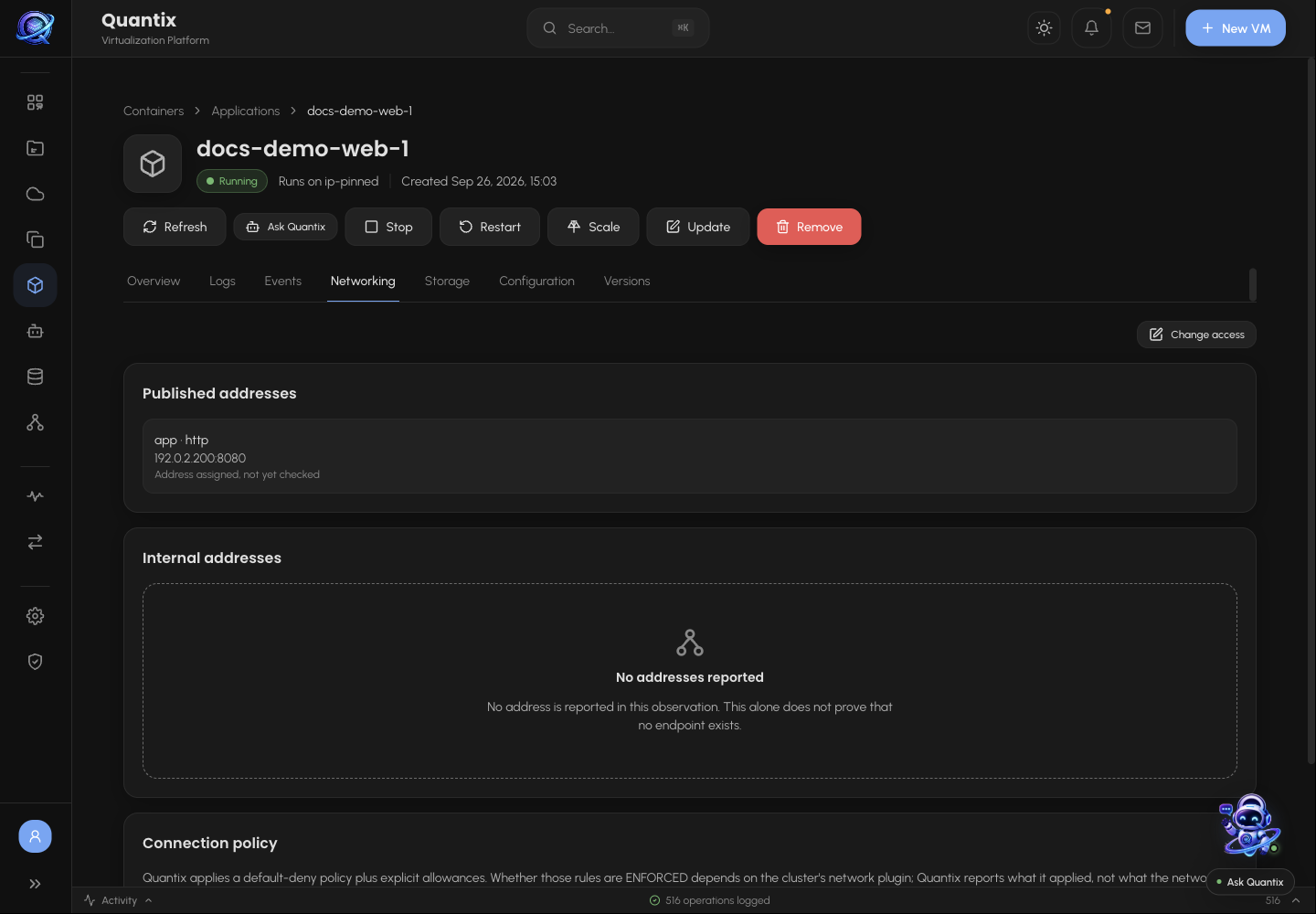
For every address, open the Networking tab. Published addresses lists the public ones and Internal addresses the ones inside the capacity. Each row shows the service and port name, the address, and its state.
Address states
| State | Meaning |
|---|---|
| Being set up | Quantix has not finished creating the address yet. |
| Requested, no address yet | Quantix asked for the address, but none has been given out yet. |
| Address assigned, not yet checked | The address exists and is in use by the application. |
| Unknown | Quantix cannot read the address right now. |
"Assigned" is not the same as "answering"
Address assigned, not yet checked means the address is real and points at your application. It does not mean Quantix has connected to it: Quantix does not test the address from your network. A completed deployment, too, only tells you the application was started.
Test the address yourself from a machine on your network, for example:
curl -I http://<app-address>:<port>/A response such as HTTP/1.1 200 OK shows the application is answering. If there is no answer, see the troubleshooting table below.
Publish under a host name
To use a name such as app.example.com:
- Enter it in Address (optional) when you choose Anyone (public), or add it later with Change access on the Networking tab.
- Create a DNS record for the name that points at the address Quantix shows. Quantix does not create DNS records for you.
Connection policy
The Networking tab's Connection policy panel shows the rules Quantix recorded for the application: a default-deny policy plus explicit allowances. Recorded incoming allowances and Recorded outgoing allowances describe the configured rules, not a live traffic test.
Connection policies have a startup gap. Managed capacity enforces the rules after a startup delay. Before they take effect, outgoing traffic can reach destinations without an allowance. Once the rules apply, the default policy blocks other outgoing connections while allowing DNS and communication between the application's services. Explicit outgoing allowances remain permitted.
On imported capacity, enforcement depends on its network plugin. Do not rely on connection policies for isolation from the first packet or in place of a firewall. The enforcement observation is separate from the recorded rules.
Change who can reach an application
On the Networking tab, click Change access. The update editor opens at its Access step. A port that is declared but not published is listed under Ports not reachable from outside; to publish it, set Reachable from to Outside this capacity.
Troubleshooting
| What you see | What to do |
|---|---|
| No public address is currently reported. | The application has no public port. Use Change access to publish one. |
| Requested, no address yet stays for minutes | The capacity has not given out an address for this port. The line under the address on the Networking tab says what Quantix is waiting for. |
| The address is assigned but does not answer | Check the application is running (Overview), that the port matches the one the image listens on, and read the Logs tab. |
| The host name does not resolve | Create or correct the DNS record for the name. |