

Browse and manage pool files
Every storage pool has a file browser on its Files tab. Use it to see what is stored on the pool, to copy a file to or from your computer, to tidy up files that nothing uses, and to start a VM from a disk or ISO that is already on the pool.
Prerequisites
| To | You need |
|---|---|
| Browse, view and download | The Download pool files permission: the admin or operator base role, or the System administrator role, has it. A pool file can be a whole VM disk, so the viewer base role and the Read-only admin role do not; for them the Files tab is hidden. |
| Upload files and create folders | The admin or operator base role, or the System administrator role. |
| Delete files and folders | The admin base role or the System administrator role. |
Every action on this page is on the Files tab, so in the dashboard a custom role also needs Download pool files to upload, create folders or delete, even when it has the permission for that action.
At least one host assigned to the pool must be able to reach it: QvDC reads and writes pool files through an assigned host.
Open the file browser
- Go to Storage → Storage Pools and click the pool.
- The Files tab opens first.
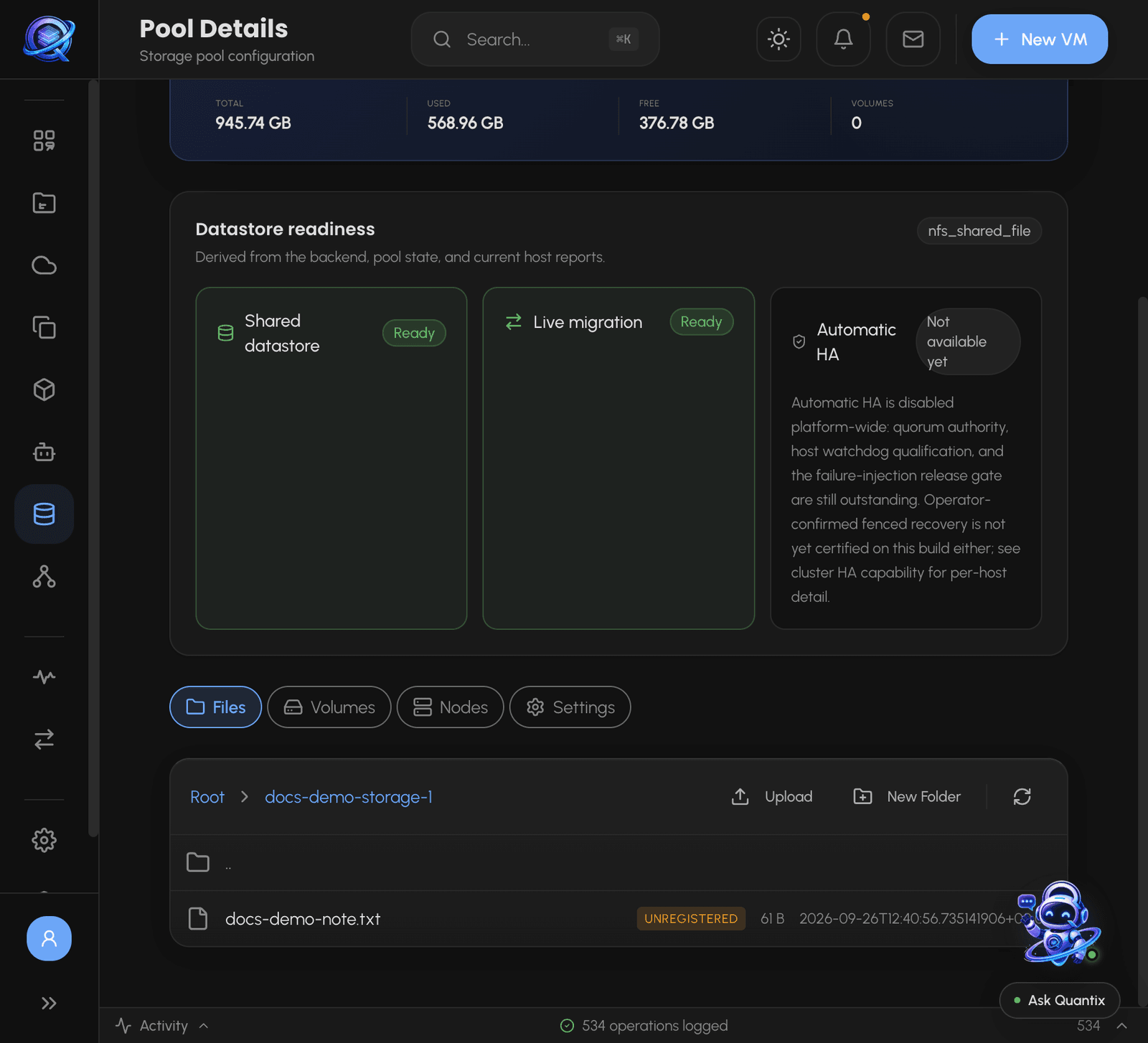
- Folders are listed first, then files, each sorted by name. Each file shows its size and when it was last modified.
- Click a folder to open it. The breadcrumb above the list starts at Root; click any part of it, or the .. row, to go back up.
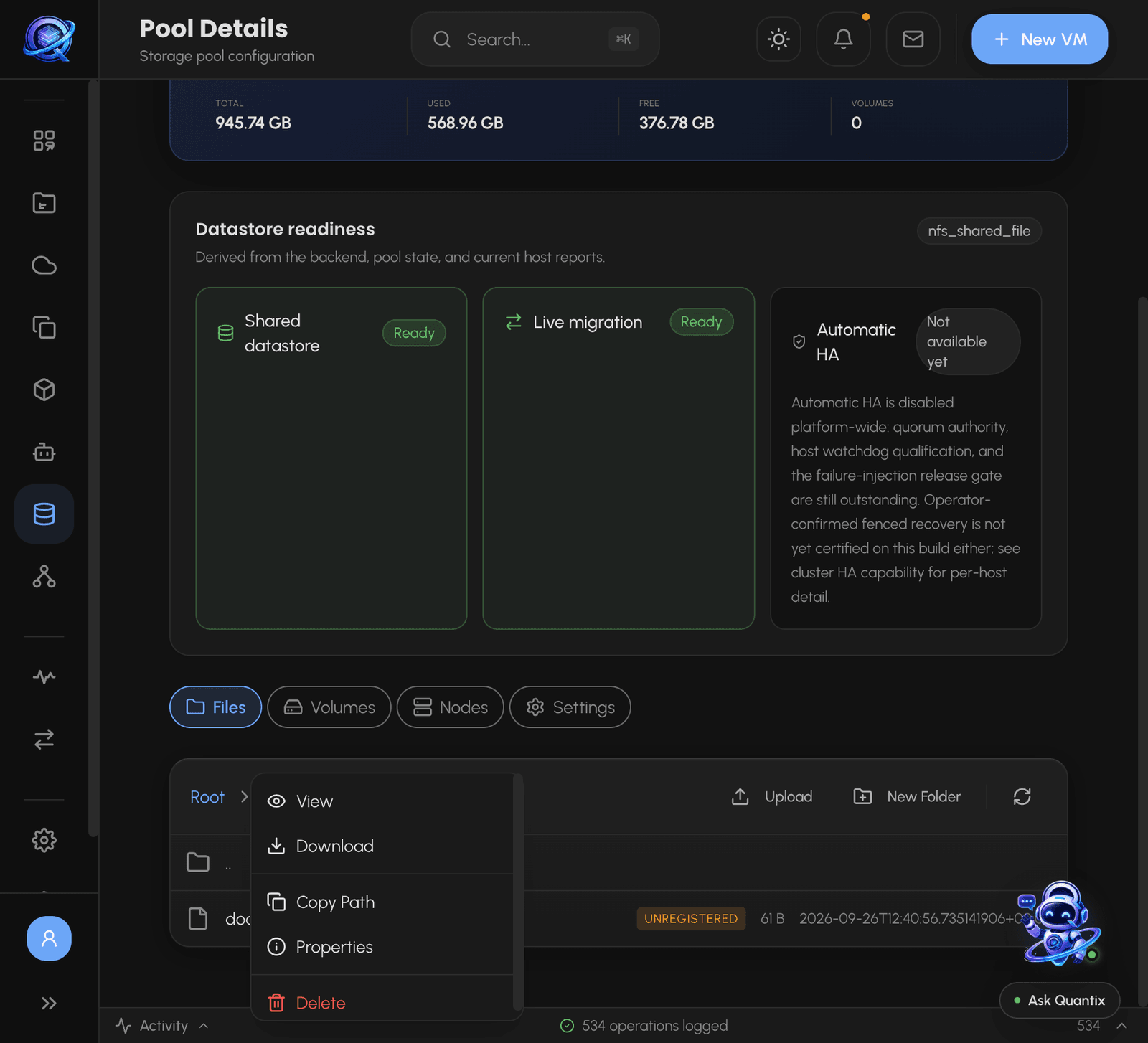
- Right-click a file, a folder or an empty area for more actions.
In use and Unregistered
Some files carry a badge:
| Badge | Meaning |
|---|---|
| In use | A volume, template or image record points at this file. Hover over the badge to see which. Delete it through that object — for example, remove the disk from its VM — so its record and its file go together. |
| Unregistered | No volume, template or image record points at this file. It may be safe to remove, but it could also be a copy in progress or a file you placed there yourself: check before you delete it. |
Create a folder
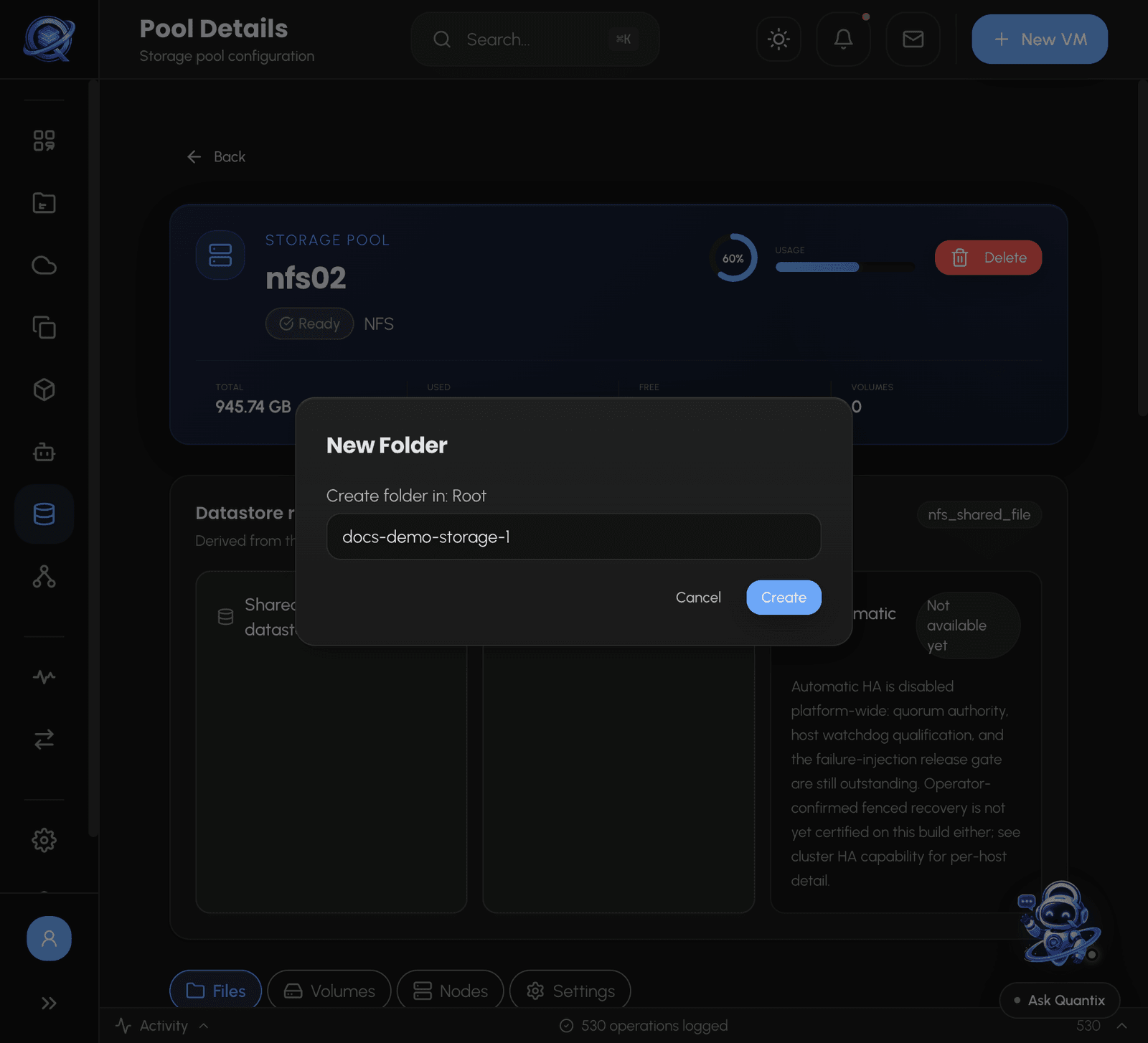
- Open the folder that should contain the new one, then click New Folder (or right-click and choose New Folder...).
- Type the folder name and click Create.
Upload a file
- Open the target folder and click Upload, or right-click a folder and choose Upload File Here....
- Choose one file on your computer. It is uploaded into the folder you have open (or the folder you right-clicked).
The toolbar shows the upload's progress. When it finishes, "Uploaded … successfully" appears and the file is listed.
The upload keeps running while you move to other pages of the dashboard: follow it in the Activity panel or on Operations, where everyone can see it with who started it. The file comes from your browser tab, so closing or reloading that tab ends the upload; the browser asks you to confirm first. An upload that ends this way is shown as failed with "the browser stopped sending (page closed or network lost)", and nothing is left in the pool. While a file is being uploaded it is not listed, and the folder holding it cannot be deleted until the upload finishes. You can cancel an upload from Operations.
WARNING
A file with the same name in that folder is replaced without a prompt.
Upload one file at a time. File names cannot start with a dot. To add ISO images that you want to boot VMs from, you can also use the Image Library, which tracks them for you.
If an upload is refused, nothing was uploaded:
- This host's storage work limit is busy ... Retry shortly: the host is already waiting on other work on this pool. Upload again in a little while.
- The storage pool did not answer ... Retry once the storage pool responds: the storage behind the pool is not responding. Check the pool on the Storage page, then upload again once it answers.
- Path refused: ... is a symbolic link or not a directory: the folder is a link (or part of the path is a file). The file browser never follows links, even ones that point inside the pool. Upload into a real folder of the pool.
- ... is no longer the directory this request opened: someone moved or replaced the folder while the upload ran (for example another host using the same storage). Nothing was changed; open the folder again and retry.
Opening a folder, creating one and deleting answer the same way when the pool is busy or does not answer ("nothing was listed", "the folder was not created", "nothing was deleted"): retry once the pool responds.
View and download a file
View — click a file, or right-click it and choose View. Text files (such as
.txt,.log,.json,.yaml,.conf,.csvand VM configuration.qcfxfiles) up to 2 MB are shown in the viewer, with the file's path and size; JSON is formatted for reading. For other files, the viewer offers Download.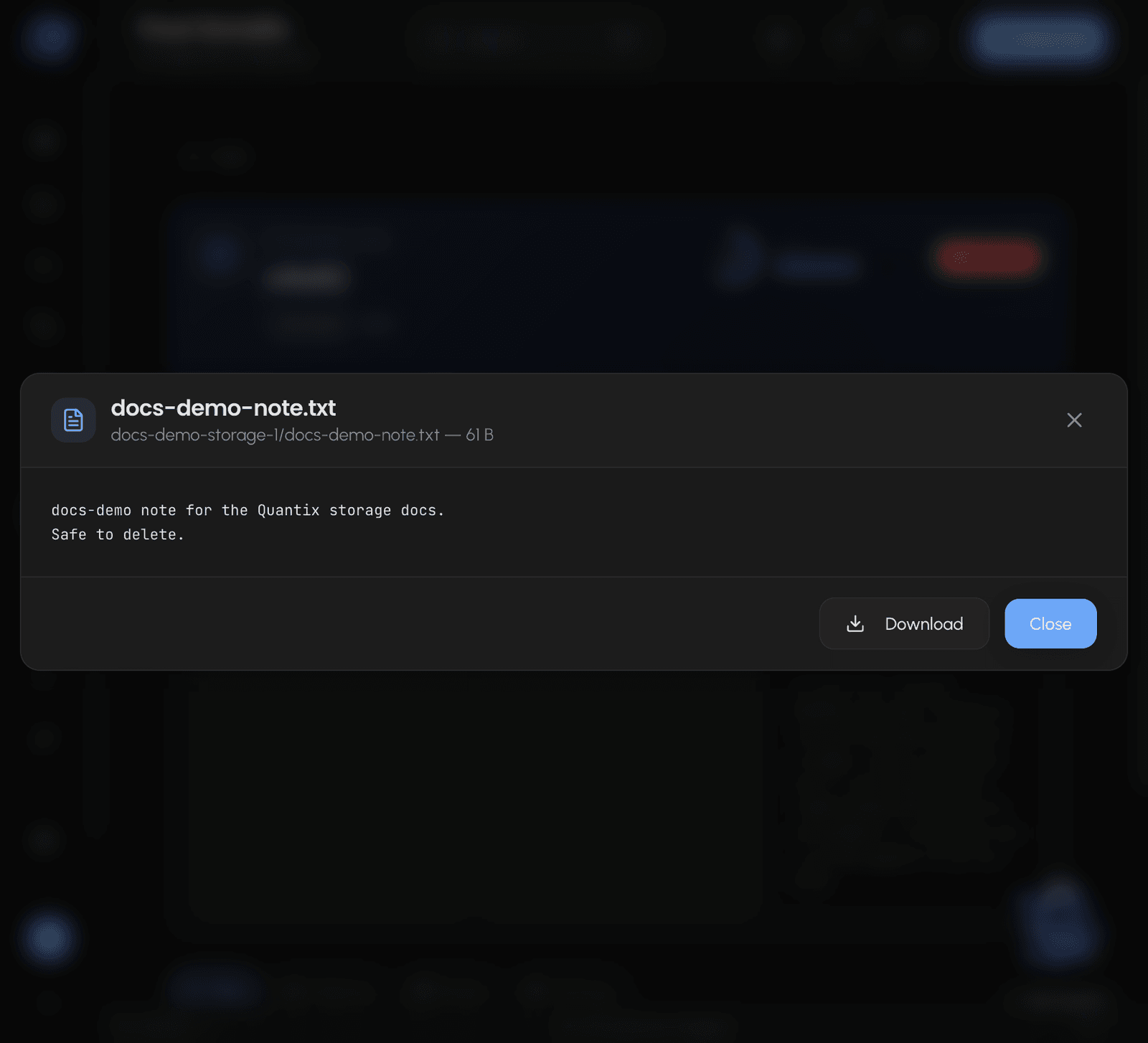
Download — right-click a file and choose Download, or click Download in the viewer. Folders cannot be downloaded, and neither can special files such as named pipes, sockets or device files: only regular files.
Delete a file or folder
- Right-click the file and choose Delete, or right-click a folder and choose Delete Folder.
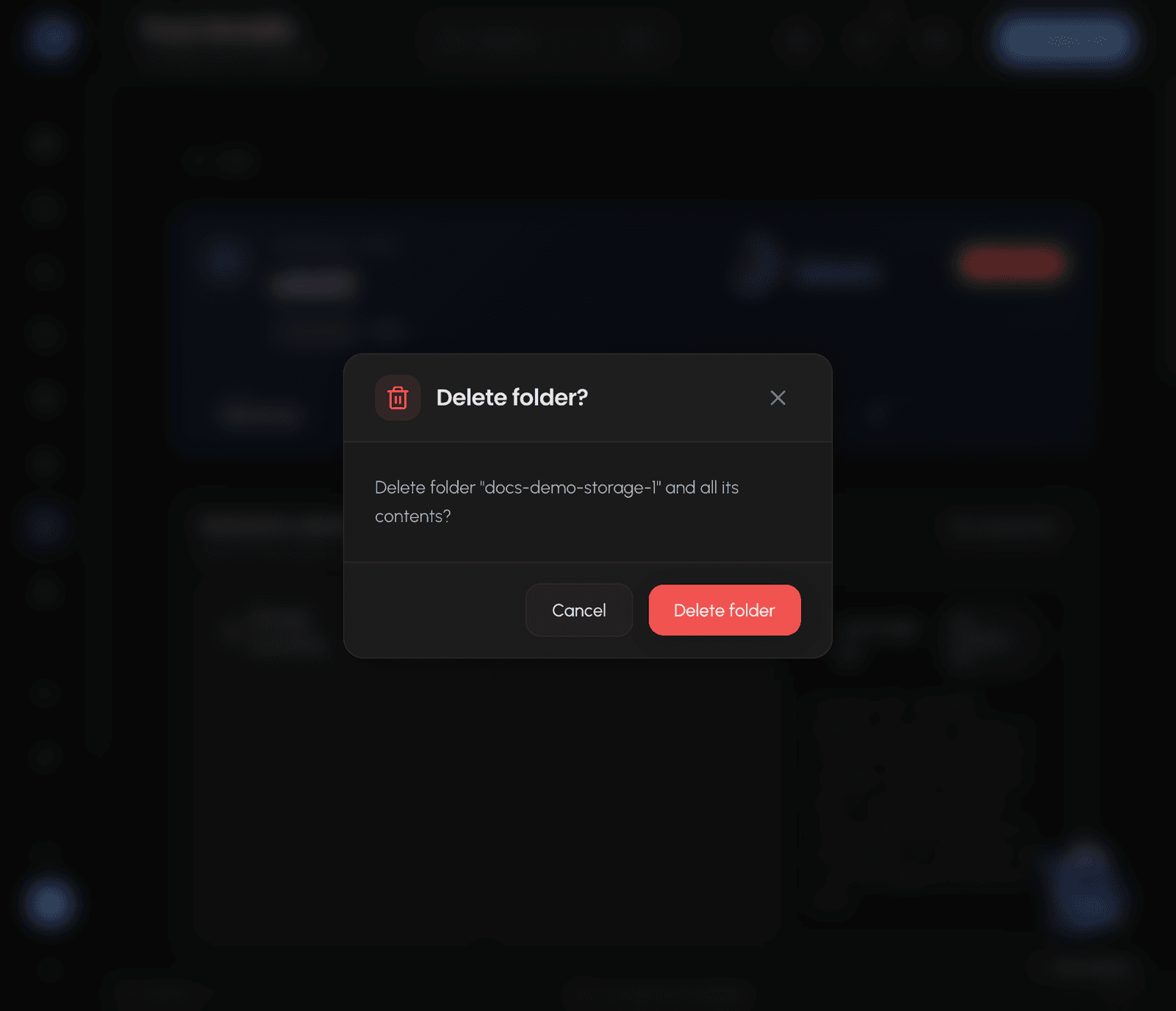
- Confirm. For a folder, the prompt reads "Delete folder "…" and all its contents?" — the folder is deleted together with everything in it.
Quantix refuses to delete:
- a file that a volume, template or image still uses (including a disk that other disks are based on). The error names the object that uses it. Remove it through that object instead.
- a folder that directly contains such a file.
- the pool's root.
- anything inside a folder that someone moved or replaced while the delete ran. Open the folder again and retry.
Deleting a link removes the link only, never what it points to. Deleting cannot be undone.
Other actions
| Action | For | What it does |
|---|---|---|
| Deploy VM | .iso, .qcow2, .img, .raw, .vmdk, .qcfx | An ISO opens the VM creation wizard with the ISO as the boot media. A .qcfx file — or a disk in the same folder as one, in a folder below the pool's root — opens Register VM from datastore, which re-adopts that VM and reuses its existing disk. A UEFI VM also keeps its boot entries and Secure Boot keys from that folder; when the folder does not show which saved settings are the VM's, it starts with the firmware defaults and its Events tab says why. Any other disk opens the VM creation wizard with that disk as the base image. |
| Adopt as Volume | An Unregistered .qcow2, .raw or .img file | Records the file as a volume, without changing it, so that you can attach it to a VM from the VM's Storage tab. |
| Copy Path | Files and folders | Copies the path inside the pool. |
| Properties | Files and folders | Shows the path, type, size, modification time and permissions for a few seconds. |
| Refresh | The empty area of the list | Reloads the folder. |
In the Host UI
A host's own Host UI has a smaller file browser for the pools on that host.
- Open the Host UI at
https://<host-address>:8443and sign in. - Go to Storage Pools and click an NFS or local pool. The Files tab opens first; Volumes lists the disk images on the pool.
- Click a folder to open it, and use the breadcrumb or the .. row to go back. New Folder creates a folder in the one that is open.
- Click a file to view it. Text files up to 2 MiB, such as
.qcfx,.json,.logand.txt, open in a read-only viewer; VM configuration files are formatted for reading. Other files show why they cannot be previewed. - Click the delete button on a row to delete that file or folder. Type its name to confirm.
The Host UI refuses to delete a file that a VM on this host uses, whether the VM is running or stopped: its disks, a disk they are based on, an ISO in its CD-ROM drive, any other file in the folder that holds its disks (such as its snapshot files and configuration file), and a folder that holds any of these. Deleting a disk image that other disks are based on is refused, as in QvDC. Deleting files in the Host UI needs the admin role.
The Host UI knows only the VMs on its own host. If two standalone hosts share one NFS export, a file deleted from one host's Host UI can belong to a VM on the other host. Manage such hosts from QvDC.
On a host managed by QvDC, the delete buttons in the Host UI are turned off. A shared pool can hold disks of VMs on other hosts, which only QvDC can see, so delete files there instead.
Troubleshooting
| What you see | What to do |
|---|---|
| This folder is empty, although you expect files | The folder may really be empty — or no host could read the pool. Check that the pool is Ready, then click Refresh. |
refusing to delete "…": it is still in use by … | Delete or detach the object named in the message first. |
Host UI: refusing to delete: … is in use by VM … | Delete the VM, or detach the disk or ISO from it, first. |
Path already exists when creating a folder | A file or folder with that name already exists here. |
Upload failed: | Check that the pool is Ready and has free space, then try again. |