

Containers overview
Quantix runs container images as applications. You say which image to run and answer a few questions; Quantix creates the Kubernetes objects, places them on container capacity, and reports what is actually running. You do not need to write manifests or use kubectl.
Key terms
| Term | What it means |
|---|---|
| Application | One thing you deploy and manage as a unit: one or more services built from container images, with their settings, storage and addresses. |
| Service | One container image inside an application, with its size, port and settings. An application made in the Deploy wizard has one service, called app. |
| Instance | A running copy of a service. You change the number of instances with Scale. |
| Capacity | The machines your applications run on. See Container capacity. |
| Version | A saved configuration of the application. Each change creates a version, and you can go back to an earlier one. |
| Address | Where the application can be reached: inside its capacity, or published to your network. See Application addresses. |
The Containers menu
In the sidebar, open Containers:
- Deploy Application — the step-by-step wizard. See Deploy an application.
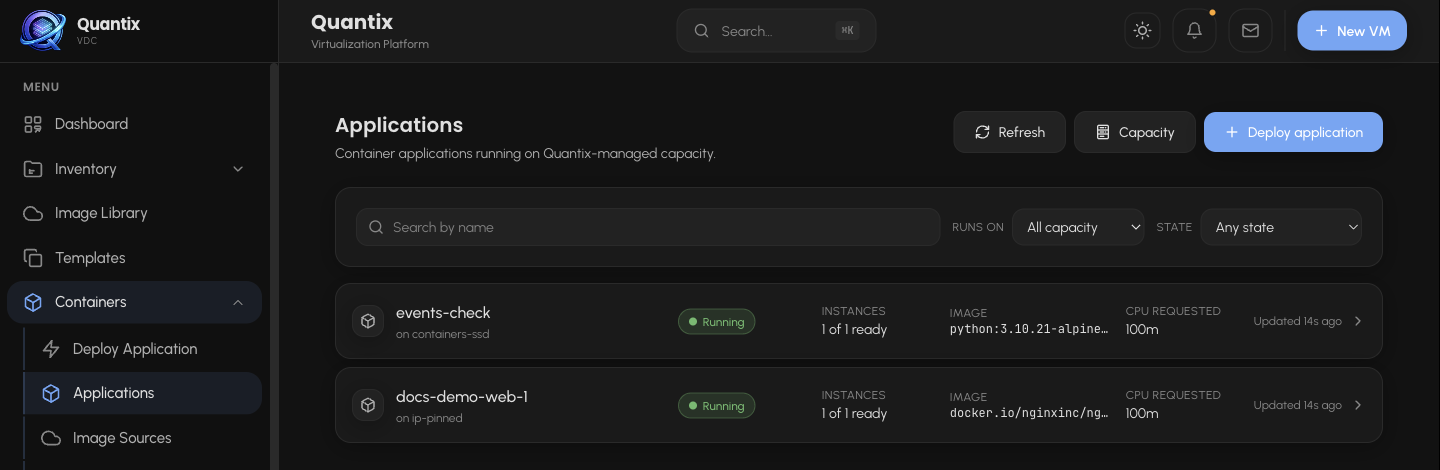
- Applications — every application you can see, with its state, instance count, image and requested CPU. Filter by name, by Runs on (capacity) and by State. Click an application to open its page.
- Image Sources — private registries, images you uploaded, and stored secrets and settings. See Bring your own image.
- Capacity — the machines applications run on. See Container capacity.
What you can do with an application
From the application's page you can follow its logs live, read its events and resource use, scale it, restart, stop and start it, update it, go back to an earlier version, and remove it. See Manage an application.
The Ask Quantix buttons on container pages hand the page to the Quantix Assistant, which reads the application's current state and explains it. See Ask Quantix about containers.
Permissions
What you see depends on your role. Viewing container pages, deploying, changing an application, removing it, reading logs and setting up capacity are separate permissions. If a button is missing, ask your administrator. See Users and roles.
Where to start
- Check that capacity exists: Containers → Capacity. If there is none, a user allowed to set up capacity can create it from the Deploy wizard.
- Deploy an application.
- Find its address and test it.