

Security settings
Admin Panel → System → Security holds platform-wide protections: the administrator password of each host, and how long a session lasts in the dashboard and in the Admin Panel.
Prerequisites
- An account with the admin base role.
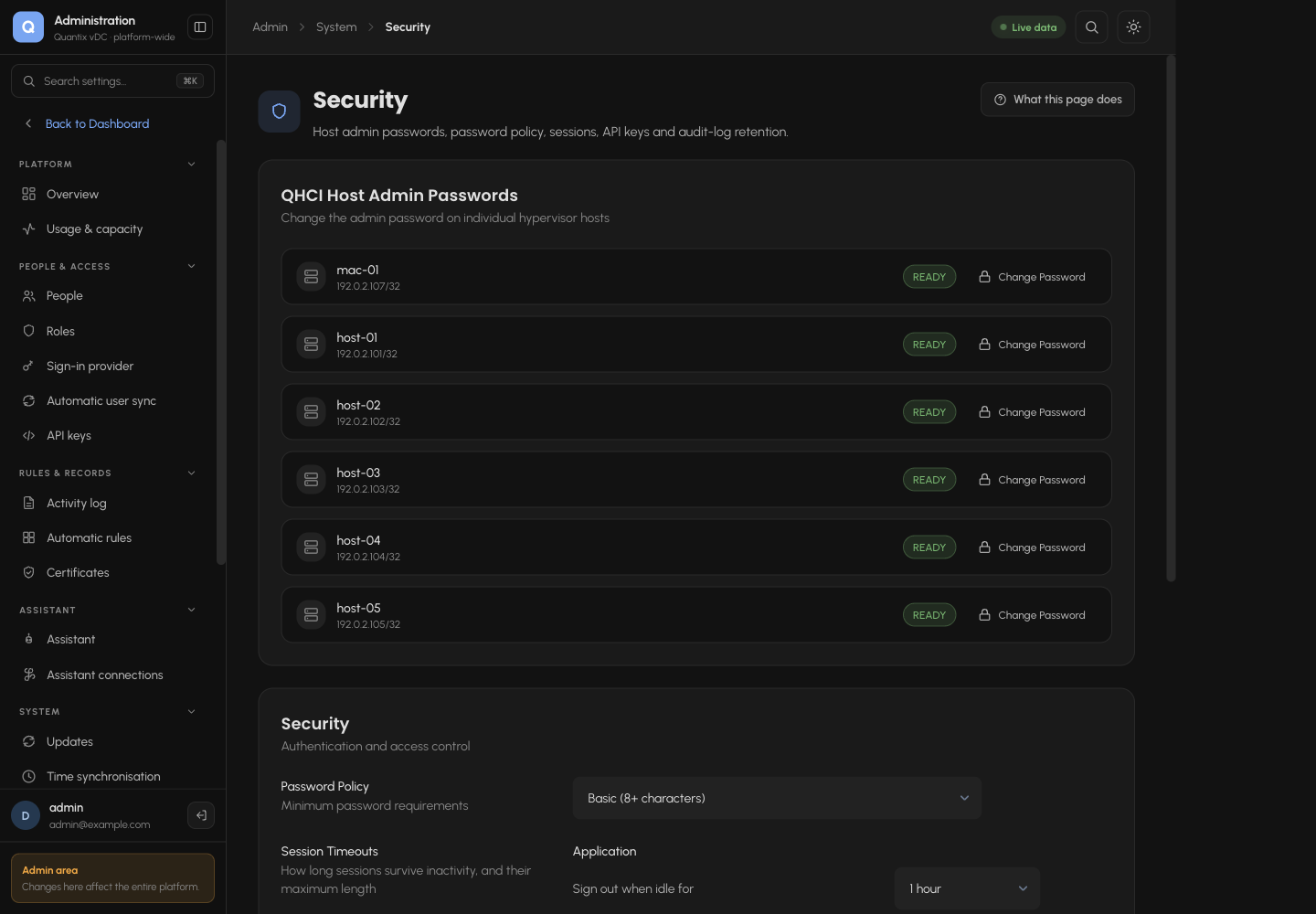
Change a host's admin password
Each QHCI host has its own built-in admin account, used for its Host UI. You can change its password from QvDC:
- Open Host credentials. Search by host, address or cluster, or filter by status and cluster. The table shows 20 hosts per page. Click Manage password on one host, then Change Password in its details. Only hosts in the READY or MAINTENANCE state can be changed.
- Enter the new password (at least 8 characters) and enter it again under Confirm new password. The bar below shows how strong it is.
- Click Apply to followed by the selected host’s name.
Expected result: the password form closes and a success message names the host. Use the new password the next time you sign in to that host's Host UI. If the change fails, the form stays open and shows the host's error.
Set session timeouts
Under Sessions & retention → Session Timeouts, each choice is saved as soon as you make it:
| Setting | Options | Default |
|---|---|---|
| Application — Sign out when idle for | 15 or 30 minutes; 1, 2, 4 or 8 hours | 1 hour |
| Application — Maximum session length | 4, 8 or 12 hours; 1, 3 or 7 days | 1 day |
| Admin panel — Sign out when idle for | 5, 10, 15 or 30 minutes; 1 hour | 15 minutes |
| Admin panel — Maximum session length | 30 minutes; 1, 2, 4 or 8 hours | 1 hour |
Sign out when idle for ends a session when nobody has clicked or typed in it for that long. A browser tab left open does not count as activity, even though the page keeps refreshing its data, so an unattended dashboard signs itself out. The Maximum session length is how long a session lasts at most, counted from sign-in, however active the person is; after it, people sign in again. On each surface the idle time can never be longer than the maximum; if you choose one that is, the other value moves with it.
Application changes apply at each person's next sign-in, or the next time their session renews itself while they work. Admin panel changes apply at the next admin verification.
Host UI security
On an individual host, Security → Host credentials changes that host’s administrator password. Remote access holds time-limited SSH and root SSH keys. Access policy explains passkey and authenticator setup under Settings → Account. Existing verification prompts remain required for protected administrative changes.
API keys
Under Sessions & retention, API Keys shows how many keys exist and are active. Manage API Keys opens the API keys page; see API keys.
Troubleshooting
Change Password is not offered for a host — the host is not in the READY or MAINTENANCE state. Check it on the host's page and try again when it is connected.
The password change fails — the page shows the host's error. Check that the host is reachable from QvDC and that the password has at least 8 characters.