

Passwords and passkeys
You sign in to QvDC with your username and password — or through your company's directory, if your administrator has connected one. A passkey (Touch ID, Windows Hello, a security key, or your phone) adds a second step to signing in: once your account has a passkey, QvDC asks for it after your password.
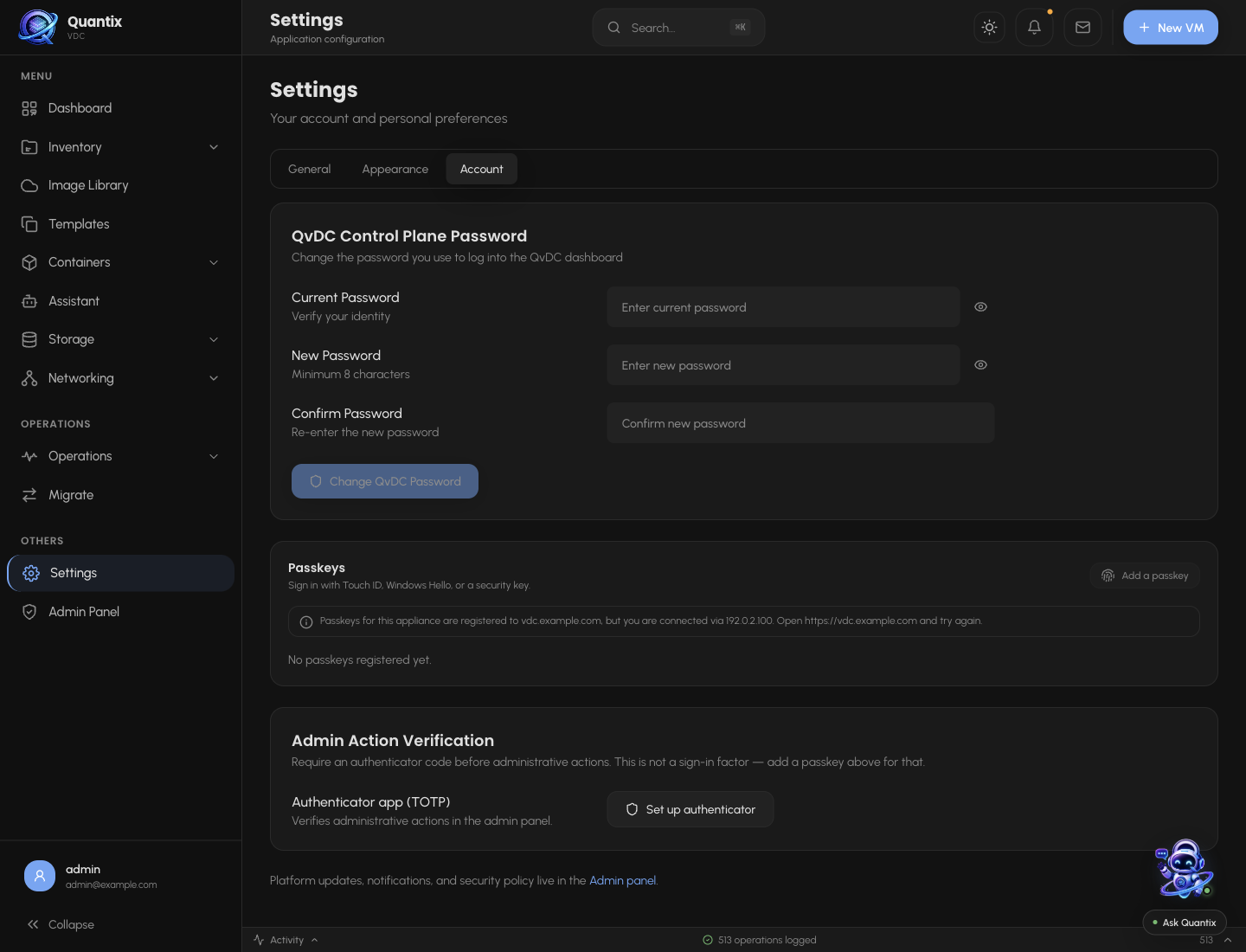
Manage both under Settings → Account.
Sign in
- Open QvDC in your browser.
- Enter your Username and Password and click Sign In.
- Leave Remember me ticked to stay signed in after closing the browser; clear it on a shared computer. If your browser blocks site data for QvDC, Remember me is unavailable and the page says so: you stay signed in only until you reload or close the page. To be remembered, allow site data for QvDC in your browser settings.
- If your organisation uses a directory or single sign-on, click its button under OR CONTINUE WITH instead — Directory (LDAP) for your corporate directory credentials, or your identity provider's name.
- If your account has a passkey or an authenticator app, Verify it's you appears. Click Use your passkey and confirm with your fingerprint, face, security key or phone. If you have set up an authenticator app, you can instead enter a code from it or a backup code (Use your authenticator app instead on the passkey screen). With an authenticator app and no passkey, the code field opens directly (see Admin verification). An account with neither signs in with its password alone.
Expected result: You're signed in, and the dashboard opens.
There is no self-service password reset: Forgot password? tells you to ask a QvDC administrator to reset your password.
Change your password
- Go to Settings → Account.
- Under QvDC Control Plane Password, enter your Current Password, then the New Password (at least 8 characters) and the same again under Confirm Password. The bar under the new password shows how strong it is; mixing upper and lower case, numbers and symbols makes it stronger.
- Click Change QvDC Password.
Expected result: QvDC password changed successfully. Use the new password the next time you sign in.
If you sign in through your organisation's identity provider, the section instead says Your password is managed by your identity provider — change it there. Service accounts have no password to change.
Add a passkey
Passkeys work only when you open QvDC by its DNS name (for example https://vdc.example.com), not by its IP address — the passkey standard does not allow IP addresses. The QvDC ISO installer asks for this name (Public DNS Name (optional)); see Install QvDC. If QvDC has no DNS name configured, the Passkeys card says so and names the setting your administrator needs to change.
- Open QvDC by its DNS name and go to Settings → Account.
- Under Passkeys, click Add a passkey.
- Under Name this passkey, enter a name that tells you which device it is, for example MacBook Touch ID, and click Add passkey.
- Your browser asks you to create the passkey. Confirm with your fingerprint, face, device PIN or security key. While it waits, the card shows Waiting for your browser's passkey prompt….
Expected result: the passkey is listed under Passkeys. From your next sign-in, QvDC asks for it after your password.
Add a passkey on each device you sign in from, or a security key you carry, so you are not locked out if you lose one device.
If you are a super administrator (an account with the admin base role), you can also tick Admin panel passkey on a passkey: it then works in place of the authenticator code when you open the Admin Panel. See Admin verification.
If your account already has the authenticator app or an admin panel passkey, ticking or clearing Admin panel passkey first opens Admin verification: enter a current code, a backup code, or use your admin panel passkey. The change is then made.
Remove a passkey
Under Passkeys, click Remove next to the passkey. It is removed immediately, without a confirmation. Once your account has no passkeys left, signing in asks only for your password.
Removing a passkey marked Admin panel passkey first opens Admin verification, the same as changing the tick.
Troubleshooting
Add a passkey is greyed out, with a note in the card — passkeys are not available at the address you are using:
- "Passkeys for this appliance are registered to …, but you are connected via …" — open QvDC at the DNS name the note gives, and try again.
- "passkeys require a DNS hostname — this appliance is configured with an IP address …" or "this appliance has no public hostname configured …" — QvDC was set up without a DNS name. Ask your administrator.
"Cancelled. If no passkey prompt appeared, …" — you closed the browser's prompt, or a password-manager extension intercepted it. Disable the extension for the QvDC site, or try in a private window.
"Invalid current password" — the Current Password is wrong.
I lost the device with my passkey — sign in with a passkey on another device if you have one, or — as an administrator with an authenticator app — with Use your authenticator app instead. Then remove the lost passkey under Settings → Account. If you have no other way in, ask another super administrator to reset your passkeys (Admin Panel → People & access → People, see Users and roles), or contact Quantix support through the customer portal.