

Image Library
The Image Library is where the media you build virtual machines from lives:
- Cloud Images — ready-installed Linux disks that configure themselves on first boot with cloud-init. The fastest way to a working VM. See Cloud images and cloud-init.
- ISO Images — installation media for a manual OS install, and CD/DVD images to attach to a VM. See ISO images.
Open it from Image Library in the sidebar.
What is on the page
- The totals: Total Images, Cloud Images, ISOs, and how many cloud images are Downloaded.
- Search all images... — filters every section by name.
- The pool selector — the storage pool that Download puts a cloud image on. It lists every ready pool with its free space.
- Sync Storage — checks that the cloud-image files Quantix knows about still exist on storage, and adopts matching files it finds there.
- Cloud images are pool dependencies — a reminder that a VM made from a cloud image keeps using that image. See Cloud images and cloud-init.
- One section each for Cloud Images and ISO Images. Use the arrows to page through a section.
Which sections and buttons you see depends on your role. Adding cloud images (Add Custom Image) and uploading ISOs (Upload ISO) are separate permissions.
Cloud image cards
Each card shows the image's name and description, its size, distribution and version, and its default user. The badges show how it is set up on first boot (cloud-init, or ignition for Flatcar) and its minimum CPU and memory. The button shows Download until the image has been downloaded, then Ready, or Retry if a download failed. Ready means the image is on at least one pool: clicking the button again downloads it to the pool in the pool selector, if it is not there yet.
When you have NFS pools, the card also shows on how many of them the image is ready, for example 1/2 NFS pools, or Storage vMotion ready when it is on all of them.
Right-click a card for more actions:
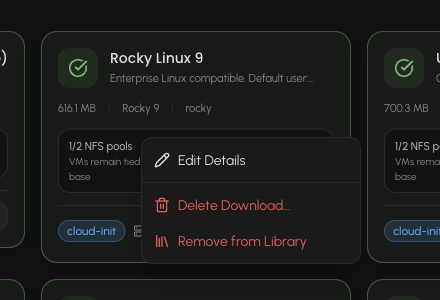
| Action | What it does |
|---|---|
| Download / Retry Download | Downloads the image to the pool selected in the toolbar. |
| Cancel Download | Stops the transfer, removes its partial file and removes the in-progress image entry after confirmation. |
| Edit Details | Changes the image's name, default user, description and OS details. |
| Delete Download… | Deletes the downloaded copy. See the warning below. |
| Remove from Library | Removes the image from the catalog. A downloaded file stays on storage; delete the download first if you want the space back. |
Images that VMs use are never deleted
Quantix does not delete an image that a VM uses: an ISO in a VM's CD-ROM drive, or a cloud image a VM's disk was created from. This holds for stopped VMs and for VMs on hosts that are offline, and also when you clear Also delete the file from storage. The delete reports the image as in use and lists each VM, with a link to it. Eject the ISO, or delete the disk or the VM, then delete the image again.
Retired imports
If older imported media remains in your inventory, Retired imports lists its records, including failed imports. These records are available for cleanup and cannot be selected for a new VM. With permission to delete images, choose Delete image and confirm the named image. Keep images that existing VMs use.
Transfers
Cancel Download waits for the host to stop a downloading image and remove its partial file. If the file already finished, or the host cannot confirm cleanup, it reports could not cancel and keeps the entry. Refresh its status before retrying. Failed downloads also require the owning host to confirm that writing has stopped and partial files are removed. A checksum failure keeps any existing image file in place. When Quantix successfully verifies a file that was already on storage, the image becomes READY and usable. Deleting that entry keeps the pre-existing file and reports that it was kept.
A URL import or catalog entry can carry the vendor's SHA-256 checksum (through the API, the assistant's image_import tool, or the catalog). The host checks the downloaded bytes against it before publishing the file. On a mismatch the transfer fails with the expected and observed digests, the downloaded bytes are removed, and the entry stays in ERROR, so it cannot back a VM. A verified image records its checksum as sha256:<digest>. Paste the digest as the vendor shows it: bare hex, sha256:<hex>, a SHA256SUMS line (<hex> file.iso) or a SHA256 (file.iso) = <hex> line all work. Only SHA-256 is accepted: a digest of any other algorithm, or a malformed one, is refused before anything is downloaded.
To remove only an inventory entry, clear Also delete the file from storage. This works even if the host is offline or an older transfer cannot be tracked. All files stay in place, and an ongoing transfer may still finish on the host.
A rejected start leaves no transfer entry. A start that may have reached the host, or a transfer with no progress for ten minutes, is shown as failed. Quantix can recover that entry to READY when the host later confirms the same image and job finished successfully. If the owning host cannot be identified, the entry stays unresolved; clearing Also delete the file from storage still removes only the inventory entry. Sync Storage never treats a partial file as a ready image. The datastore browser shows abandoned and legacy partial files so you can inspect them; private files belonging to active transfers are hidden.
Managed downloads require compatible host and control-plane versions. Node-only API requests use the node's default or only eligible image pool. If several pools are eligible, the response lists the choices so the caller can select one.
Downloads and uploads in progress are listed under Active Transfers at the top of the page with their progress, and under Operations.