

Disks and CD-ROMs
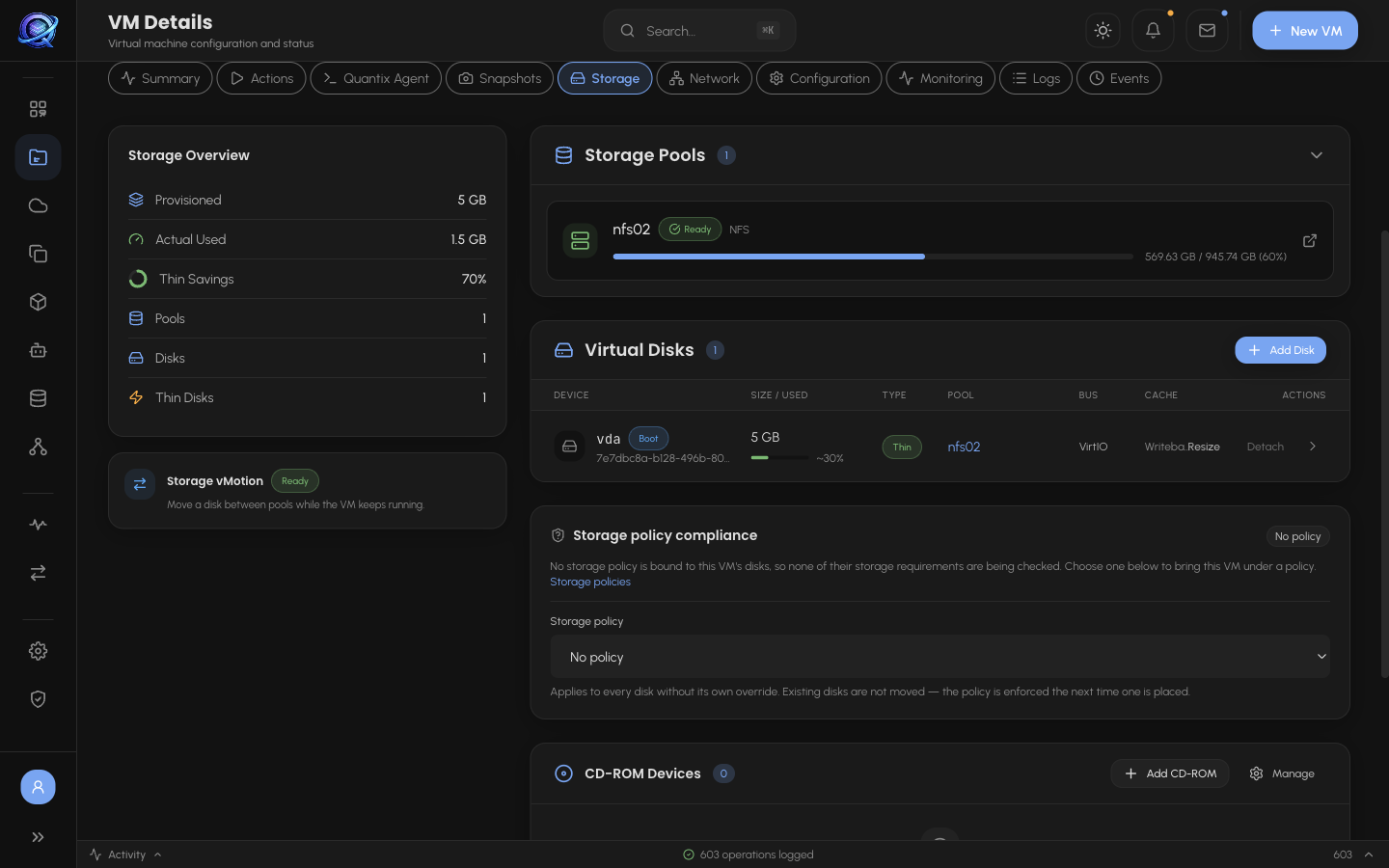
Everything about a VM's storage is on its Storage tab: the pools its disks are on, the Virtual Disks table, the storage policy check, and the CD-ROM Devices.
The Virtual Disks table lists the disks in order (vda, vdb, …), with each disk's size, provisioning (Thin, Thick (Lazy) or Thick (Eager)), pool, bus and cache mode. The boot disk is marked Boot. Click a disk to see its details, such as its volume ID and whether it is built on a cloud image (Backing File (CoW Base)).
Under each thin disk's size is the space it really takes on its pool, measured on a host when you open the tab: the disk file plus the files its snapshots added. Storage Overview adds these up as Actual Used and works out Thin Savings from them. When no host can measure a disk right now (for example, every host that has the pool is unreachable), the disk shows Unknown, and so do Actual Used and Thin Savings. Quantix never fills in an estimate.
A disk's details show Boot Index only for a disk given an explicit boot position. VM Snapshots counts the VM's snapshots, and each snapshot covers every disk of the VM.
Grow a disk
- On the disk's row, click Resize.
- Set the New Disk Size (GiB). It must be a whole number larger than the current size: disks can grow but never shrink. Until it is, Resize Disk stays disabled and the dialog says why.
- Click Resize Disk.
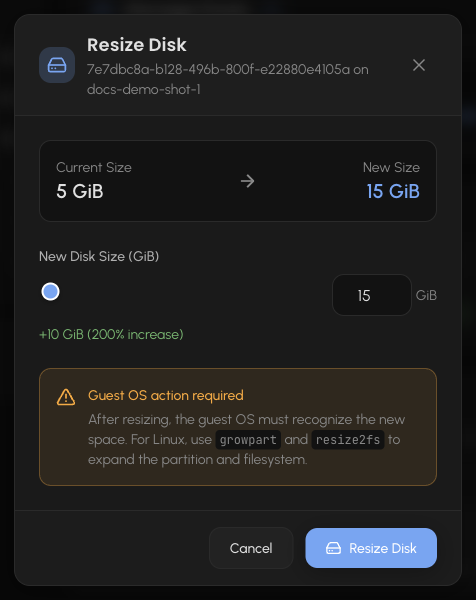
The VM can be running or stopped, but not in the middle of starting or stopping. Afterwards, extend the partition and file system inside the guest. On Linux, for example:
sudo growpart /dev/vda 1
sudo resize2fs /dev/vda1
(Use xfs_growfs / instead of resize2fs for XFS.) On Windows, use Disk Management → Extend Volume.
A disk that has snapshots cannot grow: Cannot resize a disk with snapshots. Delete the VM's snapshots first (see Snapshots).
Storage policy compliance
Storage policy compliance on the Storage tab shows whether each disk meets the storage policy bound to the VM: Compliant, Not compliant, No policy, and so on. With No policy, none of the disks' storage requirements are checked.
CD-ROM drives
CD-ROM Devices on the Storage tab lists the VM's drives, each with the mounted ISO or Empty - No ISO mounted.
Mount an ISO
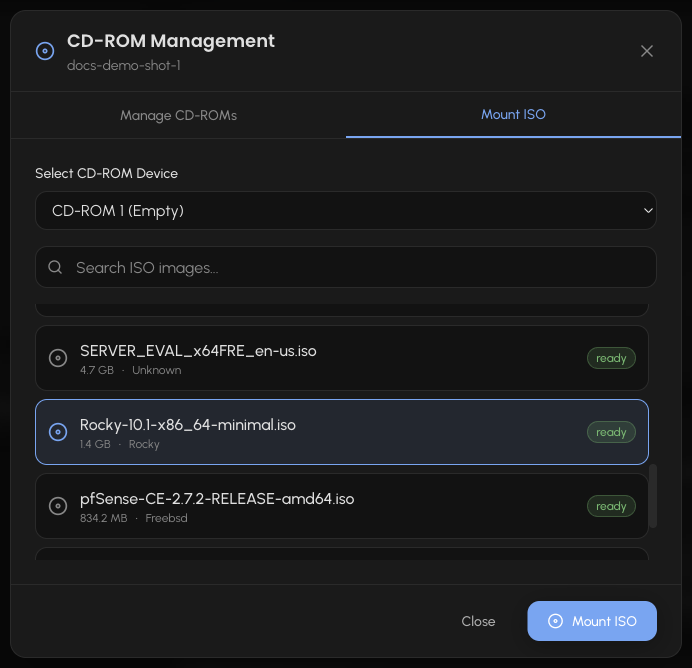
- Click Manage (or Mount ISO on an empty drive). CD-ROM Management opens.
- On the Mount ISO tab, choose the drive under Select CD-ROM Device and an ISO from the list (search with Search ISO images...). The list shows the ISOs in the Image Library.
- Click Mount ISO.
In the VM console, open CD-ROM → Mount ISO... to enter a full ISO path on the host where the VM runs. If the console adds the VM's existing default tray, it may be added empty; the console will say CD-ROM device added empty; mount the ISO separately. Select that empty drive and mount the ISO again. Check that the drive lists the ISO before booting from it.
Mounting and ejecting work while the VM runs; some guests need to rescan the drive to see the change.
Eject an ISO
Click Eject on the drive. There is no confirmation.
Add or remove a drive
- Add CD-ROM adds a drive at once, while the VM is running or stopped.
- To remove a drive, stop the VM, open Manage, click the trash icon on the drive and confirm Remove CD-ROM. A running guest keeps the drive until it restarts, so removal waits for a power-off.
Mount the Quantix Agent ISO
Mount Agent ISO (in the VM menu, for a running VM, or on the Quantix Agent tab) puts the agent installer ISO in the VM's CD-ROM drive. Install it from inside the guest as described in Guest agent. If your browser loses its connection while the ISO is being mounted, the action continues independently of the browser, subject to its timeout and the host’s outcome. This does not guarantee a successful mount. The notification shows the result once QvDC answers; do not click it again meanwhile.
Troubleshooting
| Message | What to do |
|---|---|
| Cannot resize disk right now | The VM is starting or stopping. Wait for it to settle. |
| No CD-ROM Device | Click Add CD-ROM Device first. |
| All CD-ROMs In Use | Eject an ISO or add another drive. |
| ... the host attachment outcome is unknown or disk detach result is ambiguous (outcome unknown) | The host stopped answering while it changed the disk. The VM shows Reconfiguring until the host confirms the change. QvDC replays the change on its own once the host answers, about 15 minutes after it stopped answering; a Detach can also be retried at once. Nothing else can change the VM until then. |