

DRS (load balancing)
The Distributed Resource Scheduler (DRS) keeps the load even across the hosts of a cluster. When one host is much busier than the others, DRS recommends live-migrating a running VM to a less busy host in the same cluster — and, if you allow it, carries out the migration itself. The VM keeps running while it moves.
How DRS decides
- What it measures. For each host, DRS looks at memory in use, CPU in use, memory committed (the memory configured for its VMs, against the host's memory) and vCPU committed. The host's load score is the higher of what is used and what is committed, so a quiet host that has promised all its memory away still counts as full.
- When it acts. DRS compares how far the hosts' scores are spread apart (the load deviation) with a tolerance set by the migration threshold. It also always acts on a host above 90% memory used, 85% CPU, or 100% of its memory committed, whatever the threshold.
- How often. DRS analyses each cluster every 5 minutes. An imbalance must last for a number of analysis passes (2 by default) before DRS recommends a move, so a short spike does not move VMs.
- One step at a time. DRS proposes at most one migration per cluster per pass, and runs one DRS migration at a time across all clusters by default.
Prerequisites
- A cluster with at least two hosts that are ready and reporting current figures. Mac Zone clusters cannot use DRS.
- VMs whose disks are all on a shared NFS storage pool (NFS version 4.1 or 4.2) that both the source and the target host can reach. DRS only moves running VMs; it skips VMs on local storage.
- To view DRS: a role with DRS read permission (Administrator, Operator and Viewer by default). To change settings, create rules or apply recommendations: DRS manage permission (Administrator and Operator by default).
Open the DRS page
In the sidebar, open Operations → DRS Recommendations. If you have more than one cluster, choose it in the picker at the top right.
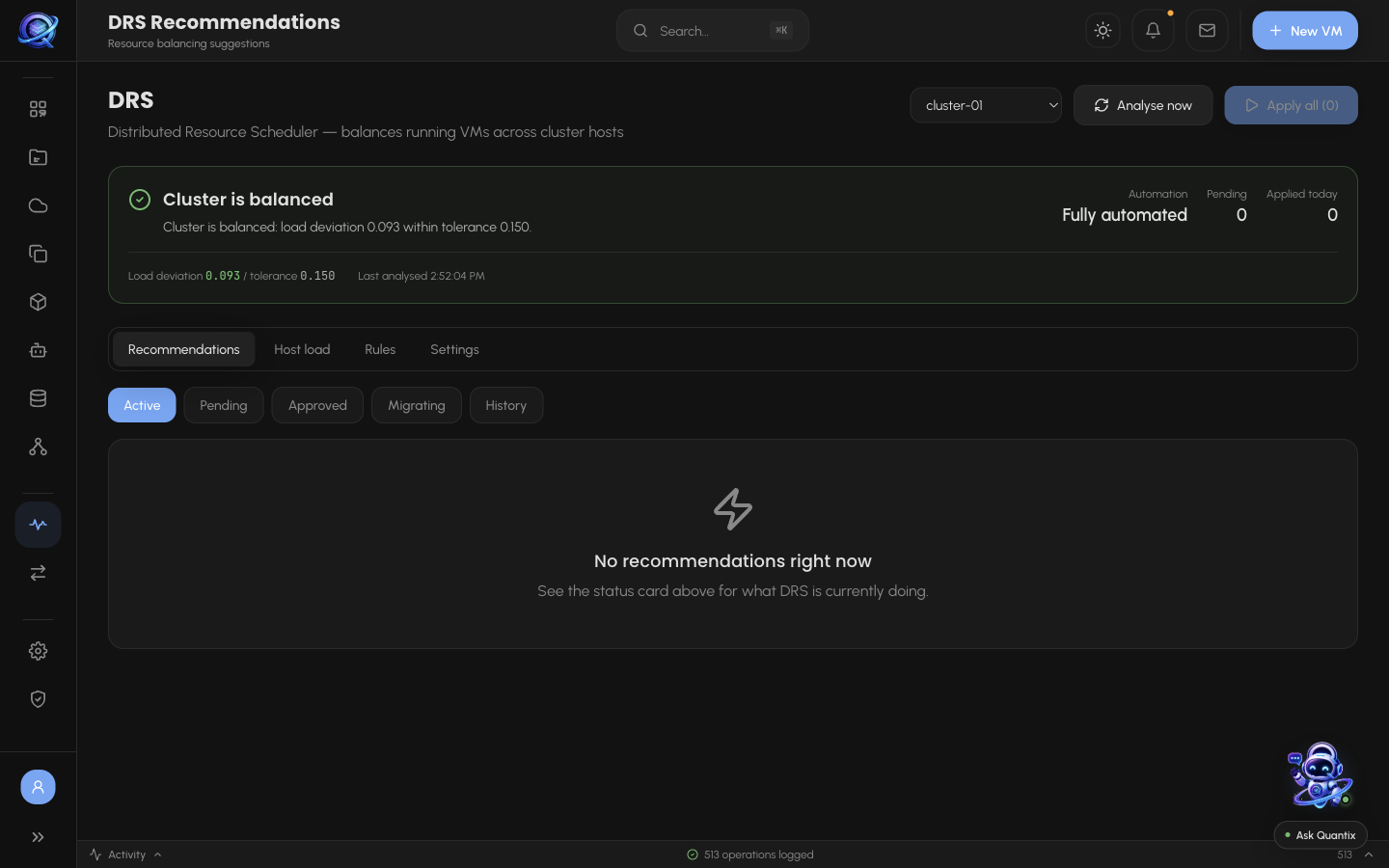
The status card at the top says what DRS is doing for this cluster right now, with Automation (the level), Pending (recommendations waiting for you), Applied today (migrations in the last 24 hours), the current Load deviation against its tolerance, and when it was Last analysed. Below it are four tabs: Recommendations, Host load, Rules and Settings.
Turn DRS on and choose an automation level
On the DRS page, open the Settings tab.
Turn on Distributed Resource Scheduler. New clusters have it off.
Under Automation, choose one level:
Level What happens Manual (default) DRS suggests migrations. You review each one and click Migrate now to run it. Partially automated DRS suggests migrations and approves them for you. You still click Migrate now to run each one. Fully automated DRS migrates running VMs on its own, without asking. It only does this for recommendations at or above the priority in Only auto-apply at or above (default High); lower-priority ones wait for you. Under Sensitivity, set the Migration threshold (see below) and Sustained passes before acting (1–10, default 2).
Under Safety limits, check the limits (the defaults suit most sites):
- Concurrent migrations — DRS migrations running at once, across all clusters (1–8, default 1).
- Per-VM cooldown (minutes) — minimum time between two migrations of the same VM, manual ones included (default 30).
- Host-pair cooldown (minutes) — minimum time between migrations over the same pair of hosts (default 15).
- Recommendation lifetime (minutes) — how long a recommendation stays valid (default 10).
Click Save DRS settings.
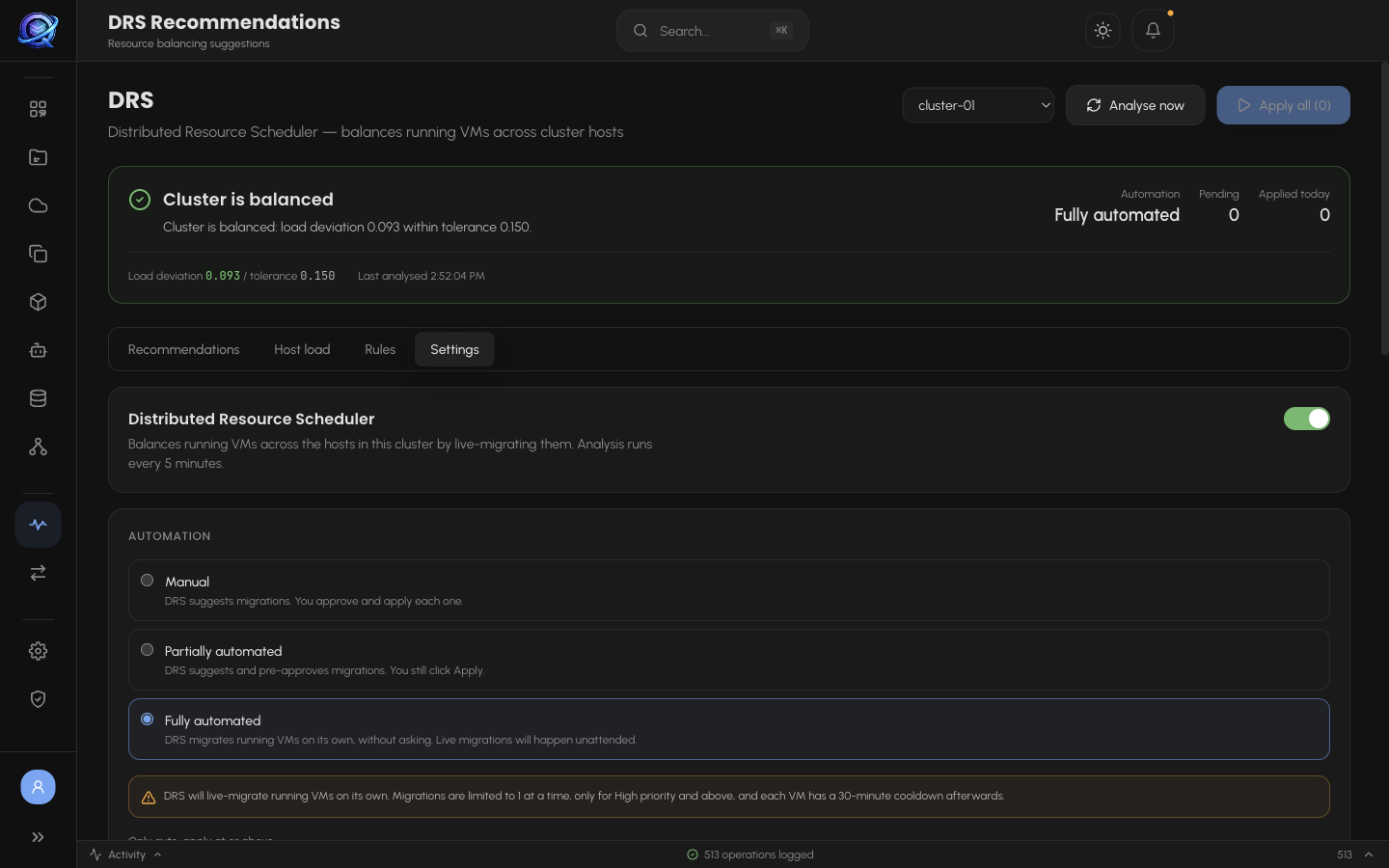
In Fully automated mode, changes act immediately
Saving DRS settings, clicking Analyse now, and creating, changing or deleting a rule all start a fresh analysis. In Fully automated mode that analysis can start a live migration straight away. Make such changes when a migration is acceptable.
Choose the migration threshold
The Migration threshold slider runs from 1 (Aggressive) to 5 (Conservative). The default is 3, Balanced (default).
A lower number makes DRS act sooner. (This is the opposite of the VMware vSphere scale.) Below the slider, the page shows the tolerance the setting gives, for example DRS acts when host load deviation exceeds 0.150.
| Setting | Label | DRS acts when the load deviation exceeds |
|---|---|---|
| 1 | Aggressive — rebalance on small imbalances | 0.05 |
| 2 | Fairly aggressive | 0.10 |
| 3 | Balanced (default) | 0.15 |
| 4 | Fairly conservative | 0.22 |
| 5 | Conservative — only severe imbalances | 0.30 |
Read the recommendations
Open the Recommendations tab. The filters are Active (everything still in play), Pending, Approved, Migrating and History (applied, failed, rejected and expired recommendations from the last 30 days).
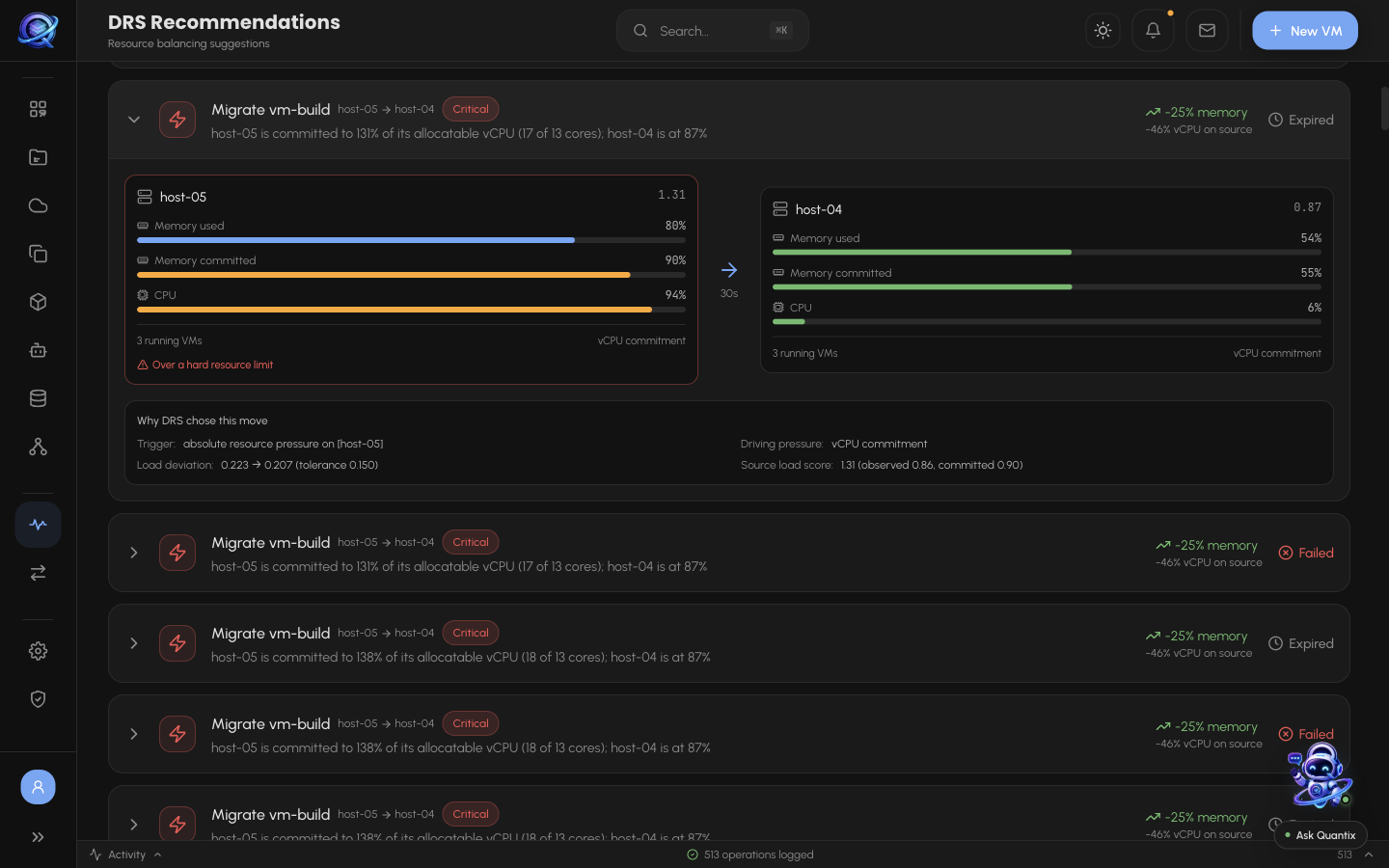
Each recommendation reads Migrate VM source host → target host, with:
- a priority — Critical, High, Medium or Low — taken from the source host's busiest figure: 100% or more is Critical, 90% or more High, 80% or more Medium, otherwise Low. A move that fixes a broken rule is always High;
- the reason, for example host-05 is committed to 131% of its allocatable vCPU … host-04 is at 87%;
- how much memory and vCPU the move takes off the source host;
- its status.
Click a recommendation to expand it. You see both hosts' load, an estimated duration, Why DRS chose this move (what triggered it, the deviation before and after the move, and the source host's score) and any Pre-flight warnings.
What each status means
| Status | Meaning |
|---|---|
| Pending | Waiting for you. |
| Approved | Approved (by you, or by DRS in Partially automated mode) but not yet run. |
| Migrating | The live migration is running. Follow it in the Activity panel. |
| Applied | The migration finished. |
| Failed | The migration did not start or did not finish. Expand the card to read why. |
| Rejected | Someone rejected it. |
| Expired | It was not run within the recommendation lifetime. DRS builds new recommendations from current load. |
Act on a recommendation
On a Pending or Approved recommendation:
- Migrate now runs it. Quantix checks everything again first — both hosts are ready, the cooldowns and the migration limit allow it, and the migration itself is possible — then starts the live migration.
- Approve (Pending only) marks it approved without running it.
- Reject (called Cancel on an approved one) discards it.
Apply all (N) at the top runs the pending and approved recommendations, most urgent first, up to the Concurrent migrations limit; the page lists any it skipped and why. Analyse now runs a fresh analysis.
A recommendation tagged Protected — manual apply only moves a VM that DRS never moves on its own, such as the QvDC appliance itself. Run it yourself only if you mean to.
When DRS has a High or Critical recommendation, Quantix also raises an Info alert, DRS recommends rebalancing followed by the cluster name, on the Alerts page.
Check host load
The Host load tab shows one card per host: its load score, Memory used, Memory committed, CPU, vCPU committed, the number of running VMs, and a driving tag on the figure that decides the score. Over a hard resource limit marks a host past one of the absolute limits.
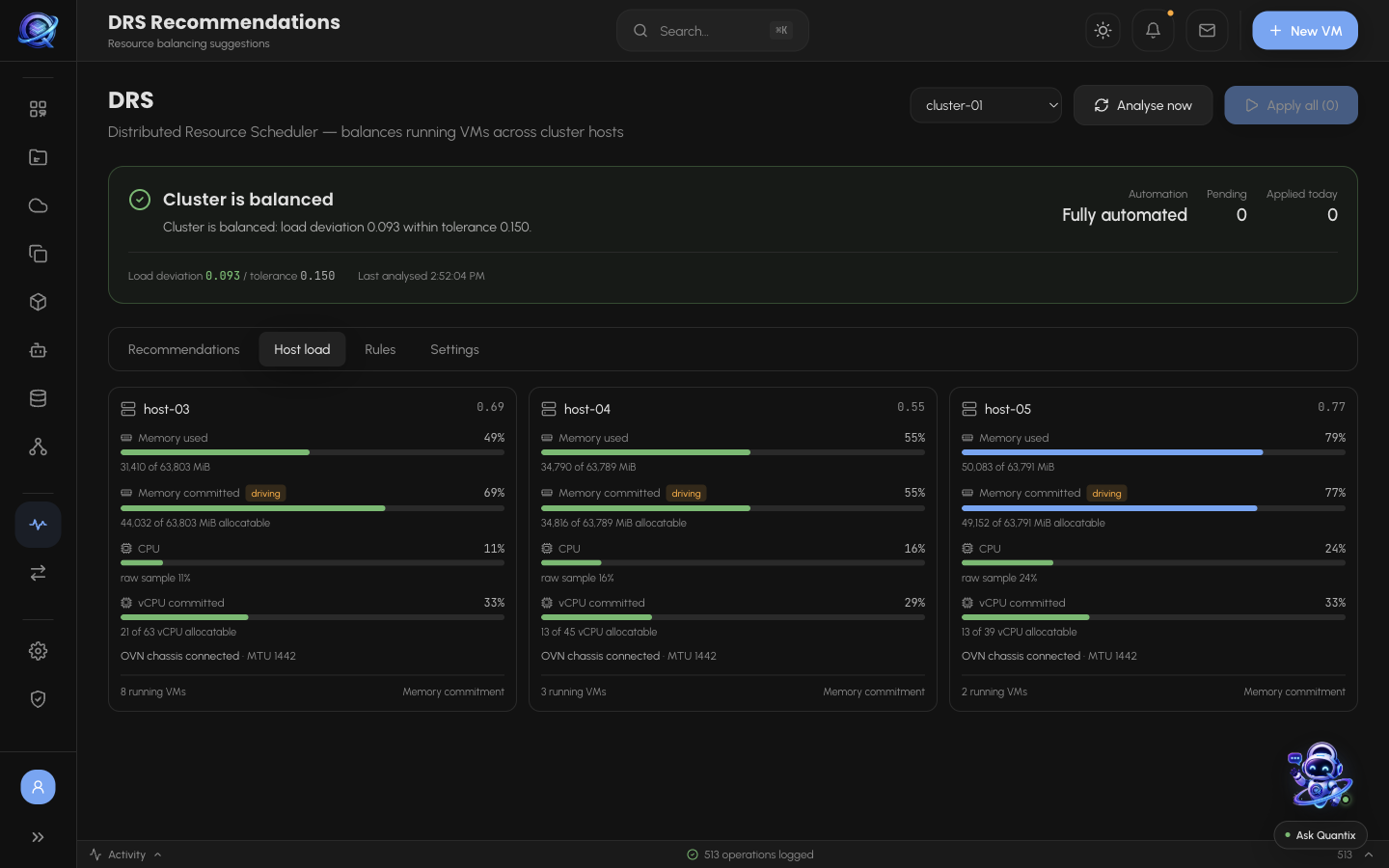
A host that is not ready, has not sent a heartbeat for more than 90 seconds, or is not reporting figures is left out of balancing — as a source and as a target — so an unresponsive host never looks like an empty one. Its card reads Excluded from balancing: with the reason, and the status card lists it under host(s) excluded from balancing.
Keep VMs together or apart with rules
The Rules tab (Placement rules) controls where DRS may place VMs. Click New rule, enter a Name, choose the Rule type, pick the VMs (and, for host rules, the Hosts), and click Create rule.
| Rule type | Kind |
|---|---|
| Keep VMs together | Hard: the VMs must run on the same host. |
| Keep VMs apart | Hard: the VMs must run on different hosts. |
| Must run on hosts | Hard: the VMs may only run on the chosen hosts. |
| Must not run on hosts | Hard: the VMs may never run on the chosen hosts. |
| Should run on hosts (preference) | Soft: preferred when several hosts are equally good. |
| Should avoid hosts (preference) | Soft: avoided when several hosts are equally good. |
Each rule shows Satisfied, Violated, Unsatisfiable or Disabled. DRS proposes a move to fix a violated hard rule even when the cluster is balanced. An Unsatisfiable rule — one no placement can meet — stops DRS balancing the cluster until you correct it. Deleting a rule takes effect at once, without a confirmation.
Hard rules apply to DRS's own moves, to the placement of VMs recovered after a host failure, and to moving VMs off a host (drain). They do not restrict where a VM first starts or where you migrate it by hand.
Connectors and container capacity
DRS balances the VMs behind managed connectors and container capacity like any other VM, in both manual and automatic mode. It moves them through their own safe paths: a connector through its connector move (the same one Move to host… starts), a container capacity machine as a live migration Quantix authorizes for that capacity. Approving the recommendation is all you do.
- DRS moves them live only. A connector or capacity machine that could only move with a shutdown is left where it is, and the analysis says why (LIVE_MOVE_UNAVAILABLE).
- Connectors and capacity machines created before this release keep their cloud-init data on their first host, which rules out a live move. Move such a connector once with Move to host… and a Cold move; after that DRS can balance it. For an older capacity machine, open its capacity page and choose Make live-movable on the machine. Quantix copies its cloud-init data to the shared storage pool and switches the machine to the copy without restarting it; after that DRS can balance it. Connectors and capacity created from this release on can move live from the start when their disks are on an NFS storage pool.
- DRS waits while a connector move is in progress (CONNECTOR_MOVE_ACTIVE) or while the capacity has an operation running, such as a resize or upgrade (CONTAINER_CLUSTER_BUSY).
- DRS never puts two control-plane machines of a resilient capacity on the same host. After a host failure, Quantix restarts them on different hosts when enough hosts survive. If none do, it restarts them anyway with a warning, and DRS separates them again once a host is free. Draining a host leaves connectors and capacity machines where they are.
- The Rules tab lists this as Container runtime <name>: control-plane servers on distinct hosts, marked Managed by Container runtime <name>. It has no edit, on/off or delete control, and it lasts as long as the capacity.
What DRS does not do
- Move VMs between clusters, or move VM storage.
- Move stopped VMs, or choose the host a new VM starts on.
- Move VMs with a passthrough device (such as a GPU).
- Balance a cluster while a host-failure recovery is open there — the status card then reads Holding for HA recovery.
- Power hosts off and on to save energy, predict load, or use resource pools, shares, reservations and limits. The Settings tab lists these under Not available.
- Exclude an individual VM. Only protected workloads such as the QvDC appliance are never moved automatically.
Troubleshooting
The status card explains why DRS is not moving anything. Common messages:
| Status card | What it means and what to do |
|---|---|
| DRS is off for this cluster | Turn it on in the Settings tab. |
| Not enough hosts to balance | DRS needs at least two hosts with current figures in the cluster. Check the hosts listed as excluded. |
| Confirming the imbalance | DRS is waiting for the imbalance to last the configured number of passes. |
| Cluster is balanced | Nothing to do. |
| Imbalanced, but no migration would help enough | No single move would improve the balance enough to be worth it. |
| No migration is currently possible | Storage, CPU compatibility or host health rules out every candidate move. Check that the VMs are on shared NFS storage both hosts can reach. |
| Blocked by a DRS rule / A DRS rule can never be satisfied | Review the Rules tab. |
| Waiting on a cooldown / At the migration limit | A recent or running migration is holding DRS back. It continues by itself. |
| Cluster is out of capacity | Every host is over an absolute limit and no move can help. Add a host or reduce the load. |
A recommendation that fails with this recommendation was built from host metrics that are now stale has expired: click Analyse now for a fresh one.