

Cluster, host and VM views
Two views show VMs by where they run:
- Inventory → Cluster View: a tree of clusters, the hosts in each cluster, and the VMs on each host.
- Inventory → Hosts: the list of physical hosts, with their health and how many VMs each one runs.
Cluster View
The tree on the left lists each cluster, then its hosts, then the VMs running on each host. Hosts that belong to no cluster are listed after the clusters. Use Search... to find a cluster, host or VM by name: a matching VM brings its host and cluster with it, and the branches open to show it.
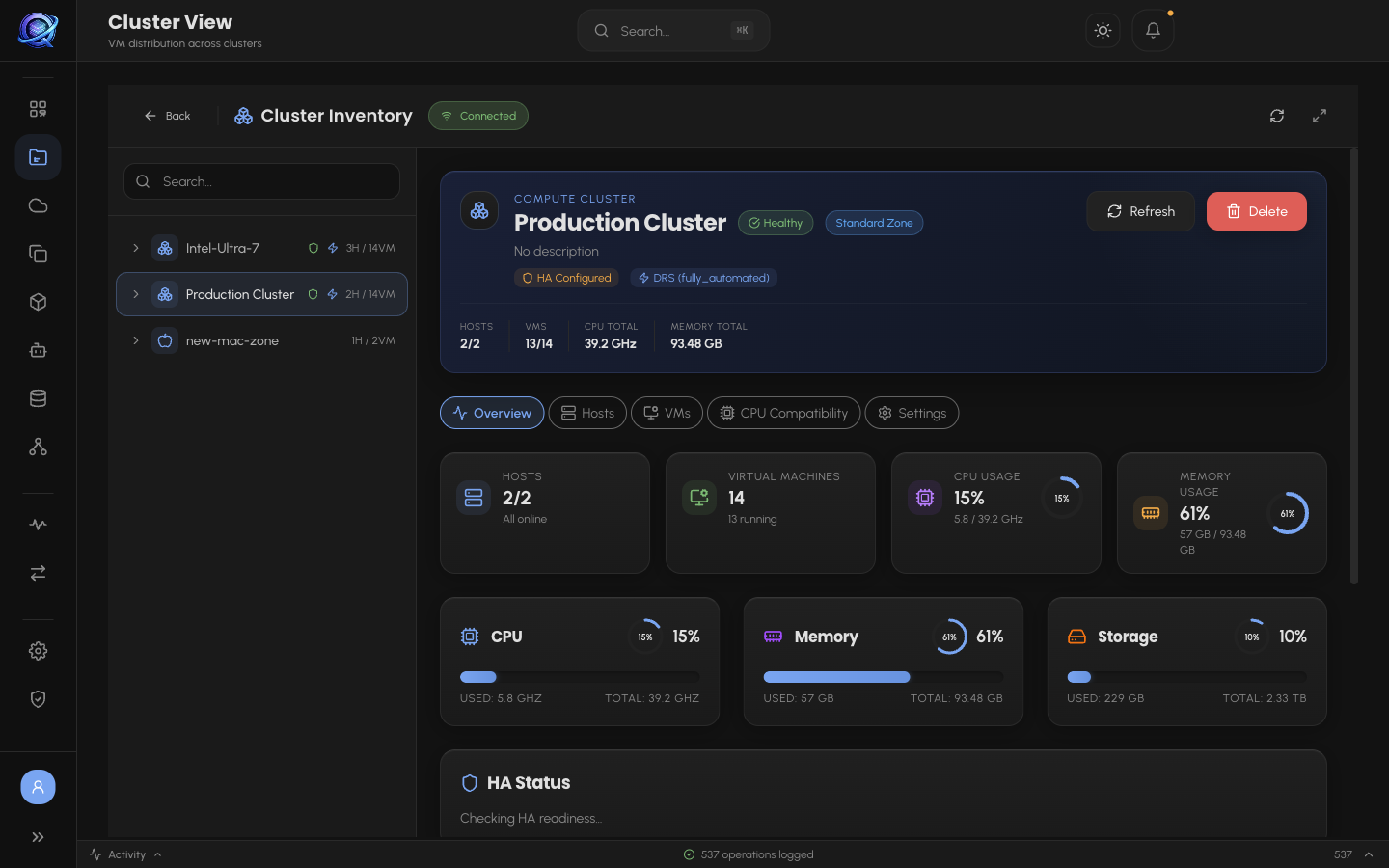
Click an item to see its details on the right:
- A cluster: tabs Overview, Hosts, VMs, CPU Compatibility and Settings. The overview shows the cluster's health (Healthy, Warning, Critical or Maintenance), capacity, and whether high availability (HA) and DRS are on. HA Status shows the cluster's current readiness and blockers. If admin verification is required, select Verify identity and complete the prompt to refresh the status.
- A host: its state, with Migrate VMs, Maintenance and Reboot buttons, and tabs Summary, Virtual Machines (N), Hardware, Storage, Network, Monitoring and Events.
- A VM: the same tabs as the VM page.
Right-click an item for its actions:
- Cluster: View Details, Edit Cluster, Enable HA or Disable HA, Enable DRS or Disable DRS, Add Host, Remove Host and Delete Cluster.
- Host: View Details, Enter Maintenance / Exit Maintenance and Migrate VMs.
- VM: the full VM menu, as in the VM list, including power, pause and suspend actions, console access, and resource or settings edits.
What each cluster and host setting does to your VMs is explained in Where a VM runs.
Automatic HA after removing or moving a host
Removing a host from a cluster leaves its saved HA participant entry in place. Automatic HA for that cluster pauses if any declared participant now belongs to another cluster or no cluster. Running VMs are not moved by this membership change.
- Open the cluster's HA Status to see which participant blocks readiness.
- In HA & Recovery, edit Covered hosts to remove that host, or restore its cluster membership.
- Check readiness again. Automatic HA remains paused while any blocking requirement remains.
Review any recovery already in progress before changing its plan. Membership changes do not cancel an already dispatched fence or release its reserved recovery capacity.
Hosts
Inventory → Hosts lists the physical hosts. Filter by All, Ready, Not Ready or Maintenance, by architecture, or search by hostname, IP, rack or zone. The columns are Hostname, Status, IP Address, CPU Usage, vCPU Committed (vCPUs given to VMs against the host's capacity), Memory Usage, VMs (how many VMs the host runs) and Location. Add Host adds a host to QvDC (see Add hosts to QvDC).
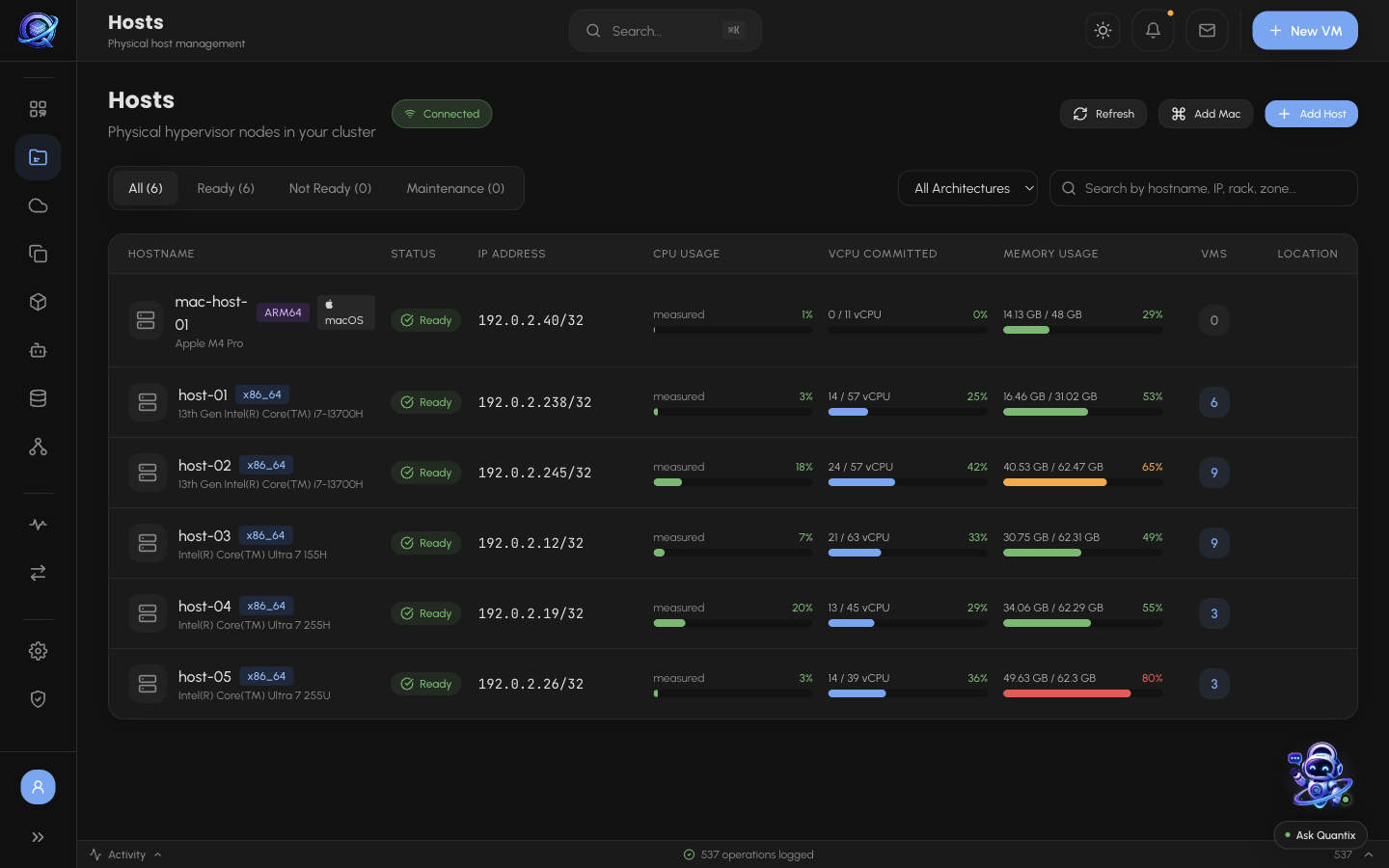
Click a host to open it. Its Virtual Machines tab lists the VMs on that host. On Summary, Recovery if this host fails shows automatic recovery eligibility, the reported blockers and fence-provider status. If admin verification is required, select Verify identity; Configure fencing opens HA & Recovery. If your account cannot view readiness, ask an administrator to review it.
The card answers for this host, not only for its cluster. If the cluster's automatic recovery profile is on but does not list this host, the card shows Not covered by automatic recovery: when this host fails, its VMs are not restarted automatically, and an operator has to confirm the recovery. To cover it, add the host under Covered hosts in HA & Recovery. An administrator sees Change coverage in HA & Recovery on the card, which opens that page.
Right-click a host (or use its menu) for host actions. The ones that affect VMs:
| Action | Effect on VMs |
|---|---|
| New VM on this Host | Opens the New VM wizard with this host selected. |
| Migrate VMs from Host | Moves the VMs you choose to other hosts. Running VMs are moved while they run, which is not possible for VMs on shared storage (see Which VMs can move while running); shut those down and migrate them stopped. |
| Enter Maintenance Mode | Stops new VMs from being placed on the host. Running VMs stay where they are unless you tick Migrate VMs first in the dialog. Exit Maintenance Mode allows placement again, but only while the host is reporting: a host that has stopped reporting (for example while it is being reinstalled) cannot leave maintenance until it reports again, and the action is greyed out with the reason. If the cluster has Enforce Failover Admission on, Quantix first checks that the hosts left in service could still restart its protected VMs after Host Failures to Tolerate host failures. If they could not, the dialog says which hosts would be short and by how much, and nothing changes: free capacity, power off or move protected VMs, lower Host Failures to Tolerate, or turn off Enforce Failover Admission to go ahead without that guarantee. Leaving maintenance is never refused for capacity. |
| Drain Host | Moves the host's running VMs to other hosts, for example before hardware work, with the same limits as Migrate VMs from Host. Stopped VMs stay on the host. Before anything moves, the dialog checks that every running VM fits on the other hosts together, and reserves that room for the whole drain. If they do not all fit, or the cluster could no longer keep its HA failover capacity without this host, the drain is refused, nothing moves, and the host stays in service: the dialog names each VM that does not fit and why. Force drain cannot override that. Force only accepts VMs that the drain would skip for another reason (for example snapshots), which then stay running on the host. See Draining a host. |
| Reboot Host | Restarts the host. Running VMs are shut down or paused during the reboot; migrate them to other hosts first. |
Check a drain
While a host is Draining, click its Draining status, on the host page or in the Hosts list, to open Drain status. After the drain has ended, open it from the host's menu: Drain Status.
The banner says whether the drain is still running, whether it finished and put the host in maintenance, or how many VMs it could not move, followed by the host's current state (for example The host is now ready.). It also says how many VMs with running state are still on the host. A drain that was interrupted, cancelled or has an unknown outcome says so. If the host is still Draining after its drain ended, the banner says the drain stopped part-way and the host is still cordoned (it takes no new VMs).
Started, Ended and Started by show when the drain ran and who started it. A drain started by a host update shows System.
The Virtual machines table lists each VM the drain handled:
- Pending and Migrating (with progress) while the drain runs.
- Migrated, with the host it moved to.
- Failed, with the error the host reported.
- Blocked, with the reason the drain would not move it (for example snapshots, a placement rule, or disks on the host's own local storage).
- Left in place for a powered-off VM; a reboot loses nothing.
- Not attempted or Outcome unknown when the drain ended before it finished with the VM. Check where the VM is before you reboot the host.
A VM marked Still on this host with running state would go down if you rebooted the host.
Act from the same page: Retry drain runs the drain again, Migrate VMs moves VMs you choose, and Exit Maintenance returns the host to service. No drain can be cancelled while it runs.
The page has its own address, so you can bookmark or share it.
Maintenance on the host itself
Use QvDC's Enter Maintenance Mode for a host QvDC manages: QvDC can move the virtual machines to other hosts first. The host's own Host UI has a Maintenance card on its Dashboard for the cases where no QvDC can do that: a standalone host, or a managed host whose QvDC is not answering (for example because the QvDC virtual machine is off).
While a host is in maintenance it starts no virtual machine and accepts no virtual machine moved to it. Virtual machines can still be shut down or moved away.
- In the Host UI, open Dashboard and find the Maintenance card. If QvDC manages the host and is answering, the card says so and offers Open QvDC instead: enter maintenance there.
- Click Enter maintenance. The dialog lists the running virtual machines; the host cannot move them, so it shuts each one down. If one of them is the QvDC virtual machine, it is shut down only when you tick the box that names it.
- If any virtual machine is running, type
maintenanceand click Shut down VMs and enter maintenance; otherwise click Enter maintenance. If the host has passkeys, confirm with your passkey. - Expected result: the card shows who entered maintenance and when. A virtual machine that did not shut down is named in a message and keeps running; shut it down from its own page.
- When you are done, click Exit maintenance on the same card.
On a host QvDC manages, QvDC shows Local maintenance on the host on the host row and in the host's conditions, but it does not end it: only Exit maintenance in the Host UI does.
Which view to use
| You want to | Use |
|---|---|
| Find a VM by name, state or IP | VM List |
| See VMs grouped the way your organisation thinks about them | Folder View |
| See which host a VM runs on, and what else runs there | Cluster View |
| Check host health and load before creating or moving VMs | Hosts |
Remove an automatic HA participant
Before Remove Host from Cluster or Decommission Host, review the warning if the host participates in an enabled automatic HA profile. It names the profile and its revision:
- Remove Host from Cluster leaves the host declared in the profile. Automatic HA pauses for the profile until an administrator removes it from the participant list or restores its cluster membership.
- Decommission Host removes the host record. Automatic HA stops for the remaining hosts until an administrator edits the participant list.
The decommission confirmation is titled Automatic HA will stop for a known participant. If the automatic HA profile cannot be read, its title is Automatic HA impact could not be checked. Review the profile and participant list before relying on automatic HA.
Both warnings let you proceed. Ask an administrator to update the participant list to match the intended hosts before relying on automatic HA again.
The Hosts tab in cluster details also shows this warning when you choose Remove from Cluster. If the automatic HA profile cannot be read, the warning says automatic HA impact could not be checked and still lets you proceed. Review the profile and participant list before relying on automatic HA. Other safety checks still apply; if the removal preview itself fails, retry it before removing the host.