

Admin verification
Administrators confirm it is really them before they use the Admin Panel: with a code from an authenticator app (TOTP), a one-time backup code, or a passkey marked for the Admin Panel. Once the authenticator app is set up, QvDC also asks for a code from it, or a backup code, every time you sign in with your password. Until you set one up, your password alone signs you in (see Passwords and passkeys).
The first time you open the Admin Panel, it walks you through the setup. Accounts with the admin base role can also set it up, check it or remove it under Settings → Account → Admin Action Verification, below Passkeys.
Prerequisites
- An account with the admin base role. The Admin Action Verification section appears in Settings only for these accounts; other accounts that can open the Admin Panel set up the authenticator in the Admin Panel's first-visit wizard (see The Admin Panel).
- An authenticator app, for example Google Authenticator, Authy, or the one built into 1Password or Bitwarden.
Set up the authenticator app
Go to Settings → Account. Under Admin Action Verification, next to Authenticator app (TOTP), click Set up authenticator.
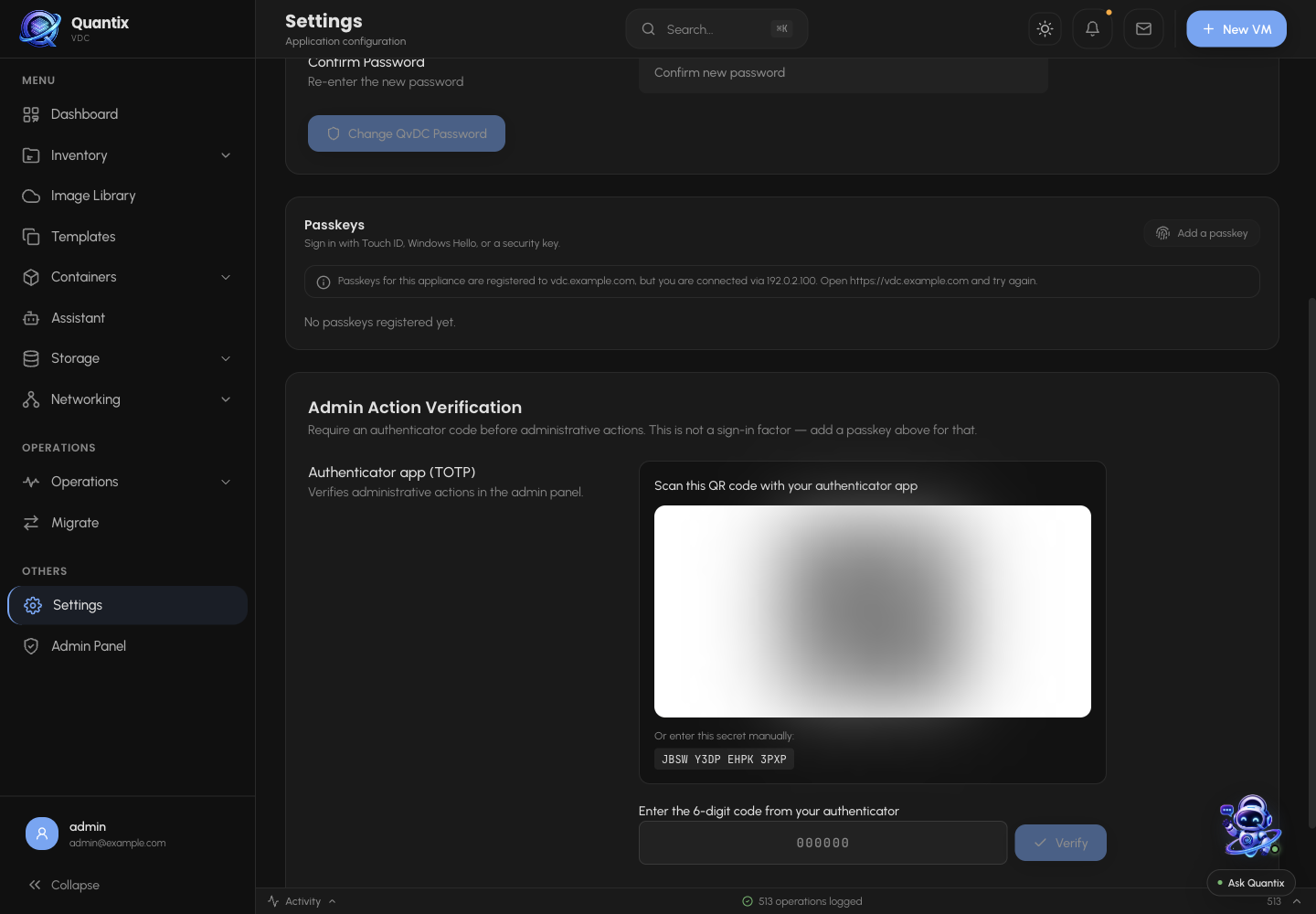
Scan this QR code with your authenticator app, or type the secret shown under Or enter this secret manually: into the app. The app lists the account as Quantix-vDC with your email address.
Enter the 6-digit code from the app under Enter the 6-digit code from your authenticator and click Verify.
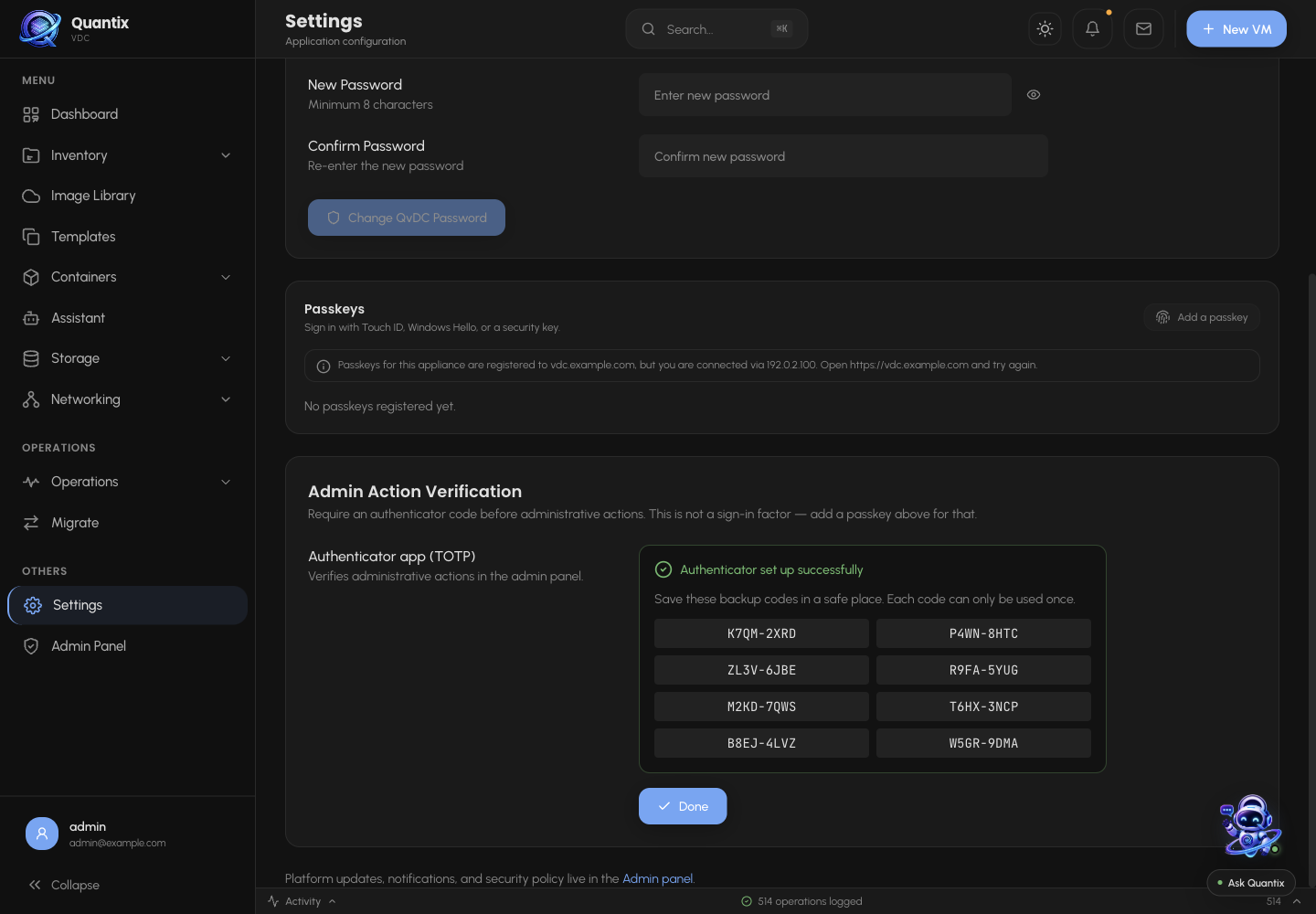
Authenticator set up successfully shows eight backup codes. Each code can be used once, in place of an authenticator code. Write them down or store them in your password manager — they are shown only this once. Click Done.
Expected result: the section shows Authenticator enabled. From your next sign-in, QvDC asks for a code from your app after your password, and the Admin Panel asks for one when your admin session has ended.
Use a passkey instead of a code
If you already have a passkey on this account, you can use it to verify for the Admin Panel:
- Go to Settings → Account → Passkeys.
- Tick Admin panel passkey on the passkey you want to use.
Expected result: Admin Verification offers Use my passkey instead. An administrator with such a passkey does not need to set up the authenticator app before opening the Admin Panel.
Once your account has the authenticator app or an admin panel passkey, any change to them asks you to verify first: setting up the authenticator again, ticking or clearing Admin panel passkey, or removing an admin panel passkey. Admin verification opens; verify, and the change goes through.
Remove the authenticator app
- Go to Settings → Account → Admin Action Verification and click Remove authenticator.
- If your admin session has ended, Admin verification asks for a current code or a backup code first.
To move to a new phone, remove the authenticator, then click Set up authenticator and set it up again with the new phone.
Troubleshooting
Verify stays greyed out — enter all six digits shown by the app.
Codes are always refused — make sure the device running your authenticator app sets its clock automatically. Codes change every 30 seconds.
I lost my phone — open the Admin Panel with a backup code (Use a backup code instead on Admin Verification) or an admin panel passkey. Then, under Settings → Account → Admin Action Verification, click Remove authenticator and set it up again with Set up authenticator. If you cannot sign in at all, enter a backup code in the code field on the sign-in page. If you have no backup codes and no passkey left, ask another super administrator to reset your authenticator (see Users and roles). If you are the only super administrator, contact Quantix support through the customer portal.
I lost my admin panel passkey and have no authenticator app — without the app you have no backup codes. Ask another super administrator to reset your passkeys under Admin Panel → People & access → People (see Users and roles). You then sign in with your password, add a new passkey and tick Admin panel passkey on it.