

Storage defaults and disk options
Storage → Storage Options holds each cluster's storage defaults: the pool and the provisioning type that new disks start with. The wizards and dialogs that create disks pre-select these values; you can still change them there.
Set the storage defaults
Prerequisites: at least one cluster exists; a user with the admin or operator base role, or the System administrator role.
- Go to Storage → Storage Options.
- If you have more than one cluster, choose the Cluster first. Defaults are stored per cluster.
- Choose the Default Storage Pool, or -- No default --.
- Choose the Default Provisioning: Thin or Thick.
Anyone who can view storage and clusters can open the page. Without permission to change cluster settings, the defaults are shown but cannot be changed, with "Read-only: changing these defaults requires cluster:update."
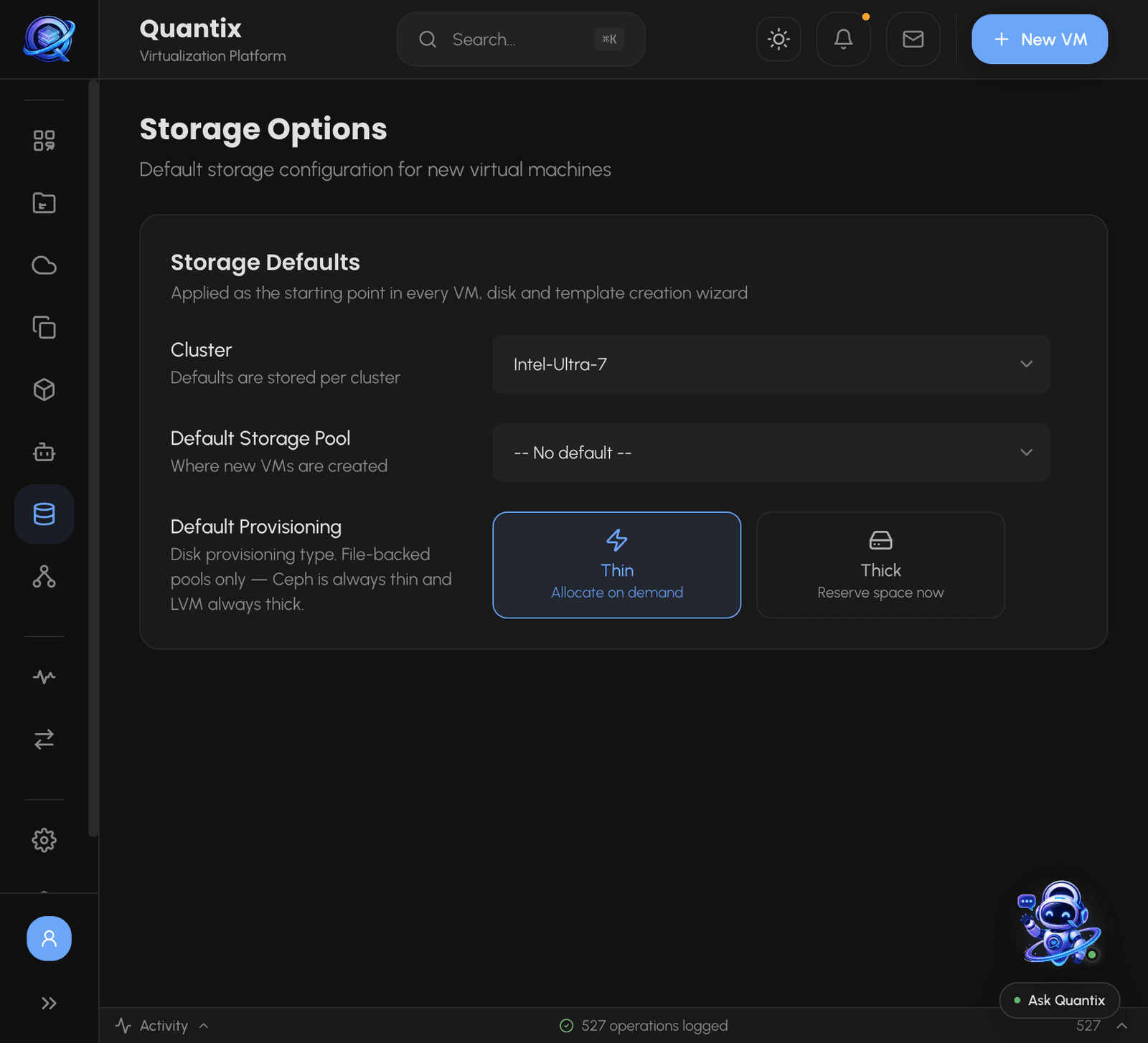
There is no Save button: each change is saved as soon as you make it. If saving fails, "Could not save:" appears with the reason.
| Default | Pre-selects |
|---|---|
| Default Storage Pool | The pool when you download a cloud image, upload an ISO, or import a custom image. These dialogs are not tied to a cluster: with several clusters, they pre-select a pool only when every cluster that has a default names the same pool. |
| Default Provisioning | Thin or Thick in the VM creation wizard and in the dialog that adds a new disk to a VM. |
Thin and thick provisioning
| Choice | What happens |
|---|---|
| Thin — "Allocate on demand" | The disk file starts small and grows as the guest writes. The pool can hold more disk capacity than it has space, so watch its usage. |
| Thick — "Reserve space now" | The full size of the disk is reserved on the pool when the disk is created. Creation fails if the pool cannot fit it. |
A boot disk that is created from a cloud image is always thin, whatever you choose.
Options for a new disk
When you add a new disk to a stopped VM from its Storage tab (Add Disk), you choose, besides its name, size and pool:
| Option | Choices |
|---|---|
| Guest bus | VIRTIO (default) — the paravirtual disk bus; the guest needs VirtIO drivers, which Linux includes. SCSI — a disk on a VirtIO SCSI controller; the guest needs VirtIO SCSI drivers, which Linux includes. SATA — an emulated SATA disk that any guest can use without extra drivers. |
| Provisioning | Thin or Thick, as above. |
| Enable discard / UNMAP | Off by default. When on, blocks the guest frees are released on the pool as well, so a thin disk does not keep space the guest no longer uses. Enable it only when the guest issues discards (TRIM). |
| Storage policy | Shown when policies exist. See Storage policies. |
The dialog lists only NFS and Local Directory pools that are healthy on the VM's host. See Create and manage VMs for the rest of the disk workflow.