

Clone and migrate
Clone a VM
A clone is a new VM made from an existing one.
| Clone type | What it is | Source VM |
|---|---|---|
| Linked Clone | Fast: the clone's disk is a thin layer on the source's disk, so it uses little space. | Must be powered off. It cannot be deleted while linked clones of it exist. |
| Full Clone | An independent copy of all disk data. Takes longer, depending on disk size. | Can be running. It can be deleted afterwards. |
- From the VM menu choose Clone → Full Clone or Clone → Linked Clone (or Actions → Clone, which starts with a full clone).
- Name & Type: enter the New VM Name (default: the source name with
-clone) and confirm the Clone Type. Click Next. - Confirm: check the Clone Summary and choose the destination:
- Cluster, then either tick Auto-placement: let the scheduler pick a host in this cluster or choose a Host. The source's cluster and host are preselected.
- Start VM after cloning, to power the clone on when it is ready.
- Click Clone VM.
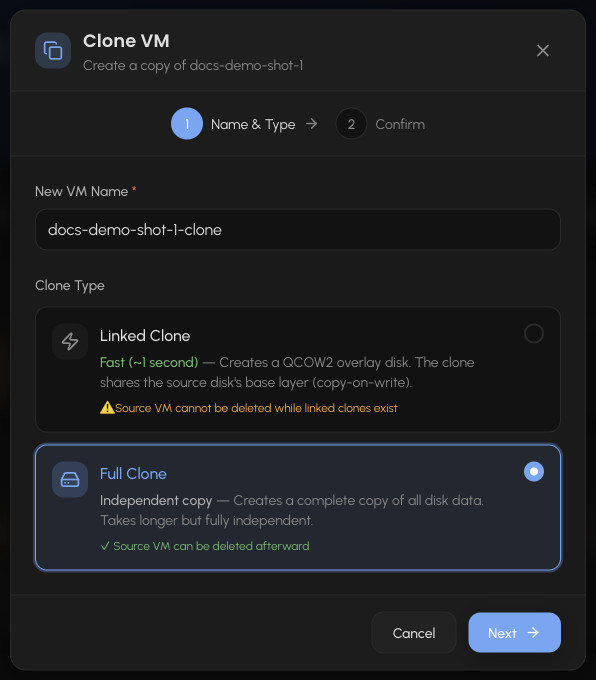
Expected result: a toast confirms the clone started, and the new VM's page opens. A full clone copies in the background; follow it under Operations.
Clone a running VM
For a Full Clone of a running VM, choose how its disks are copied:
- Clone while running (default): the disks are frozen for an instant and copied in the background while the VM keeps working. Leave Quiesce guest filesystem first ticked for a consistent copy; it needs a guest agent in the VM. Without one, the copy is crash-consistent: like the disk after a power cut. A clone of a running VM stays on the source's host.
- Power off, then clone: shuts the VM down cleanly first, then copies. The safest option, but the VM is down for the whole copy. The button reads Turn off VM and start cloning.
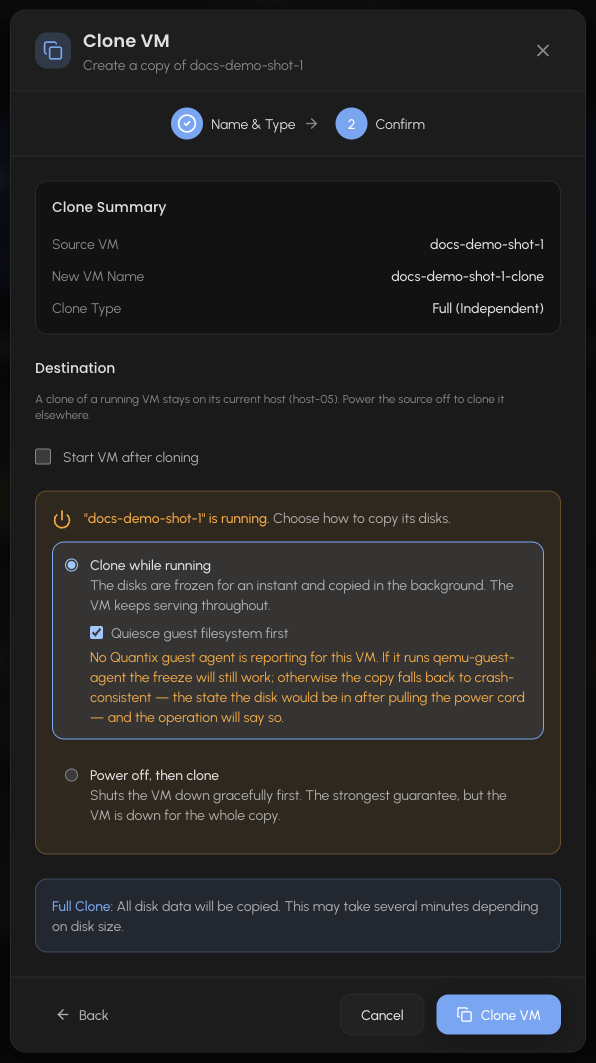
A Linked Clone of a running VM always needs the source powered off first, so the wizard offers only Turn off VM and start cloning. If the guest has not shut down within two minutes, power it off yourself and clone again.
A VM that holds a physical GPU cannot be cloned.
Migrate a VM
Migration moves a VM to another host. The control plane checks each VM and target host before the move. A live move is available only when that check passes. A cold move requires the VM to be stopped; for Compute Migration, its disks stay on storage that both hosts can reach (for example an NFS pool).
Which VMs can move while running
When you choose a target for a running VM, the Compatibility panel checks the requested move with the control plane. Protected VMs on shared storage can move live when both hosts support the protected handoff and the destination passes storage, memory, CPU, network and firmware checks. Hosts that have not completed the required update and restart, or VM configurations outside those checks, keep the move unavailable.
During a protected live move, the destination briefly pauses while ownership changes, then resumes. If the result is uncertain, the operation waits for host observations. Power actions remain unavailable until that handoff settles; a connection timeout is not a reason to start another copy of the VM. Follow the operation in the Activity panel.
A running VM may still be refused for live migration. The Compatibility panel shows the specific reason for that VM and target host; shared storage alone does not mean every VM is unavailable for a live move. Stop VM, then migrate appears only when a second check finds that stopping the VM would remove the only remaining blocker. If another blocker remains, the panel shows it and does not offer the stop action. If the check fails, the dialog keeps the move disabled.
Choose Stop VM, then migrate and confirm Stop VM to shut the guest down. The dialog waits until the VM is Stopped, then runs a fresh cold feasibility check. Next stays disabled while the VM is stopping, while the check is running, or while a blocker remains. This flow becomes Compute Migration: disks stay in place and the request is a host-only move. The Review step shows the same migration type and cold method that will be sent. You can cancel before confirming the shutdown.
Resolve an uncertain migration
An administrator resolves a held handoff from the Migration tab of the VM details panel. When a migration of the VM was interrupted and is waiting for an administrator, the panel shows a warning above the tabs and a warning icon on the Migration tab, whatever power state the VM displays, including Running. While the VM is still migrating, the warning says so instead; review it only if the migration does not finish. Only super administrators with permission to change platform settings see the warning and the tab. Click Review migration to open the tab.
- Open the Migration tab. If it shows Inspect migration recovery (nothing is flagged for review), click it to check anyway.
- If prompted, click Verify administrator access and complete verification.
- Read the recovery reason, then click Resolve migration to check both hosts.
Each check takes up to 30 seconds. When host evidence proves the result, the control plane completes or safely aborts the handoff. It can also repair an outdated host assignment using the original migration evidence. The request and any repair are recorded in the VM's events.
If the result says Manual action required, follow its reason and ask your administrator to verify the original hosts and migration evidence before retrying. Keep the VM's disks and pending migration intact; this action never forces ownership or starts a second copy. Automatic observation continues while the result is uncertain.
Move a stopped VM to another host
Shut the VM down (see Power and console).
From the VM menu choose Migrate..., or open Actions → Migrate.
Migration Type: keep Compute Migration ("Move the VM to another host. Disk images stay on shared storage.") and click Next.
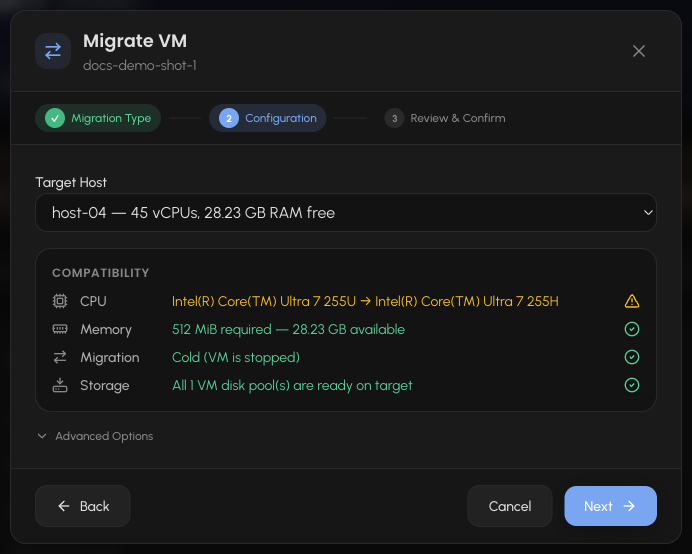
Configuration: choose the Target Host. Each host shows its free vCPUs and memory. Only hosts that can run the VM are listed: a Mac host, or a host with a different CPU architecture or hypervisor, is never offered, and QvDC refuses such a move if asked directly. The Compatibility panel then shows:
- CPU: the CPU models of the two hosts;
- Memory: the memory the VM needs and what the target has free;
- Migration: the result of the server pre-flight check for the selected mode;
- Storage: All N VM disk pool(s) are ready on target when the target reaches every disk's pool.
The panel lists each server blocker and warning. Next stays disabled while the server check is running, if it fails, or while any blocker remains. Warnings remain visible and do not block the move. The dialog also checks that its own disk-copy choice will not copy a disk onto the same shared pool and overwrite it in place.
Review & Confirm: check the summary (Source Host, Target Host, Migration Type, Method) and click Start Migration.
Expected result: the VM shows Migrating for a moment, then Stopped on the target host. Start it again there.
To move many VMs off a host, Migrate VMs from Host checks each selected VM against its target and labels approved live moves, stopped cold moves, and VMs that need to be stopped or have another blocker. It does not stop VMs.
Draining a host
Drain Host moves every running VM off a host, for example before hardware work, like entering maintenance mode on other platforms.
- In Inventory → Hosts, open the host's menu and choose Drain Host.
- Read the dialog. It shows the control plane's check of the whole drain: where each running VM would go, which hosts are not counted as receiving hosts and why (for example a host that is not reporting), and which VMs would stay on this host.
- Click Drain Host.
Expected result: each running VM moves to the host planned for it, and the host enters maintenance. Stopped VMs stay on the host; they survive a reboot. If any running VM stays on the host (for example one a DRS rule keeps there, or one with snapshots), the host does not enter maintenance: the drain page lists each VM and why it stayed. Power those VMs off or move them, then drain again. A VM showing Migrating also keeps the host out of maintenance. The drain page says which case it is:
- A migration of this VM is in progress. You or another drain is moving it now. Wait for that move to finish, then drain again.
- Run Resync State on the VM. An earlier move did not finish, and nothing is moving the VM any more. Open that VM, run Resync State, then drain again. Resync State checks both hosts and records the VM on the host that has it.
Quantix-managed VMs. A VM that runs a connector or a container capacity's machine is handed to the connector or capacity it belongs to. The dialog lists each under Quantix-managed VMs on this host with what happens to it:
- it moves live to another host under its owner, when a host can take it; it stays there afterwards.
- it is turned off through its owner, when it cannot move. A connector is always turned off (connectors are not moved between hosts in this release); a container capacity with a single machine is turned off as a whole. The dialog lists what goes down: each VPN and its connections, or each application and endpoint. It is turned off last, only when nothing else keeps the host from entering maintenance, and turned back on through its owner when you exit maintenance. If its owner was changed in the meantime (for example you turned the connector on yourself), it is left as it is. A connector you had already turned off stays off: only its virtual machine is started again. If the drain does not complete, everything it turned off is turned back on when the host returns to service.
The room each VM needs is checked for all of them together and reserved for the whole drain, so other work cannot take it while the drain runs. Just before each VM moves, its receiving host is checked again. If that host has lost the room or stopped reporting, the drain stops there: VMs not yet moved stay running on this host, each with the reason, and nothing is sent to a different host instead.
When a drain is refused. Nothing moves and the host stays in service. Force drain does not override these refusals:
| The dialog says | What to do |
|---|---|
| A VM does not fit on any eligible host | Power that VM off (it stays on this host and survives the reboot), or add capacity to the cluster, then drain again. |
| HA admission control ... a host is in MAINTENANCE or is not reporting | The cluster cannot prove its HA failover capacity while that host is out. Return that host to service, or lower the cluster's HA failover level, then drain again. |
| HA admission control ... could not restart a lost host's protected VMs | Add capacity, return a parked host to service, or lower the cluster's HA failover level, then drain again. |
| already being drained | Another drain of this host is running. Follow it on the host's drain page and wait for it to finish. |
When a host update drains the host with Also move powered-off virtual machines to other hosts ticked, a stopped VM that fits nowhere stays on this host. It never blocks the drain of the running VMs.
See Cluster, host and VM views.
Troubleshooting
| Message | What to do |
|---|---|
| No eligible hosts available for migration. | No other host is ready. Check Inventory → Hosts. |
| ... is not assigned to the target host | The target does not have one of the VM's storage pools yet, and the migration check did not approve mounting it there. Choose another host, or assign the pool to that host. |
| ... will be mounted on the target host during migration | Not an error. The target does not have the pool yet; the migration check approved the move and mounts the pool on the target as part of it. Next is available. |
| ... is not on the target host, and a migration cannot mount a ... pool there | A migration mounts only NFS and Ceph RBD pools on a host that lacks them. Choose a host that already has the pool, or move the disks with a storage migration. |
| Live migration unavailable | Read the specific blocker in Compatibility for this VM and target host. Choose Stop VM, then migrate only if the dialog offers it, then confirm Stop VM. If the dialog lists another blocker or the cold check cannot be verified, resolve that first. |
| cold migration requires the VM to be stopped, but its source host reports it ... | Wait until the VM's state is Stopped, then retry. The source host's power-state report must also confirm that it stopped. |
| Migration pre-flight failed ... uses local storage | The VM's disks are on one host's local storage, so it cannot move to another host. |
| migration outcome unknown (from Resync State on a VM that stays Migrating) | The migration was interrupted: QvDC restarted, or a drain stopped waiting for the move. Resync State finishes the VM on the host that has it once both hosts answer. After a QvDC restart, QvDC also does this by itself. While a host cannot answer, the VM stays Migrating, and Force STOPPED is refused too: forcing a state could leave a second running copy. |
| host ... has not released VM ... (from Resync State) | A migration or another operation is still running on that host, or the host is not answering. Nothing is recorded until the host releases the VM. Try Resync State again shortly. If it keeps failing, check that the host is reporting in Inventory → Hosts. |
| A migration of VM ... is in progress; wait for it to finish (from Resync State) | A migration or drain is moving this VM right now. Resync State does not interrupt it. Wait for it to finish. |
| This VM cannot be cloned. | The VM holds a physical GPU. Create the new VM directly instead. |
| ... is still running — power it off manually, then clone again | The guest did not shut down in time. Power it off, then clone. |