

The VM page
Click a VM in any list to open its details. The same page opens full-screen at the VM's own address, or as a panel beside the VM list, folder tree or cluster tree.
The header
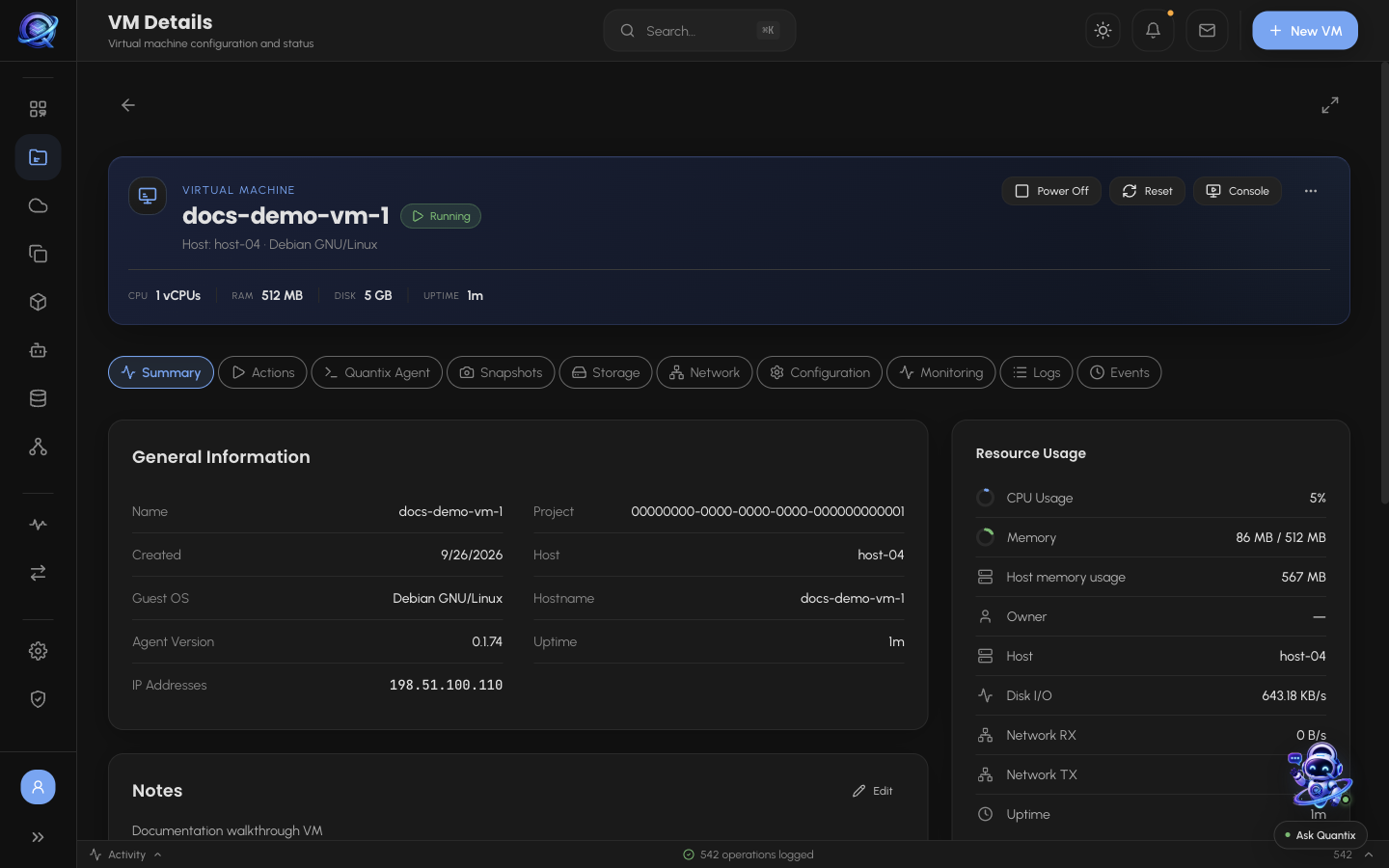
The header shows the VM's name and state, the host it runs on, its guest OS, and its vCPUs, memory, disk size and uptime.
Disk size reads Not tracked when a disk's size is unavailable. This does not mean that the VM has an empty disk.
The buttons change with the VM's state:
| Button | When it shows | What it does |
|---|---|---|
| Power on | Stopped or suspended | Starts the VM. |
| Resume | Paused | Continues the VM. |
| Shut down | Running | Shuts down gracefully: the guest operating system is asked to shut down (through the Quantix Agent, otherwise ACPI) and gets a 30-second grace by default. The receipt follows progress until stopped or an explicit unknown outcome. |
| Power off | Running (shown but disabled in other states) | Force power off: cuts power at once, like pulling the plug. Unsaved work in the guest is lost. No confirmation. |
| Reset | Running | Hard reset, like pressing the reset button. No confirmation. |
| Console | Always (usable when running) | Opens the VM's screen. See Power and console. |
| … | Always | The full VM menu (below). |
While a VM is being created the button reads Provisioning...; during a disk resize or a disk attach or detach it reads Resizing disk... or Reconfiguring disks... and power actions wait until the change is done.
A pending graceful shutdown shows its operation and last observed power state. If its grace expires while the guest is confirmed running, Power off offers a preview and a separate confirmation. The receipt can still complete if the guest finishes later; a timeout never automatically cuts power.
The VM menu
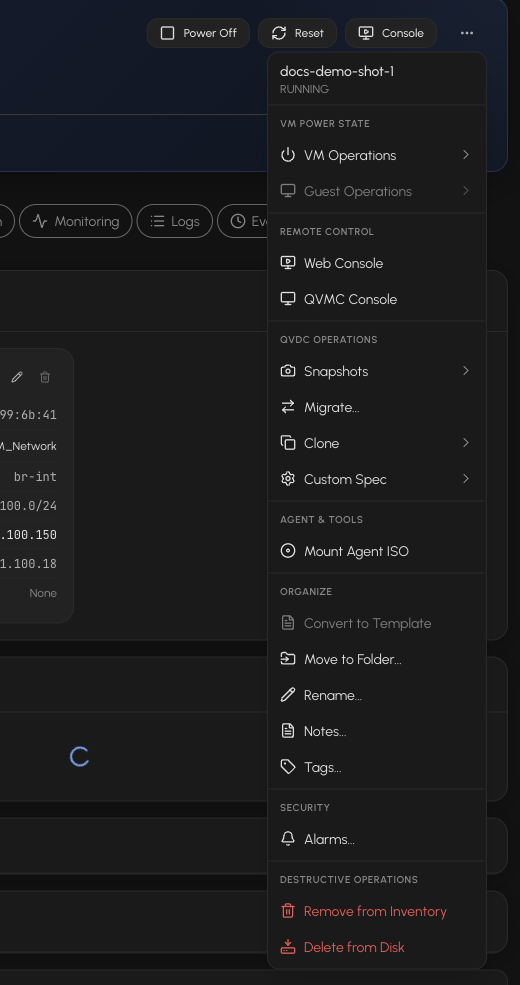
… in the header, More on a list row, or a right-click on the VM opens the menu:
| Menu | Items |
|---|---|
| VM Operations | Power on, Shut down, Power off, Reset, Pause / Resume, Suspend to Disk |
| Guest Operations | Shut down via guest agent, Reboot via guest agent: need the Quantix Agent and a running VM |
| Console | Web Console, QVMC Console |
| Snapshots | Take Snapshot, Manage Snapshots... |
| Migrate... | |
| Clone | Full Clone, Linked Clone |
| Custom Spec | Edit Resources, Edit Settings |
| Mount Agent ISO (running VMs) | |
| Organize | Convert to Template (stopped VMs), Move to Folder..., Rename..., Notes..., Tags... |
| Alarms... | |
| Destructive | Remove from Inventory, Delete from Disk |
Items you have no permission for are hidden. Items that do not apply right now are greyed out; hover over one to see why.
Tabs
| Tab | What it shows |
|---|---|
| Summary | General information (host, guest OS, hostname, agent version, uptime, IP addresses), Notes, Tags, hardware, labels, and live resource usage. |
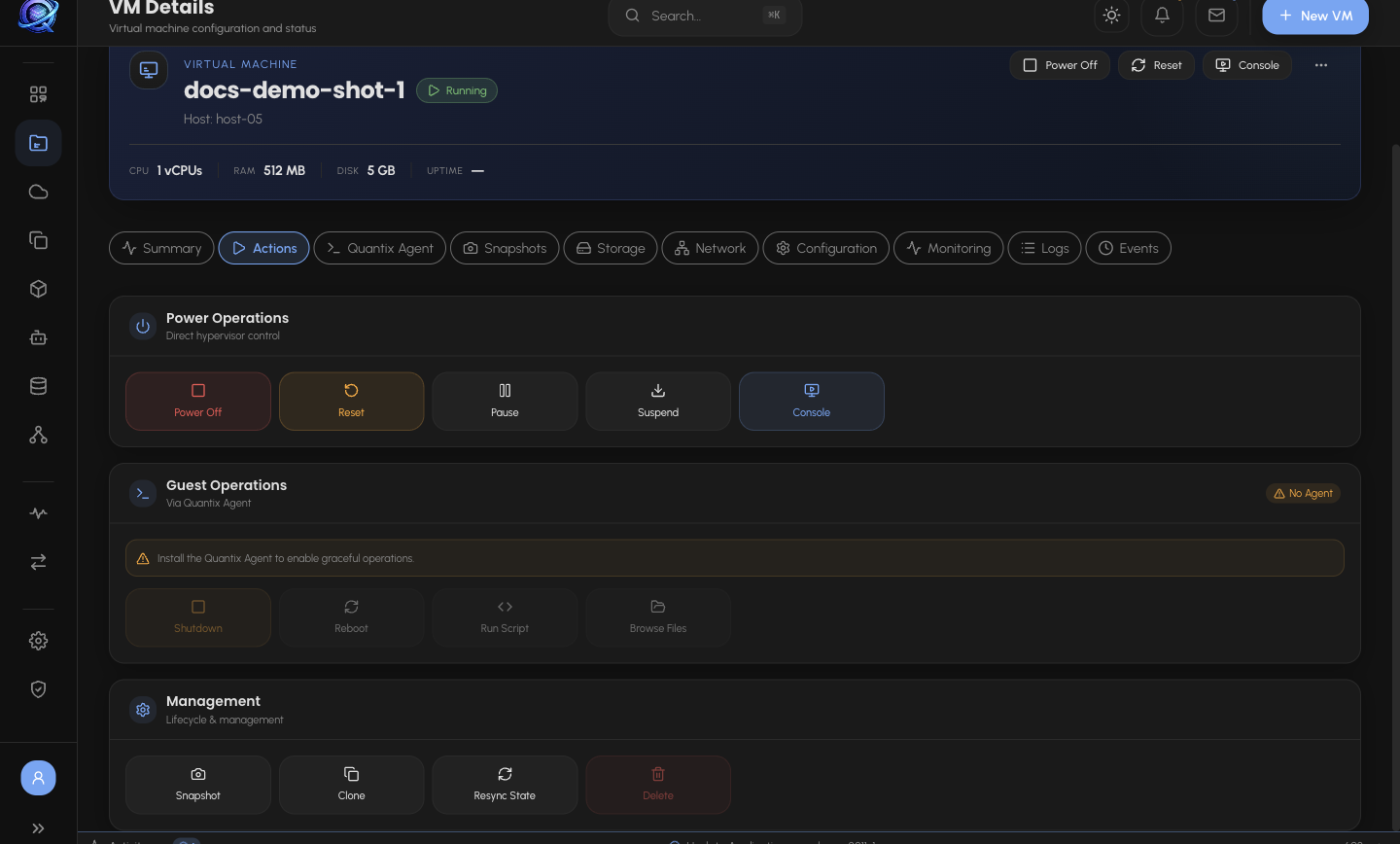
| Actions | Buttons for power, guest and management actions, grouped as Power Operations, Guest Operations (via the Quantix Agent) and Management (Snapshot, Migrate, Clone, Resync State, Delete). |
| Quantix Agent | Whether the guest agent is connected, its version, and quick actions: Run Script, Browse Files, Reboot via guest agent, Shut down via guest agent. Shown to users allowed to see the agent. |
| Snapshots | The VM's snapshots as a tree or list. See Snapshots. |
| Storage | Disks, the storage pools they are on, the storage policy check, and CD-ROM drives. See Disks and CD-ROMs. |
| Network | Network adapters, the networks they are on, IP addresses, and security groups. See Network adapters. |
| Configuration | Boot Options, CPU, Memory, Display & Console, Guest Agent, High Availability, Advanced. See CPU, memory and settings. |
| Monitoring | Charts of CPU Usage, Memory Usage, Disk Read, Disk Write, Network In and Network Out over a chosen time range (5m to 30d; 1h by default). QvDC keeps 30 days of history, also while the page is closed. With the Quantix Agent it adds in-guest load, uptime and disk usage. |
| Logs | QEMU Logs: the hypervisor's log for this VM, for troubleshooting. Choose how many lines (50 to 1000), turn on auto-refresh, Copy or Download the log. |
| Events | The latest 50 events, filterable by Power, Configuration, Snapshots, Disk, Network or Errors. Each event is marked QvDC (control plane) or QHCI (host) and names the user or API key that acted. Clones (on both VMs) and disk moves between pools are listed, and an action that fails or is refused adds an event under Errors with the reason. The tab refreshes by itself every few seconds and after each change you make on the page. |
What needs the Quantix Agent
Without the guest agent a VM still runs normally, but these need it:
- Shut down via guest agent and Reboot via guest agent (the VM's own Shut down works without the agent, through ACPI);
- Run Script and Browse Files;
- the VM's IP addresses, guest interface names and traffic counters;
- measured memory use inside the guest.
Install it when creating a cloud-image VM (Install Quantix Agent), or later from the guest agent page.
Run a script in the guest
- Open Actions → Run Script (or Quantix Agent → Run Script).
- Type the Command or script, choose the Shell: (POSIX shell (sh) on Linux; PowerShell or Command Prompt on Windows) and the Timeout: in seconds (default 60).
- Click Execute. The result shows Standard Output and Standard Error, and whether the command succeeded.
When the timeout is over 30 seconds (the default is 60), the dialog warns that a long command may keep running in the guest after the request ends.
Browse the guest's files
Actions → Browse Files opens a read-only File Browser: navigate folders, preview text files under 1 MB (double-click), and select files to Download.
Detached VMs
A VM marked DETACHED belongs to a host that has left QvDC. It may still be running on that host, or on another host where someone started it outside QvDC, but QvDC is not managing it: every action is disabled except Attach or adopt... and Remove from Inventory. The banner on the VM's page names the action that applies and, when it cannot be used yet, why.
If the same host comes back with its old identity, QvDC restores its VMs automatically when you add it. Otherwise (for example, the host was reinstalled, or it is gone for good), bring each VM back yourself.
Attach a stopped VM to a host
Use this when no host is running the VM.
Before you start: the target host must be Ready and have every storage pool that holds the VM's disks assigned and healthy (Storage › Pools › the pool › Nodes). If the old host may still be running the VM, power it off there first.
QvDC checks every registered compute host before offering an attach target. Each host must be reachable and able to prove whether it holds this VM. If a host's node daemon cannot prove absence, the reason names that host and its reported daemon version. Update that host, then reopen the dialog. Updating only the chosen target does not resolve a blocker on another host.
- From the VM menu choose Attach or adopt... (or click Attach to a host... in the banner).
- Under Host, pick a host. Hosts that cannot take the VM are listed under Hosts that cannot take it with the reason.
- Click Attach (stays stopped).
Expected result: the VM is no longer DETACHED and shows Stopped on the chosen host. Its existing disks are used as they are: nothing is copied, re-created or erased. Start it from the VM menu when you are ready. On shared storage, the start is refused while another host still holds the VM's disks.
If the attach reports outcome unknown, refresh the VM and check its host and power state before another attempt. The attach may already have completed. An AI assistant must read operation_get and vm_get with the original operation ID, and must keep the same idempotencyKey when checking a retry. A same-key retry returns the original attach outcome even after the VM is no longer DETACHED; read the VM to see its current power state.
If the change is refused before it is saved, the operation reports a failure with its reason instead of outcome unknown.
When no target is eligible, the reasons are expanded automatically. A pool that is not assigned to a host needs assignment under Storage › Pools › the pool › Nodes. A pool that is assigned but has no mount report needs its deployment and connectivity checked there.
Adopt a VM that is running on a host
Use this when a host reports the VM running, for example because it was started there outside QvDC.
Before you start: the host must be Ready and reporting, and have every storage pool that holds the VM's disks assigned and healthy. Every other host must be reachable, because QvDC asks each one that it is not running the VM.
- On the VM's page, click Adopt running VM on host in the banner (or choose Attach or adopt... from the VM menu).
- Read the dialog and click Adopt running VM on host.
Expected result: the VM is no longer DETACHED and shows Running on that host, managed by QvDC again. Nothing is restarted, redefined, copied or erased. QvDC refuses, and says why, if another host also runs the VM, if another VM uses one of its disks, if the host does not run it from the disks QvDC has on record, or if the VM's own process on that host does not hold its disks' locks (for example, it was started with disk image locking turned off). It also refuses a VM with a disk on a shared NFS pool mounted with NFSv3: adoption needs NFS 4.x, because NFSv3 gives no filesystem id assigned by the NFS server, so QvDC cannot tell that two hosts see the same disk. If the host restarts the VM or reboots while you adopt, try again.
If adoption reports outcome unknown, refresh the VM and check its host and power state before another attempt. Adoption may already have completed.
An AI agent uses vm_attach_targets to find the host reporting the VM running, then vm_adopt_running_preview with the exact VM and host IDs. The preview checks the running domain, disk writer and other hosts without changing anything. Both adoption tools require Read VMs (vm:read) and Migrate VMs (vm:migrate). If the preview is ready, vm_adopt_running repeats the live checks and returns an operation ID. Direct MCP clients must supply a stable idempotencyKey of 16–128 characters and reuse it for retries. After an uncertain outcome, read operation_get, vm_get and vm_events before another attempt. A same-key retry reads the original receipt even after the VM is no longer DETACHED; that receipt does not assert its current power state.