

The Admin Panel
The Admin Panel holds everything that affects the whole QvDC platform rather than one VM or host: accounts and roles, how people sign in, API keys, the activity log, automatic rules, certificates, the assistant, updates, licensing and the other system settings. As the panel itself reminds you: changes here affect the entire platform.
Prerequisites
- A super administrator: a QvDC account with the admin base role. Additional roles never open the panel, whatever permissions they include (see Who can open the Admin Panel).
- An authenticator app on your phone or computer, for example Google Authenticator, Authy, or the one built into 1Password or Bitwarden. Any app that supports time-based one-time codes (TOTP) works.
Any other account does not see Admin Panel in the sidebar. If it opens the panel's address directly, it gets an Access Denied page that says The Admin Panel is restricted to super administrators.
Open the Admin Panel
In the dashboard sidebar, under Others, click Admin Panel. The Quantix Administration logo heads the navigation; the scope label identifies the whole QvDC platform or the current QHCI host. To leave it, click Back to Dashboard at the top of the panel's navigation.
Admin pages use a centered content area on wide displays to keep labels, fields and actions close together. The content adapts to smaller windows.
Secure your admin access (first visit)
The Admin Panel always asks for a second factor. The first time you open it, it walks you through setting up an authenticator app.
- On Secure your admin access, click Set up authenticator.
- Scan the QR code with your authenticator app. If you cannot scan it, click Can't scan? Enter manually and type the key into the app instead. Then click I've scanned it →.
- Under Verification Code, enter the 6-digit code your app shows and click Verify. The code changes every 30 seconds; always use the current one.
- Quantix shows eight backup codes. Each one works once in place of a code, at sign-in or in the Admin Panel, if you lose your authenticator. Click Copy all codes and store them somewhere safe — they are not shown again.
- Tick I've saved these codes in a safe place and click Enter admin panel.
Expected result: the Admin Panel opens on the Admin Overview page (or on the first page your role can see). From your next sign-in, QvDC also asks for a code from the app after your password. You can also set up, or later remove, the authenticator from your own settings; see Admin verification.
If you already use a passkey on this account, you can let it stand in for the authenticator code: under Settings → Account → Passkeys, tick Admin panel passkey on that passkey. See Passwords and passkeys.
Verify it's you on later visits
After the first visit, the panel opens on Admin Verification whenever your admin session has ended.
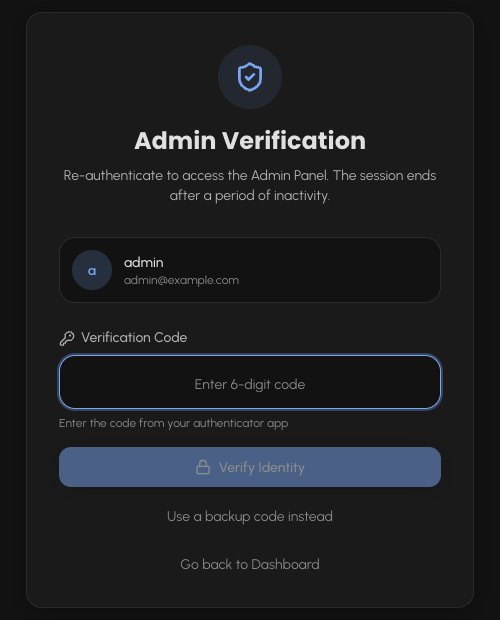
- Enter the 6-digit code from your authenticator app under Verification Code.
- Click Verify Identity.
Other ways to verify on the same page:
- Use a backup code instead — enter one of your backup codes (the form inserts the hyphen for you). Each code works once.
- Use my passkey instead — shown when you have ticked Admin panel passkey on one of your passkeys.
The admin session ends after about 15 minutes without a click or keypress in the panel, and after 1 hour at most; then the panel asks you to verify again. Leaving the panel open does not keep it signed in. An administrator can change both limits under System → Security; see Security settings.
Find your way around
The panel fills the available screen. Its navigation and page content scroll independently. The navigation on the left groups the pages. Each page has its own guide:
| Group | Page | What it is for | Guide |
|---|---|---|---|
| Platform | Overview | What needs attention across the platform right now. | Below |
| Platform | Usage & capacity | How much of your hosts' CPU and memory is in use. | Below |
| People & access | People | Accounts that can sign in. | Users and roles |
| People & access | Roles | Named sets of permissions. | Users and roles |
| People & access | Sign-in provider | Sign in with your company directory (OIDC, SAML, LDAP). | Sign-in providers and user sync |
| People & access | Automatic user sync | Let your identity provider create and remove users (SCIM). | Sign-in providers and user sync |
| People & access | API keys | Keys for scripts and other software. | API keys |
| Rules & records | Activity log | Who did what, and when. | Activity log |
| Rules & records | Automatic rules | Limits QvDC enforces on VM size and disk size. | Automatic rules |
| Rules & records | Certificates | Certificates from the internal certificate authority. | Certificates |
| Assistant | Assistant, Assistant connections | The built-in assistant, and the server external AI clients connect to. | The assistant |
| System | Updates | Update QvDC and your hosts. | Updates |
| System | Time synchronisation | Time sources for every host. | Time synchronisation |
| System | System logs | Recent records from QvDC itself, for troubleshooting. | Read the control plane logs |
| System | Log forwarding | Send records to your syslog collector. | Log forwarding |
| System | Licenses | Your licence and licensed capacity. | Activate your licence |
| System | Alerts, Email recipients | Outgoing email, and who is emailed about alerts. | Email alerts |
| System | Security | Host admin passwords and session timeouts. | Security settings |
| System | Organization | Organisation name, deployment timezone, inventory layout for everyone. | Organization settings |
| System | Backup & recovery | Configuration backups of QvDC and your hosts. | Backup and restore |
| System | Resilience & recovery | VM recovery when a host fails. | High availability and recovery |
| System | Remote access relay | Whether VPN clients can reach this site through the relay. | Remote access relay |
Some pages carry a longer title than their navigation label — for example Activity log opens a page titled Audit Logs. Each guide names both.
Tools that work on every page:
- Search settings… (or ⌘K / Ctrl+K) opens a command palette: type part of a page name, or an action such as Add user or Create API key. Technical names work too — searching for "SSO" finds Sign-in provider.
- Most pages have a What this page does button that explains the page in plain words and lists what changes when you edit it. A ? next to a section heading explains that section.
- The icon at the top of the navigation folds it to icons only; each group heading folds its group. Quantix remembers both in your browser.
- The sun/moon button at the top right switches between light and dark.
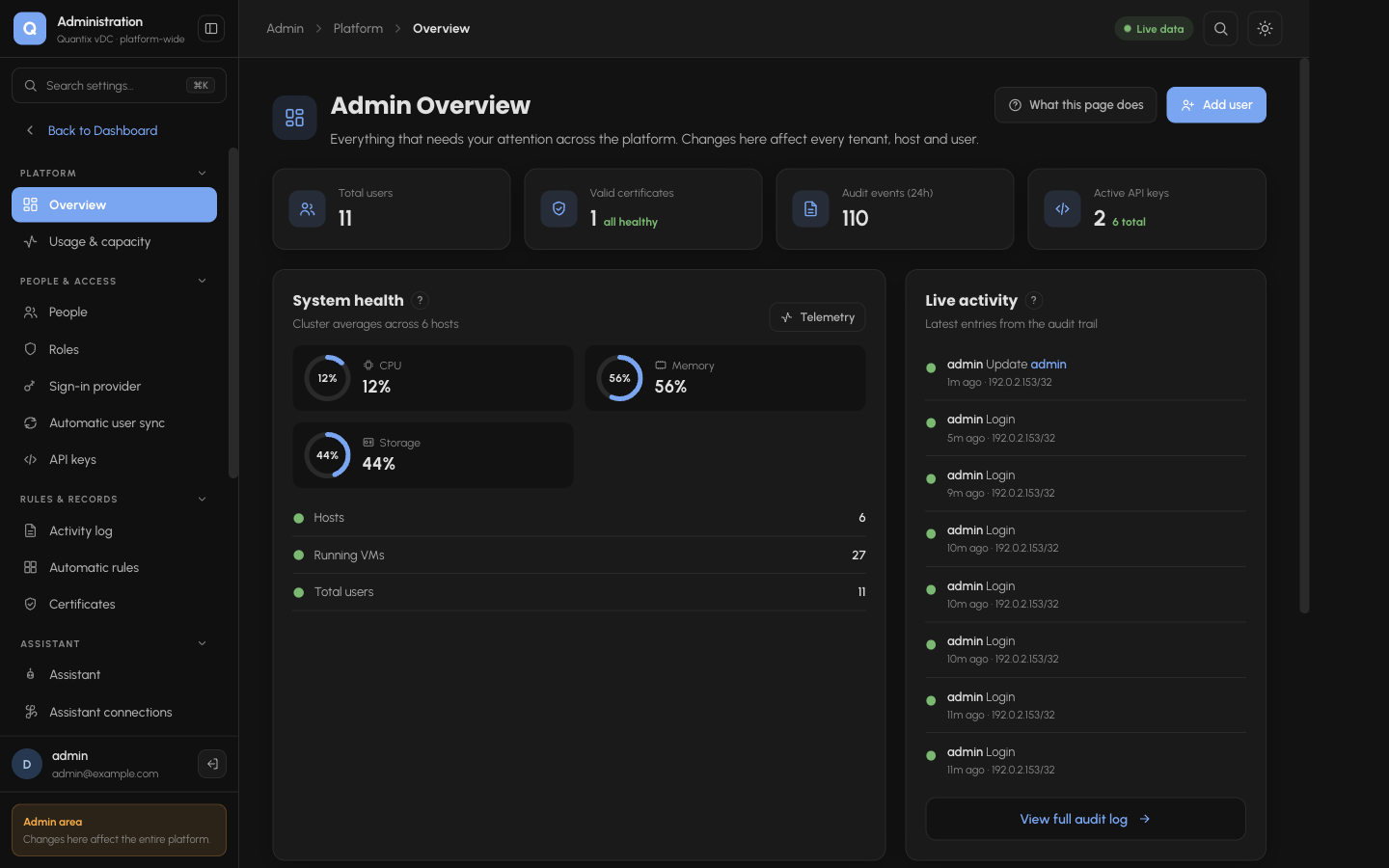
Overview
Overview only reads — nothing you click there changes a setting.
- The tiles show Total users, Hosts, Running VMs and Active API keys. Click a tile to open its administration page.
- A banner appears for certificates expiring within 21 days, or cluster storage or CPU at 85% or more. Click Review → to see the details.
- System health shows CPU, memory and storage use across your hosts as horizontal meters. An average can hide one busy host; Telemetry opens Usage & capacity for the per-host view.
- Certificates shows active certificates and those expiring within 21 days. Manage certificates opens the certificate inventory.
- Audit events (24h) shows the number of recorded events in the last day. Recent activity lists the latest entries. View activity log opens the Activity log.
- Refresh reloads the overview. An unavailable source is labelled as unavailable; a missing measurement is not counted as zero. If telemetry cannot load, use Try again.
- Quick actions opens common tasks, such as Add user, Issue certificate or New API key. You review and submit any change on its destination page.
Usage & capacity
Usage & capacity shows host CPU and memory measurements, freshness and fleet capacity. Search the host inventory to inspect one host. Missing measurements are unavailable rather than zero, and stale readings are labelled. See Usage and capacity.
Troubleshooting
I don't see Admin Panel in the sidebar. Your account is not a super administrator. Only the admin base role opens the panel; ask a super administrator to give it to you if you need it.
"Invalid code. Please try again with the current code from your app." (during setup) or "Invalid TOTP code" (on Admin Verification) — enter the code your app shows now, not an earlier one. If codes are always refused, check that the clock on the device running your authenticator app is set automatically.
I lost my authenticator. On Admin Verification, click Use a backup code instead and enter one of your backup codes. Once in, go to Settings → Account → Admin Action Verification, click Remove authenticator, and set it up again with Set up authenticator. If you have no backup codes left and no passkey, you cannot sign in: ask another super administrator to reset your authenticator (see Users and roles). If you are the only super administrator, contact Quantix support through the customer portal.
I lost my admin panel passkey. If you also use the authenticator app, verify with it or a backup code. If the passkey was your only way to verify, ask another super administrator to reset your passkeys under People & access → People (see Users and roles).
I am sent back to Admin Verification while working. Your admin session ended: after about 15 minutes without a click or keypress, after 1 hour in total, or at the limits set under System → Security. Verify again to continue.