

ISO images
ISO images are installation media: use them to install an operating system the classic way, or attach them to a VM as a CD/DVD. They are listed under Image Library → ISO Images.
Add an ISO
Prerequisites: a ready storage pool. Put ISOs on a shared NFS pool if VMs on different hosts will use them.
Go to Image Library and, in ISO Images, click Upload ISO.
Choose how to add it:
- From URL — Quantix downloads it. Enter a direct link to the ISO file in ISO URL, for example
https://downloads.example.com/ubuntu-24.04.3-live-server-amd64.iso. - Upload File — send an
.isofile of at most 20 GiB from your computer.
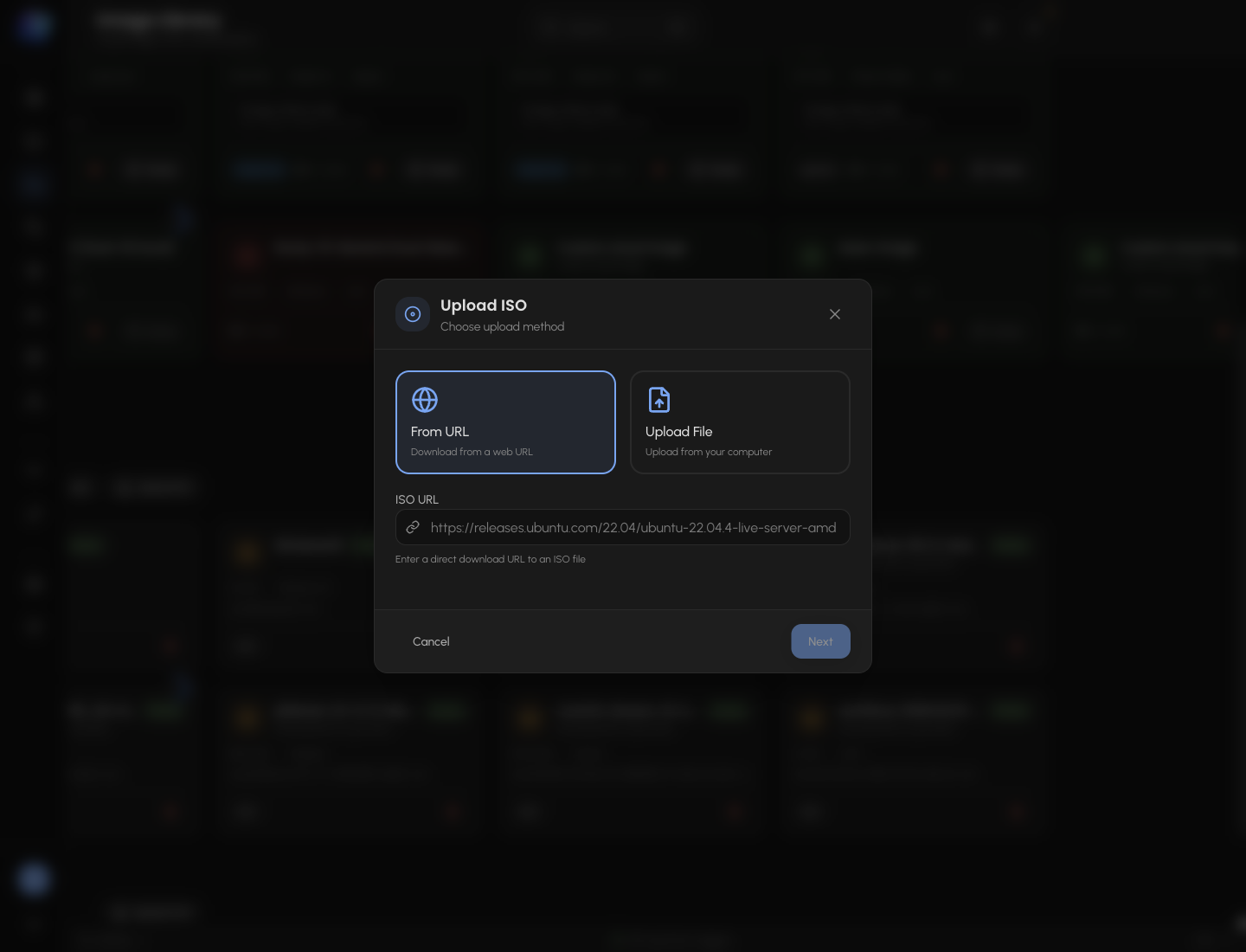
- From URL — Quantix downloads it. Enter a direct link to the ISO file in ISO URL, for example
Click Next.
Enter a Name (for example
Ubuntu 24.04 LTS Server) and, optionally, a Description. Choose the OS Family (Linux, Windows, BSD or Other), the Distribution and the Version.Under Storage Destination, select the storage pool to keep it on.
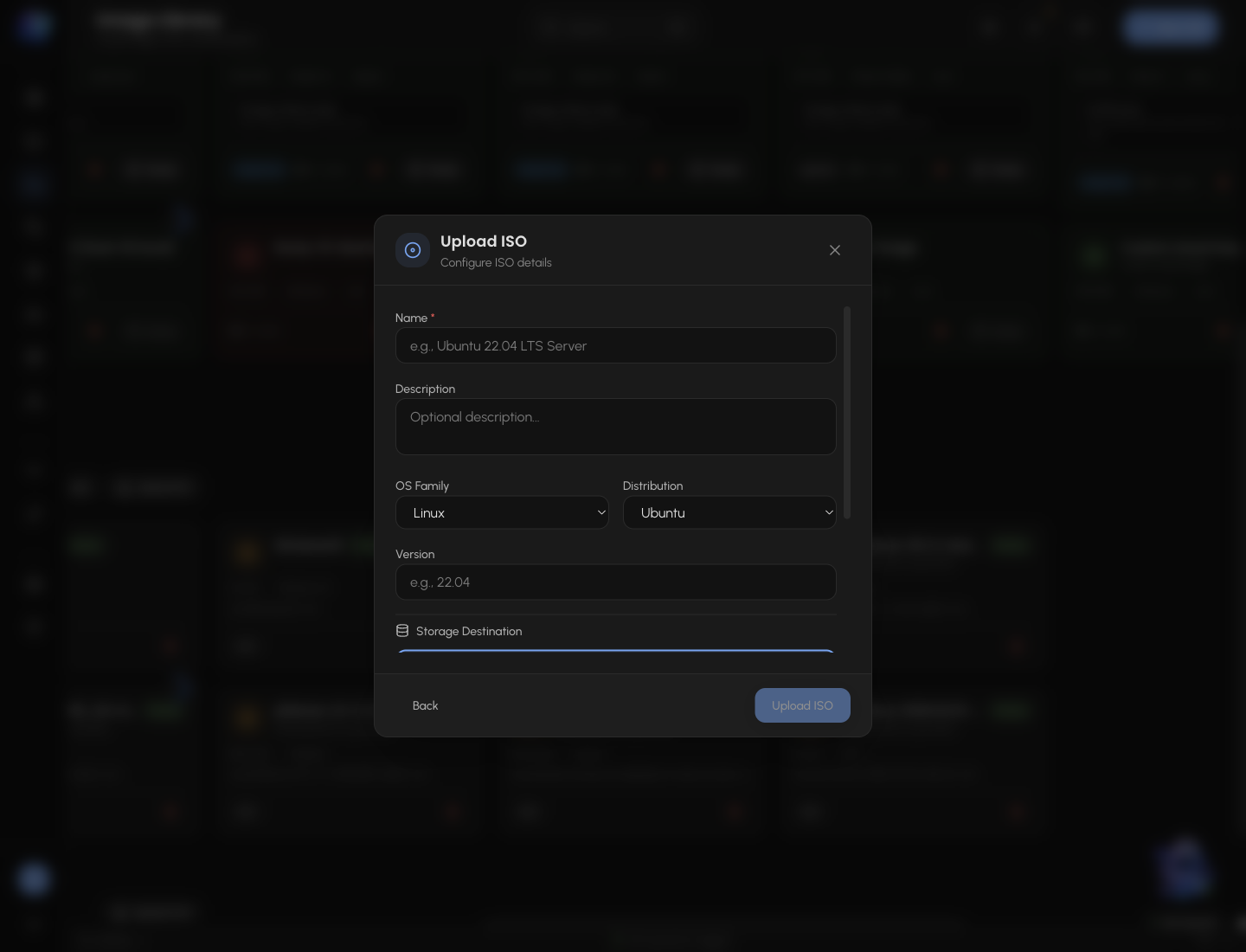
Click Upload ISO.
Expected result: a message says the upload or import has started. Follow its progress under Operations; the ISO is listed in ISO Images. Keep the page open while a file from your computer is uploading.
URL imports recognize ISO content even when the download link has no .iso extension. If the downloaded content does not match the requested image format, the import fails with a format-mismatch reason and the incomplete download is removed. If Quantix asks you to update the destination host before importing, complete that update and start the import again.
The import receipt opens its progress and result in Operations. A URL download that stops receiving bytes fails with a reason after its idle limit; the incomplete file is removed. A download also has an overall time limit. If the source is slow or unavailable, check the URL and try again once it responds normally.
A file from your computer is sent in pieces. If the connection drops for a moment (Wi-Fi roaming, a VPN reconnecting, a network change on your computer), the upload waits, retries, and carries on from where it stopped; it does not start over. If the connection stays down for about two minutes, the upload stops and says how much was sent.
Find ISOs already on storage
If ISO files were copied onto a storage pool directly, into the pool's iso folder, click Scan Pools in ISO Images. Quantix adds the ISOs it finds and reports how many were new. They are listed with the description Discovered ISO in pool and the pool's name. Pools that cannot be reached are skipped. If a scan reports a connection error, restore the pool's host and storage connection and scan again. Scanning looks in iso/; files in the pool root are not included.
If a pool's iso folder lists empty while the library still has ISO records for it, Quantix keeps those records and skips that pool. A scan of that pool alone reports that its storage is not verified. Check the pool's host assignment and storage connection, then scan again. A fresh empty pool with no ISO records can be scanned normally. If you intentionally removed every ISO file from a pool, delete the remaining library entries explicitly.
Use an ISO
- Install a new VM from it. In New VM → Boot & OS, choose ISO Image as the Provisioning Method and select the ISO.
- Attach it to an existing VM as a CD/DVD. See Create and manage virtual machines.
The Quantix Agent is not installed automatically on a VM installed from an ISO: install it after the operating system is set up. See Guest agent.
Delete an ISO
- Click the delete button on the ISO's card.
- Click Delete image.
Expected result: the ISO and its file are gone.
Quantix never deletes an ISO that a VM still has in a CD-ROM drive, even if the VM is stopped or its host is offline. Instead, Image in use opens and lists every VM and drive that holds the ISO:
- Click a VM's name. Its Storage tab opens.
- Click Eject on the CD-ROM drive that holds the ISO.
- Repeat for every VM in the list, then delete the ISO again.
Templates are not checked: deleting an ISO never changes a template, but a VM you deploy later from a template that used it cannot use the deleted ISO.
If the ISO's file cannot be deleted, for example because its host is offline or refused, or the file is not where the ISO says it is (its storage is not mounted, say), the ISO stays in the library and Image not deleted opens with the reason, the host and the file. Nothing was deleted:
- Click Close, fix the cause (bring the host back or mount the storage, for example), and delete the ISO again. Deleting it again is always safe.
- Or click Remove from inventory only, for example when the file really is gone. The ISO leaves the library, nothing on storage is touched, and the confirmation says where the file was kept. Scan Pools lists the file again later if it is still there; deleting it then removes the file.
Troubleshooting
| What you see | What to do |
|---|---|
| Please select a storage pool | Choose a pool under Storage Destination. |
| Please enter a URL / Please select a file | Enter the ISO's web address, or choose the file. |
| Please select an ISO file | Only .iso files can be uploaded. |
| This file is a compressed … archive, not a disc image | Some systems are downloaded compressed, for example .iso.bz2 or .iso.gz. Extract the .iso from it, then upload the extracted file. |
| This file is not a valid ISO disc image | The file is not a CD/DVD image, or its download did not finish. Download the .iso again and upload it. |
| A VM does not boot from an ISO that is attached | The ISO may be a file that was renamed to .iso without being one. Delete it from ISO Images and upload the real .iso again; Quantix now checks each file when it is uploaded. |
| Upload of … stopped at … of … | The connection to Quantix stayed down, or the storage did not respond, for about two minutes. The message ends with the reason. Check your network, then upload the file again. |
| An ISO named … already exists in this pool | An ISO with this file name is already in the pool and is usable. Delete it from ISO Images first, or rename your file. An ISO marked as not usable is replaced by the new upload. |
| Upload session not found | The upload was idle for an hour, or Quantix restarted while it ran. Upload the file again. |
| Pool … holds block volumes, not files | LVM and Ceph RBD pools cannot store ISO files. Choose an NFS or local directory pool. |
| Image in use, or … is in use and was not deleted | A VM still has the ISO in a CD-ROM drive. Eject it on each VM listed, then delete the ISO again. See Delete an ISO. |
| Image not deleted | Quantix could not delete the ISO's file, or found no file where the ISO says it is, so it kept the ISO. Delete it again once the host or storage is back, or choose Remove from inventory only. See Delete an ISO. |
| The download from a URL fails | Use a direct link to the .iso file, and check that Quantix can reach that address. |
| An ISO you copied onto storage is missing | Check it is in the pool's iso folder, then click Scan Pools. |