

Quantix Bot (Quantix Assistant)
Quantix Bot is the AI assistant built into the QvDC dashboard. In the dashboard it is called the Quantix Assistant. It answers questions about your datacenter from your live inventory, investigates problems, explains how things are connected, and prepares changes for you to approve. It works with your permissions — it can never do more than you can — and every action it takes is logged.
Where to find it
- Ask Quantix — the small floating Quantix bot in the bottom-right corner of every page except the Assistant page; point at it to see its label. It opens the assistant in a side panel ("Online · scoped to your permissions"). You can drag the button out of the way, and it stays where you drop it.
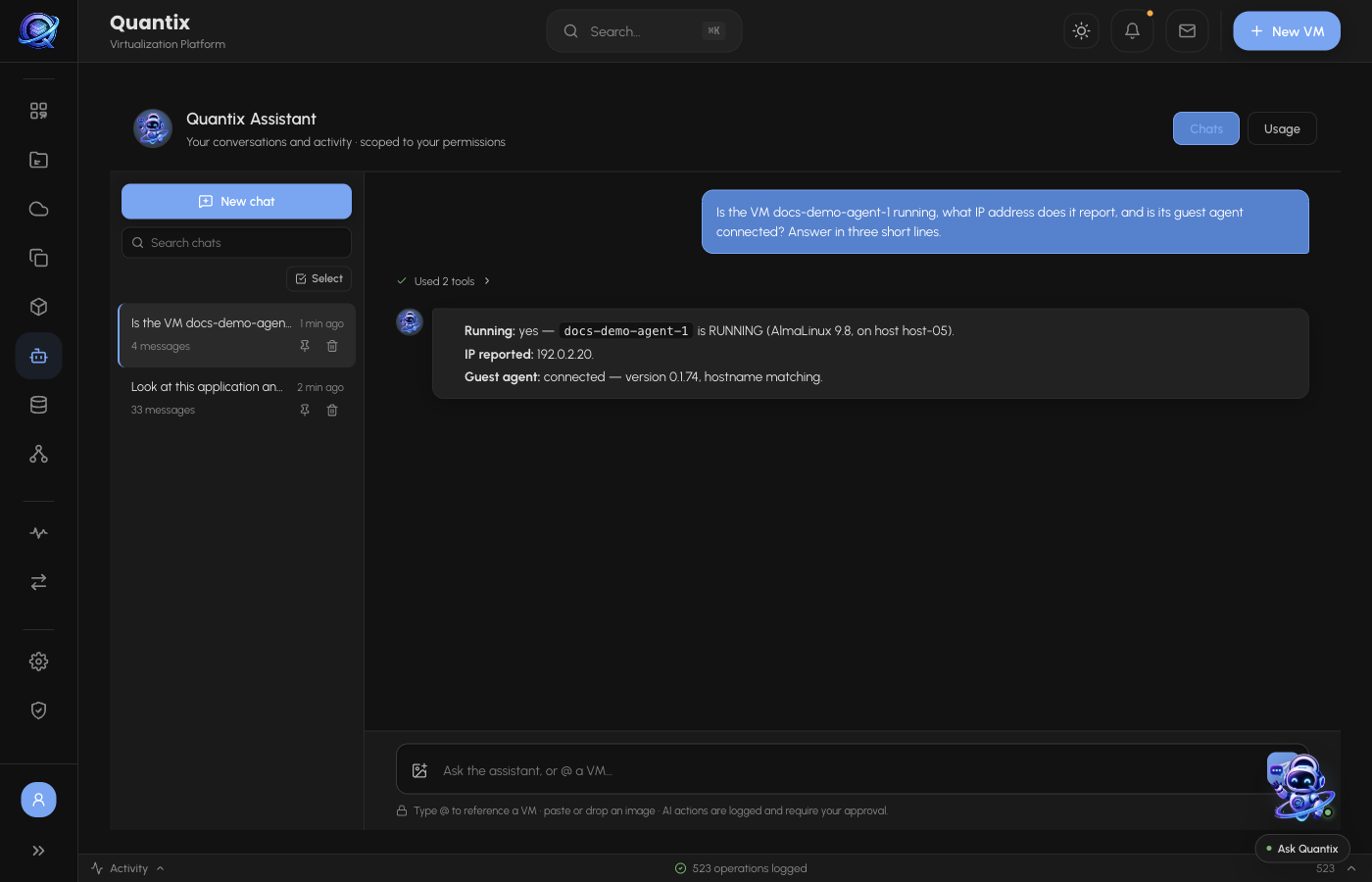
- Assistant in the sidebar — the full page. Your past conversations are on the left, grouped by Kept, Today, Yesterday, Last 7 days and Older. A new chat opens with four starting points (Create VM, Check VM status, Network diagram, Storage insights) and a few quick prompts under the message box; click one to send it. Anything you have already typed stays in the message box. When the window has too little room, the starting points shrink to one line each so they stay in view. The panel and the page show the same conversation.
- The buttons at the top right of the page open Usage (your activity), Scheduled tasks, and Fullscreen, which hides the sidebar and top bar to give the conversation the whole window. Press Esc to leave fullscreen.
- Ask Quantix buttons on container application and capacity pages start a conversation about that object with a ready-made question (see Ask Quantix about containers).
If you do not see the Ask Quantix button, the assistant is not enabled for you. Ask your administrator (see Turn on the assistant).
Ask a question
- Click Ask Quantix, or open Assistant in the sidebar.
- Type your question in the message box. Type
@to pick a VM by name, or paste or drop a screenshot (PNG, JPEG, WebP or GIF; up to 4 images per message, 4 MB each). - Press Enter or click Send.
The assistant knows which page you are on and which object you have open, so "what is wrong with this VM?" works on a VM's page. While it works, sending a new message stops it and steers it in the new direction (Stop and send).
Expected result: an answer based on your live data. Used … tools above the answer expands to show what the assistant looked up.
Your language
The assistant answers in the language you type in, including the short progress lines it writes while it works. Right-to-left languages such as Hebrew and Arabic are shown right-to-left. Names, IDs, commands and code stay as they are. The buttons that ask a question for you, such as Ask Quantix on a page, do not change the language of your conversation.
Once you write to the assistant in Hebrew, the chat itself switches to Hebrew and lays out right-to-left: the approval cards and their buttons (אשר, דחה), questions, progress lines such as "Used 2 tools", and the message box. A new chat starts in English, and typing an English sentence switches the chat back. In other languages the chat's own text stays in English. Things you type or match exactly always stay as they are, left-to-right: IDs, the name you type to confirm a destructive action, and menu names such as Settings. The rest of the dashboard is in English.
Sometimes the assistant records a support summary but does not send it. This happens when it decides on its own that you need a person. Quantix never sends anything off your appliance on the assistant's judgement alone. The card says Handoff recorded, not sent and shows the summary. To send it, press Send to support on the card. The button works in any chat language, and it sends exactly the summary shown on the card. One click sends it once. The card then shows Handed off to support, or the reason the send failed, with the button still there so you can try again. Only the newest summary in a chat has the button, and a chat is handed off at most once.
You can also type talk to a human in English. That phrase is the same in every language. If no support contact is configured, the card says so and has no button. An administrator sets the contact in Settings → AI Assistant → Escalation & Limits.
Useful prompts
The assistant suggests these when you start a new chat:
- "Draw me a diagram of how my hosts, VMs and networks fit together"
- "Create a VM for a small web server and explain each choice"
- "Explain how traffic reaches my VMs from outside the cluster"
- "Something is wrong with one of my VMs — investigate and tell me what you find"
- "How do I snapshot a VM before an upgrade, and when should I not?"
Other questions that work well:
- "Is the VM
<vm-name>running, what IP address does it report, and is its guest agent connected?" - "Which hosts are not Ready, and why?"
- "Which VMs on
<host-name>can be migrated to another host?" - "Show me the recent events for
<vm-name>."
What it can do
What the assistant may do is decided by your administrator, one permission at a time, and limited again by your own permissions: it never does more than you could do yourself. Within those limits it can:
- Read your inventory: VMs, snapshots, events, hosts, clusters, DRS, storage pools and volumes, images, templates, virtual networks, security groups, connectors, VPN services, logs, updates, backups and container applications.
- Prepare and run changes for your approval, for example create, change, power, clone, migrate or snapshot VMs; attach disks, network adapters and ISO images; run commands in a guest through the Quantix Agent; and manage networks, security groups, storage pools, images and container applications.
- Take you to the right page. It can move the dashboard to a page and leave a Take me there link in the chat, and it can pre-fill the create-VM wizard for you to review (Create VM wizard prepared → Open wizard).
- Draw diagrams of your hosts, VMs and networks.
- Answer how-to questions from the Quantix playbooks bundled with QvDC.
Approving changes
Reading runs without asking. By default, anything that changes your datacenter waits for your approval — unless your administrator set that kind of action to Auto:
- A Confirm required card describes the action. Click Approve to run it or Deny to refuse it.
- The card lists every setting the action will use, in plain words: one line per disk and per network card (Disk 1, Disk 2, NIC 1), with sizes in GiB or MiB and the boot order. A storage pool, network, image, host or VM shows its name and the start of its ID, for example
NFS02 (63dd59b0…), when Quantix knows it, and its full ID otherwise. A setting with no plain name keeps its technical name. Invisible characters that change the direction of text are shown as a marker such as⟨U+202E⟩, so a value cannot disguise itself as something else. Read every line before you approve: the card is exactly what will run. - Destructive actions — such as deleting a VM or reverting a snapshot — ask you to type a confirmation, for example the VM's name ("Type … to confirm."), and then click Confirm. These can never be lowered to a plain approval.
- Rebooting, draining or putting into maintenance the host that runs Quantix-vDC itself asks you to type
QUANTIX-VDC MAY GO DOWN WITH <host>, whatever your administrator set: Quantix-vDC can go down with that host. - Enabling or disabling a user account can first ask you to Verify your identity to approve.
- An approval you leave unanswered expires after five minutes and nothing runs.
Your permissions are checked again just before the action runs, so a change you approve still fails if your access was removed in the meantime.
What it cannot do
- It never has more access than you. Administrative settings are "Never available to AI".
- It cannot open a shell on a host or VM, and has no access to Kubernetes tools. For container terminals it can only give you a link to open yourself.
- It cannot read the control plane's logs. A super administrator reads them in Admin Panel → System → System logs.
- It never asks for passwords, keys or tokens, cannot grant itself access, and cannot change sign-in, credential or audit settings.
- Company instructions from your administrator can shape its answers, but cannot give it permissions or skip approvals.
Your conversations and your data
- Conversations are saved in QvDC per user; other users cannot read yours.
- They are deleted automatically after the retention period your administrator sets (30 days by default). To keep one, point at it in the conversation list and click Keep this chat — never auto-deleted; it moves under Kept. Delete chat removes it now.
- Your messages and the inventory details the assistant looks up are sent to the AI provider your administrator chose. Quantix tries to remove passwords, keys and tokens from text before it is sent. Images are sent as they are — check a screenshot before you attach it.
- Every action the assistant takes is recorded in the activity log (Admin Panel → Activity log) under your user name followed by
-qx-ai.
Turn on the assistant
The assistant is off until an administrator turns it on. You need permission to change system configuration.
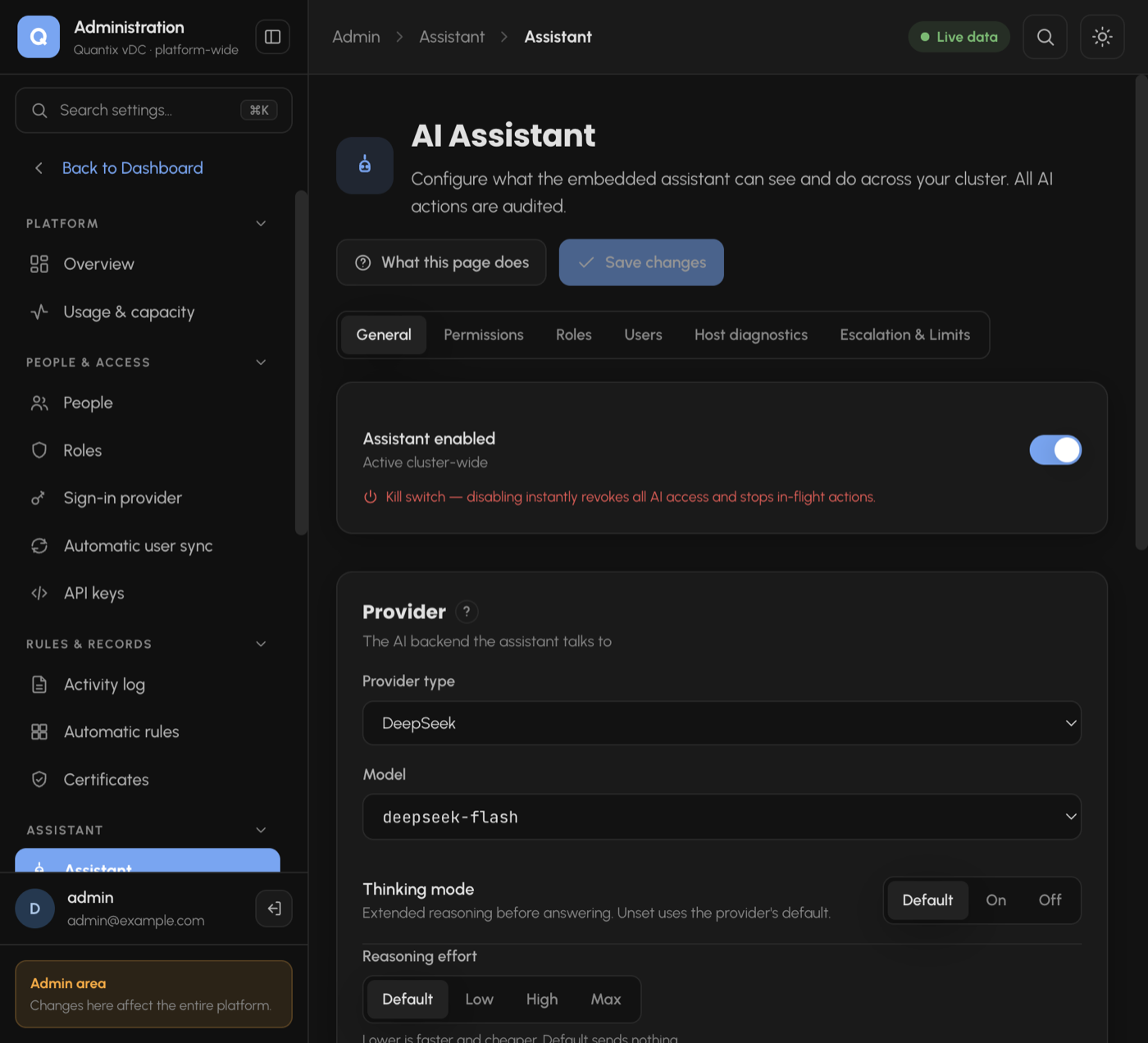
- Go to Admin Panel → Assistant (listed under Assistant). The page is titled AI Assistant.
- On the General tab:
- Switch on Assistant enabled. The same switch is the kill switch: turning it off "instantly revokes all AI access and stops in-flight actions."
- Choose the Provider type: Anthropic (Claude), OpenAI, Google Gemini, DeepSeek, Kimi (Moonshot), Amazon Bedrock, Google Vertex AI / Model Garden, or Custom (OpenAI-compatible endpoint).
- Choose the Model and enter the provider's credential (API key for most providers). The key is stored write-only.
- Click Test connection.
- Optionally add Company instructions — naming conventions, change windows, who to contact (up to 4000 characters).
- On the Permissions tab, choose what the assistant may do. The list is the same permissions you give roles and API keys. Start from a preset — Same as the Viewer role, Same as the Operator role and so on — or switch individual permissions on. For each permission you can set the RISK TIER: Auto (runs without asking), Confirm (needs Approve) or Typed (needs a typed confirmation). See The assistant.
- Click Save changes. QvDC asks you to confirm your identity before saving (see Admin verification).
The Roles and Users tabs narrow access further, and Escalation & Limits sets per-user limits such as messages per hour (60 by default) and how long conversations are kept. Every setting on this page is described in The assistant.
Troubleshooting
No Ask Quantix button. On the Assistant page this is expected: the page is the same conversation. Anywhere else, the assistant is switched off, or not enabled for your user or role. Ask an administrator.
"This model can't run operations, so the assistant can only advise." The chosen model cannot use tools. An administrator can pick a different Model on the General tab.
"The AI provider rejected this appliance's credentials." The provider refused the API key. An administrator should check the key and click Test connection.
The assistant says it cannot do something you asked. A permission that action needs is switched off in Permissions, or you do not hold it yourself. The assistant never works around a missing permission. For example, updating a VM's guest agent needs Manage guest agent (guest.agent:manage) switched on in Permissions.