

API keys
An API key lets a script, pipeline or other software call the QvDC API without a person signing in. Each key acts as an account: either you (a personal key) or a service account. It carries its own set of permissions, chosen when you create it, so grant only what the workload needs. Keys are managed under Admin Panel → People & access → API keys (page title API Management).
A key can never do more than the account it acts as is allowed to do right now. Each call is allowed only if the key has the permission and that account's roles grant it. Lower the account's role and its keys lose that access on their next call.
Prerequisites
- A super administrator: an account with the admin base role. No other account can create, list or revoke API keys, whatever additional roles it holds, and an API key cannot create another key (see Who can open the Admin Panel).
- A secrets manager or other safe place to store the key: it is shown only once.
Create an API key
- Go to Admin Panel → People & access → API keys and click Create API key.
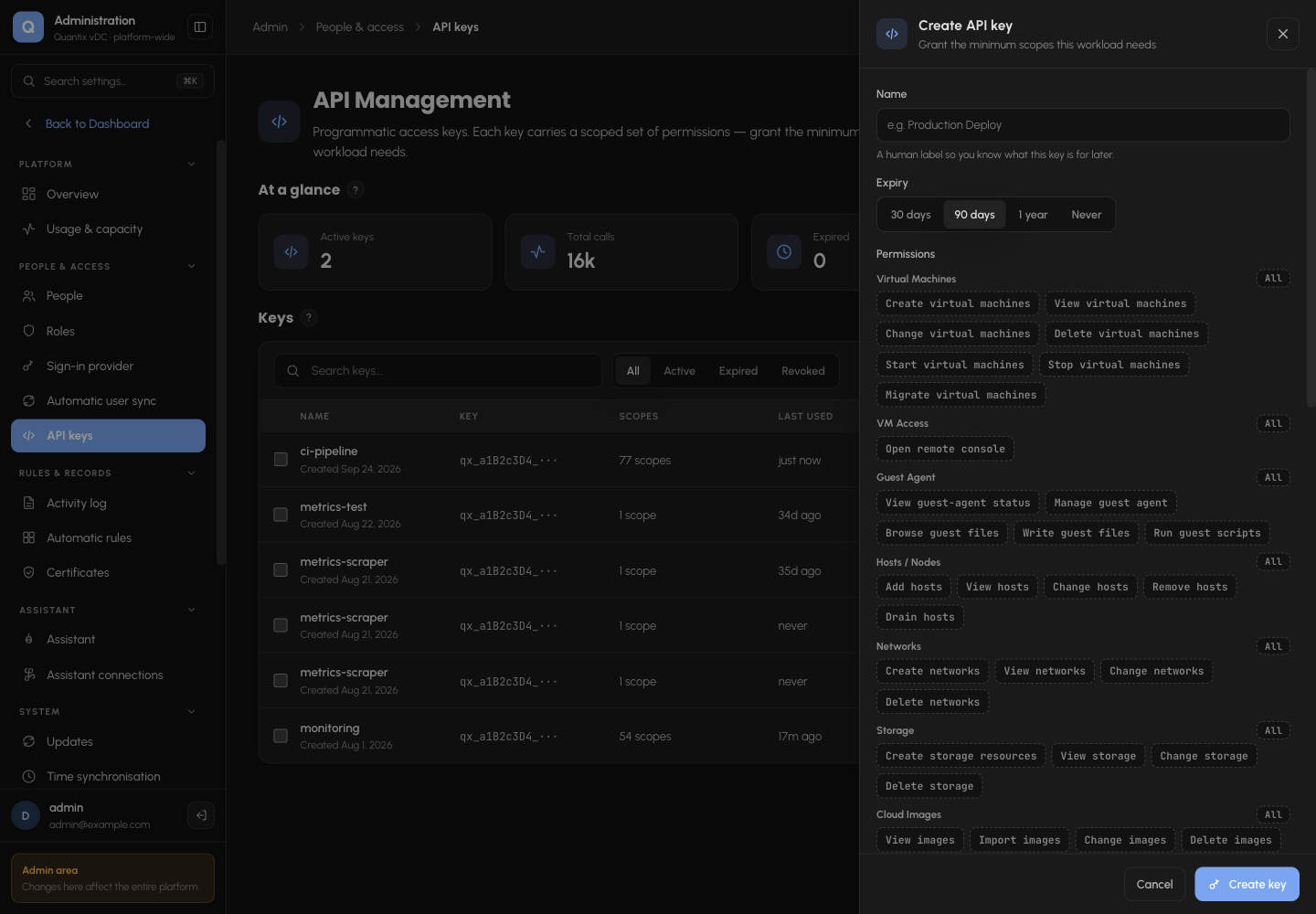
- Enter a Name that says what the key is for, for example the pipeline that will use it.
- Choose who the key Acts as: You (personal key), or a service account. Use a service account for anything that should outlive your own account. Starting from the service account in People (API keys → Create API key) sets this for you.
- Choose the Expiry: 30 days, 90 days (the default), 1 year or Never.
- Under Permissions, click each permission the key needs. The checkboxes are grouped by area; search permissions to narrow the list. All selects the visible permissions in a group and Clear all clears them. Read the descriptions under each permission. Unknown permissions are visible but unavailable for assignment to a new key. A key can include only permissions that both you and the account it acts as hold. A full-access key (
*, available through the API) carries whatever that account holds at each call, so you can create one only if you hold every permission that account holds. - Optional: turn on Limit to specific VMs to make a key that reaches only the VMs you pick (see Limit a key to specific VMs).
- Click Review key and check the account, expiry, VM access and selected permissions. Click Create key to issue it.
- Copy the key from API key created and store it in your secrets manager. It is shown only once and cannot be retrieved later. Click Done.
Expected result: the key is listed as active under Keys, showing its name, the account it acts as, the start of the key, the number of scopes and when it was last used. The activity log records who created the key and which account it acts as.
After its expiry date a key is refused and shown as expired. It no longer counts toward the per-user key limit. Open a key to see its Expires date.
The permissions of a key cannot be changed after it is created. To change what a workload can do, create a new key with the right permissions and revoke the old one.
Limit a key to specific VMs
A key can be limited to named VMs, so a workload that must act on its own VMs (an AI agent, a failover script) cannot touch any other VM, including the ones your build machines or the control plane run on.
- In Create API key, turn on Limit to specific VMs.
- Under VMs, search by name and tick each VM the key may reach, up to 100.
- Under Permissions, choose what the key may do to them: vm:read (read the VM and its events), vm:start (start or resume) and vm:stop (stop, force off, pause, suspend, reboot or reset). A key limited to VMs holds only these three.
- Read the summary under the VM list, for example: This key can read and stop only these 2 VMs: web-a, web-b. Stop also covers pause, suspend and reboot. Every other call is refused, including listing VMs.
- Click Review key, check the summary, then click Create key.
Expected result: the key's row shows its permissions and how many VMs it is limited to, for example 2 scopes · 2 VMs only, and the key's details list the VMs under Limited to.
What a limited key can and cannot do:
- It can read, start or stop only the VMs it is limited to, and only with the permissions it holds. A call naming any other VM is refused with
403and the codeauth.api_key_out_of_scope. - It names VMs by id. Asking for a VM by its name is refused, even for one of its own VMs;
GET /api/v1/auth/api-key/selfreturns the ids underresource_scope.vm_ids. - It cannot list or search anything — not VMs, hosts, operations or events feeds — and it cannot open a console, take or revert snapshots, migrate a VM, attach a disk or network, or run commands in the guest. Those calls are refused with the same code.
- An AI client using the key through the Quantix MCP server is held to the same limits: a tool that names another VM, or lists VMs, is refused.
- Every call the key makes, reads and refusals included, gets two API call entries in the Activity log: started before it runs and the result, which says whether the limit allowed or refused it. As for every key's changes, a call whose started entry cannot be written is refused with
audit.unavailableand does not run. - The VMs a key is limited to cannot be changed after it is created. Create a new key and revoke the old one.
Use a key
Send the key with each API request, either as an X-API-Key header or as a bearer token:
curl -H "Authorization: Bearer <api-key>" https://<qvdc-address>/api/v1/...What a key does is recorded in the Activity log, marked with the account the key acts as, the key, and whether the call came from a script (API) or an AI client (MCP). Exactly what is recorded:
| Use of a key | What the Activity log records |
|---|---|
| A change (create, update, delete, power, migrate, …) | Two API call entries per call: started, written before anything changes, and the result |
| Reading Admin Panel data or the system logs | Two API call entries per call: started and the result |
| A read that hands out access: a VM or host console, a VPN client configuration, a file downloaded from a storage pool | Two API call entries per call: started and the result |
| Any other read, such as listing VMs or reading a storage pool | No entry per call. The key's use shows as one API key sign-in entry per key and address (or AI session) every 15 minutes. A key limited to specific VMs is the exception: each of its calls gets started and the result |
| A tool an AI client runs through the MCP endpoint, reads included | One MCP tool call entry per tool |
| A refused key | An API key refused entry for the first refusal; repeats with the same reason, key and address are counted into one entry per minute |
So the log shows that a key was reading, from where and when, but not every individual read a script made.
A call that gets API call entries runs only once its started entry is written. If the Activity log cannot be written, the call is refused with 503 and the code audit.unavailable, and nothing changes: no change is ever made with a key that the log does not show. The response to each call carries an X-Quantix-Request-ID header: that is the job the call's entries are filed under, so a script can log it and an administrator can find exactly what that call did. See Investigate an action taken with an API key.
An AI client such as Claude Code uses a key the same way, to connect to the Quantix MCP server: see Connect an external AI client. The client sees only the tools the key's effective permissions allow. Give an AI client a key that acts as a service account, so its access is set by that account's role. Each tool the AI client runs is recorded as an MCP tool call with its arguments (secrets removed) and result, and every change the tool makes carries the same job, tool and AI session.
Keys and the Admin Panel
An API key can read Admin Panel data, never change it. With the matching view permission a key reads:
| Admin Panel data | Permission the key needs |
|---|---|
| Users, roles, the permission catalog and API keys | View users |
| The activity log, its export and statistics | View audit trail |
| Certificates, the certificate authority status, the root certificate and CRL | View certificates |
| Organization settings, notification e-mail, SMTP, SSO, SCIM, global rules, appliance services, telemetry and the assistant settings | View platform configuration (or Configure platform) |
| High availability: fence providers, host failures being handled, recovery jobs and the automatic HA profile | View platform configuration (or Configure platform) |
| Pending approval requests | View platform configuration (or Configure platform) |
| The control plane's system logs (System → System logs) | View platform configuration (or Configure platform) |
The licence: state, plan, generation, licensed capacity and licence details (GET /api/admin/license/status) | View platform configuration (or Configure platform) |
| Backup & recovery status and policy, time synchronisation and update settings | Configure platform |
Secrets are never returned to anyone, person or key: passwords, client secrets, token and key hashes and certificate private keys are left out. A has_… field says whether each one is set, for example has_password on the SMTP settings and has_client_secret on an SSO provider. The assistant's provider key is shown only as its last four characters. Every Admin Panel read made with a key is recorded in the Activity log as an API call carrying the key.
A change to the Admin Panel data in the table above is made by a super administrator in the Admin Panel, after verifying their identity. A key is refused, whatever permissions it holds, with 403 and the code admin.api_key_write_refused: "Admin changes must be made by an administrator in the Admin Panel." This includes creating users, keys and certificates, changing those settings, and testing a mail or AI provider connection. An AI agent can explain what it reads and what to change; the administrator makes the change.
The same holds for the Admin Panel pages served outside the Admin Panel's own API: a key is refused, with the same code, when it tries to restore the appliance, change the backup policy, recovery key or targets, back up or protect hosts, change time synchronisation, reset or configure updates, import an update bundle, set host passwords, change high availability, or open a Mac host's console.
A few actions are not refused but wait for an administrator: installing an update, a configuration backup now, unlocking a recovered host and opening a host console. The key's call answers 202 with a request id and a preview of what would happen, and nothing runs until an administrator approves it in Approval requests. Poll the request (the operation with that id) to learn the outcome.
Review and revoke keys
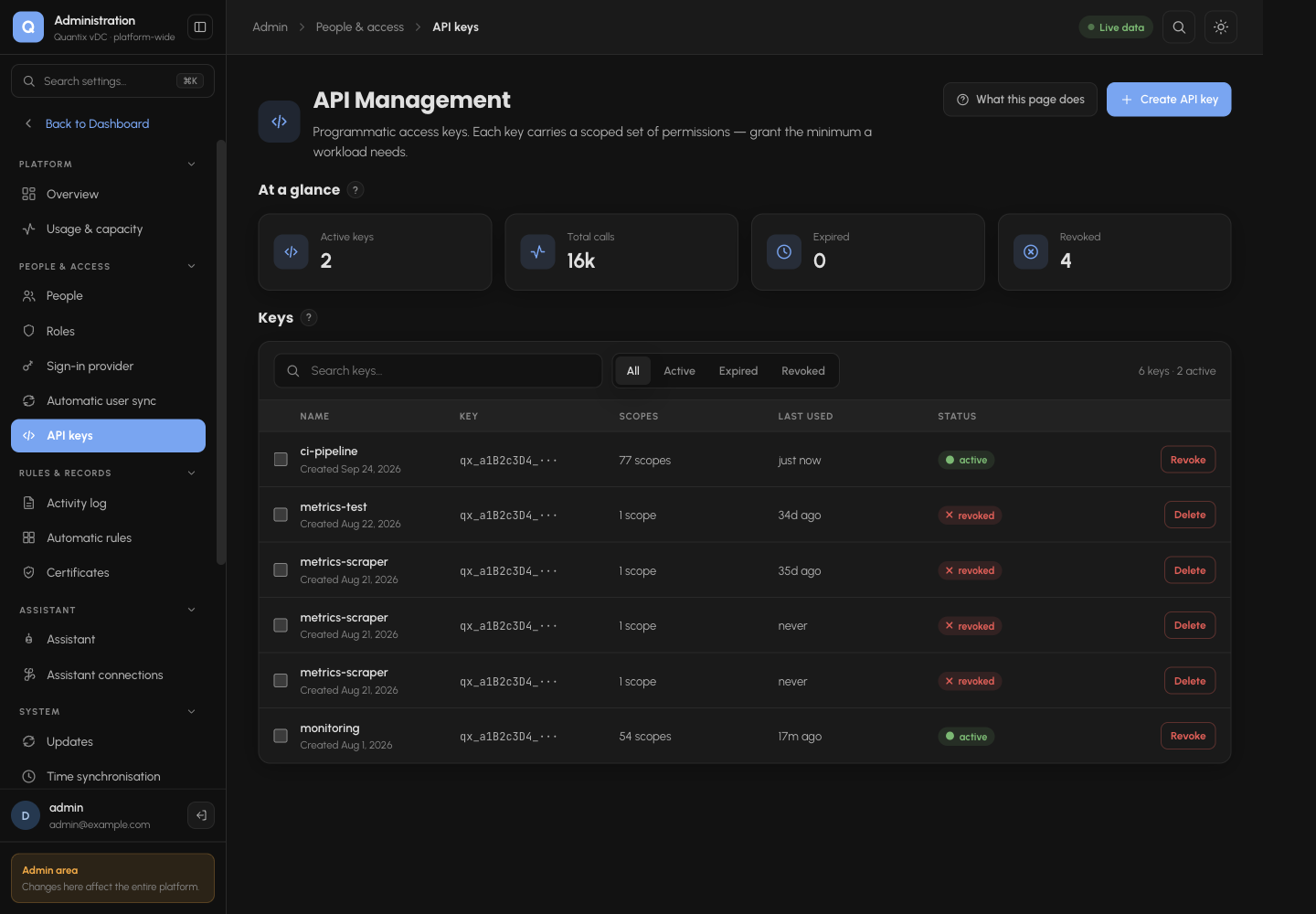
- At a glance counts Active keys, Total calls, Expired keys and Revoked keys keys.
- Search by name or key prefix, or filter with All, Active, Expired or Revoked. Use Previous keys and Next keys for lists longer than 20 keys.
- Click a key to see its scopes, total calls, last use and expiry date.
To stop a key working, click Revoke on its row. Anything still using it stops working within seconds; the key stays in the list so its history is kept. A confirmation dialog names the key before it is revoked. A revoked key can then be removed with Delete (the key's details also offer Delete… for any key); its confirmation dialog names the key before removal. To revoke several keys at once, tick them and click Revoke in the bar that appears; the confirmation lists the selected keys.
Suspending or removing the account a key acts as revokes its keys immediately. Re-enabling the account does not restore its old keys; create new keys for workloads that should resume. A key that acts as a service account is not affected when the administrator who created it is suspended or removed.
Keys created before this release keep the permissions they were created with, but from now on each call is also checked against the current roles of the account the key acts as. A key made by an administrator is unaffected in practice. A key whose creator has since lost a permission loses it too.
Troubleshooting
"maximum API keys per user (10) reached" — each account can have up to 10 active, unexpired keys acting as it. Revoke keys that are no longer used, or use another service account. Expired and revoked keys do not count.
"API key exceeds the permissions available" — the key asked for a permission that you do not hold, or that the account it acts as does not hold. Remove that permission, or give the service account a role that grants it. For a full-access key (*), the account it acts as holds a permission that you do not.
"an API key can be issued only for yourself or for an enabled service account" — Acts as named an account that is suspended or is not a service account. A key cannot act as another person.
"auth.api_key_out_of_scope" — the key is limited to specific VMs and the call named another VM, named a VM by its name instead of its id, or was a list, search or other call such a key cannot make. Use the VM's id, or a key that is not limited to VMs.
"admin.api_key_write_refused" — the key asked for an Admin Panel change. Keys only read the Admin Panel; a super administrator makes the change in the Admin Panel.
"audit.unavailable" (503) — QvDC could not write the Activity log, so it refused the change rather than make it unrecorded. Nothing was changed. Retry the call later. While it keeps failing, no key can make a change; tell your administrator that the Activity log cannot be written.
A script gets "unauthorized" or "forbidden" — check that the key is not revoked, that the account it acts as still exists and is enabled, that its Expires date has not passed, and that both the key and that account's roles have the permission the call needs.