

Personal settings
Your Settings page holds preferences that affect only you: the timezone dates are shown in, the look of the dashboard, and your account's password, passkeys and admin verification. Platform-wide settings — updates, notifications and security policy — are in the Admin Panel.
Open your settings
Use either of these:
- In the sidebar, under Others, click Settings.
- At the bottom of the sidebar, click your name to open the profile menu, then click Settings.
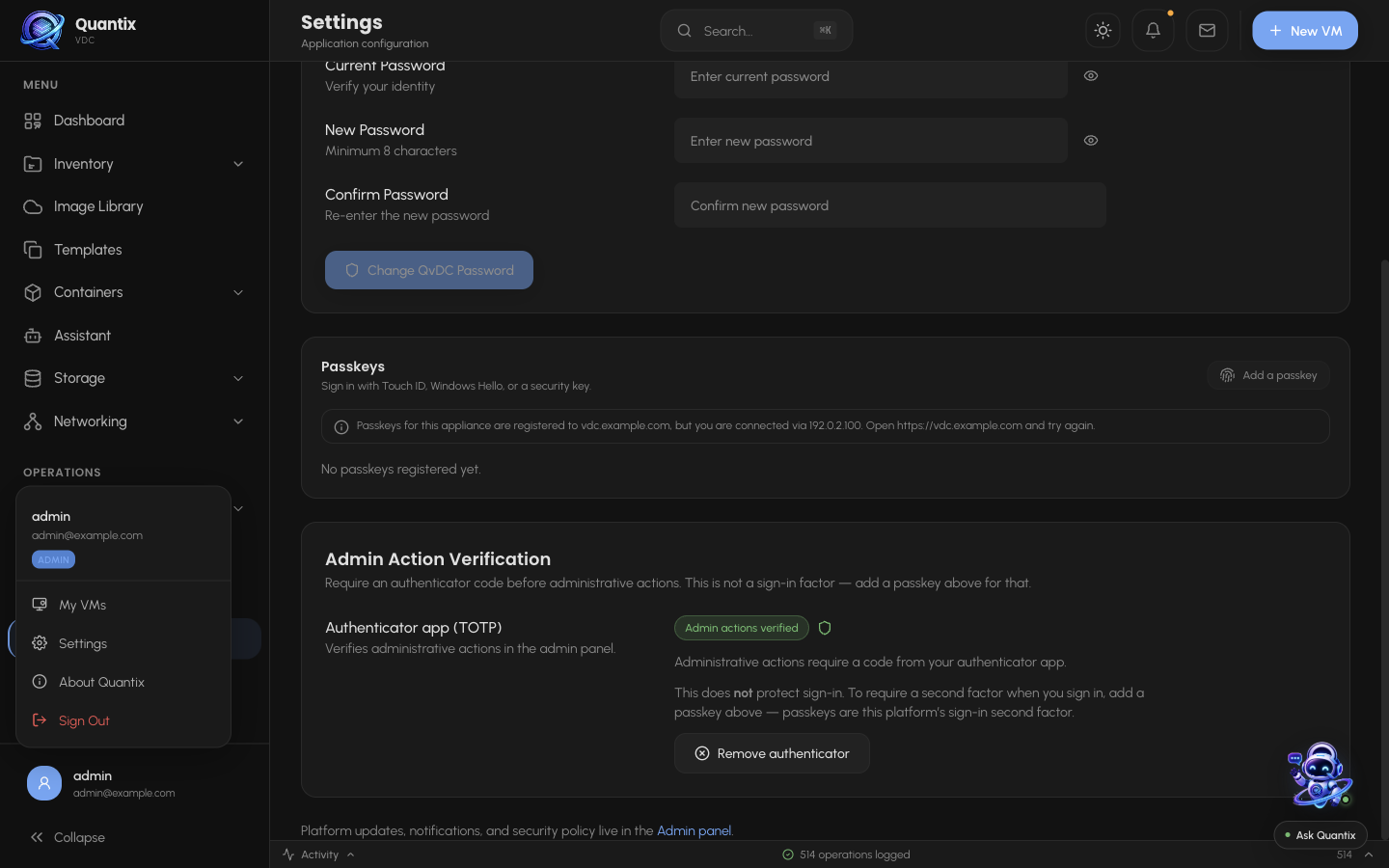
The profile menu also shows your base role and additional roles, and offers My VMs (your favourite VMs), About Quantix and Sign Out.
Settings has three tabs: General, Appearance and Account. Changes on General and Appearance apply as soon as you make them — there is no Save button.
Choose your timezone
On the General tab, Timezone sets the zone that dates and times across the dashboard are shown in. The default is Local (browser) — your computer's timezone. Preview shows the current time in the zone you chose.
This only changes how times are displayed to you. The assistant schedules recurring tasks in the organisation's deployment timezone, which an administrator sets; see Organization settings.
Switch between light and dark
On the Appearance tab, under Theme, click Dark (the default) or Light.
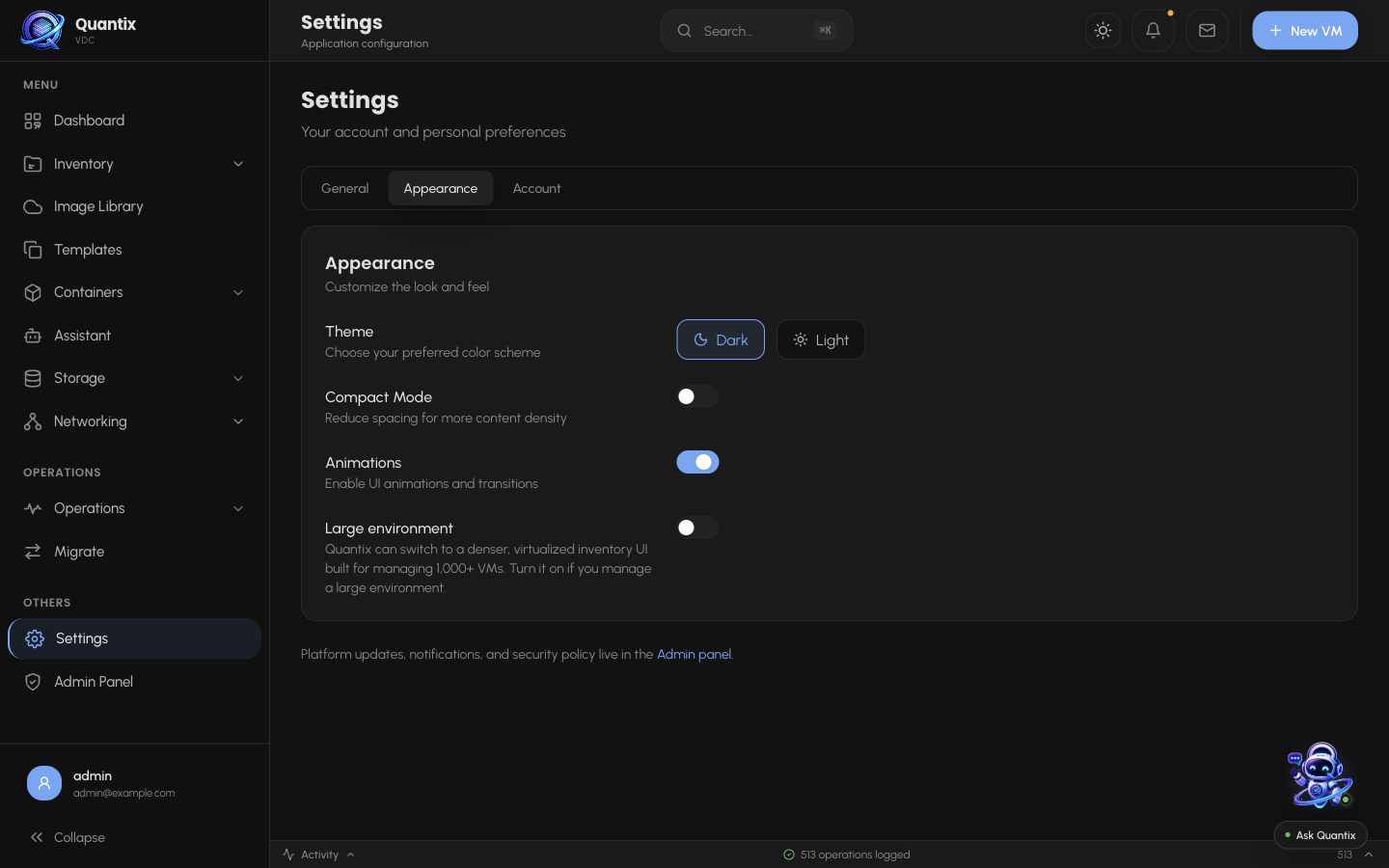
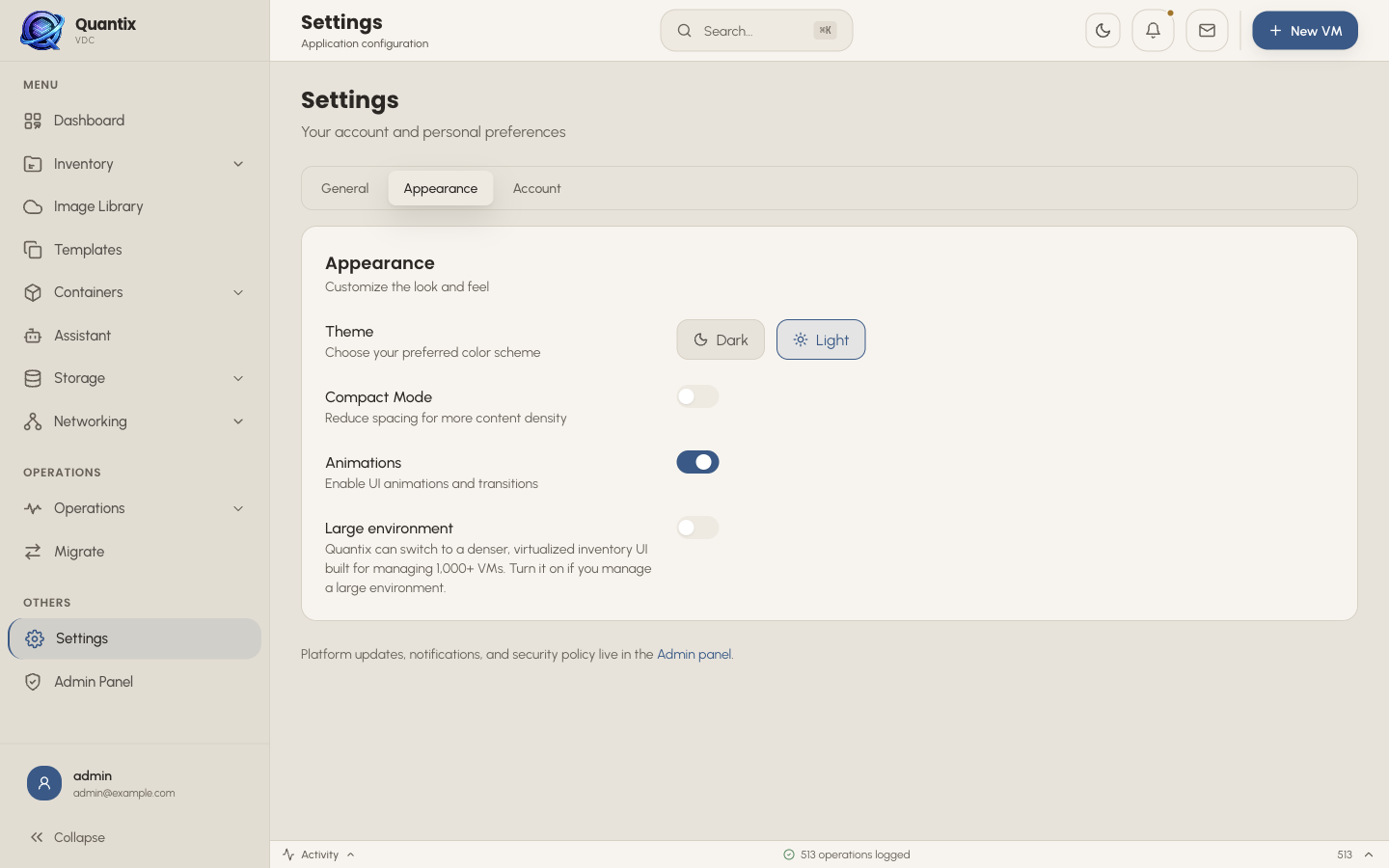
You can also switch at any time with the sun/moon button in the top bar (Switch to light mode / Switch to dark mode), and in the Admin Panel with the sun/moon button at the top right (Toggle theme).
The Appearance tab also has:
- Compact Mode — reduce spacing to fit more on the screen.
- Animations — turn the dashboard's animations and transitions on or off.
- Large environment — a denser inventory for very large numbers of VMs; see Large environment view.
Where your preferences are kept
Timezone and appearance settings are stored in your browser, separately for each person who signs in on it. They do not follow you to another browser or computer; set them again there.
Troubleshooting
My theme or timezone is back to the default — you are using a different browser or computer, or the browser's site data was cleared. Choose them again under Settings.