

Use local disks
A Local Directory pool keeps VM disks on a disk inside one host. It is fast and needs no NAS, but only that host can use it: VMs on it cannot be live-migrated to another host.
A local pool needs a partition that already has a filesystem. Quantix uses a partition that is already mounted where it is, or mounts an unmounted one under its pool directory and keeps it mounted across reboots.
On a Quantix host, you can also create a named pool directory on the host's persistent data partition. This does not format or remount that partition. Each pool gets its own directory under /data/pools; those directories share the data partition's available space.
| Starting point | What to do |
|---|---|
| The disk already has a partition with a filesystem (XFS or ext4, for example) | Create the pool in QvDC. |
| The disk is new or empty | Format it on the host first, then create the pool in QvDC. |
| The host has no spare disk | Create the pool in QvDC and choose Use this host's data partition. |
| The host is not managed by QvDC | Use the Host UI. |
Hosts managed by QvDC
Once a host is managed by QvDC, create all of its storage pools in QvDC, including pools on its data partition. The Host UI Dashboard shows Cluster Mode for a managed host. The host's own Host UI does not create pools while it is managed. See Hosts managed by QvDC.
Create a local pool in QvDC
Prerequisites: the host shows Ready in QvDC; a user with the admin or operator base role, or the System administrator role.
Go to Storage → Storage Pools and click Create Pool.
Choose Local Directory and click Continue.
On the host step, the banner reads Local Storage — "Local storage can only be accessed by a single host. Select exactly one host." Click the host that has the disk, then click Continue.
Enter a Pool Name and, optionally, a Description.
Under Storage on followed by the host's name, the Storage location list shows the host's partitions that can hold a pool, with the most free space first. Each shows its label, device, free space, size, filesystem, disk, and the directory the pool will use.
- A partition that is already mounted: click it to select it. The pool uses its current mount point.
- A partition marked not mounted: click Mount and use under it. Quantix mounts the filesystem, keeps it mounted across reboots and selects it. Nothing on the disk is erased.
The host's own system partitions (its two system slots, its configuration partition, its boot partition and the data partition itself) are never offered, mounted or not; QvDC also refuses to mount one if asked directly.
- Use this host's data partition: creates the pool in its named
/data/pools/<pool name>directory. This option is separate from device formatting and shows the partition's size and free space. If other pools already use/data/pools, the wizard lists their names because they share the same free space.
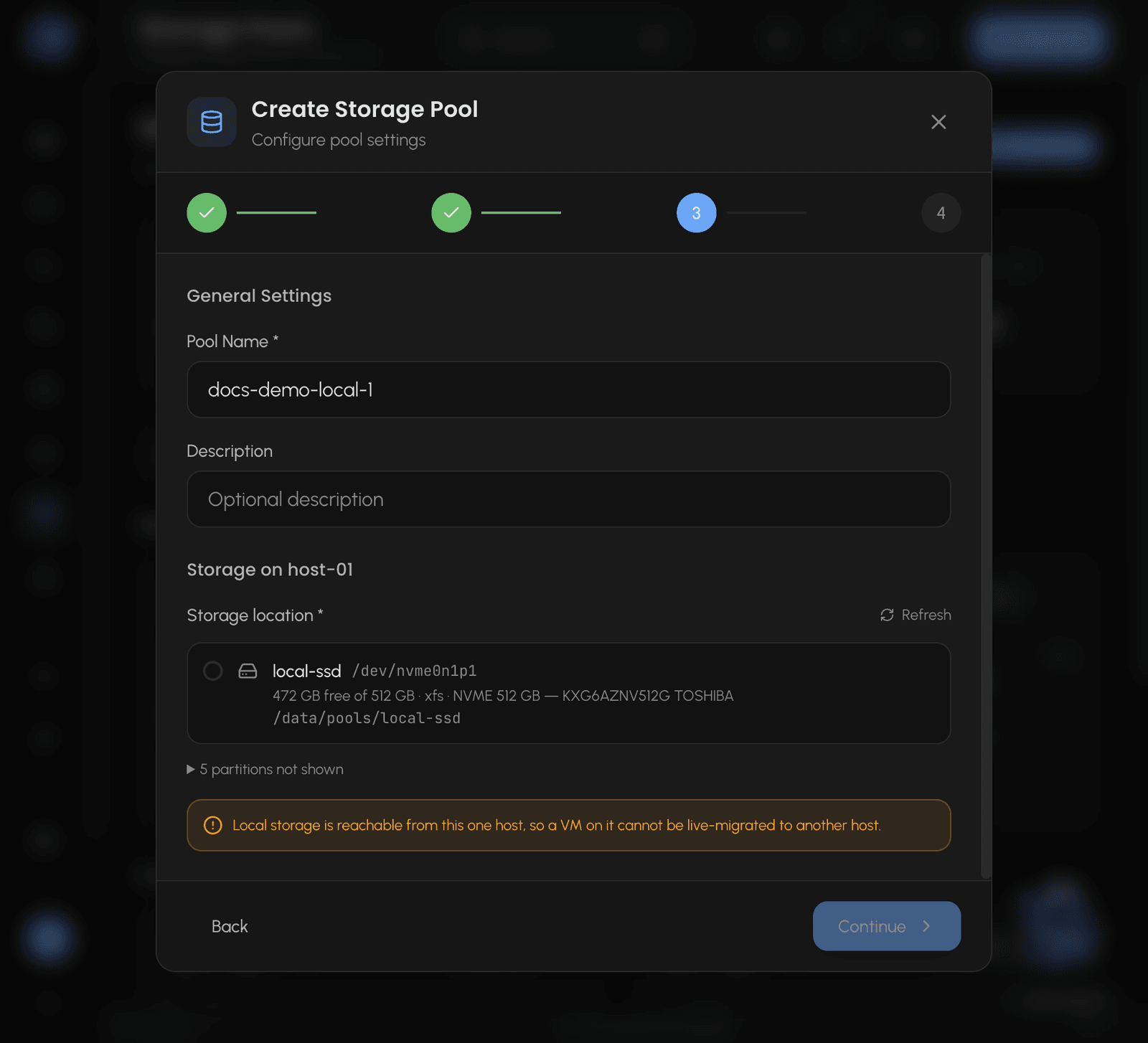
Continue stays disabled until you select a partition. Click Continue, check the Path on the review step, and click Create Pool.
Expected result: the pool appears under Local storage on the Storage Pools page and reaches Ready. On its Nodes tab, every other host shows Local storage — already on followed by the host's name.
WARNING
Mount and use mounts the partition on the host immediately, before you click Create Pool. If you cancel the wizard, the partition stays mounted.
Partitions that are not offered
Below the list, expand … partitions not shown to see the host's other partitions and why each cannot hold a pool:
| Reason | Meaning |
|---|---|
| no filesystem — format it first | The partition is empty. Format the disk on the host. |
| swap partition, vfat partition | Swap space or a boot partition. |
| system partition | Used by Quantix-OS itself. The host's persistent data partition is not listed here: it is offered as Use this host's data partition. |
| smaller than 5 GB | Too small for VM disks. |
If no partition qualifies, the wizard shows "This host has no disk that can hold a storage pool."
Format a disk on the host
QvDC never formats a disk. To prepare a new or empty disk, use the host's own Host UI.
DANGER
Initializing a disk permanently erases everything on it.
- Open the Host UI at
https://<host-address>:8443and sign in as an administrator. - Go to Local Storage → Physical Disks. Each disk shows Available or In Use. A disk that has partitions or is mounted is In Use and cannot be initialized.
- Click an Available disk.
- Enter a Storage Pool Name, for example
local-nvme-1. - Tick I understand this will permanently erase all data on this device and click Initialize as qDV.
The host creates one partition across the whole disk, formats it with XFS, mounts it and keeps it mounted across reboots. The disk now shows In Use. If the host cannot record the mount for its next start, it shows a warning instead of a success message; see Troubleshooting.
On a host managed by QvDC, continue with Create a local pool in QvDC and select the new partition. Pools created in the Host UI are not shown in QvDC, so QvDC can place VMs on the disk only after you create the pool there.
Standalone hosts
On a host that is not managed by QvDC, manage storage in its Host UI under Local Storage:
- Physical Disks → Initialize as qDV (above) formats a disk and creates a storage pool on it in one step. The new pool appears under Storage Pools.
- Storage Pools → Create Pool → NFS Share mounts an NFS export: enter the Pool Name, NFS Server and Export Path, then click Create Pool.
- Storage Pools → Create Pool → Local Directory offers the persistent data partition and other usable mounted filesystems. The data partition option creates a named directory under
/data/pools; the wizard does not accept an arbitrary directory path.
A Pool Name becomes a directory name on the host, so it must be 1 to 64 characters of letters, digits, _, . or -, starting with a letter or digit (for example fast-pool). The wizard shows this rule as you type, and the host refuses any other name. A pool created earlier with a name such as My Pool keeps working.
Hosts managed by QvDC
QvDC keeps the list of storage pools on every host it manages, and each host matches that list on every heartbeat. A pool created only in the host's Host UI would not be on QvDC's list, so the next heartbeat would remove it.
For that reason, on a managed host, Storage Pools → Create Pool in the Host UI does not create pools of any type. It shows:
Storage pools on this host are managed from Quantix-vDC. Create pools there; a pool created only in the Host UI would be removed by the next heartbeat.
Click Close and create the pool in QvDC instead. A pool created in QvDC also appears under Storage Pools in the host's Host UI.
Physical Disks → Initialize as qDV is still available on a managed host. Use it to format a spare disk, then create the pool on the new partition in QvDC.
Troubleshooting
| What you see | What to do |
|---|---|
| "The host must be reachable to list its disks." | QvDC could not read the host's disks. Check that the host is Ready, then click Try again. |
| "This host has no disk that can hold a storage pool." | Every partition is a system partition or has no filesystem. Format a spare disk on the host first. |
local storage exists on one host only and cannot be assigned to a second | A local pool belongs to one host. Use an NFS pool for storage that several hosts share. |
a storage pool for this backend already exists | Another pool already uses this host and path. |
local pool path … overlaps pool '…' at … | The directory is inside, or contains, another pool's directory. Choose a different pool name or partition. |
local pool ID must be one path component | The pool name contains / or ... Use a name made of letters, digits, -, _ and .. |
| Host UI warning: "Device … initialized as storage pool '…', but its mount could not be recorded and will NOT survive a reboot." | The disk is formatted and mounted, and the pool works now, but the host could not record the mount for its next start. After the host restarts, the disk is not mounted, yet the pool still shows as available: it comes back as an empty directory on the host's system disk (/data). The VM disks and other files written to the pool before the restart are not in it, and new ones are written to the system disk. Do not place VMs on this pool; contact Quantix support and include the exact text. |
| Host UI: "Storage pools on this host are managed from Quantix-vDC. …" | The host is managed by QvDC. Create the pool in QvDC. |
| Host UI: "The host's management status could not be verified. Pool creation is unavailable until it can be checked." | The Host UI could not tell whether QvDC manages this host. Reload the page. If it persists, open the Host UI Dashboard and check that it shows Cluster Mode or Standalone Mode. |