

Storage policies
A storage policy states what a disk needs from its storage — for example, that it must be on a pool shared across hosts so the VM can be live-migrated. Quantix compares each pool's reported capabilities with the policy and either reports the mismatch or refuses the placement.
A policy never picks a pool for you. You still choose the pool; the policy decides whether that choice is compliant.
Prerequisites
- A user who can manage storage: the admin or operator base role, or the System administrator role. Deleting a policy needs the admin base role or the System administrator role.
Create a policy
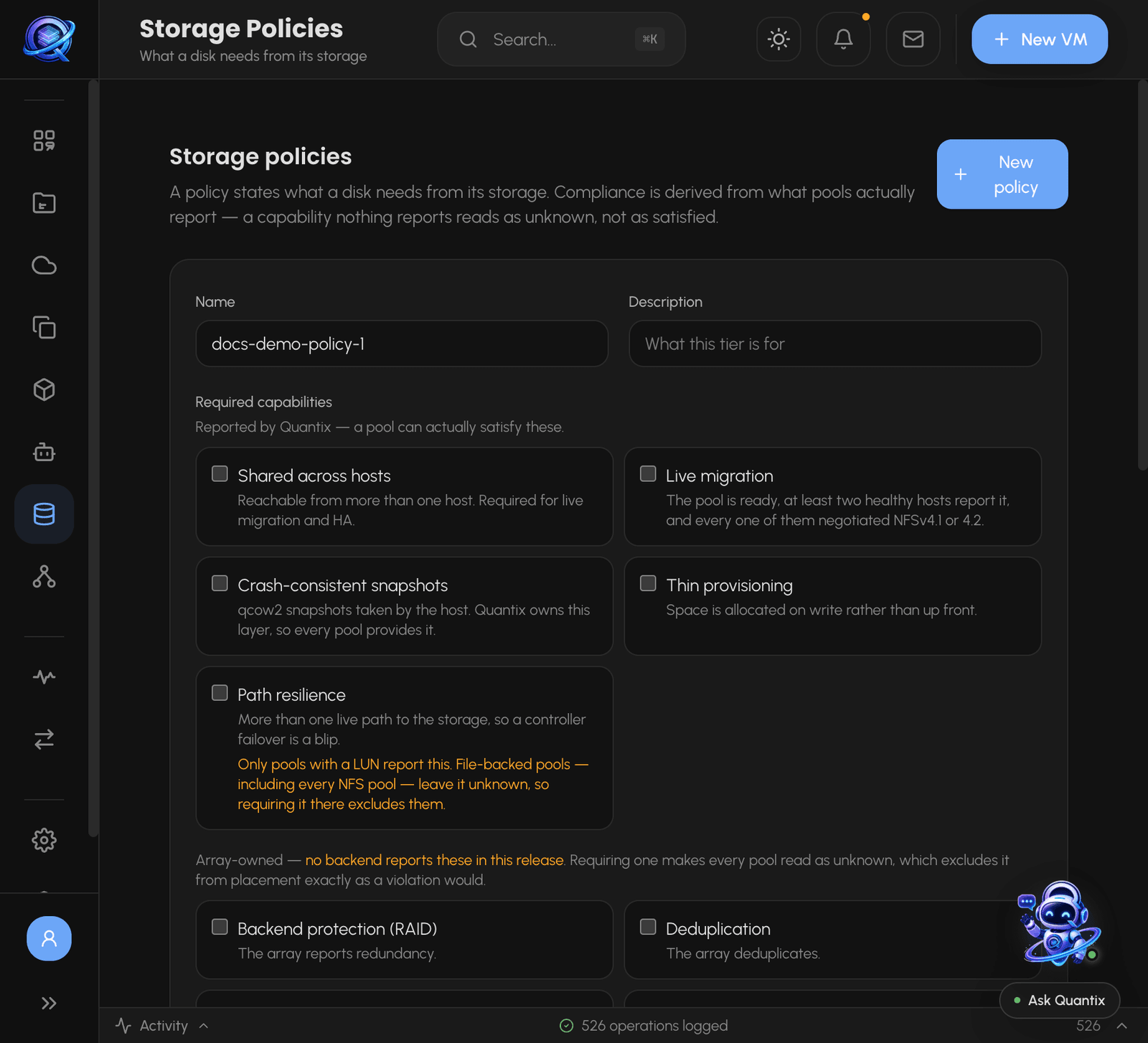
Go to Storage → Storage Policies and click New policy.
Enter a Name (for example
gold-tier) and, optionally, a Description.Under Required capabilities, tick what the disks need. Use the first group — the capabilities Quantix reports:
Capability What it means Shared across hosts Reachable from more than one host. Live migration has additional prerequisites; automatic recovery is unavailable in this release. Live migration The pool is ready, at least two healthy hosts report it, and every one of them negotiated NFS 4.1 or 4.2. Crash-consistent snapshots Snapshots taken by the host. Every pool provides this. Thin provisioning Space is allocated on write rather than up front. Path resilience More than one live path to the storage. Only pools with a LUN report this; every NFS and local pool leaves it unknown, so requiring it excludes them. Leave the second group — Backend protection (RAID), Deduplication, Compression, Encryption at rest, Array-native snapshots, Quality of service — cleared. No pool reports these in this release, so requiring one makes every pool read as unknown.
Leave Minimum IOPS and Maximum latency (ms) under Performance floors at
0. Quantix does not measure per-pool IOPS or latency yet, so these cannot be verified.Optionally, under Avoid pools, tick pools that must never be used for these disks, even when they satisfy every requirement.
Choose the Enforcement:
Mode Effect Advisory (default) Non-compliance is reported but never blocks placement. Enforce on create A pool that cannot satisfy the policy is refused when a VM is created. Existing VMs are left alone. Enforce always Also refuses migration and relocation onto a pool that cannot satisfy the policy. Click Create policy.
If a choice could never be satisfied, the form warns you before you save: "This policy will refuse every placement." (enforcing) or "This policy can never report compliant." (advisory).
Start with Advisory, check that your VMs report compliant, and switch to an enforcing mode afterwards.
Apply a policy
A policy governs a disk when it is set in one of these places. The most specific wins: a disk's own policy, then the VM's policy, then the pool's default.
| Where | Field |
|---|---|
| VM creation wizard, Storage step | Storage Policy — applies to every disk of the new VM. |
| A VM's Storage tab | Storage policy — applies to every disk without its own policy. |
| Add virtual disk or Attach existing volume on a VM | Storage policy — this disk only; Inherit from VM by default. |
| A pool's Settings tab | Default storage policy — used for new disks on the pool that have no policy of their own. |
Setting a policy on an existing VM does not move its disks. It is checked the next time a disk is placed — when the VM is migrated or its storage is relocated.
When a policy is checked
| Operation | Advisory | Enforce on create | Enforce always |
|---|---|---|---|
| Create a VM | Reported | Refused if non-compliant | Refused if non-compliant |
| Migrate a VM, relocate its storage | Reported | Reported | Refused if non-compliant |
| Add or attach a disk | Not checked | Not checked | Not checked |
A VM's Storage tab shows the compliance of its disks, for example Compliant, Not compliant, Unknown or No policy.
Edit or delete a policy
Each policy card has Edit and Delete. Saving an enforcing policy asks for confirmation. Deleting a policy asks you to confirm with Delete policy: disks bound to it stop being governed by it, and nothing fails or moves.