

Email alerts
QvDC can email people when an alert is raised: a host that stops responding, a storage failure, a certificate close to expiry, a failed update. Two pages under Admin Panel → System set this up:
- Alerts (page title Alerts & email delivery) — the mail server QvDC sends through.
- Email recipients (page title Email recipients) — who is emailed, and about which kinds of alert.
Prerequisites
- An account with the admin base role.
- An SMTP server QvDC can reach, and an account on it if it requires one.
- A shared mailbox (for example an on-call address) is a better recipient than a personal one: it outlasts people changing jobs.
Connect QvDC to your mail server
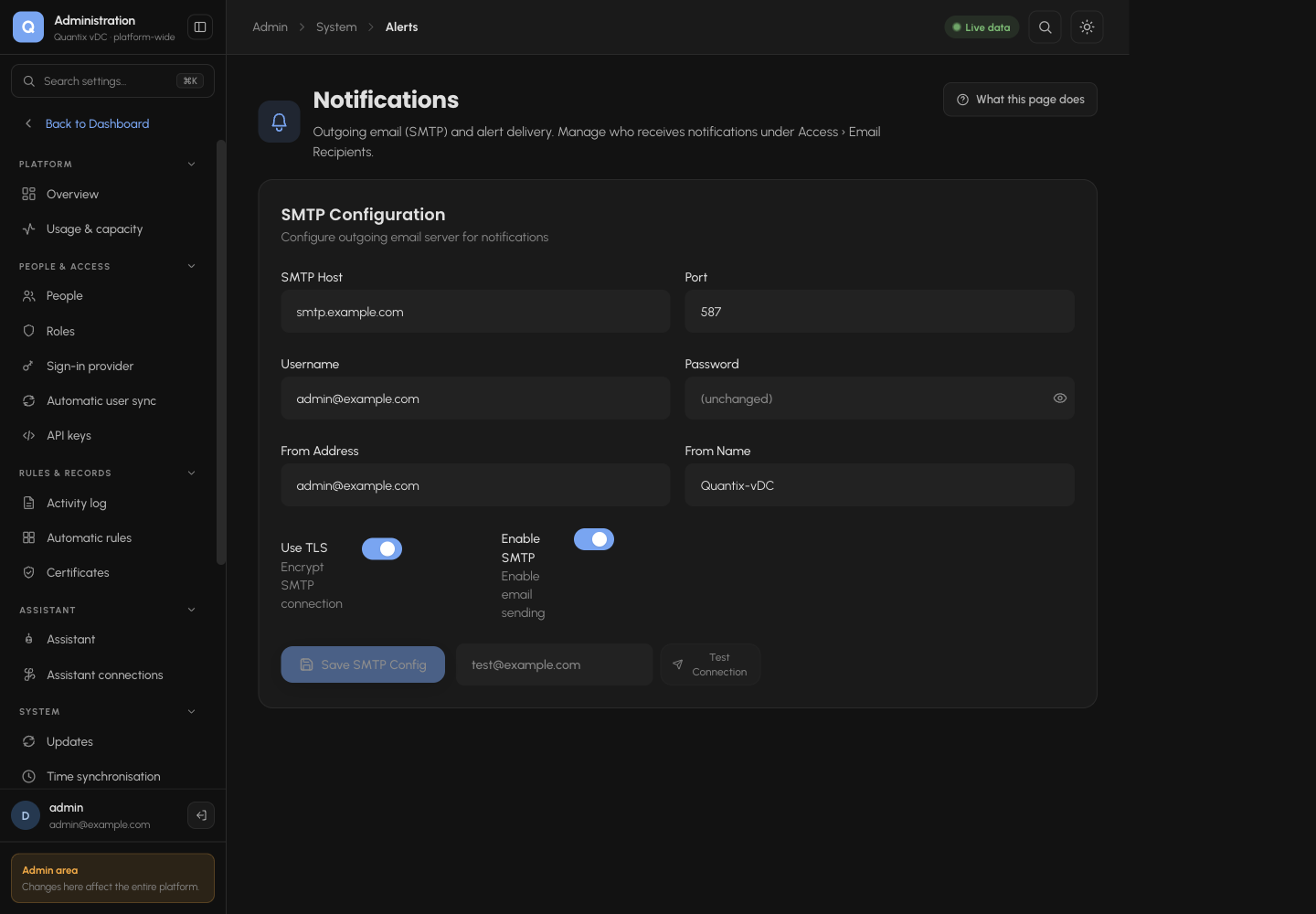
- Go to Admin Panel → System → Alerts.
- Under SMTP configuration, fill in:
- SMTP host and Port (587 by default);
- Username and Password, if your server needs them. A stored password is never shown. Leave the password blank to keep it;
- From address and From name — the sender people see;
- Use TLS — encrypt the connection. On port 465 QvDC uses TLS from the start; on other ports it upgrades the connection with STARTTLS.
- Select Enable sending to permit alert emails.
- Click Save SMTP configuration. The settings take effect immediately. The status above the form reflects saved settings, not unsaved edits. A field typed back to its saved value no longer counts as an unsaved edit.
- Under Send a test email, enter a Recipient email address and click Send test email. Save changes first: a test uses the saved settings.
Expected result: the page reports that the SMTP server accepted the test email. Check the recipient's inbox and spam folder to confirm receipt. A successful save or test does not prove that the message reached the inbox. If the test fails, the page shows the mail server's error.
You can send a test while alert sending is disabled. This sends one test message without enabling alerts. Alert delivery requires a saved SMTP server and Enable sending selected. Use View email recipients to open the recipient settings directly.
The individual host administration pages Notifications and Email / SMTP are informational. They describe where to configure email in Quantix-vDC; they have no host-local mail configuration and do not report delivery status.
Choose who is emailed
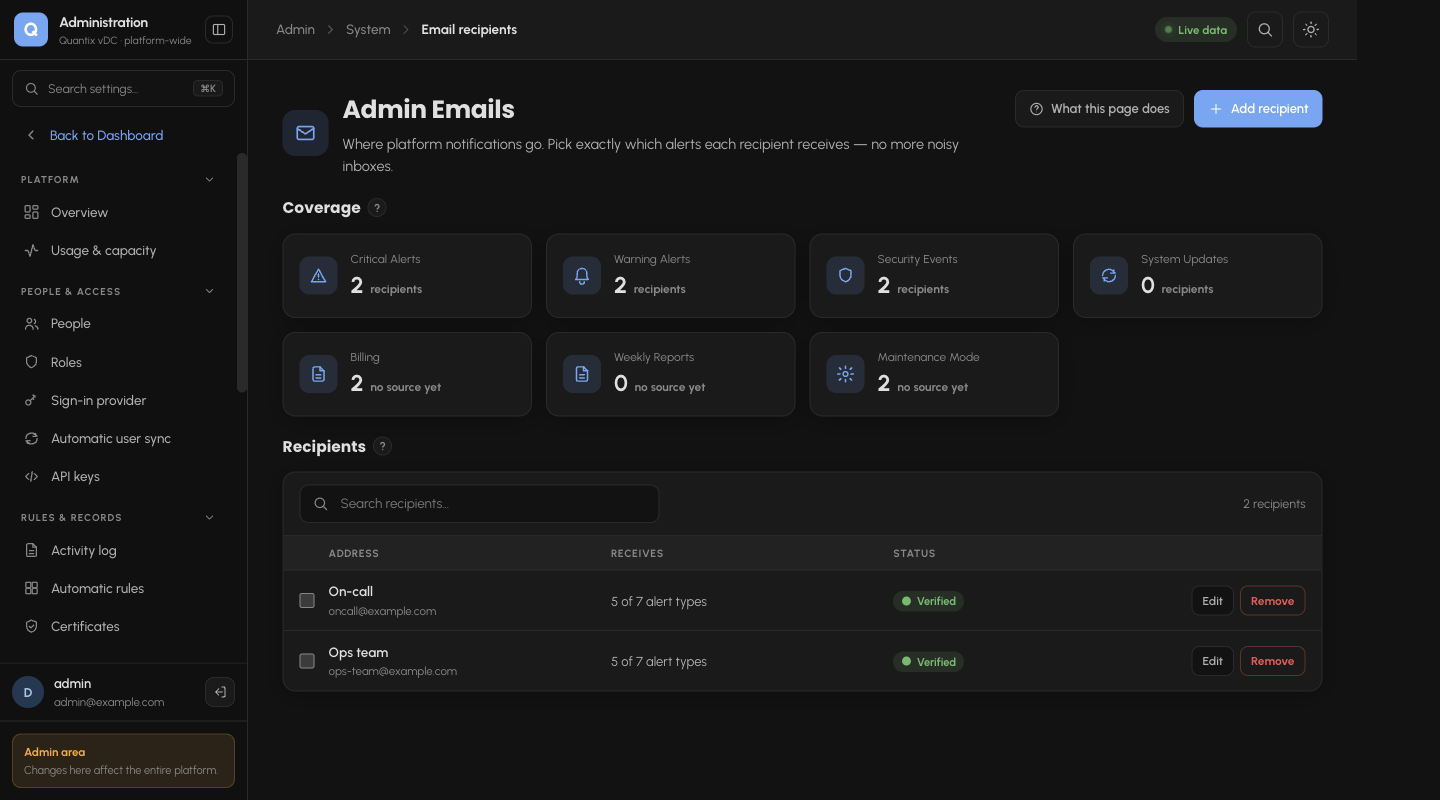
- Go to Admin Panel → System → Email recipients and click Add recipient.
- Enter an optional Display name and the Email address, then click Add & verify. The address is saved, then marked Verified by the recipient verification action. This flag does not prove mailbox ownership or delivery. If verification fails, the address remains saved; open its details and retry Verify.
- Click the recipient (or Edit) to choose, under Subscriptions, which notifications reach this address. A new recipient starts with Critical Alerts, Warning Alerts and Security Events on and System Updates off. Each switch is saved immediately:
- Critical Alerts — host down, storage failure and other page-worthy events;
- Warning Alerts — degraded capacity and other early warnings;
- Security Events — certificates nearing expiry;
- System Updates — a platform update that failed to apply.
- Optionally click Send test to email that address now. This requires saved SMTP sending to be enabled. Check the inbox and spam folder; a server-accepted test does not guarantee inbox delivery.
Expected result: from now on, each recipient is emailed when an alert of a type it subscribes to is raised, or gets worse. Repeats of the same alert are not emailed again. The subject reads [Quantix <SEVERITY>] <alert title>.
Coverage shows subscriptions across all configured recipients. These counts do not confirm delivery. Search recipients, Alert type and Verification filter the full inventory, which shows 20 recipients per page. SMTP status above the list reflects the saved mail configuration; use SMTP configuration or Configure SMTP to open the Alerts page. A failed status or inventory request is shown as unavailable, not as zero recipients or disabled delivery.
To stop emailing an address, click Remove on its row. It is removed after you confirm the named addresses. Removing the last recipient is allowed, but the confirmation warns you: with no recipients left, nobody is emailed when something breaks.
Troubleshooting
"SMTP host is not configured" when testing — enter the SMTP host and click Save SMTP configuration before Send test email.
"Email sending is not configured. Configure an SMTP server first." when sending a test to a recipient — set up and enable SMTP on the Alerts page first.
No alert emails arrive — check that Enable sending is selected and saved, that the recipient subscribes to that alert type, and that the message is not in a spam folder.