

Check capacity and health
The Storage Pools page and each pool's own page show how full your pools are and whether the hosts can reach them. The pages do not refresh by themselves: click Refresh on the Storage Pools page, or reopen a pool, to see the latest state.
The Storage Pools page
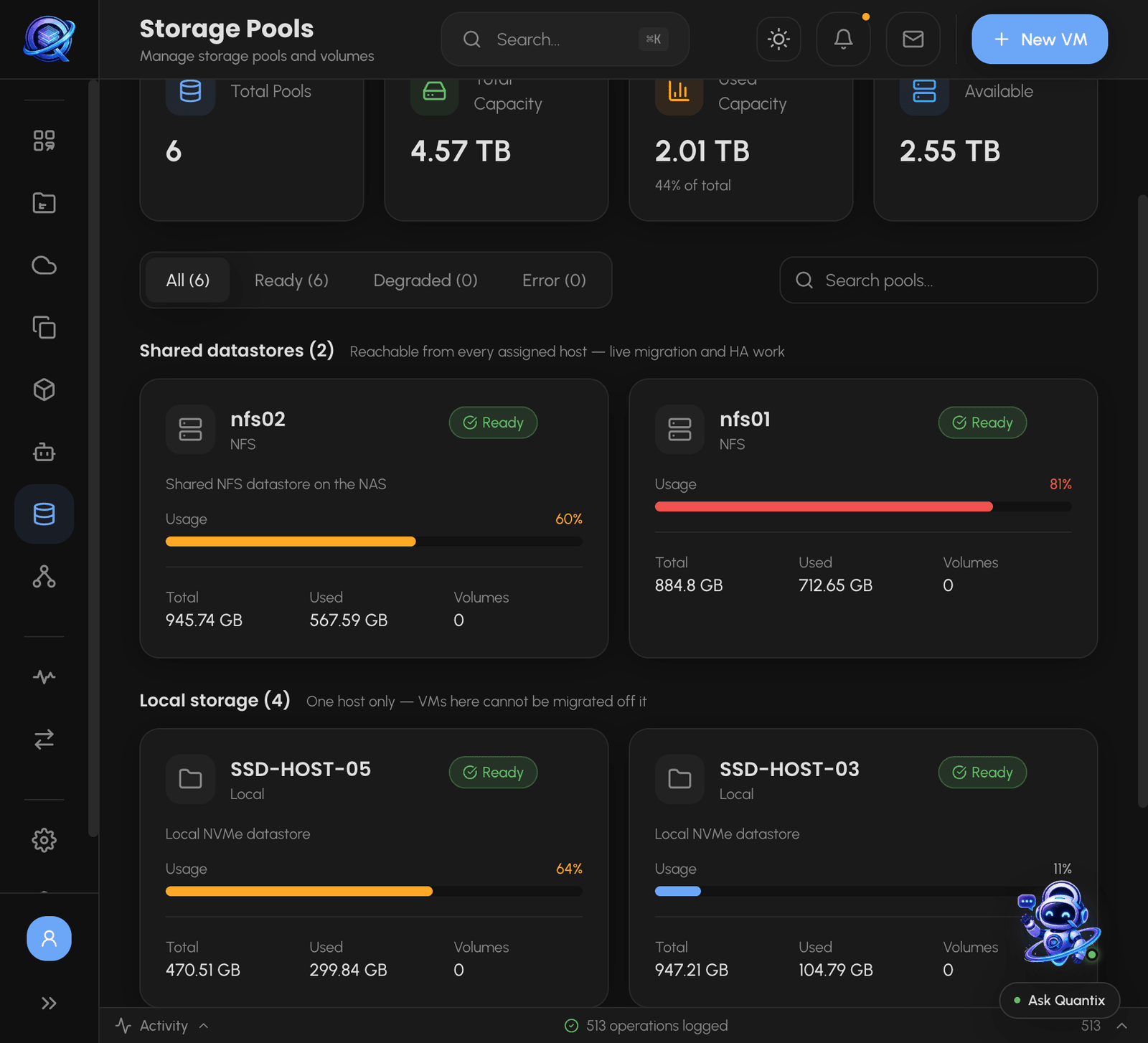
The four tiles at the top add up every pool:
| Tile | Shows |
|---|---|
| Total Pools | The number of pools. |
| Total Capacity | The size of all pools together. A disk or share that several pools sit on counts once. |
| Used Capacity | The space in use, and what share of the total that is. |
| Available | Total capacity minus used capacity. |
Several pools can live on the same disk, for example two local pools in different folders of one host's data disk, or an NFS pool in a sub-folder of another pool's share. Each pool card still shows the full size of that disk, because that is the space the pool can grow into. The tiles count the disk once, so they do not add up the same space twice. A host on an older version does not report which disk a pool is on, and its pools are counted one by one until the host is updated.
Filter the cards with All, Ready, Degraded and Error, or type a pool name into Search pools....
Each pool card shows the pool name, its type (NFS, iSCSI or Local), its status badge, its description, a Usage bar, and its Total and Used space. The usage bar changes colour as the pool fills:
| Usage | Bar colour |
|---|---|
| Below 60% | Blue |
| 60% to 79% | Amber |
| 80% and above | Red |
Plan more capacity before a pool reaches red: when a pool is full, the VMs on it can no longer write to their disks.
Status badges
| Badge | Meaning |
|---|---|
| Pending | The pool was just created or no host has reported it yet. |
| Ready | At least one host has the pool and no assigned host reports a failure. Hosts that are still deploying do not count; check Node Status to see each host. |
| Degraded | The pool works, but not fully: at least one assigned host cannot reach it, or a host reports a problem with it (the pool is full, or the host's NFS connection to the server is in trouble). The reason is shown under the badge. |
| Error | Pool initialization failed or host availability could not be checked. Read the pool's error message for the cause. |
If host availability cannot be checked during creation, the pool stays listed with an Error status. Once the hosts are reachable, click Reconnect on the pool to retry initialization.
A pool that is not Ready shows the reason on its card:
- Degraded — not all hosts can reach this pool;
- Unavailable — no host can reach this pool.
The text under the heading is the error the hosts reported. While a newly assigned host is still mounting the pool, the card shows Deploying to followed by the host's name.
A pool's own page
Click a pool card to open it.
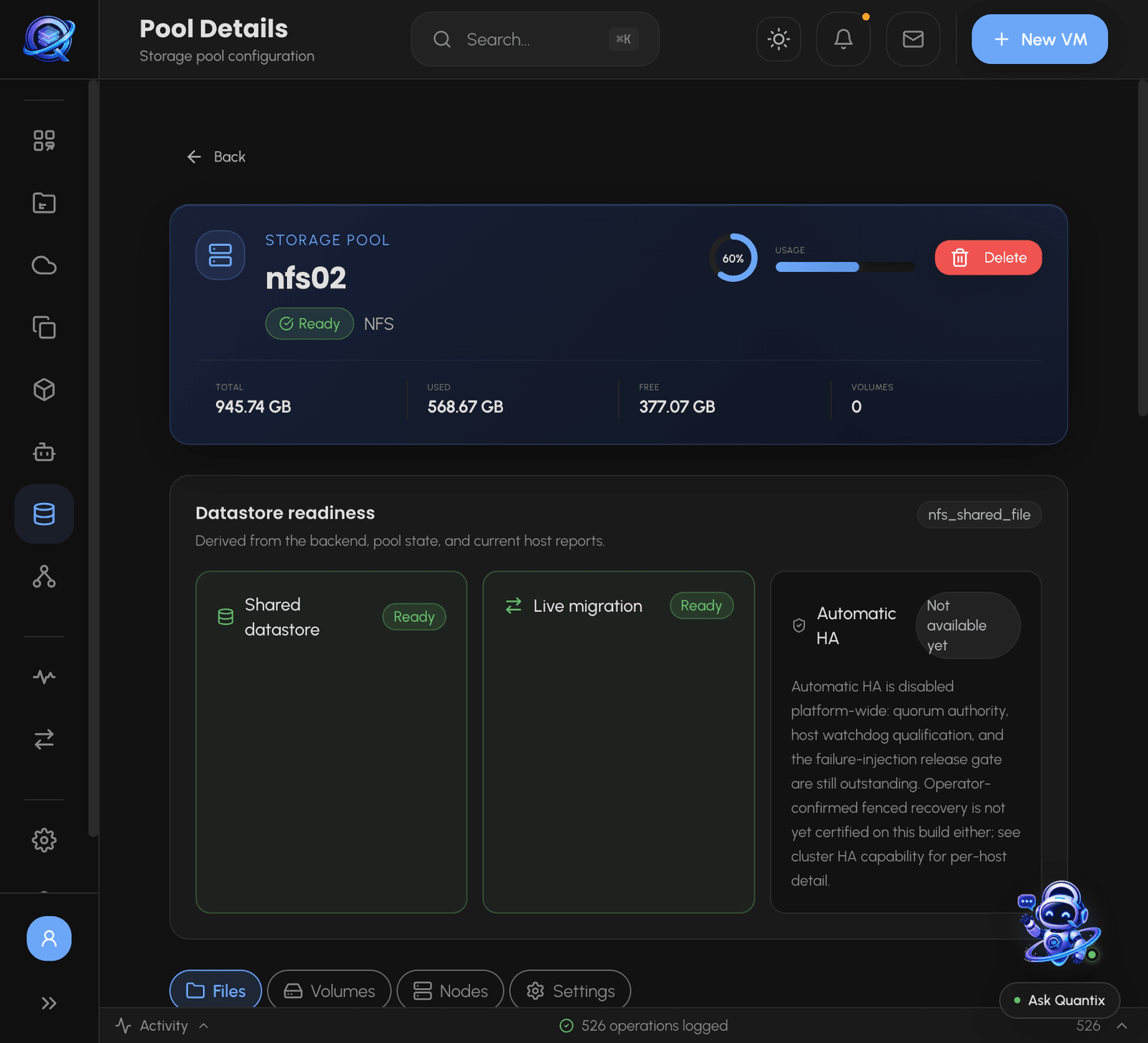
The top of the page shows the pool's status and type, a usage ring, and its Total, Used and Free space. Free is the space the hosts report as available.
Below it, the Datastore readiness panel tells you what the pool can do, worked out from the pool's type, its state and the hosts' latest reports:
| Row | Ready means |
|---|---|
| Shared datastore | The pool can safely hold disks that several hosts use. Only NFS 4 pools can. |
| Live migration | VMs on this pool can move between its hosts. Needs at least two healthy hosts and NFS 4.1 or 4.2. |
| Automatic HA | Automatic restart of VMs on another host. Shows Not available yet in this release. |
When a row is Not ready, any reasons are listed under it. iSCSI and Local Directory pools never support live migration.
To see each host's view of the pool — its mount, its connection and the capacity it sees — open the Settings tab and read Node Status. See Check that every host can reach a pool.
Reconnect a pool
After you fix a storage or network outage, click Reconnect. Quantix retries setting the pool up, host by host, until one host succeeds; the other assigned hosts then mount it again on their own. Check Node Status afterwards. Reconnect is offered while the pool is Error or Pending — on its page, and in the … menu on its card.
A Degraded pool does not offer Reconnect: each host that lost the pool retries by itself once it can reach the storage again.
Troubleshooting
| What you see | What to do |
|---|---|
| The usage bar is red | Free space on the NAS or disk, move VM disks to another pool, or add capacity. |
| A host shows Degraded under Node Status with no reason | That host sees no free space on the pool. The pool is full. |
| A host shows Degraded, reason keeps re-checking state the server revoked | That host's NFS client is stuck in a recovery loop with the server, and disk I/O from it to every pool on that server is slow. It stops only when the host's NFS client restarts: put the host in Enter Maintenance Mode to move its VMs, then use Reboot Host. Reconnect does not help. |
| A host shows Degraded, reason NFS lease ... expired or requests ... are taking N s on average | Requests from that host to the NFS server are too slow to keep the host's storage lease, or the lease has already lapsed. VMs on that host can lose their disk locks; a VM that does pauses on its next write. Check the network path between that host and the NFS server. The message clears by itself once requests are fast again. |
| The figures look out of date | Click Refresh, or reopen the pool. |