

Power and console
Power operations
Power actions are in the VM's header, on its Actions tab, and in its menu under VM Operations:
| Action | What it does | When available |
|---|---|---|
| Power on | Starts the VM. On a failed start the Actions tab offers Retry power on. | Stopped, suspended or failed |
| Shut down | Shuts down gracefully: the guest operating system is asked to shut down (through the Quantix Agent if it is running, otherwise the ACPI power button) and gets up to 30 seconds. | Running |
| Power off | Force power off: cuts power at once, like pulling the plug. Unsaved work in the guest is lost. | Running or paused |
| Reset | Hard restart, like pressing the reset button. | Running |
| Pause / Resume | Freezes the VM in memory, and continues it. | Running / paused |
| Suspend to Disk (Suspend on the Actions tab) | Saves the VM's memory to disk and stops it. Power on later resumes exactly where it left off. | Running |
Hover a button to see what it does. Prefer Shut down: applications in the guest close properly. Use Power off for a guest that ignores the shutdown request or has stopped responding.
Power off and Reset on a single VM act immediately, without asking. Powering off a suspended VM asks first (Discard the suspended session?), because it throws away the saved memory: choose Discard & power off only if you do not need it.
Preview a stop through an AI agent
An agent requesting graceful shutdown needs the VM stop permission and access to operation receipts. A VM read permission provides that access.
Before asking an agent to stop a VM, have it call vm_power_preview with the VM ID and action: stop (graceful shutdown) or action: force_stop (power off). The agent needs VM → Read permission. The preview names the VM and host, describes guest and saved-memory effects, explains what keeps running, and lists any current admission blockers. It changes nothing.
An appliance-guard override preview checks the same typed VM name, reason and administrator re-authentication as the action. It does not apply the override or record an action. API keys and agents cannot override an appliance upgrade guard.
Review those effects before authorizing vm_power. A passed preview does not guarantee shutdown: the action checks again, and host reachability, live power state and guest response can still prevent it. Use vm_start_preflight when previewing a start. These previews are available through the agent tools; the power buttons keep their existing confirmation behavior.
Follow a graceful shutdown
Shut down returns a receipt while the VM is Stopping. The Activity view and VM page follow that operation after you navigate away or reload. Acceptance means the shutdown was requested; Completed means the guest has stopped. A shutdown may already have reached the guest, so its receipt has no Abort action. Closing the page does not undo an accepted shutdown.
If the guest outlasts its grace, the receipt shows Outcome unknown and the last observed power state. It keeps following the guest; it can still complete later. If the guest is confirmed running, the VM page offers Power off. That action first shows its current effects and admission checks, then asks you to confirm the possible loss of unsaved guest work. Quantix never powers it off automatically because graceful shutdown timed out. After 15 minutes, a fresh report that the guest is still running releases Stopping back to Running and leaves the operation Outcome unknown. If the host cannot confirm its state, Quantix keeps the uncertainty visible. Power off can interrupt a pending graceful shutdown after you confirm it.
After another power action supersedes the request, its receipt stays Outcome unknown with an explanation; it does not raise a new failure alert. A refused Power off leaves the graceful shutdown tracking in place. A shutdown that reaches its tracking deadline without stopping still raises an alert.
API and MCP compatibility
Direct MCP vm_power calls with action: stop require a stable 16–128 character idempotencyKey. Calls without it are refused before anything is sent; update older agent prompts to include it and reuse the same key for the same request. Follow operation_get, then vm_get and vm_events to verify the outcome. Graceful stop needs vm:stop plus receipt read access such as vm:read; force_stop needs only vm:stop. container:read alone cannot read a VM receipt.
REST POST /api/vms/{id}/stop returns 202 Accepted for work still in progress and 200 OK for synchronous completion, including discarding suspended memory. Clients must accept both and follow the returned operation ID. The synchronous response may retain the legacy “follow the operation” message and an empty status; those fields alone do not tell you the outcome.
Shut down or restart through the guest agent
With the Quantix Agent running in the guest, you can also send the request straight to the agent: Guest Operations → Shut down via guest agent or Reboot via guest agent in the VM menu, the same buttons on the Actions tab, or on the Quantix Agent tab. These need the agent; Shut down works with or without it.
In the VM list, Shut down on a row asks the guest to shut down cleanly, and waits up to 30 seconds. A guest that ignores the request stays running.
Several VMs at once
Select VMs in the VM list and use Start, Shut down or Power off in the selection bar.
Neither Shut down nor Power off acts on a suspended VM: its memory is saved to disk, there is nothing to shut down, and powering it off would throw the saved memory away. Both skip it, and the result counts it, for example "Shut down 3 VMs (1 suspended (discard their saved state per VM))". To discard a suspended VM's saved memory, power it off by itself (Discard & power off).
Power off always asks first: the dialog names the VMs (the first few, then "and N more") and says that unsaved work is lost. Confirm Power off N VMs, or cancel and nothing is sent. Power off acts on every selected VM that is not already off or suspended, including one still shutting down. VMs that are already off, suspended, or busy with another operation are skipped and counted in the result.
In the Host UI, Shut down on a selection asks first too: the dialog names the VMs, and you confirm Shut down N VMs.
Stopping the Quantix-vDC from the Host UI
When Quantix-vDC runs as a VM on the host you are signed in to, stopping that VM takes the control plane offline for every host, and only that host's Host UI can start it again. So the Host UI asks before it sends a Shut down, Power off or Shut down via guest agent to it, from a row, from the VM's page, or from the selection bar:
- The dialog says which VM is the Quantix-vDC and what stopping it does.
- Tick the acknowledgement, then confirm (Stop it anyway, or Shut down N VMs / Power off N VMs when it is part of a selection).
- Cancel, and the Quantix-vDC keeps running; the other selected VMs are still stopped.
To bring the Quantix-vDC back, open the Host UI of the host it runs on, go to Virtual Machines, select it and choose Power on.
The host recognises the Quantix-vDC by the address its guest agent reports, so the question is asked only while that VM's agent is reporting addresses.
While the VMs are starting, shutting down or powering off, a notice says how many are in progress ("Shutting down 4 VMs…") and the bar's power buttons are unavailable. A clean shutdown can take up to about 30 seconds per guest. The notice then turns into the result ("Shut down 4 VMs", "Powered off 2 VMs"), which names every VM that failed and gives the reason, for example "Shut down failed: web-01: …" for a guest that ignored the shutdown request (use Power off on that VM).
Start on a selection never asks about saved memory. A VM holding saved memory that QvDC cannot prove out of date is left stopped, and the result names it with the reason. Power that VM on by itself to choose.
The right-click menu on a VM in VM List or Folder View also offers its power actions, editing dialogs, and console shortcuts. Shut down asks the guest to shut down, Power off cuts power immediately, Reset restarts the running VM, and Pause / Suspend to Disk are available while it is running.
Resync the state
If the dashboard shows a state you know is wrong, open Actions → Resync State and confirm Resync. QvDC asks the host for the VM's real state and corrects its record.
If a host cannot be reached, the resync cannot prove where the VM is, so QvDC then offers Force VM state to STOPPED?. Confirm Force STOPPED only when the host is gone for good (for example, it was removed or will not come back): QvDC records the VM as stopped without asking the host. If the host returns and the VM is in fact running there, the dashboard and the host will disagree.
Forcing a Suspended VM to STOPPED discards its saved memory. The next Power on starts the VM fresh, on whichever host it is on by then; the old saved memory is never resumed. The same holds once the VM has run on another host: memory it left behind on the old host is never resumed there.
A Suspended VM whose Power on failed, or whose result was lost, can show Stopped, and so can one after a plain Resync State. Its saved memory is kept: the next Power on resumes it.
Sometimes QvDC cannot tell whether a VM's saved memory on its host is still current: the host left the cluster and was added back since, its host software was updated or rolled back since, or its software predates the check that stops suspends made outside QvDC. QvDC then never deletes that memory by itself. Power on asks instead (This VM has saved memory):
- Resume saved state continues from the saved memory. Choose it only if the VM has not run anywhere since its memory was saved; resuming old memory over a newer disk can corrupt the disk.
- Discard saved state and cold boot deletes the saved memory on the host and starts the VM fresh, like after a power loss.
Either choice is recorded in the VM's events with your name. If the host holds no saved memory, Power on just starts the VM. If QvDC knows the saved memory is out of date but the host cannot confirm it at that moment, Resume saved state is refused: try again once the host answers, or discard.
A VM can also show Stopping or Suspended with "outcome unknown" when its host stopped answering in the middle of the command. It updates by itself when the host reports again. If the host stays down, use Resync State as above.
If you close the browser during a power action
Once Quantix-vDC has sent a power action to the host, closing the browser tab or losing your connection does not stop it. The host finishes the action. When you open the VM again, it shows the result, and the action is listed with its outcome in Activity.
The dashboard waits about 5 minutes for Power on, Power off, Reset and the clean shutdown and restart actions, and about 30 seconds for Pause and Resume. Suspend to Disk writes all of the VM's memory to the host's disk, so it waits in proportion to the VM's memory: about 30 seconds plus 26 seconds per GiB, for example about 2 minutes for a 4 GiB VM and about 7 minutes for a 16 GiB VM, and never more than 25 minutes. If the host has not finished within that time, the action ends there and shows "outcome unknown". The VM then updates by itself when the host reports its state.
A suspend that runs longer than 5 minutes first shows as "outcome pending" in the dashboard, then as completed once the host has saved the memory. One that runs longer than 25 minutes shows "outcome unknown" while the host is still saving, then completed once it has finished; the result is also listed in Recent Tasks. You do not need to send it again.
Open the console
The console shows the VM's screen and takes your keyboard and mouse, as if you sat at the machine. It needs a running or paused VM.
If the VM is stopped, Console offers to start it: click Start & Open Console and the console opens once the VM is running. This needs permission to start the VM; without it, Console stays disabled and its tooltip says why.
- On the VM's page, click Console in the header.
- In Console Access, choose:
- Web Console: in the browser, nothing to install. Choose Open in Modal (a window over the page) or Open in New Tab (full screen in a new tab).
- QvMC Native Client: the desktop console app. Click Open in QvMC. If QvMC is not installed yet, request the installer from Quantix support (see QVMC), install it, and launch it once so your browser can open it.
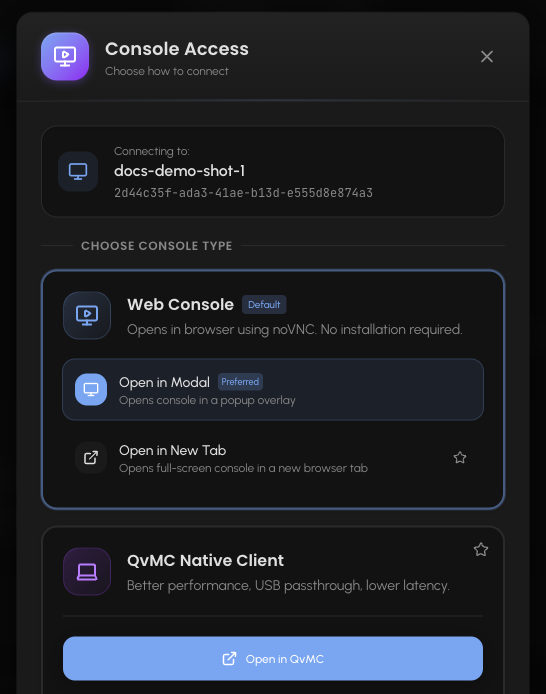
Click the ★ next to a choice to make it your default. Open Console on a VM list row, and Web Console in the VM menu of the lists, open your default directly, without the dialog: the web console (in the console workspace, where several consoles can stay open as tabs, or in a new browser tab if that is your preferred mode), or QvMC if you chose it. On the VM's page, Web Console in the VM menu opens the Console Access dialog, and QVMC Console opens QvMC directly.
If QvMC does not start, Quantix shows QvMC did not open. Install it, or launch it once, then try again.
The web console toolbar
Console links do not sign you in. Sign in to the dashboard or Host UI before opening a web console; QvMC uses its own saved sign-in. If a connection expires before it opens, use Reconnect to request a new connection.
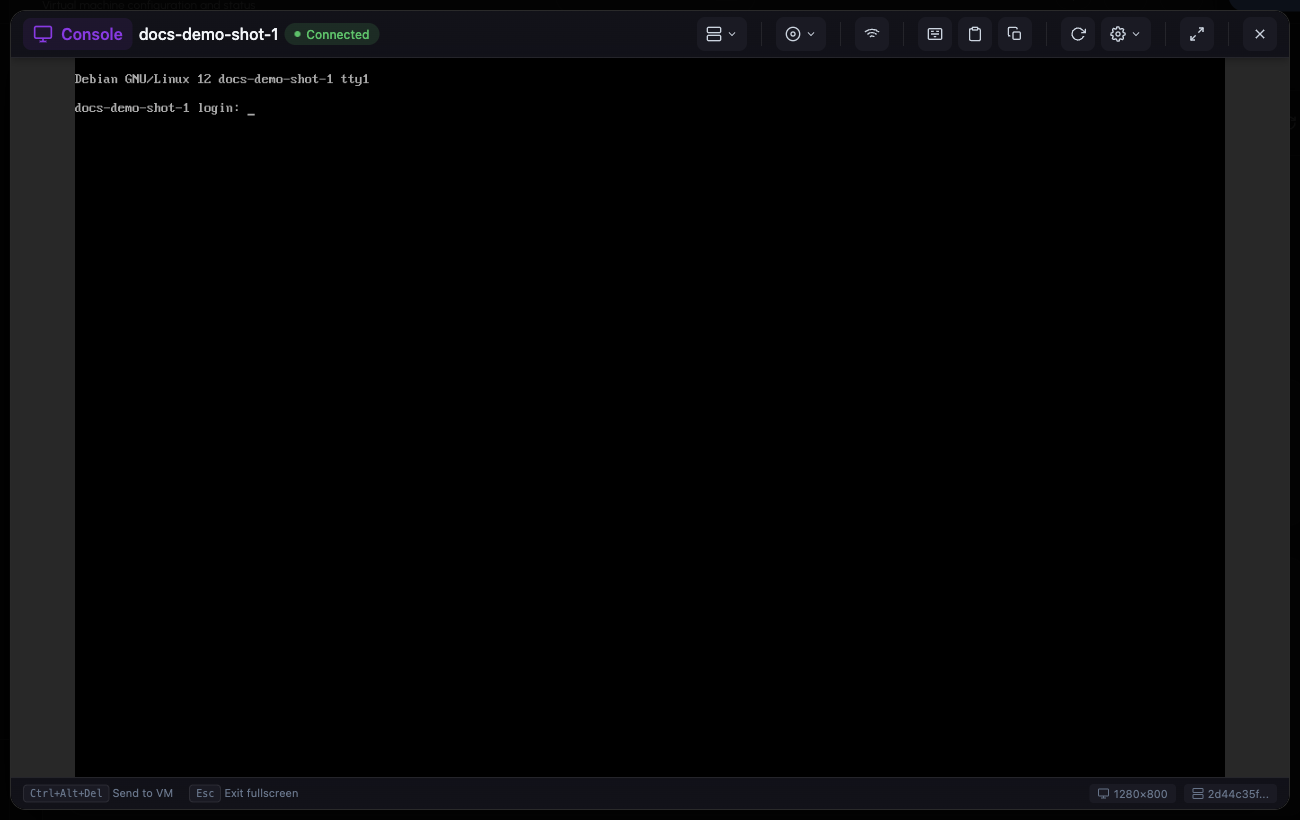
In a wide window every toolbar button shows its name. In a narrower window, or in the console workspace, the buttons show only their icons; point at one to see its name. The buttons stay in place while you point at them, and Ctrl+Alt+Del sits apart from the clipboard buttons, behind a divider.
| Control | What it does |
|---|---|
| VM | Power On, Shut Down Guest, Restart Guest, Force Power Off. They act at once, without asking. |
| CD-ROM | Shows the VM's CD-ROM drives with Eject or Mount, and Mount ISO... to mount an ISO by its path on the host. |
| Network | Connect or disconnect each network adapter, like unplugging the cable. |
| Ctrl+Alt+Del | Sends Ctrl+Alt+Del to the guest. |
| Paste | Types your clipboard's text into the guest. |
| Copy | Copies the guest's clipboard text to yours. |
| Sync On/Off | Turns automatic clipboard sync in both directions on or off. It is off by default and saved in this browser. |
| Reconnect | Reconnects the console. |
| Quality | Auto (Recommended), High Quality, Balanced or Low Bandwidth, plus Scale to Fit and Show Local Cursor. |
| Fullscreen | Browser full screen. |
| Close | Closes the console (Escape). |
If the VM's console has a display password, Quantix asks for it (Password); tick Remember for 60 minutes to avoid typing it again. Paste and Ctrl+V type supported characters as keystrokes, at about 30 characters a second, so 2,000 characters take about a minute. Wait for the Pasted confirmation before typing in the console yourself. Printable ASCII characters (unaccented letters, digits, punctuation and space), Tab and Enter are supported; other characters, including accented letters such as é, are skipped and reported. Paste into a VM from one console at a time. Pastes from the same browser wait for each other, but a paste into the same VM at the same moment from another computer, or from the Host UI, can drop characters. Automatic clipboard sync stays off until you turn Sync On on.
Troubleshooting
| Message | What to do |
|---|---|
| VM Not Running | Start the VM, then open the console again. |
| Host Unreachable | QvDC cannot reach the VM's host. Check the host in Inventory → Hosts. |
| Connection Failed | Click Retry Connection. |
| Shut down via guest agent is greyed out | The Quantix Agent is not connected in this VM, or the VM is not running. Use Shut down instead. |
| Shut down did nothing | The guest ignored the shutdown request. Shut it down from inside the guest, or use Power off. |
| Shut down or Reboot fails with "Use Power Off (force stop): QEMU has not answered…" | The VM's process on its host has stopped responding, so the request cannot reach the guest, and nothing was sent. Check the VM banner first. If it says Waiting on storage, restore the named server or mount; Power off cannot complete until storage returns. Otherwise, use Power off to end the process. |
| Shut down or Reboot fails with "Try again shortly: another operation holds…" | The VM is busy with another operation, for example a migration or a snapshot. Nothing was sent. Wait for it to finish, then try again. |
When a VM is paused after a storage problem
A Paused: storage banner explains why the host held the VM. Read the pool, server and observed time when available. An unknown pool or unobserved start is shown explicitly.
- For storage I/O error, follow the banner before choosing Resume. For NFS, restore the storage server or mount. For other pool types, check free space and device health. The host checks its storage safety rules again before continuing the VM.
- If the banner says the storage lease may have been lost, Resume is disabled. Restoring the server alone does not clear this instance's hold. Use Power off to stop the old instance, then Power on through QvDC. These actions keep the existing storage ownership and activation checks; a refused action reports the condition that still needs attention.
An ordinary user pause or migration pause is not called a storage I/O error.