

Activity log
The activity log is QvDC's record of administrative actions and sign-ins: who did it, what it affected, where they connected from, and whether it worked. Entries cannot be edited or deleted from the dashboard or the API. Open it from Admin Panel → Rules & records → Activity log (page title Activity log).
The log records account creation, changes and deletion; password and passkey resets and identity-provider unlinking; role creation, permission changes, deletion and assignments; API key creation, revocation and deletion; and organization profile, settings and branding changes. It also records SSO provider changes, SCIM settings, token and group-role changes, user provisioning and role changes made by SCIM, automatic rule changes, and host root-password changes. It does not include passwords, provider secrets, certificates, SCIM bearer tokens, or raw API key values.
Prerequisites
- A super administrator: an account with the admin base role.
Read the log
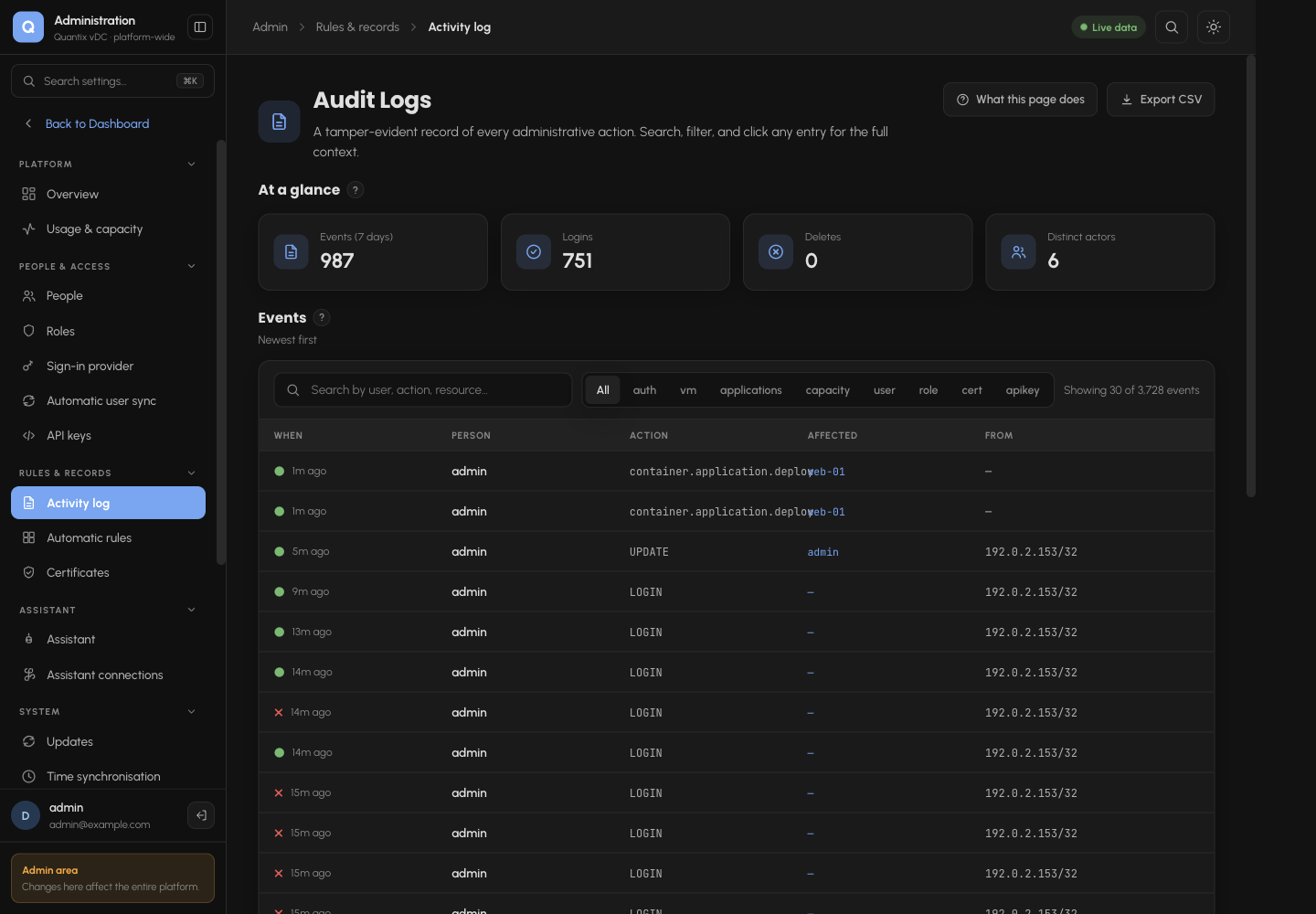
- At a glance shows totals for the last seven days: Events (7 days), Logins (successful and failed sign-ins), Deletes and Distinct actors.
- Events lists the most recent entries, newest first, with Time, Actor, Action, Resource, Result and Source IP. Result shows the recorded outcome, including failures and unknown outcomes.
- Click an entry to show its Event detail in a panel on the right: actor, action, result, the affected resource, IP address, user agent and exact time. When the record gives a cause (for example
invalid passwordon a refused sign-in, a refusal, or the error a failed operation hit), Reason shows it. Expand Original audit record for every original field, including recorded reasons and operation details. Use Close dialog or press Escape to close it.
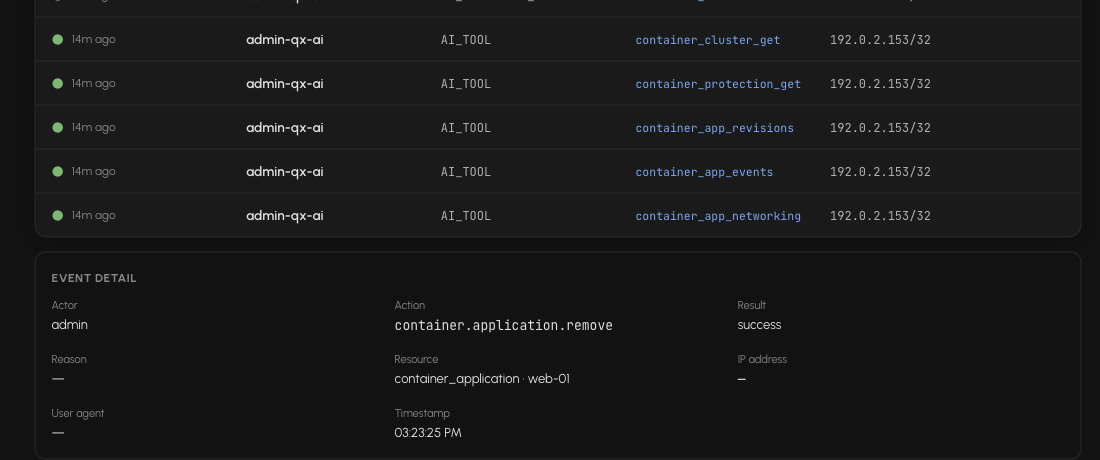
Actions the assistant takes on someone's behalf are recorded as well.
Operations on VMs, hosts and other resources
Every operation listed on the Operations page also appears here, whoever started it: a person in the dashboard, an API key or AI client, or QvDC itself. Examples are starting, stopping, rebooting, migrating or deleting a VM, and draining, updating or rebooting a host. An operation has two entries, with the operation type (for example vm.stop) as the action:
- started: written before anything changes. When you start an operation from the dashboard or the API and this entry cannot be written, the operation is refused with audit.unavailable and nothing changes. Try again later.
- the outcome: success, failure, cancelled, outcome_unknown (the host stopped answering, so QvDC cannot yet tell whether the change happened), or interrupted (QvDC restarted while the operation was running).
The Original audit record in Event detail preserves the operation id, its message, and for a dashboard user the sign-in session. An operation that is part of a larger one, such as each VM shut down by a host drain, names the larger operation. Work QvDC starts on its own is listed under System, with the kind of work named. When someone settles another person's operation, for example by cancelling it, the entry names the person who cancelled it and says whose operation it was.
Other changes made in the dashboard
A change made in the dashboard that is not an operation is listed as an API call pair, the same as a change made with an API key. Examples are fencing a host, starting or stopping a Mac VM, editing a security group, and acknowledging an alert. The pair is started, written before anything changes (the change is refused with audit.unavailable if it cannot be written), then the result. Both entries name the signed-in user and their session. Viewing pages, previews and checks that change nothing add no entry. Signing in and signing out are never refused: if the activity log cannot be written, you are still signed in or out.
Actions taken with an API key
Every entry caused by an API key carries a line under Actor that names the account the key acts as, the key, and how it was used — for example Service: deploy-bot · key ci-pipeline · MCP. MCP means an AI client made the call through the MCP endpoint; API means a script called the API directly. The line ends with a short job id that groups every entry from one request or AI tool call. The Event detail of such an entry also shows the key, channel and full job id, and for an AI client the MCP tool. The Original audit record preserves the client and session fields.
API keys add these entries of their own:
- API call — two for each change made with an API key: started, written before anything changes (a change whose entry cannot be written is refused, so none is made unrecorded), then one with its method, path, result and duration, under the same job. A change to a VM also records the VM's name as it was before the change, so a deleted VM can be found by the name it had. Calls that hand out access — a VM or host console, a VPN client configuration, a file downloaded from a storage pool — and every read of Admin Panel data or the system logs are listed too. Other reads get no entry of their own; the key's API key sign-in entry shows it was in use.
- MCP tool call — one for each tool an AI client runs, with its arguments (secrets removed) and whether it succeeded, failed or was denied.
- API key sign-in — a key was accepted. A key that keeps working from the same address, or the same AI session, is listed once every 15 minutes, so a script that polls does not fill the log.
- API key refused — a key was turned down, with the reason: unknown, malformed, revoked, expired, wrong secret, its account suspended, its account no longer allowed to use it (owner_denied), or QvDC briefly unable to check the account (authorization_unavailable; the key itself may be fine). A key refused at the MCP endpoint shows the AI client's address. Repeated refusals with the same reason, key and address are counted into one entry per minute; the entry shows how many there were. Only the key's visible prefix is recorded, never the key itself.
- SCIM request refused — your identity provider's sync asked to read, change, deactivate or add to a group an account it did not create, or to deactivate your last administrator. The entry names the SCIM token, the account, the request and the reason. Many of these from one token mean the token is being used to look for accounts; revoke it in Automatic user sync.
- MCP records dropped — some AI tool calls could not be recorded, for example while QvDC was restarting. The entry says how many and when. The changes those calls made are still listed, each with its tool and job.
Reading an entry never needs anything outside this page: the job id a script gets back in the X-Quantix-Request-ID response header is the job shown here.
Investigate an action taken with an API key
To answer "which service account deleted VM web-01, through which key and AI session, and what else did that job do?":
- Open Activity Log and type the VM's name or ID in Search by user, action, resource….
- Find the entry for the delete. Its Actor line reads, for example, Service: deploy-bot · key claude-code · MCP · job 7k2m4q9x. Select the entry: Event detail shows the MCP tool (for example
vm_delete), the AI client and its session. - Click job in that line. The list now shows every entry of that one tool call: the MCP tool call entry with its arguments and result, and every change it made.
- To see everything else the AI session or key did, click key name (that key's work) or the account name (everything the account's keys did). In Users & roles, the service account's Activity shows the same trail with its key and channel filters.
Search and filter
- Choose Resource type to show one kind of object across the whole log. auth shows login events; cert shows certificate events.
- Actor filters by username. Action accepts the exact recorded action, such as
vm.stop. Outcome filters by the recorded result. - From (local time) and Until (local time) set the time interval using your browser’s local time.
- Type in Search by user, action, resource… to narrow the list. The search matches entries across the full log.
- To follow one API key's work, click a part of its line under Actor: the account name shows everything that account's keys did, key name shows one key, and job shows every entry from that one request. Each filter appears as a chip next to the list; click the chip to remove it.
- All channels narrows the list to API or MCP entries.
The list shows up to 30 entries at a time. Use Previous and Next below the list to browse older and newer entries. Search and filters apply across the full log, so you can find an older event without paging through every row.
Export the log
- Click Export CSV.
- Your browser downloads
audit_logs.csv.
Expected result: the file contains the entries the page is showing — the search, resource, actor, action, outcome, time, channel, account, key and job filters all apply — across every page, not only the current one. Each entry has the timestamp, user, action, resource, IP address, user agent, status and details, and for an API key the key's ID and name, the account it acts as, the channel, the job, and for an AI client the MCP session and tool. Clear the filters first to export the whole log. A value that starts with =, +, - or @ is written with a leading ', so a spreadsheet shows it as text instead of running it as a formula. Open it in a spreadsheet, or import it into your own tools.
To send new entries to your own syslog collector as they happen, see Log forwarding.
Troubleshooting
I can't find an older entry — check the search text and type chip, then use Previous and Next to browse the matching entries.
Read activity on an individual host
Open the host’s Admin Panel → Activity log. Host activity shows the loaded event feed, with Level, Category, Source and message search. The count distinguishes loaded events from the host’s reported total. Search and filters apply to loaded events; use Previous events and Next events to browse 30 at a time. Click Details to see the event id, resource id and Original event record. Use Clear filters to reset the view.
The security journal banner tells you when persistence is unavailable or unknown. System diagnostics remain under System logs. Host events do not necessarily carry the same actor or outcome fields as the QvDC activity log.